0

NSX-T Installation Series: Step 2 – Add a…

NSX-T Installation Series: Step 2 – Add a…

In previous step, we deployed NSX-T manager and used few commands for post installation health check for network configuration and services status. This blog is the “Step 2” of the “NSX-T Installation series” which shows step-by-step instructions to add “Compute Manager”.


VMware Social Media Advocacy

0

VMware to use MinIO object storage in…

VMware to use MinIO object storage in…

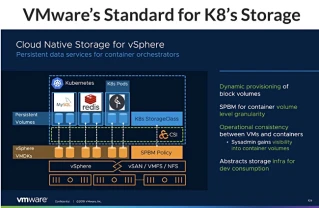
VMware will provision storage to Kubernetes Pods using MinIO open source object storage, Minio told me last week. But first some background. VMware is embracing Kubernetes containers, an alternative, more granular form of server virtualization than its own vSphere virtual machines…Read More


VMware Social Media Advocacy

0

NSX-T Installation Series: Step 4 – Create IP Pool

NSX-T Installation Series: Step 4 – Create IP Pool

In the previous step, we deployed additional NSX-T Managers and formed the Management Cluster. This blog is the “Step 4” of the “NSX-T Installation series” which shows step-by-step instructions on how to create “IP Pools” that are going to be used for “Tunnel Endpoints” later in the series…Read More


VMware Social Media Advocacy

0

Application Discovery in vSphere with VMware…

Application Discovery in vSphere with VMware Tools 11

Application Discovery in vSphere with VMware…

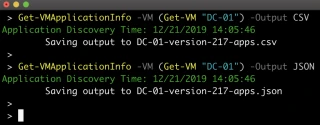
The holidays are just around the corner and hopefully everyone is taking some time off to spend with their families, I know I certainly will! As I start to wind down 2019, I like to use this time catch up on things in my backlog that I was not able to get to in the […]


VMware Social Media Advocacy

0

How to manage ESXi hosts remotely with PowerCLI

How to manage ESXi hosts remotely with PowerCLI

When choosing to administer VMware-based virtual machines (VMs), administrators have a few decisions to make when prepping their bare-metal hosts and configuring the guest OSes, the storage spaces, and switches used to communicate with each other and across networks. The choices center on how to…Read More


VMware Social Media Advocacy

0

Configure NSX-T Enhanced Data path / Network…

Configure NSX-T Enhanced Data path / Network Stack (ENS) for Nested ESXi

Configure NSX-T Enhanced Data path / Network…

After publishing my Running Nested ESXi, NSX-V or NSX-T on top of NSX-T article which actually turned out to be quite popular, I received an interesting question on whether ENS for NSX-T could also be configured within a Nested ESXi deployment? I was a little familiar with ENS, which I will explain in a second. […]


VMware Social Media Advocacy

0

vCloud Usage Meter 3.6.1 Hot Patch

Refer to below release notes before upgrade.

https://docs.vmware.com/en/vCloud-Usage-Meter/3.6/rn/VMware-vCloud-Usage-Meter-361-Hot-Patch-2-Release-Notes.html 

https://docs.vmware.com/en/vCloud-Usage-Meter/3.6/rn/VMware-vCloud-Usage-Meter-361-Hot-Patch-3-Release-Notes.html

Before Installing this Hot Patch

  • Create a backup of your vCloud Usage Meter appliance.
    —> Snapshot
  • Ensure there are no current running tasks in UM, like auto-collect or hourly reporting.
  • Verify that the SSH protocol on the vCloud Usage Meter appliance is enabled.
  • Verify that root access to the vCloud Usage Meter appliance is enabled.
  • Download the patch from VMware website
  • SCP the zip file to the appliance (use >> usgmtr account)
  • Check SHA to ensure consistency

1. Take a snapshot of Usage meter VM.

2. Open virtual machine console from vCenter server.

image

if this is not installed try: apt-get install snmpd snmp or yum install net-snmp

3. Winscp the Usage meter

image

4. SSH into VMware vCloud Usage Meter

image

image

run this command to install.

Unzip the file first

image

usgmtr@localhost:/tmp/vCloudUsageMeter-3.6.1.0-14877528-hot_patch_3> rpm –install vCloudUsageMeter-3.6.1.0-14877528-hot_patch_3.rpm

image

Post this restart VM.

Login into Console and check if everything is fine.

image

Send a test email > email alerts.

After this delete the Snapshot