After deployment first need to configure Virtual Fortigate.
Login with admin as user and password is blank
After that it will ask you to change the password
now you have to follow below commands
Port 1 –> WAN
Port 2 –> Internal
==============================Port 1 — WAN — Start ============================
#show system interface
#config system interface
#edit port1
#set mode static
#set ip x.x.x.x .0
#set allowaccess https http ssh (if you want) telnet (if you want)
##set allowaccess https http ssh telnet
#end
#show system interface port1
==============================Port 1 — WAN — End ============================
==============================Port 2 — Internal — Start ============================
#show system interface
#config system interface
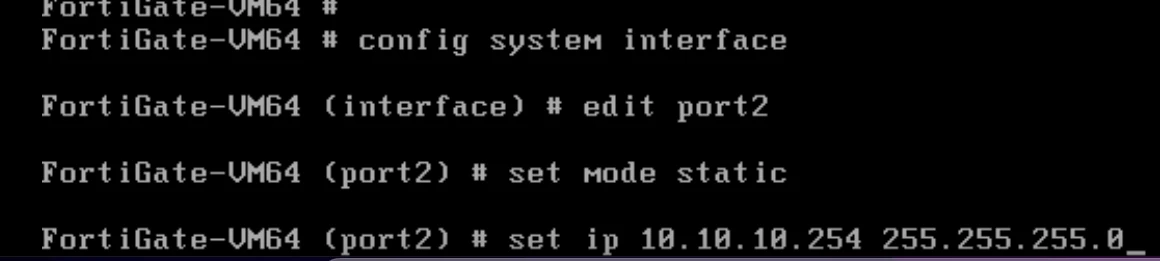
#edit port2 (Here you have to decide which port are you using for WAN and internal connectivity, in my case i am using Port 1 for WAN and port 2 for Internal network)
#set mode static
#set ip 10.10.10..255.0
#set allowaccess https http ssh (if you want) telnet (if you want)
#set allowaccess https http ssh telnet
#end
==============================Port 2 — Internal — End ============================
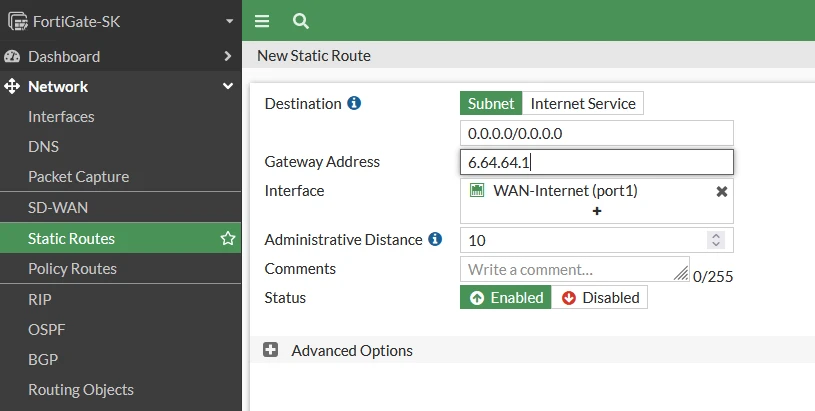
Important set Static Route where you have to define default Gateway for public interface.
Go to Fortigate firewall > Network > Static Routes > set Gateway IP for public interface
==========================Change Http and Https Port = Start ========================
Login via ssh or console into fortigate vm
first check which port is set by using below command
show full | grep admin-port —> for Http
show full | grep admin-sport —> for Https
Now change by using belwo command
config system global
set admin-port 8080 –> for http
set admin-sport 1443 –> for https
==========================Change Http and Https Port = End ========================