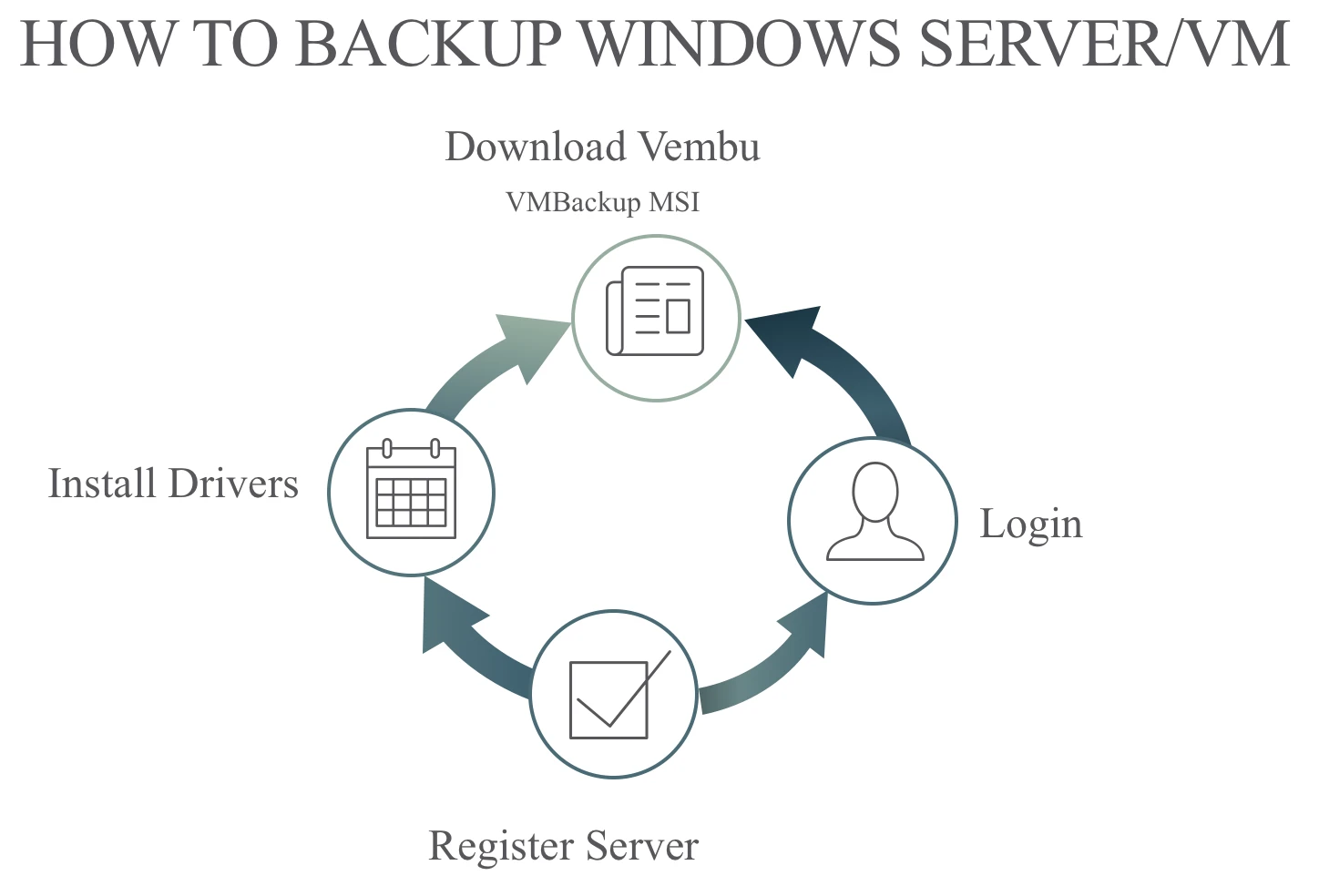
This article is about Vembu BDR suite and we will be discussing on :
“How to backup Windows Server/VM via Vembu BDR”
This supports agentless VMware vSphere Image Backup and Advanced Microsoft Hyper-V Image Backup – all in one simple installer.
Just install, configure and schedule backups to the Vembu BDR Backup Server.
Topic Outline:

Download Vembu VMBackup MSI
Install Drivers
Register Server
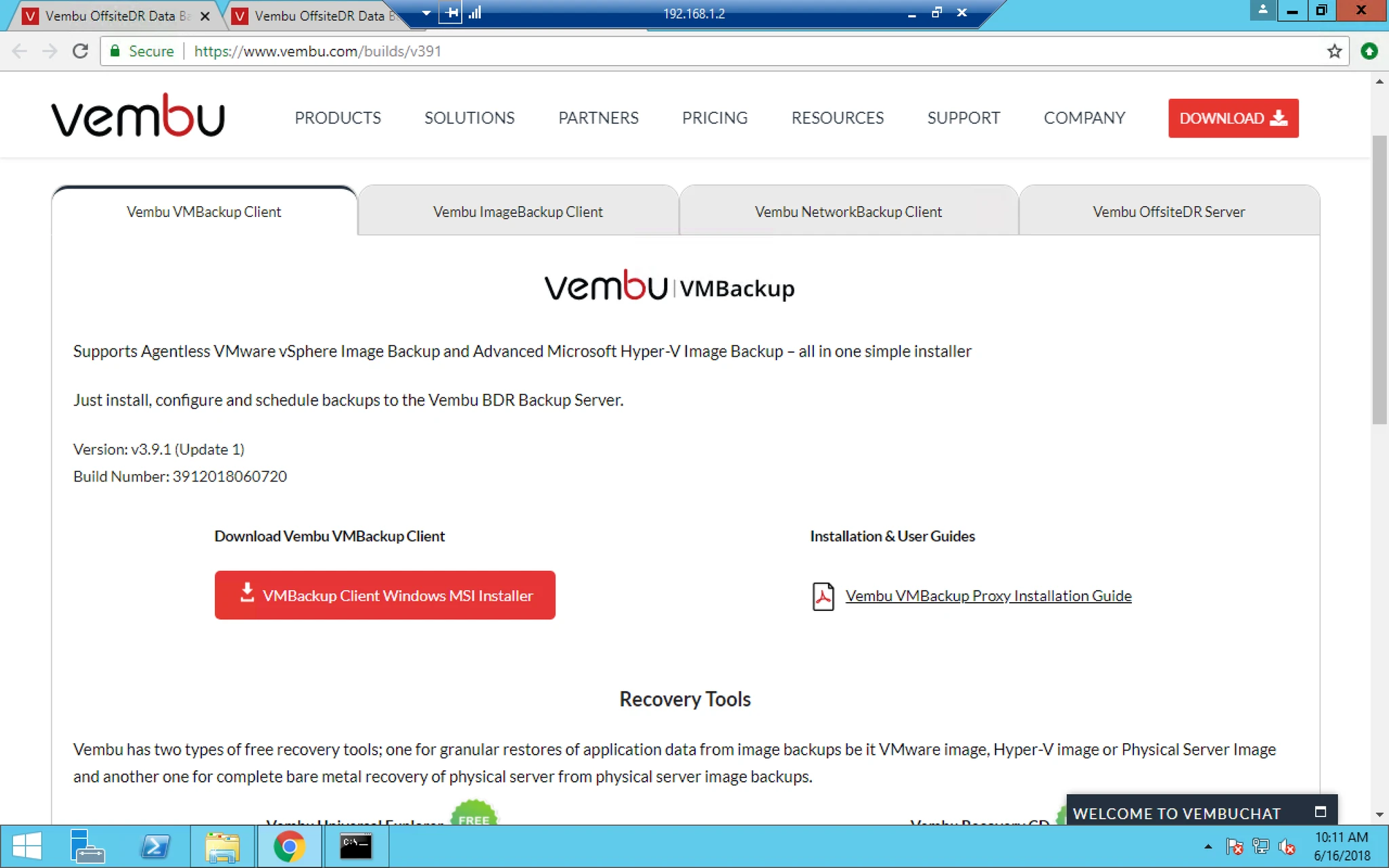
- Now Download the MSI from given below link or you can also click on download option on the top right hand-side.
2. The link is https://www.vembu.com/builds/
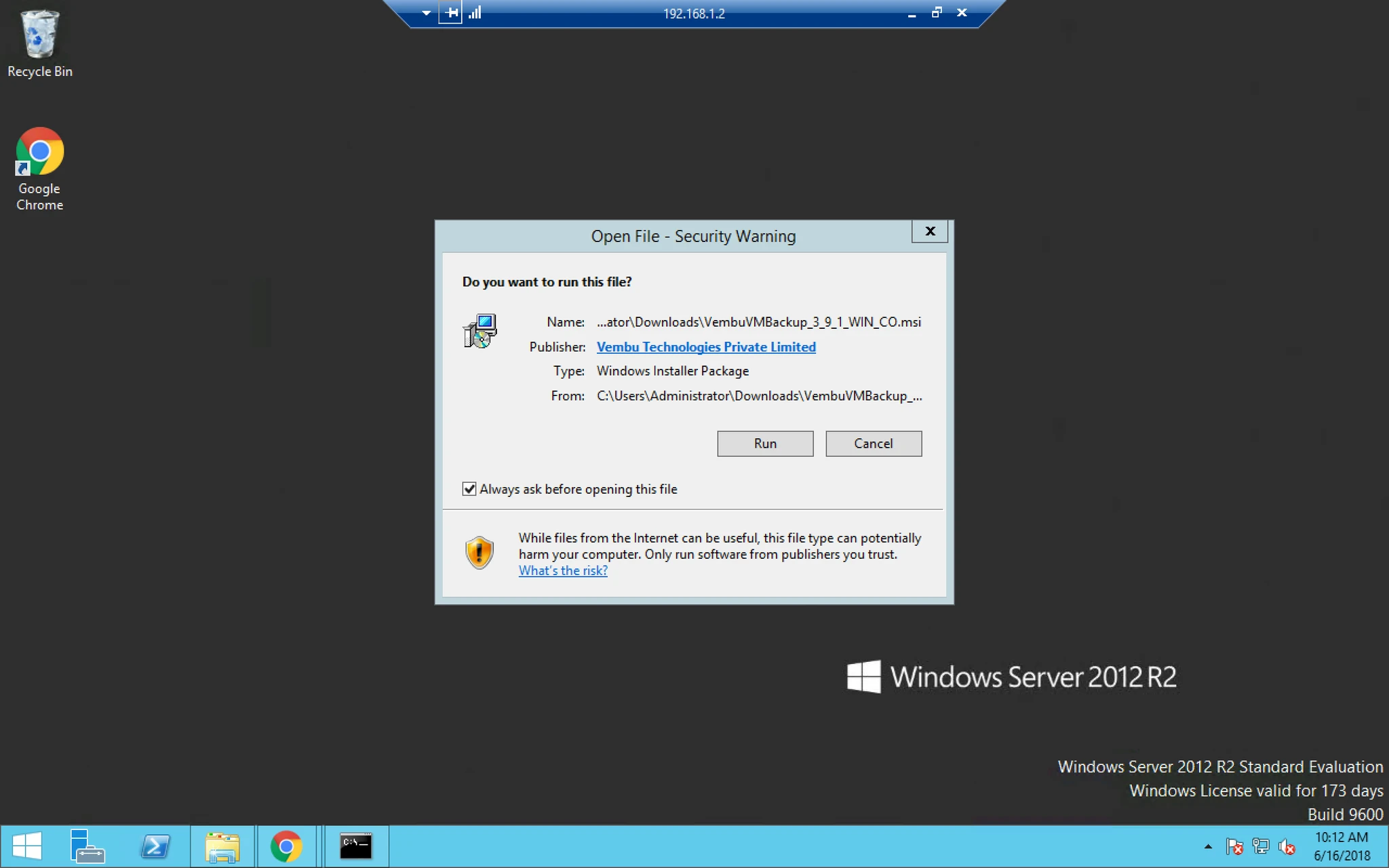
3. After Downloading the software you need to install the software by clicking on Run and follow the installation steps there after.
4. Its pretty straight forward and just need to click on next button and we need not to customize anything here.
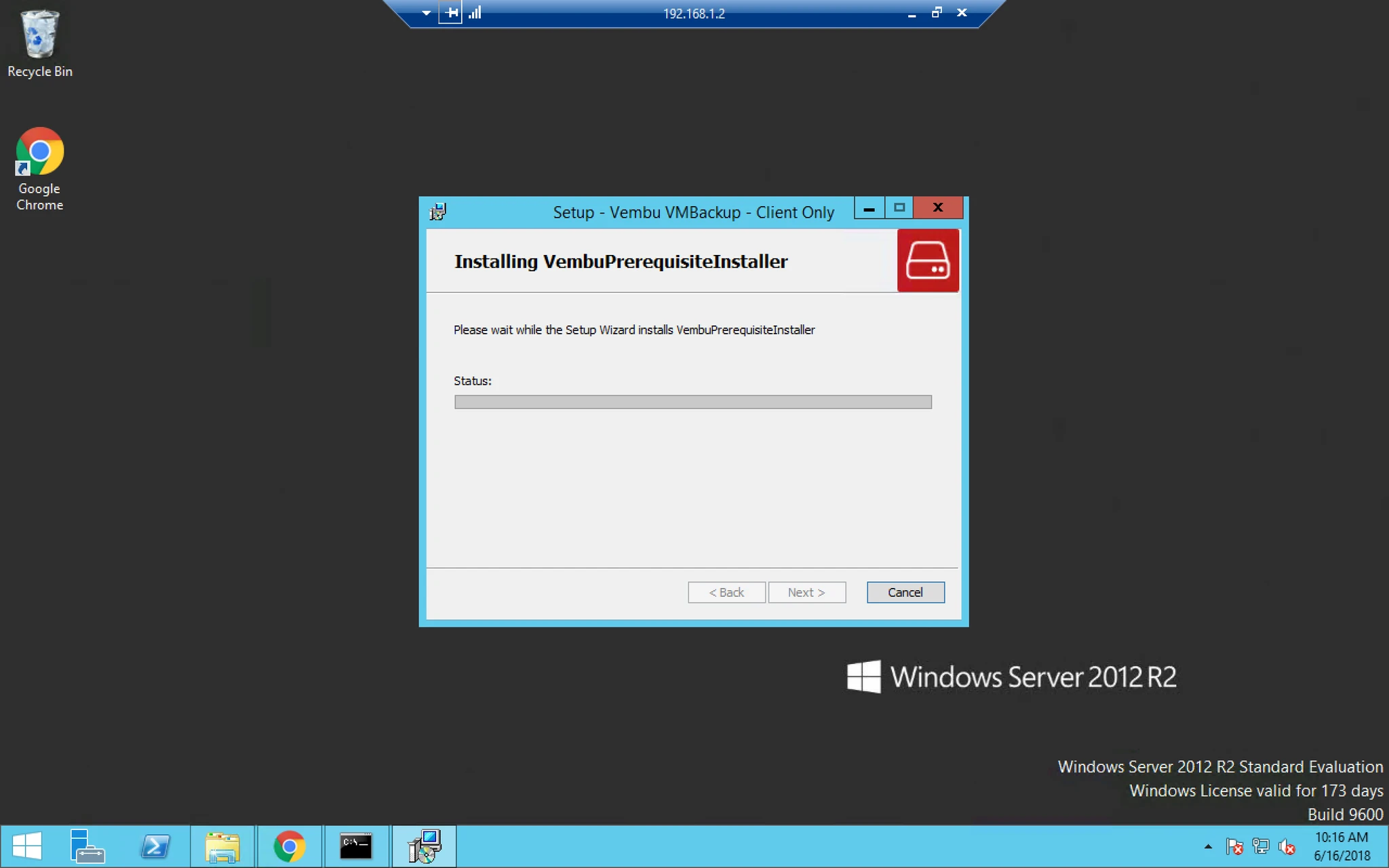
5. Now click next to continue further.
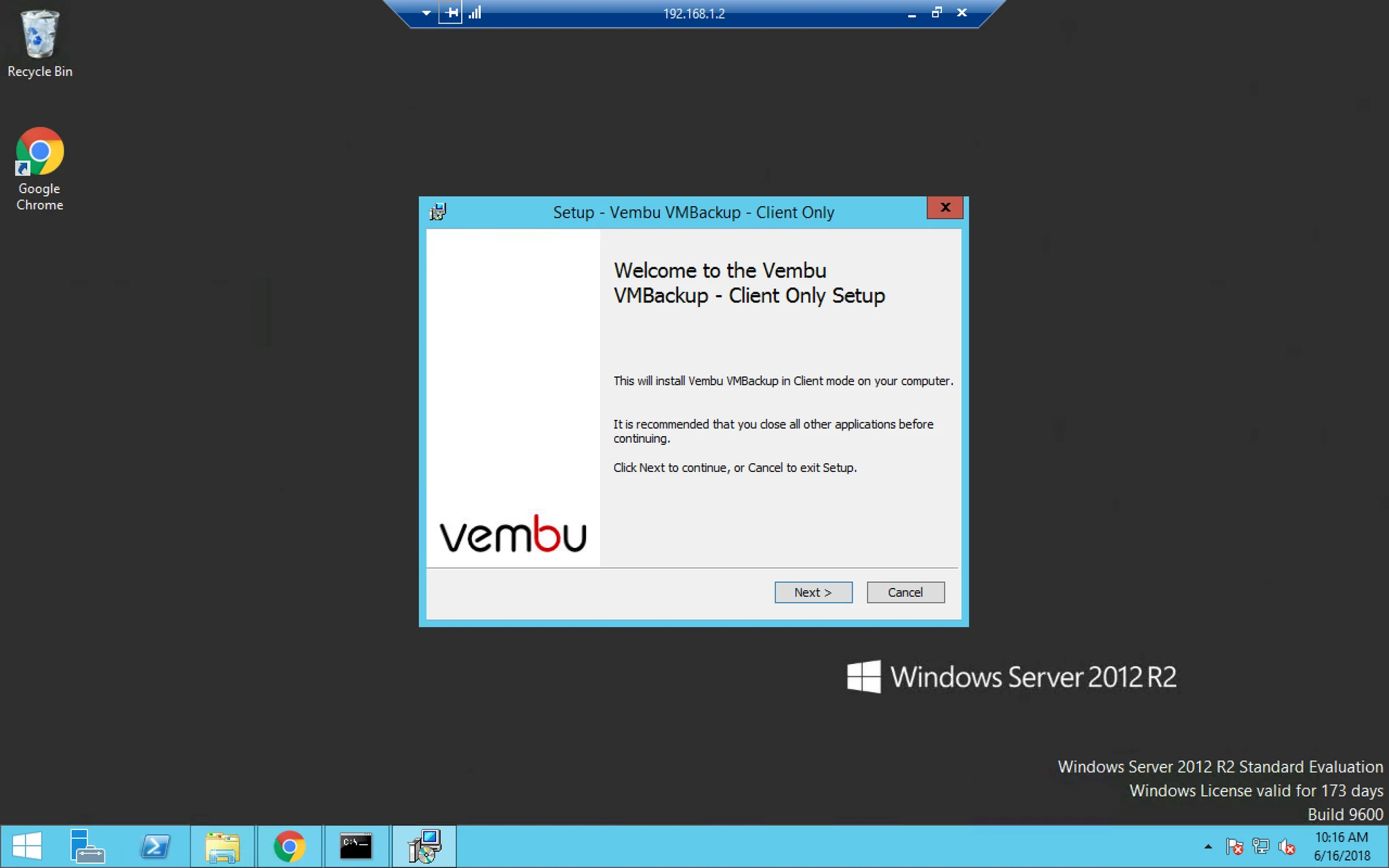
6. Accept the EULA (End User License Agreement).
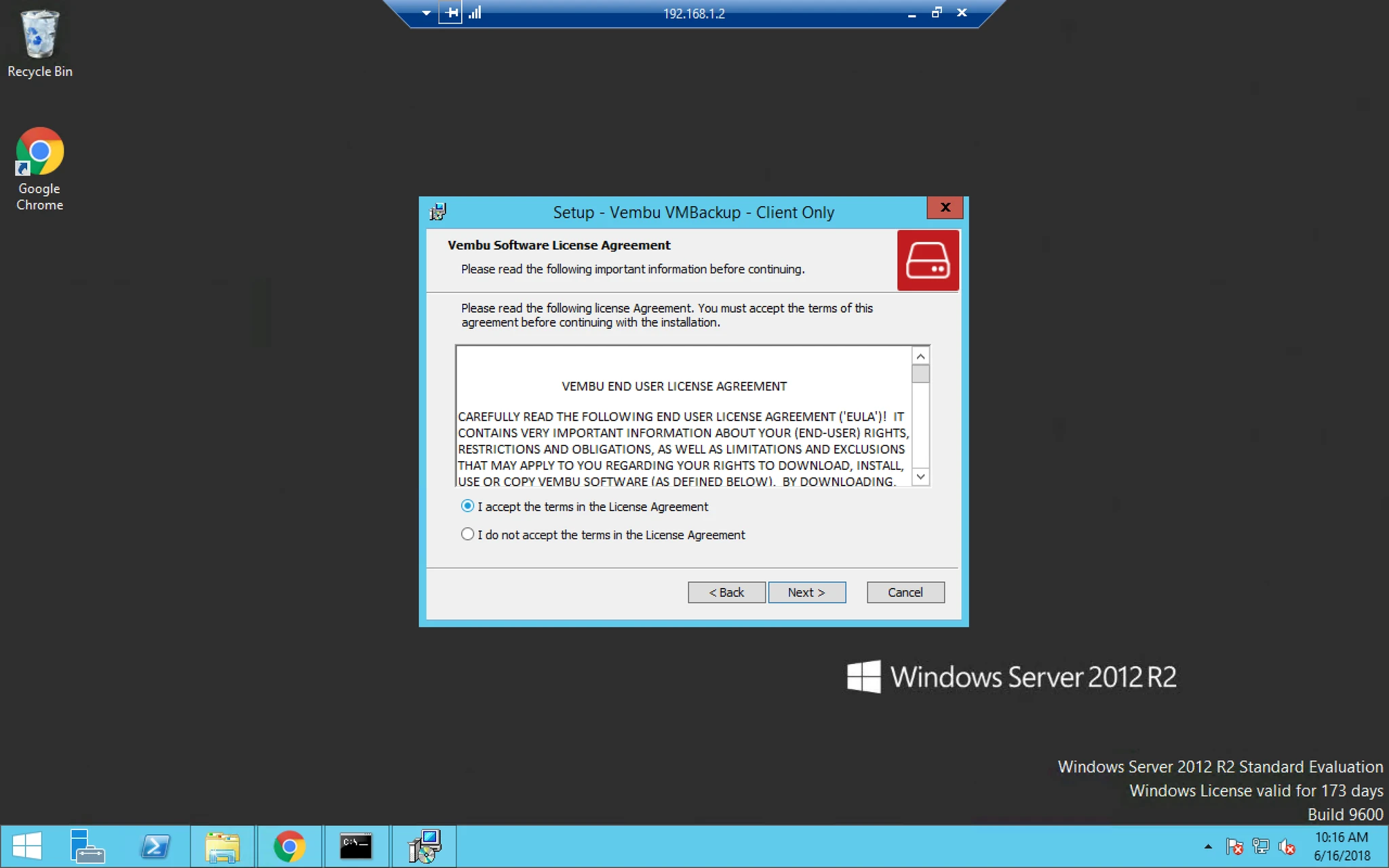
7. We have two options here either use Domain FQDN here if your system is in domain Or if your system is not in a domain then you can choose to use IP address rather.
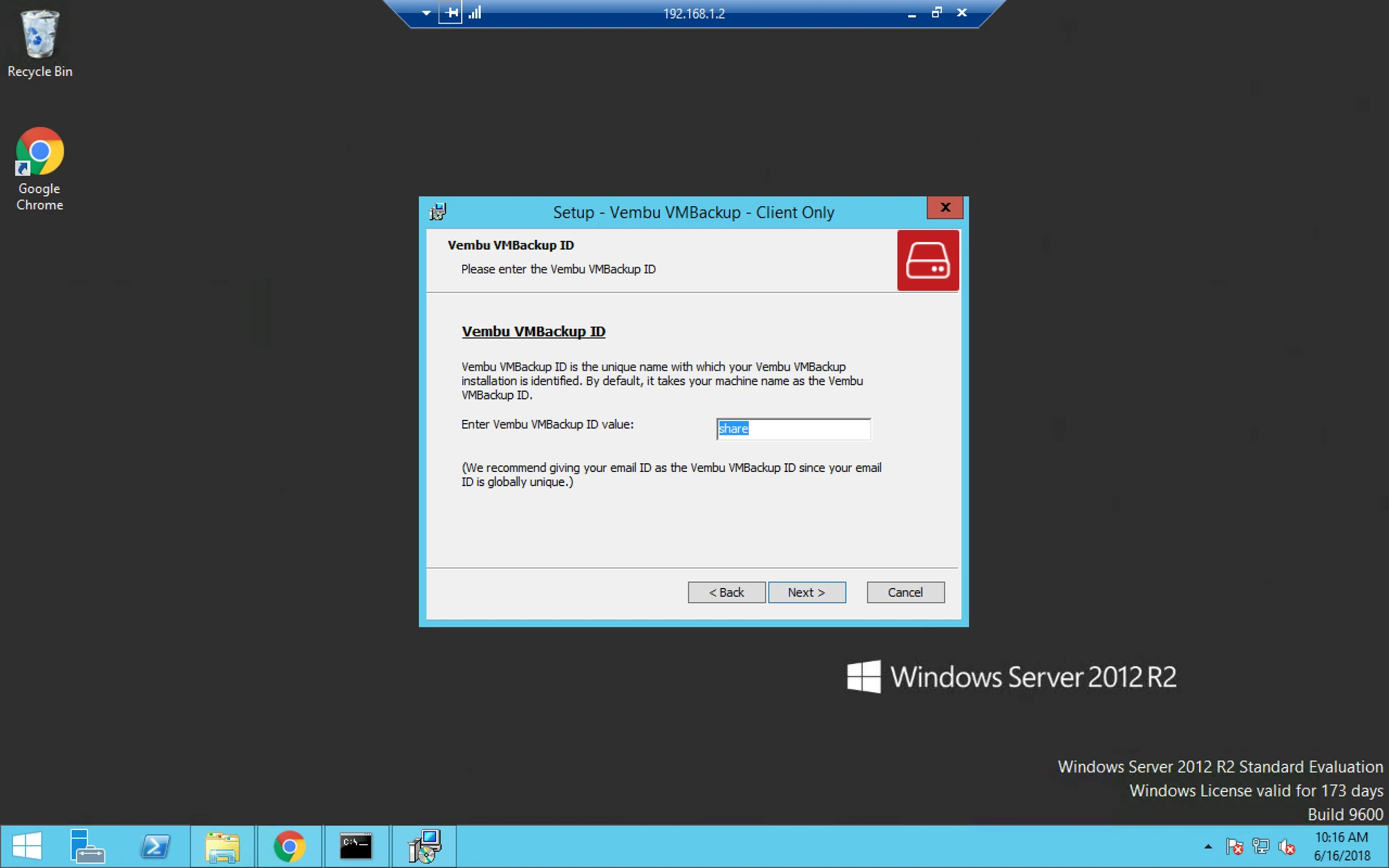
8. You can choose any one of them based upon your requirements either Typical or Custom.
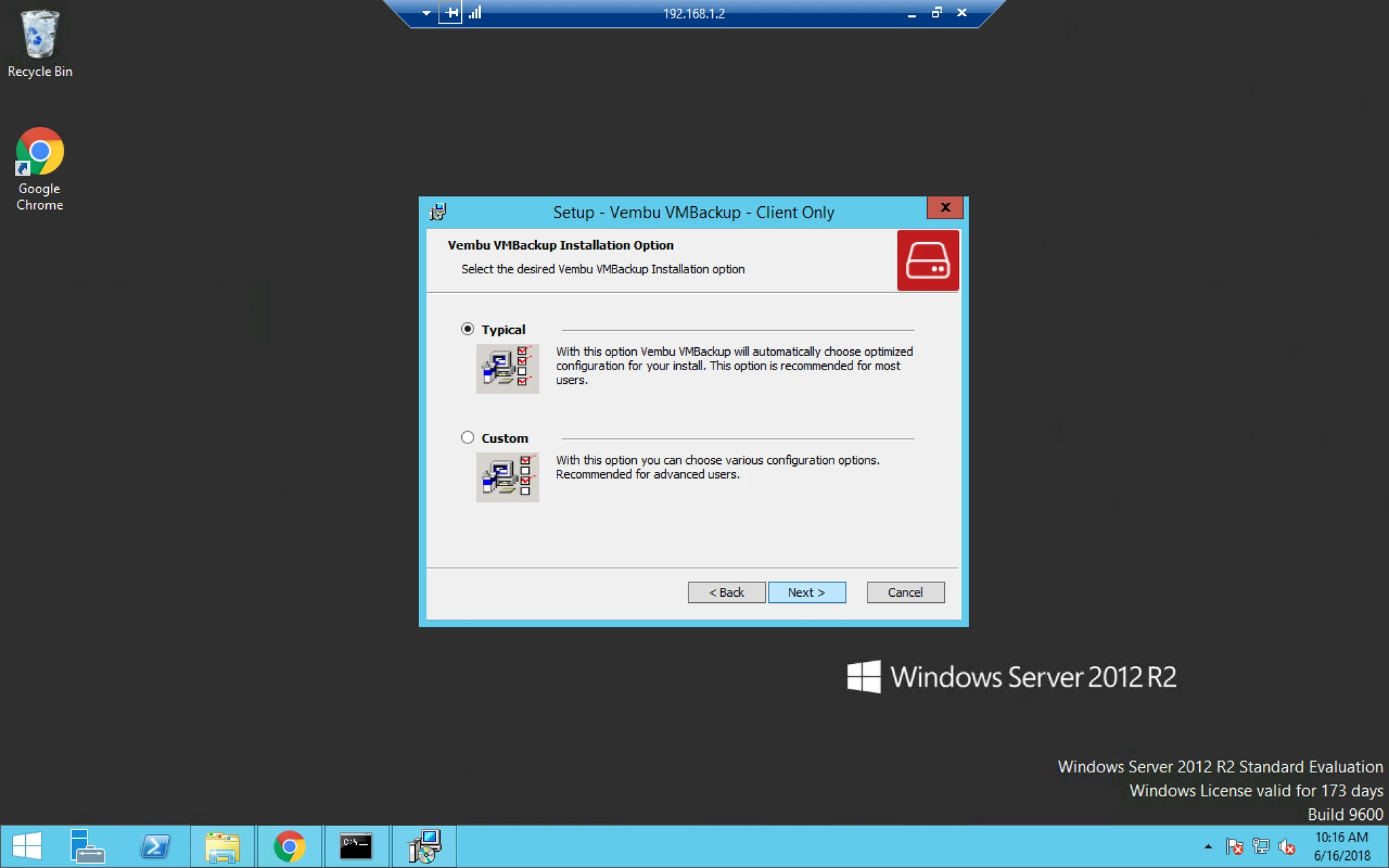
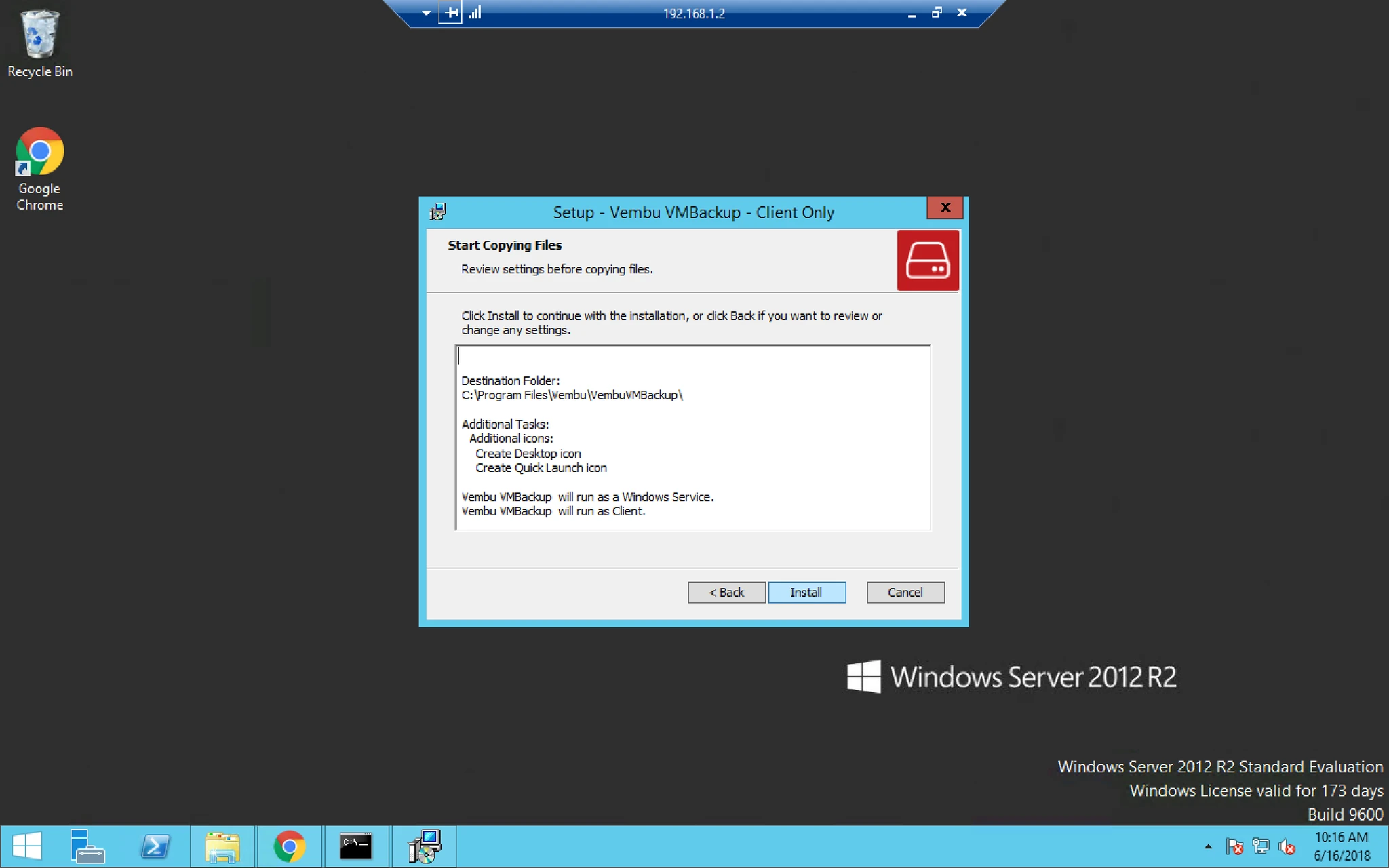
9. Finally click on install.
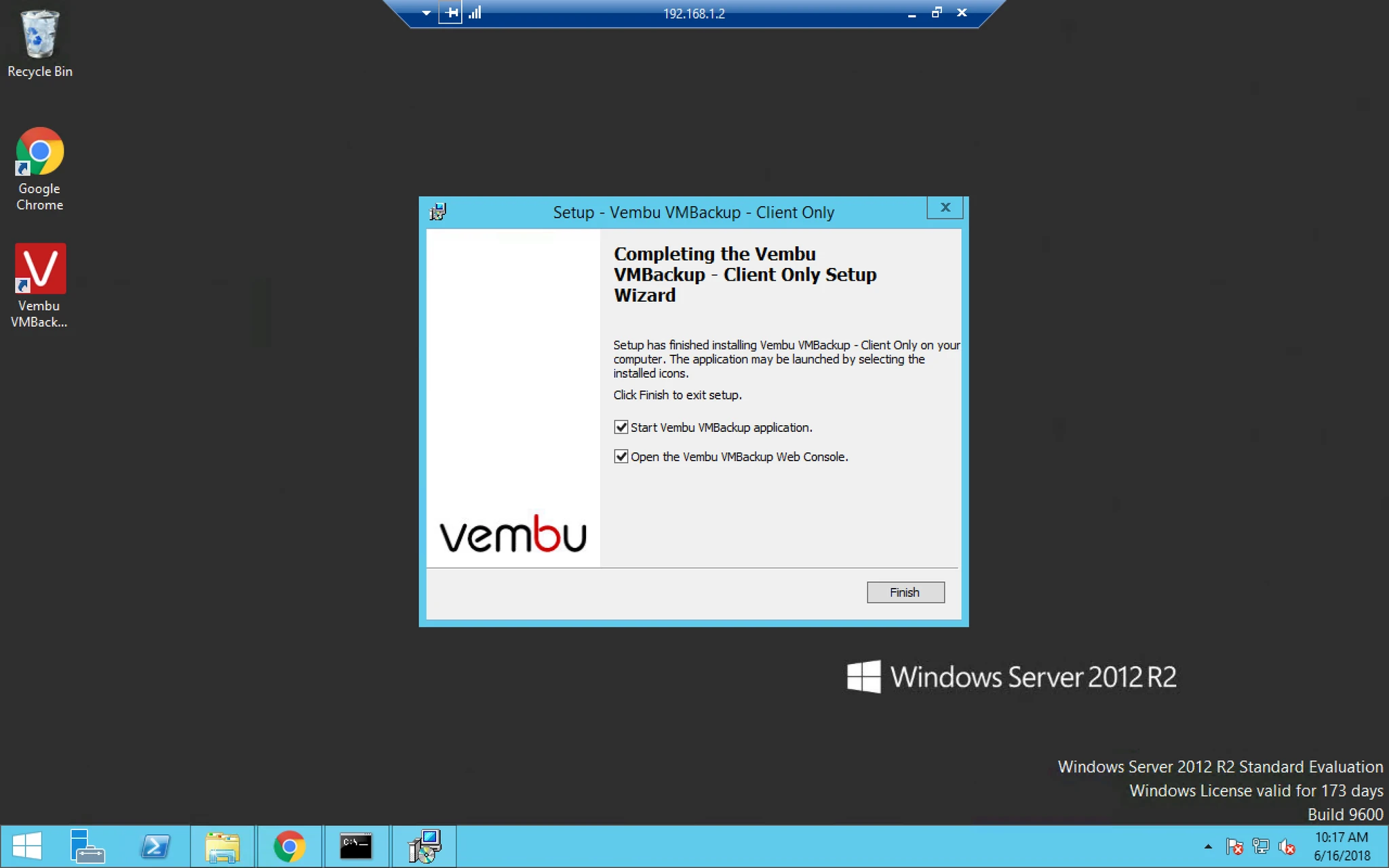
10. Once installation is finished you can select checkbox and click finish. It will open browser with Vembu VMBackup console.
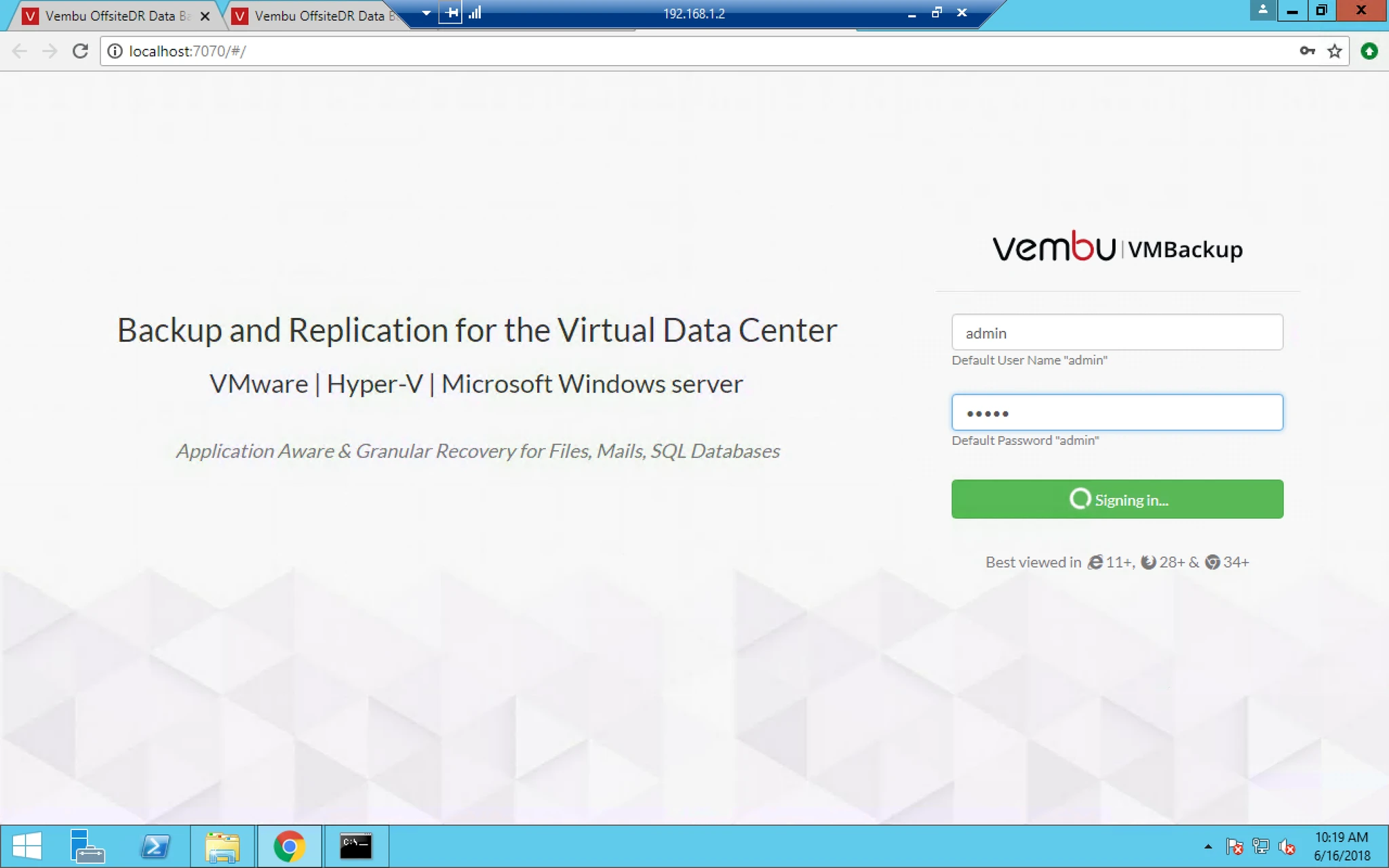
11. Now you can easily login with default username and password that is: admin and admin.
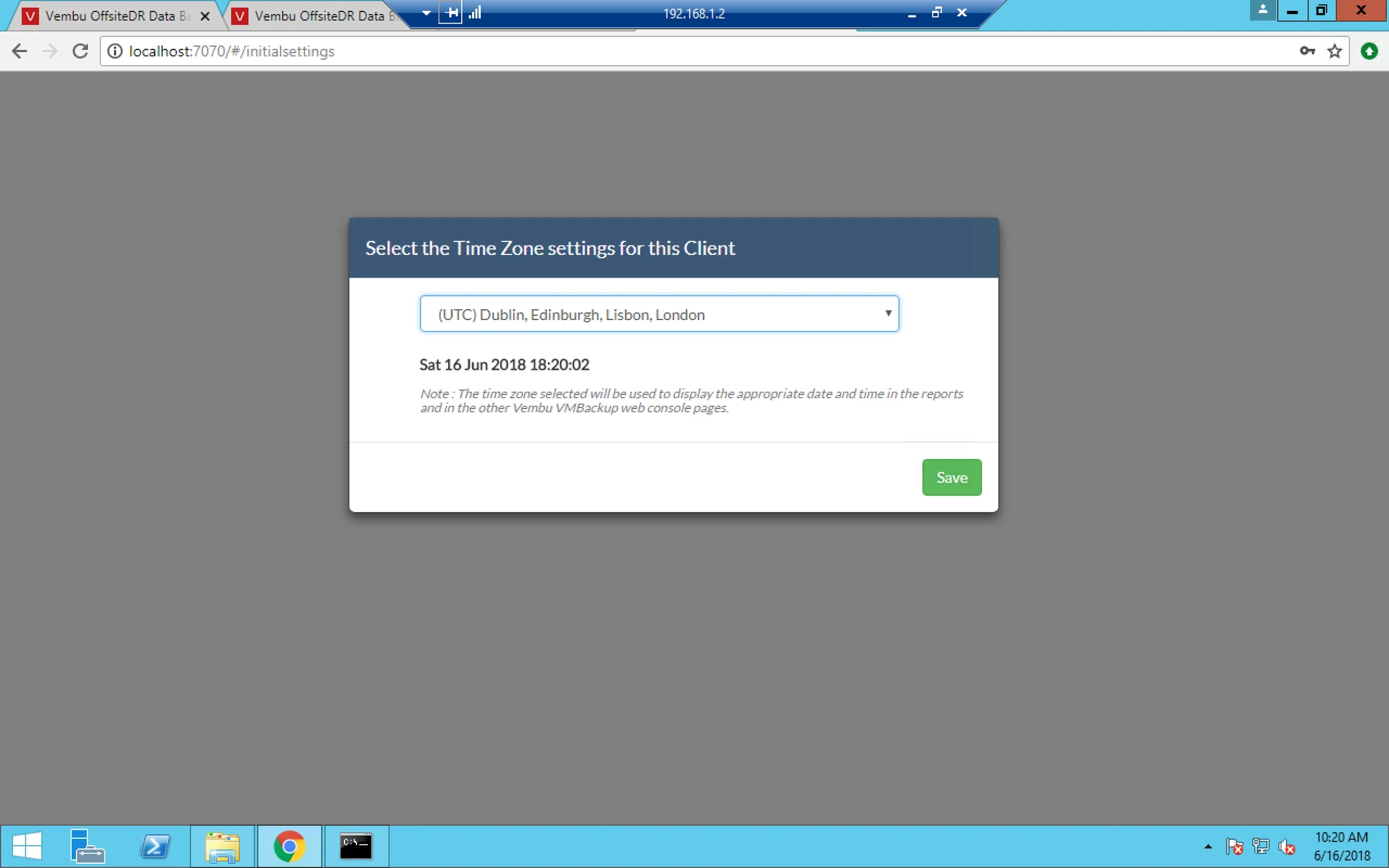
12. Now select Time Zone.
13. Here you now have to provide the Vembu BDR Server IP address and click on Add.
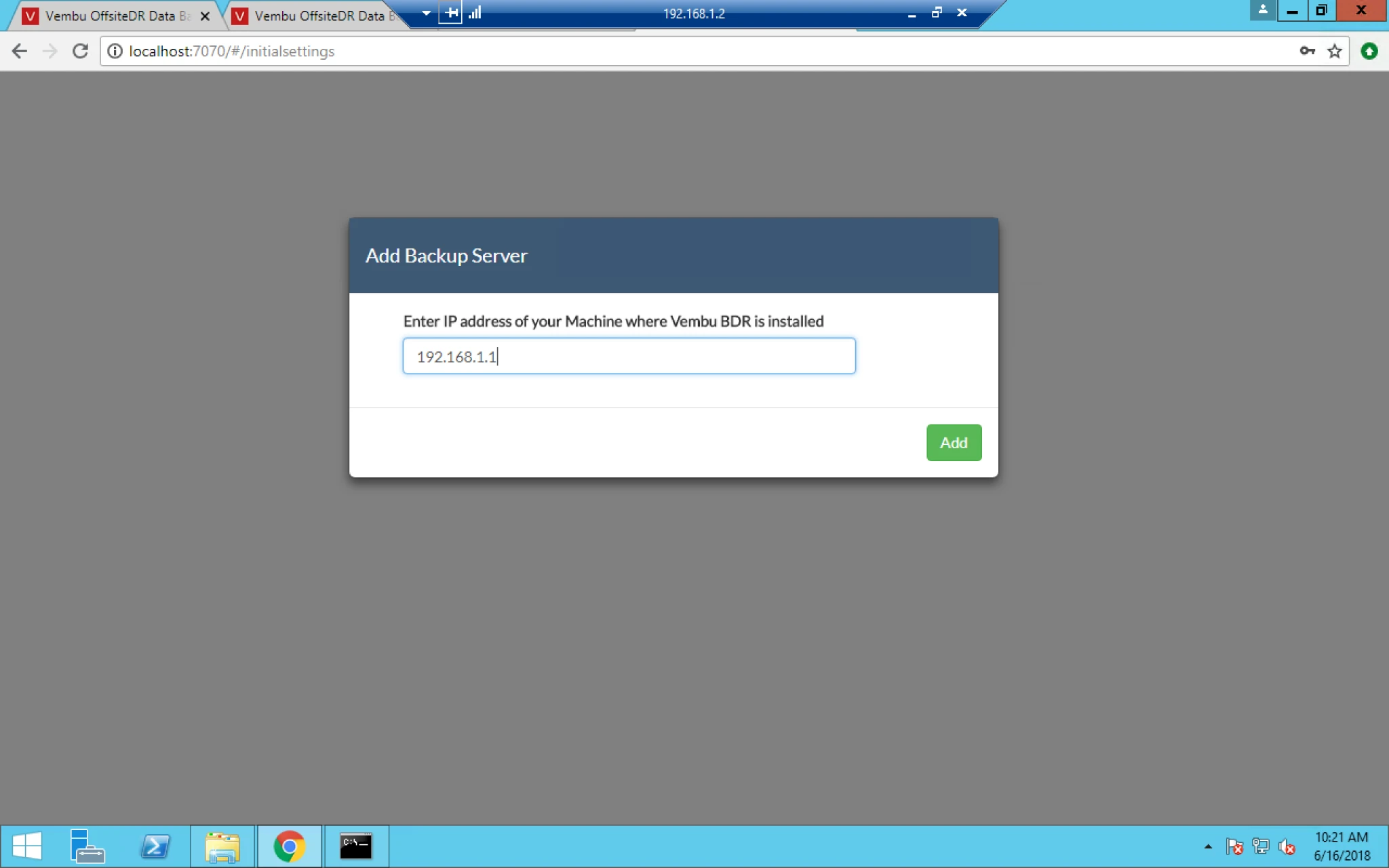
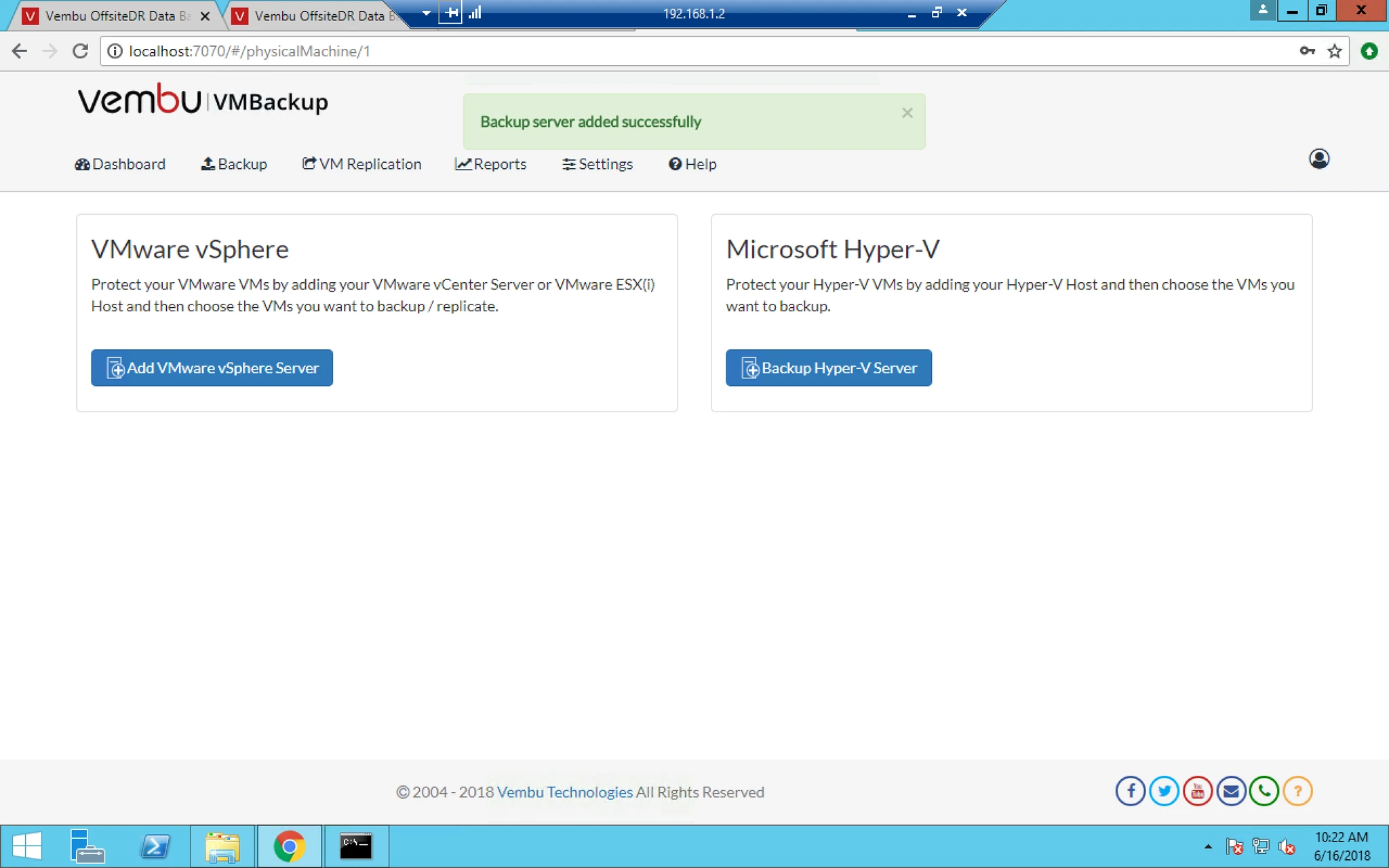
14. Now once the connection get established with Vembu BDR server, It will prompt you a messege as Backup server added successfully.