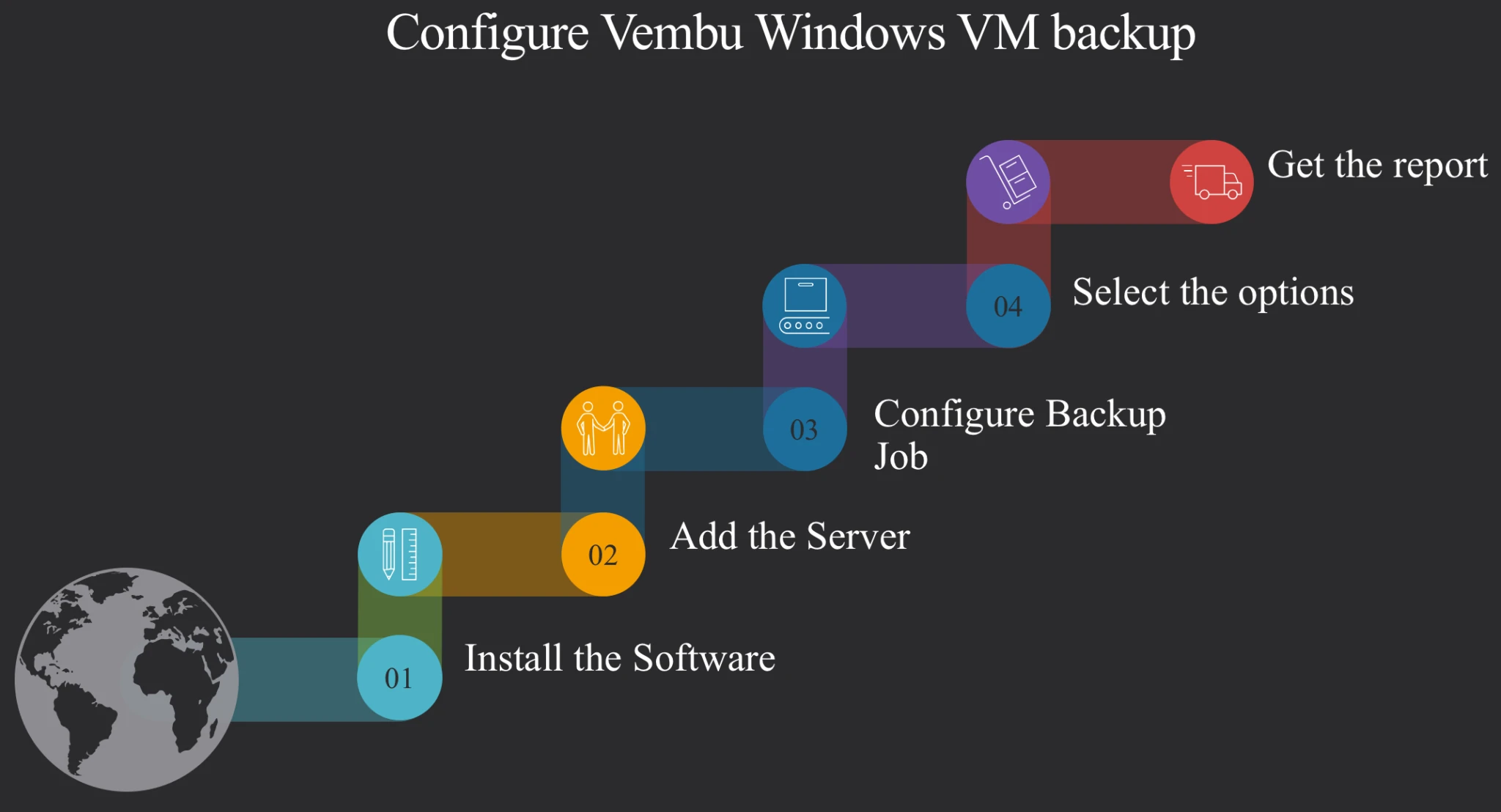
Topic Outline:

How to configure Windows VM backup.
How to create backup job.
Options while configuration for Windows VM backup.
Backup schedule.
Retention and backup job options.
Backup encryption options.
1. Open Windows box where you installed VembuVMBackup. Open browser and type this URL: http://localhost:6060/#/physicalMachine/1
and click on Microsoft Windows Options.
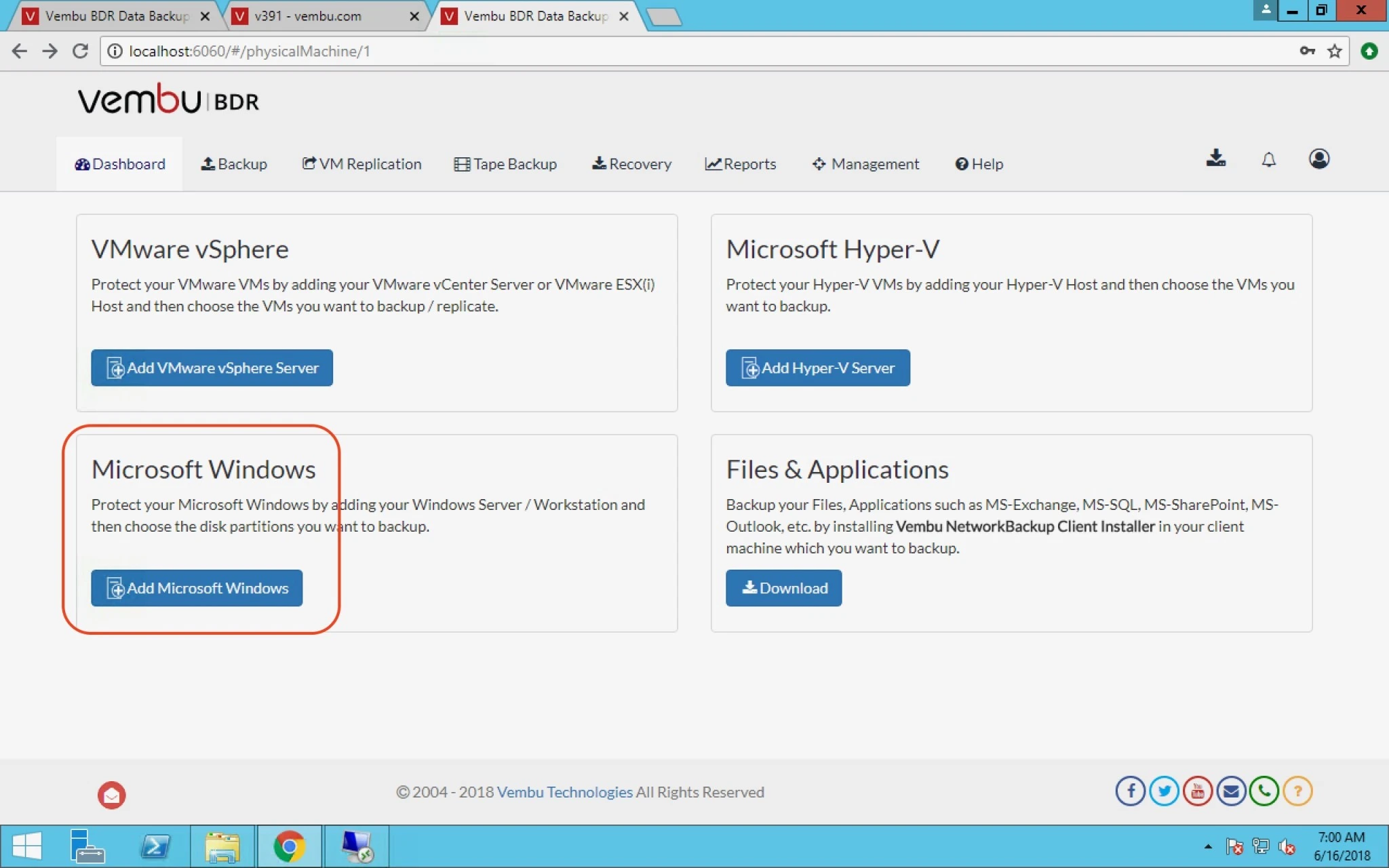
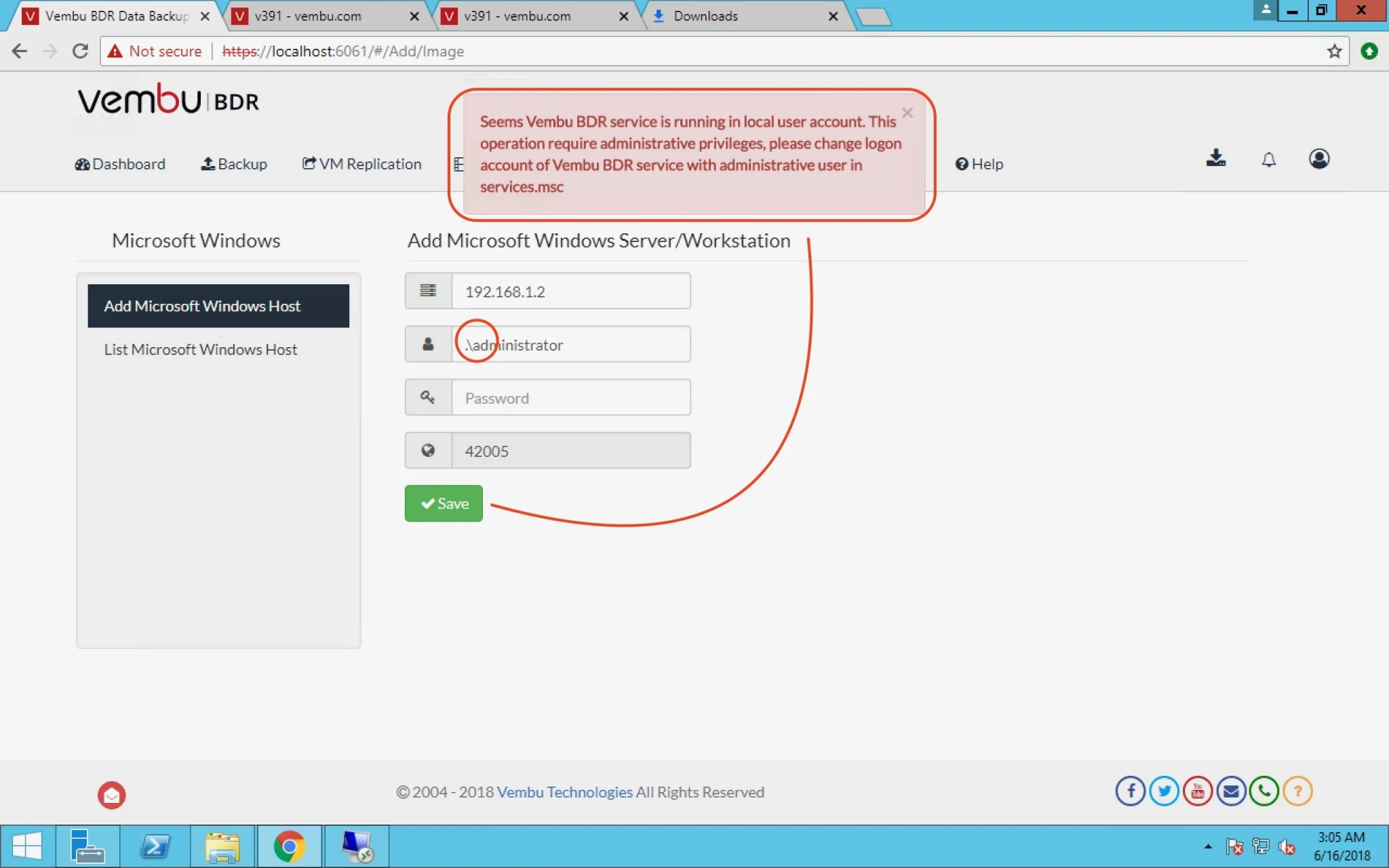
2. Here you have to click on Add Microsoft Windows Host and provide IP address which you want to take backup or partial backup like drive only.
3. Here you have to provide IP and administrator or user who has administrator rights with password but not able to change port.
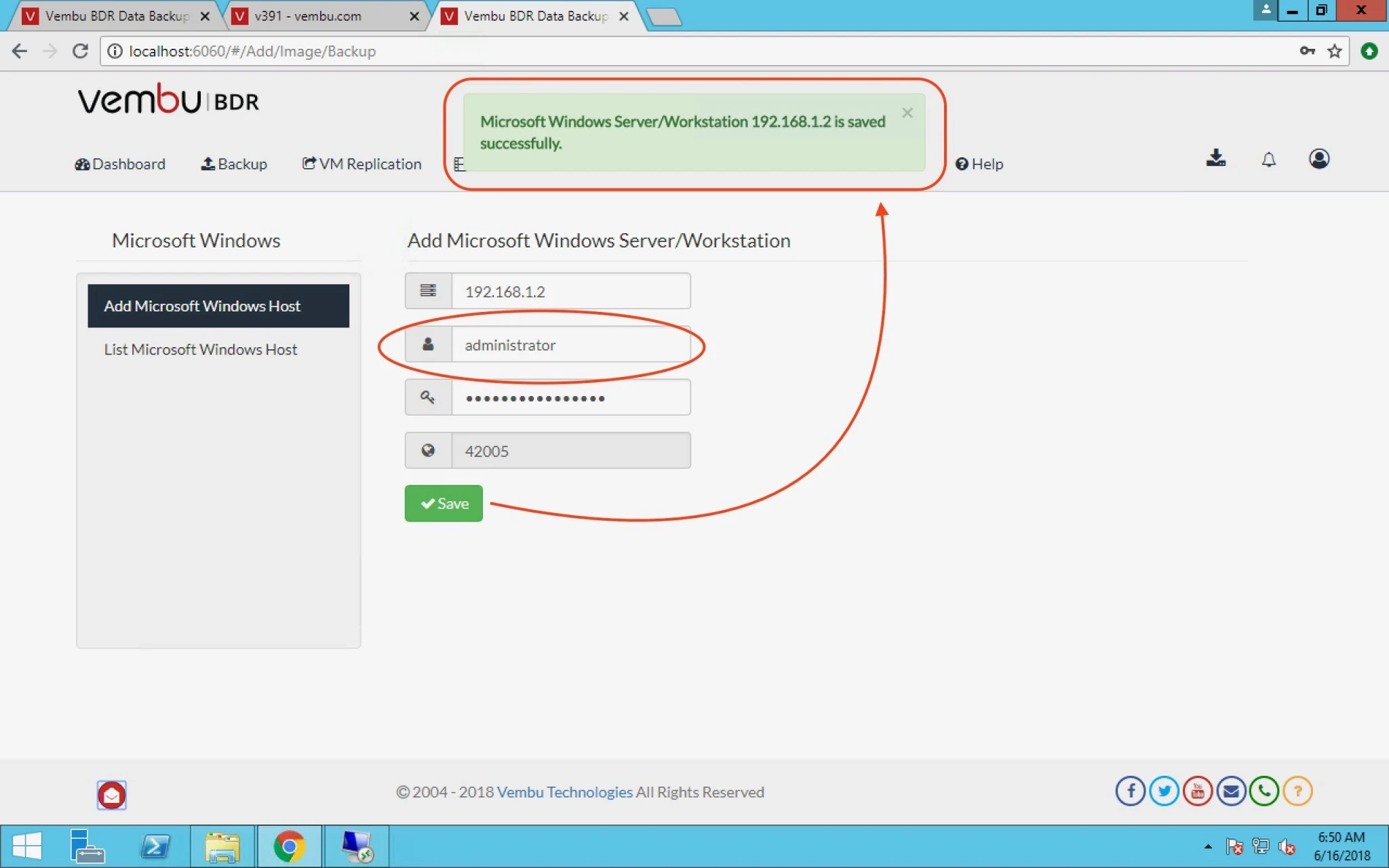
4. While adding i was getting an error so instead of using “.\” parameter use just username.
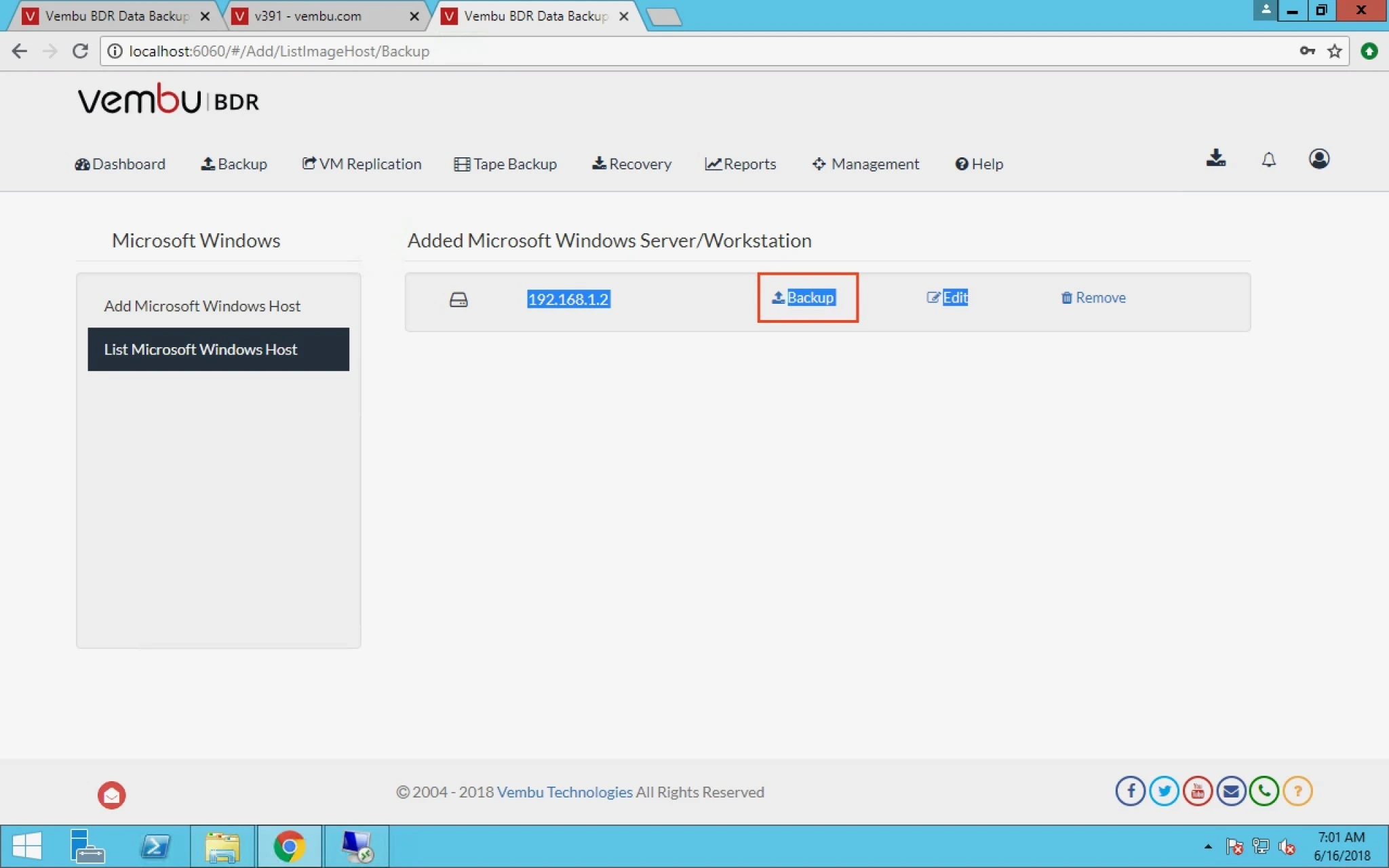
5. When you click save it will create a list of Servers as you can see in below screenshot.
6. Now Click on Backup to configure backup job.
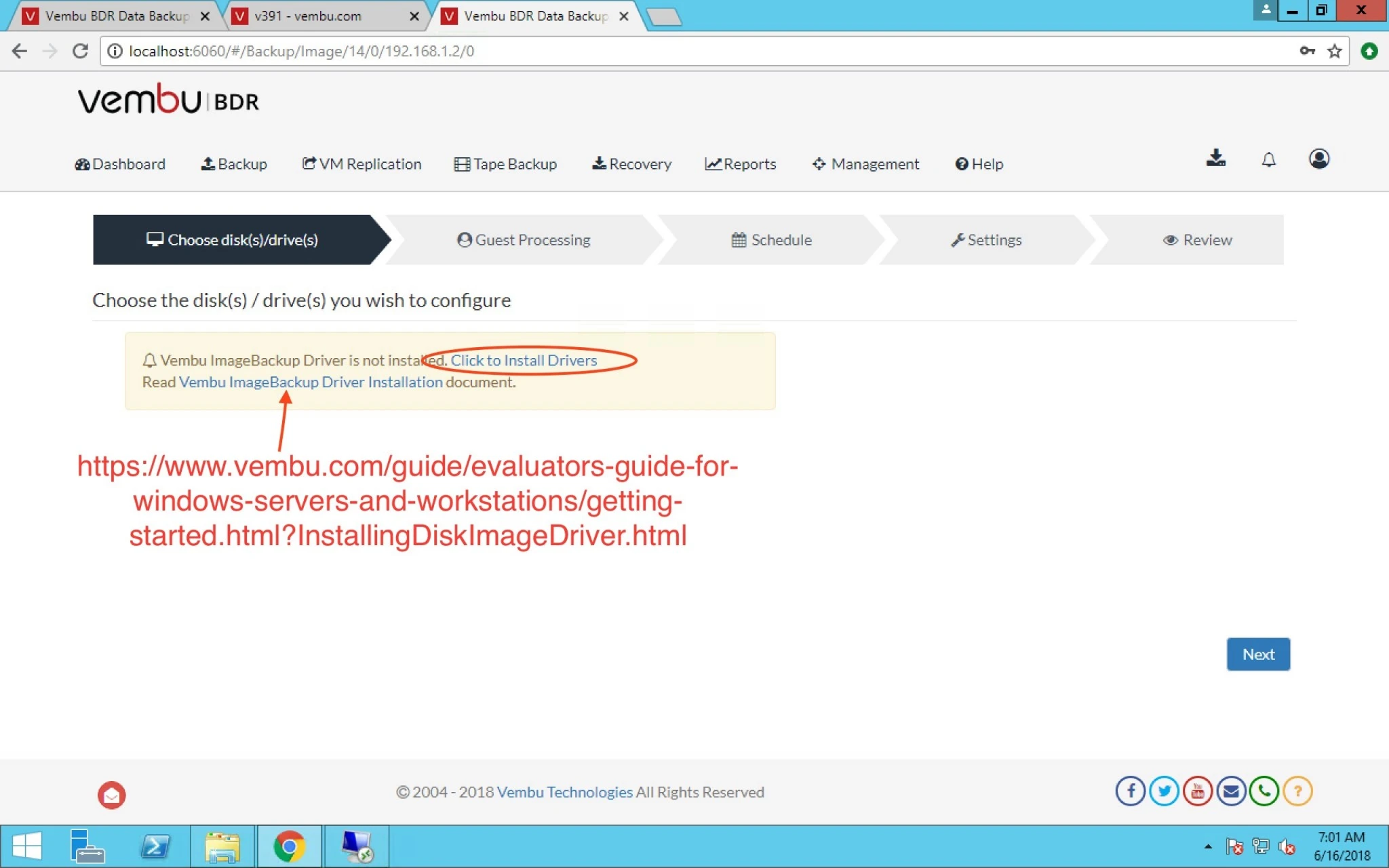
7. When click on backup you may see below options. so you have to click on click to install Drivers hyperlink.
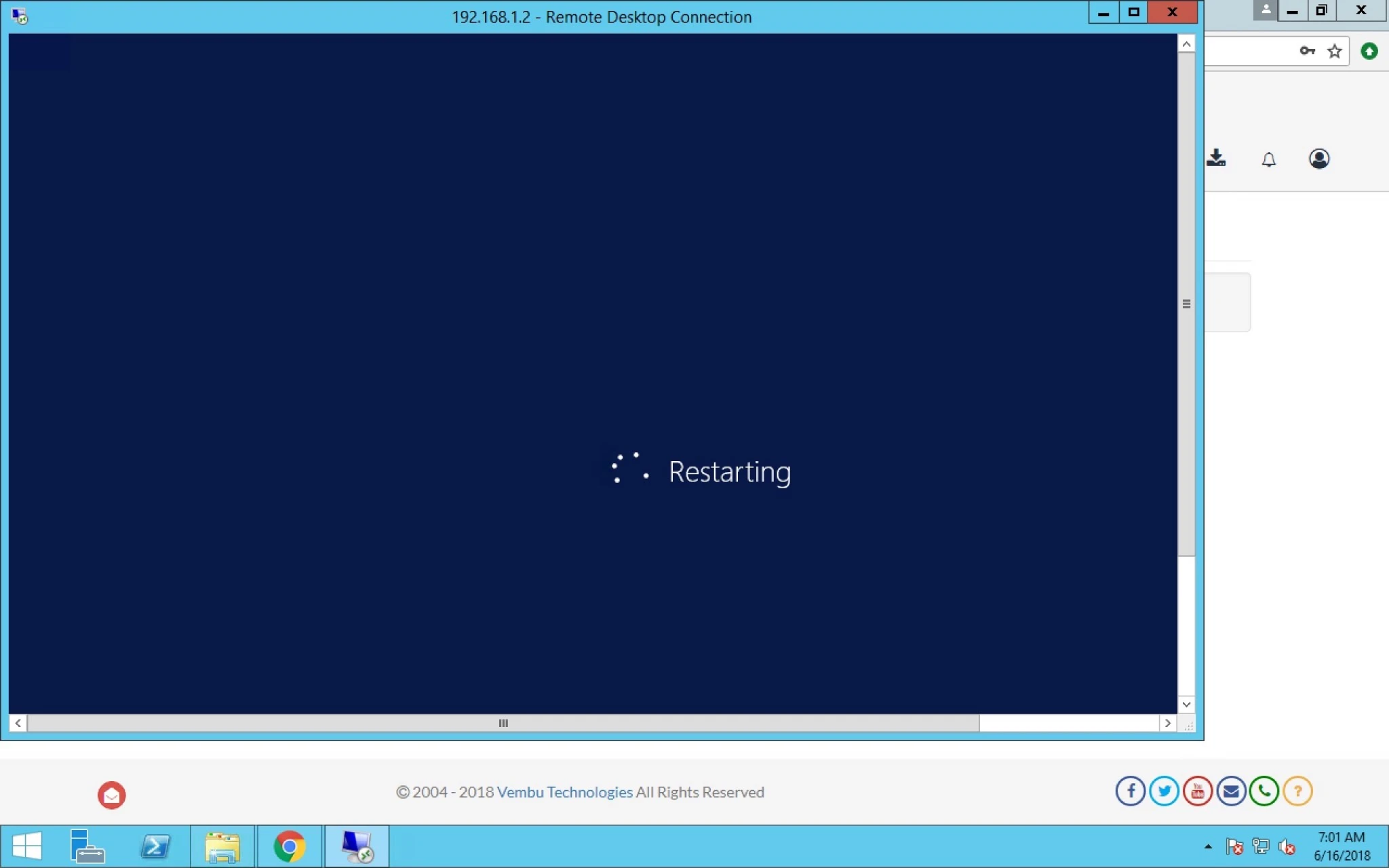
8. When you click on this this it will reboot the Destination/configured VM.
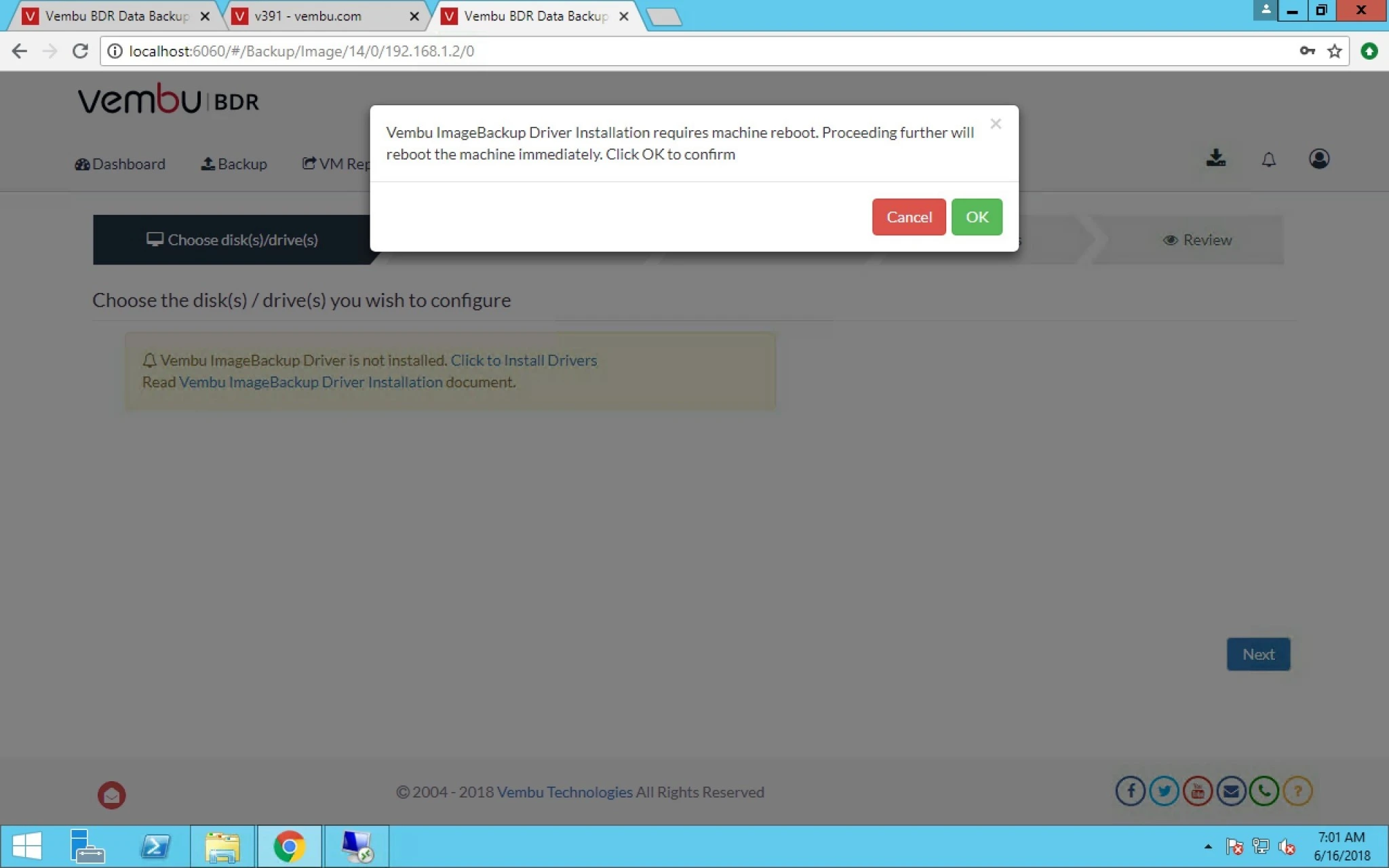
it’s rebooting the destination VM.
9. when you click on second link it will redirect you to internet where you can see documentation from Vembu.
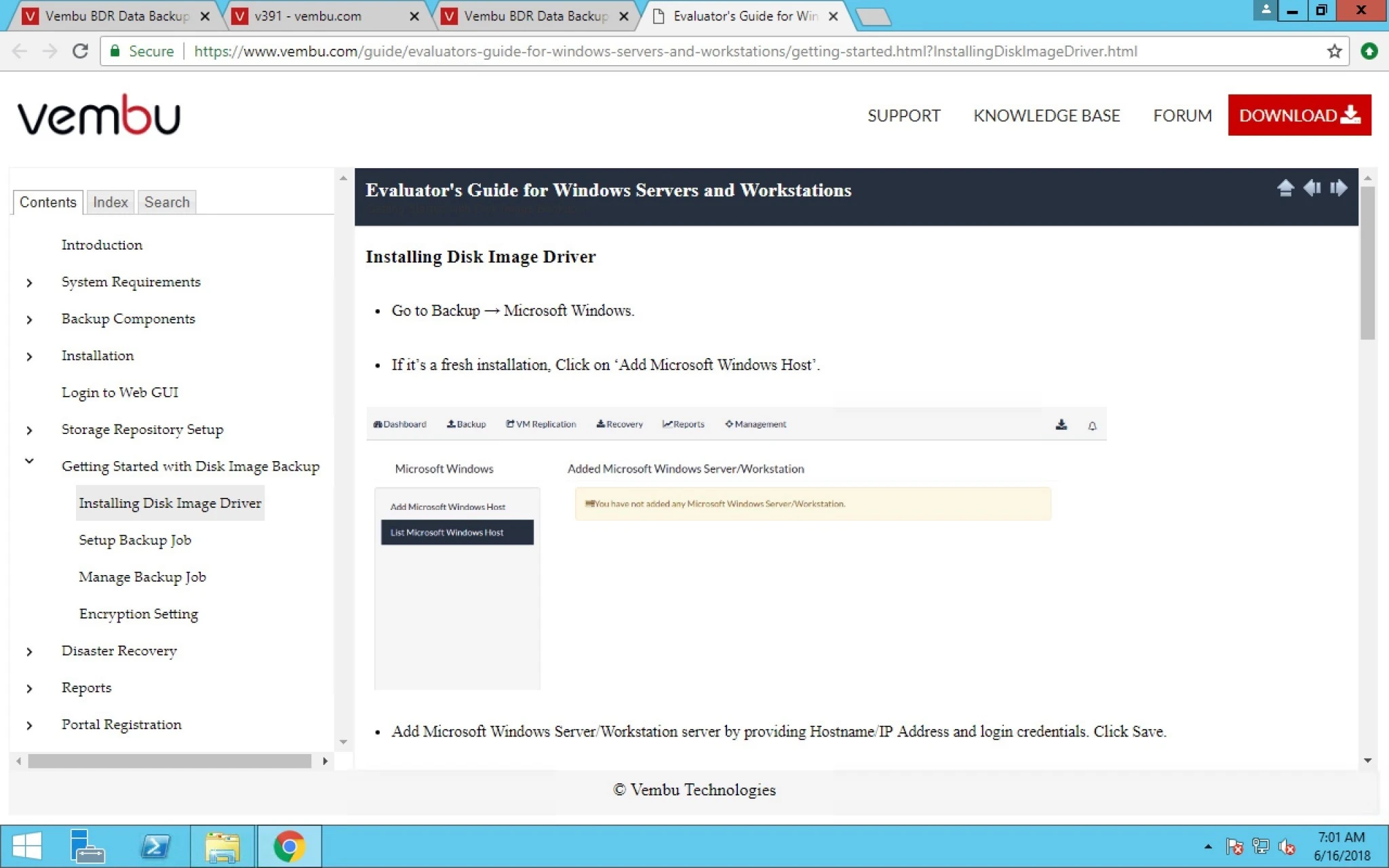
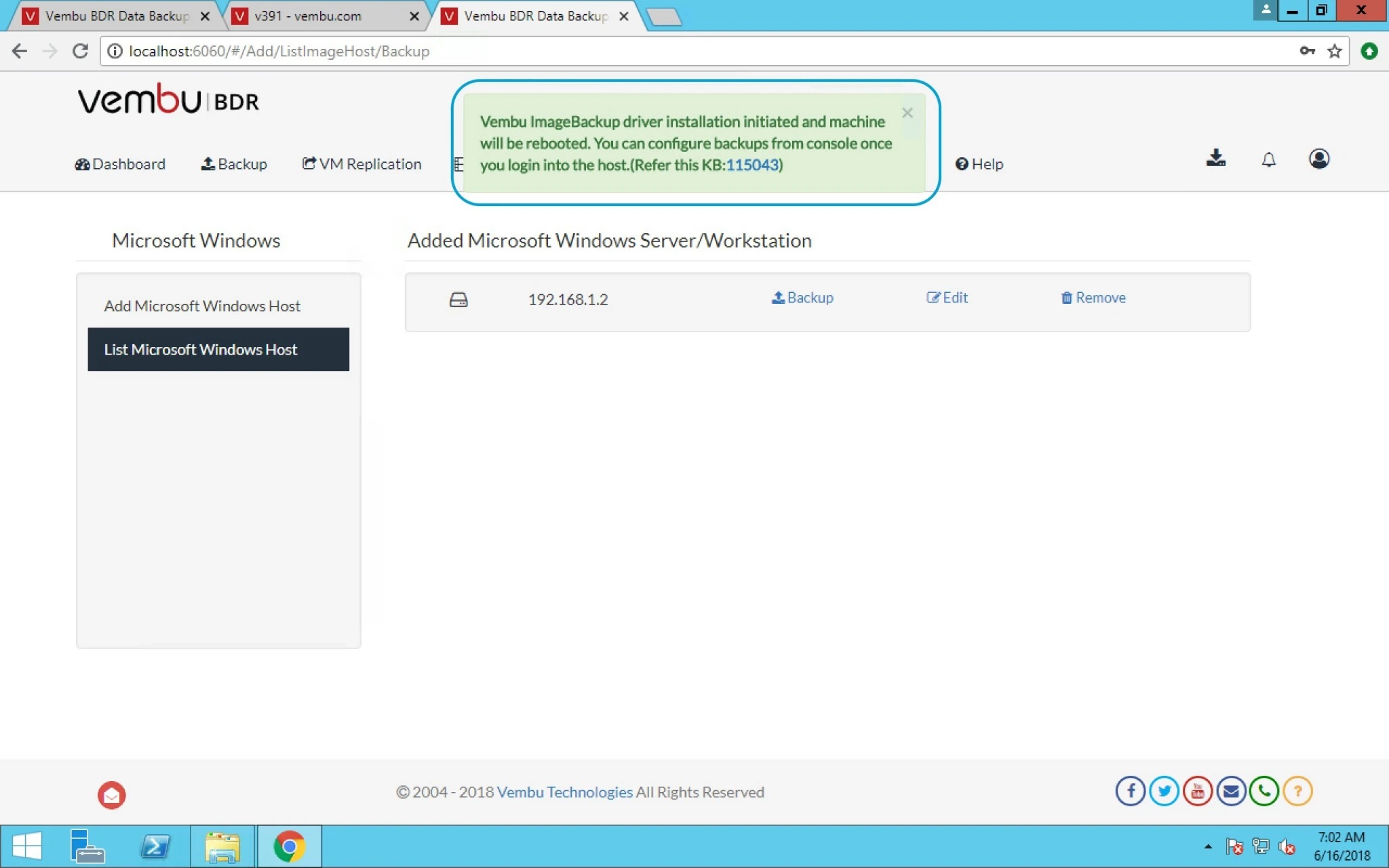
10. It will show you information about rebooting with KB number.
11. Now finally you can see Windows Server IP with all the disk attached with that VM.
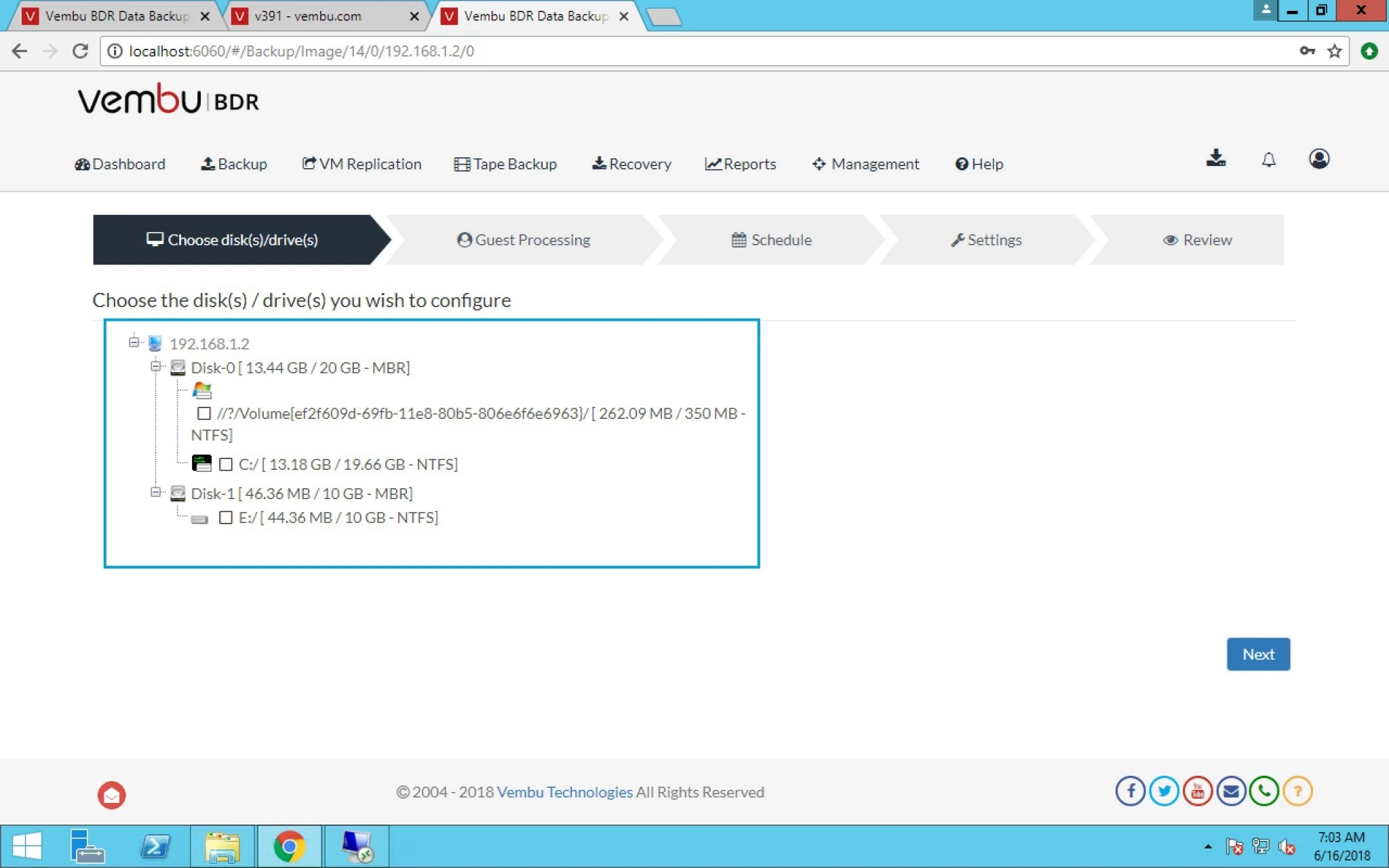
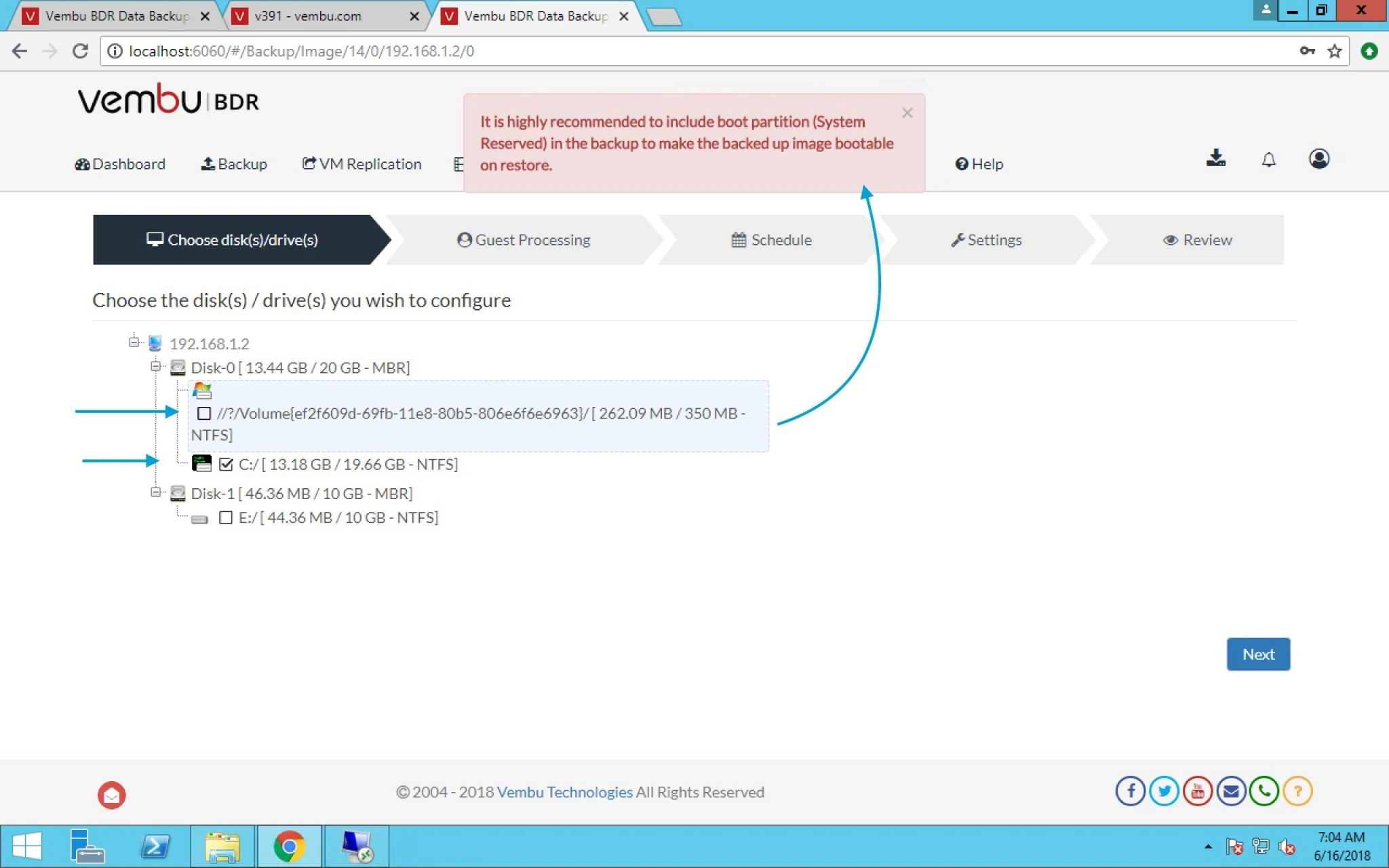
12. Now when you select C: drive as for backing up it will also let you know that select boot partition as well.
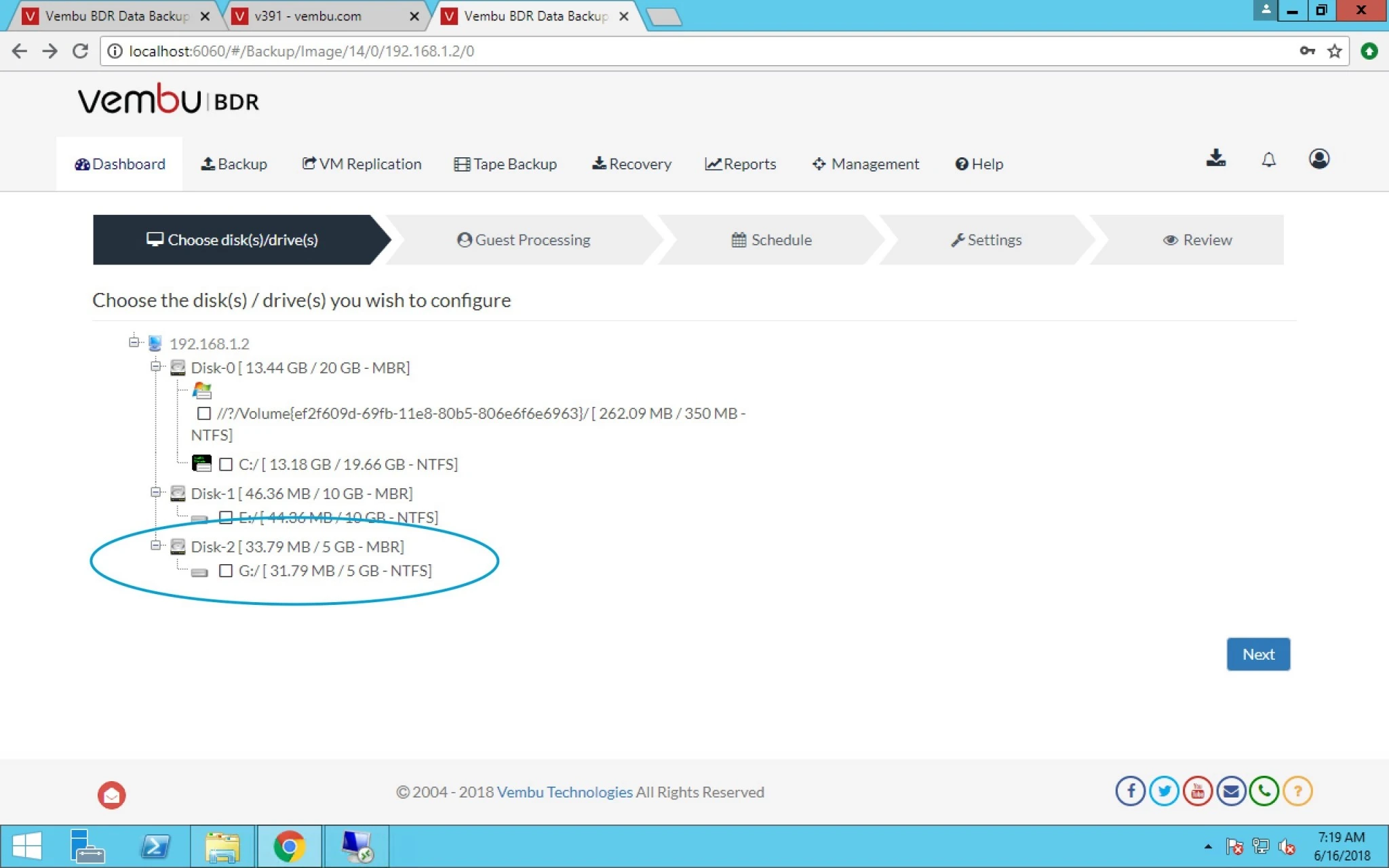
13. Here i added one more drive in Windows server to check how quickly Vembu can identify this new drive and it’s quick.
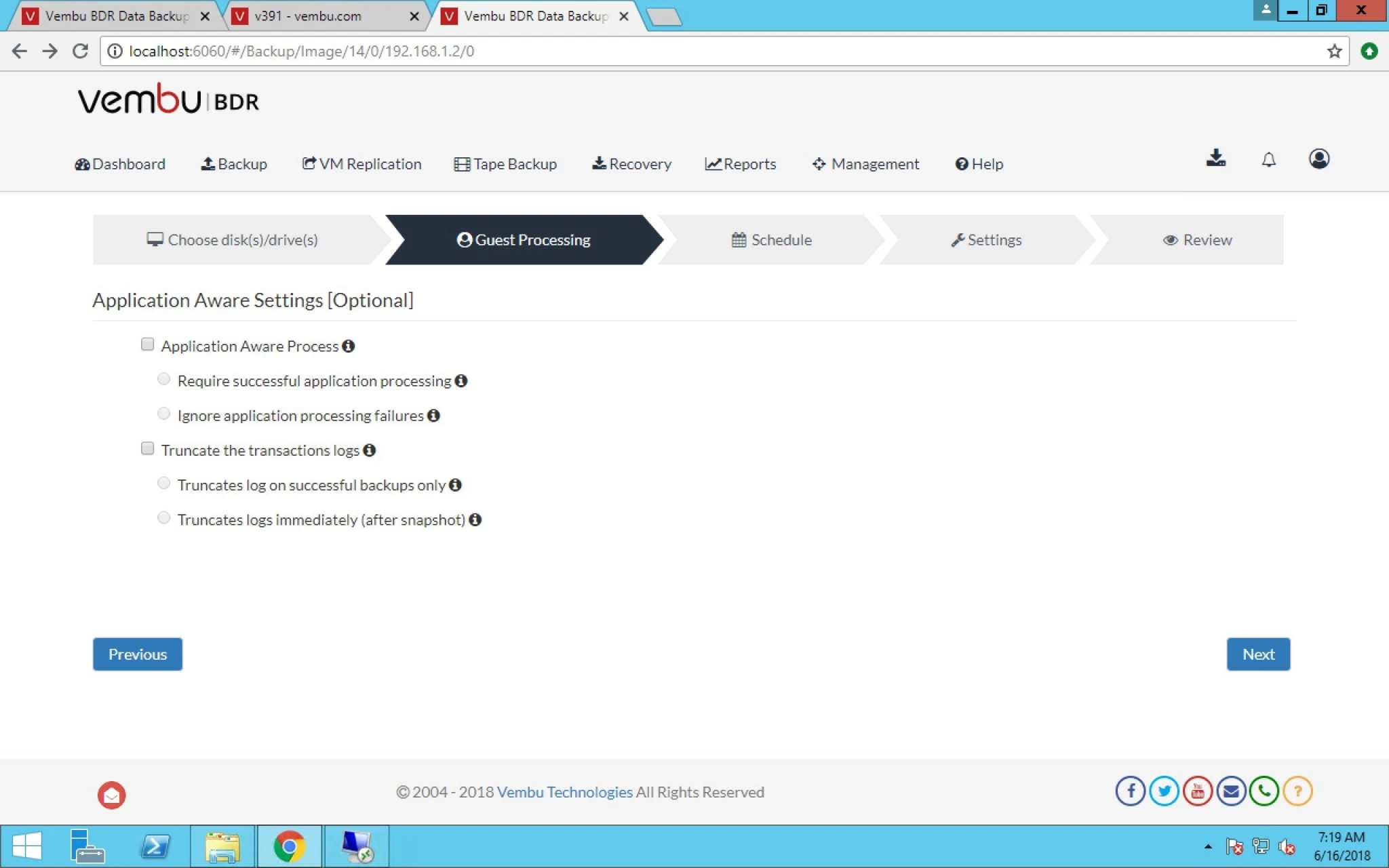
14. Now if you want to select Application aware settings then they will not hurt VM or backup keep in mind it’s optional.
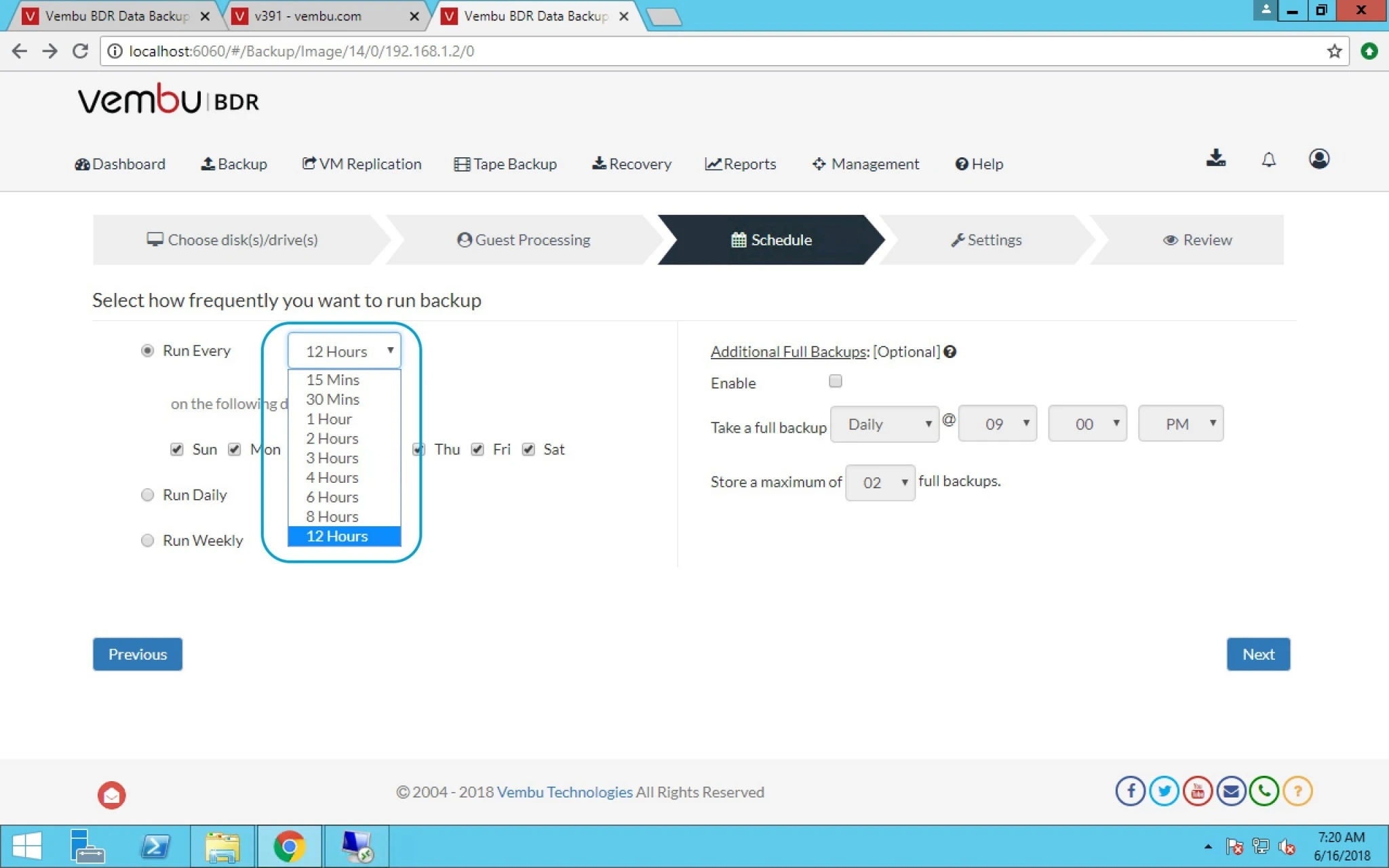
15. Here you can select how frequently you want to run backup.
a) Run Every Hour on specific days.
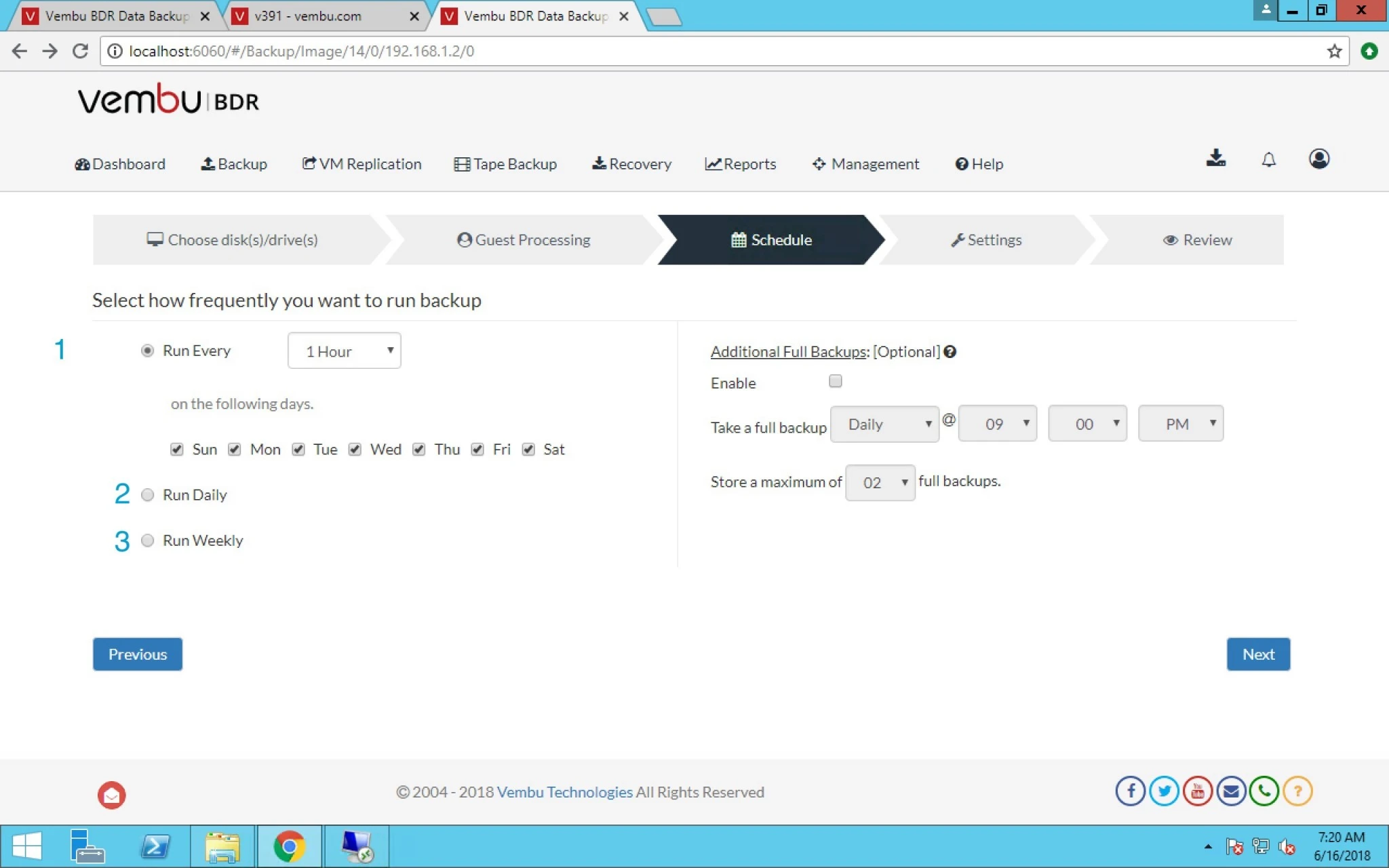
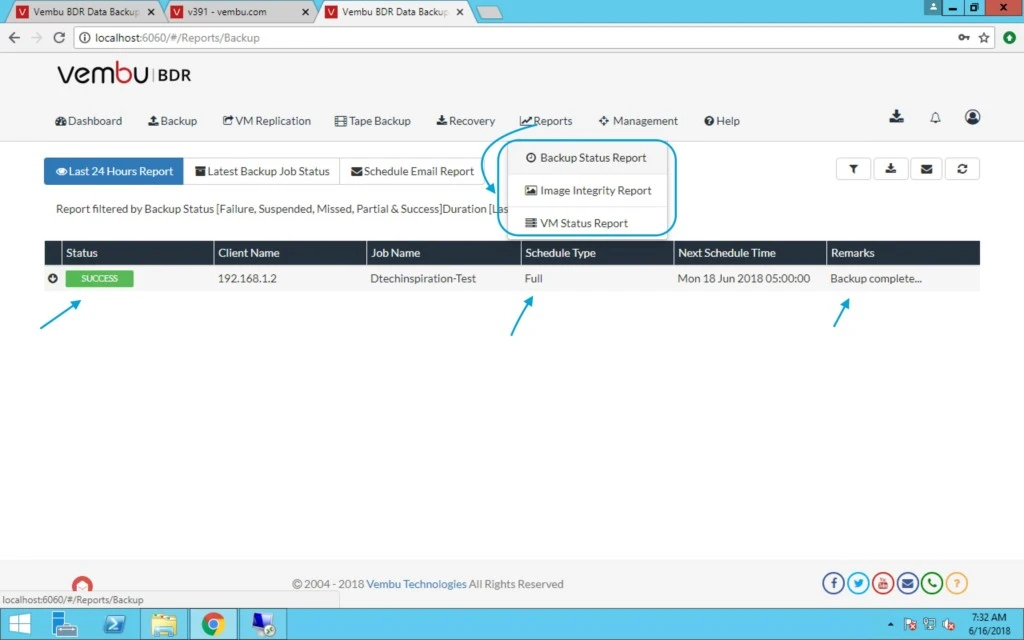
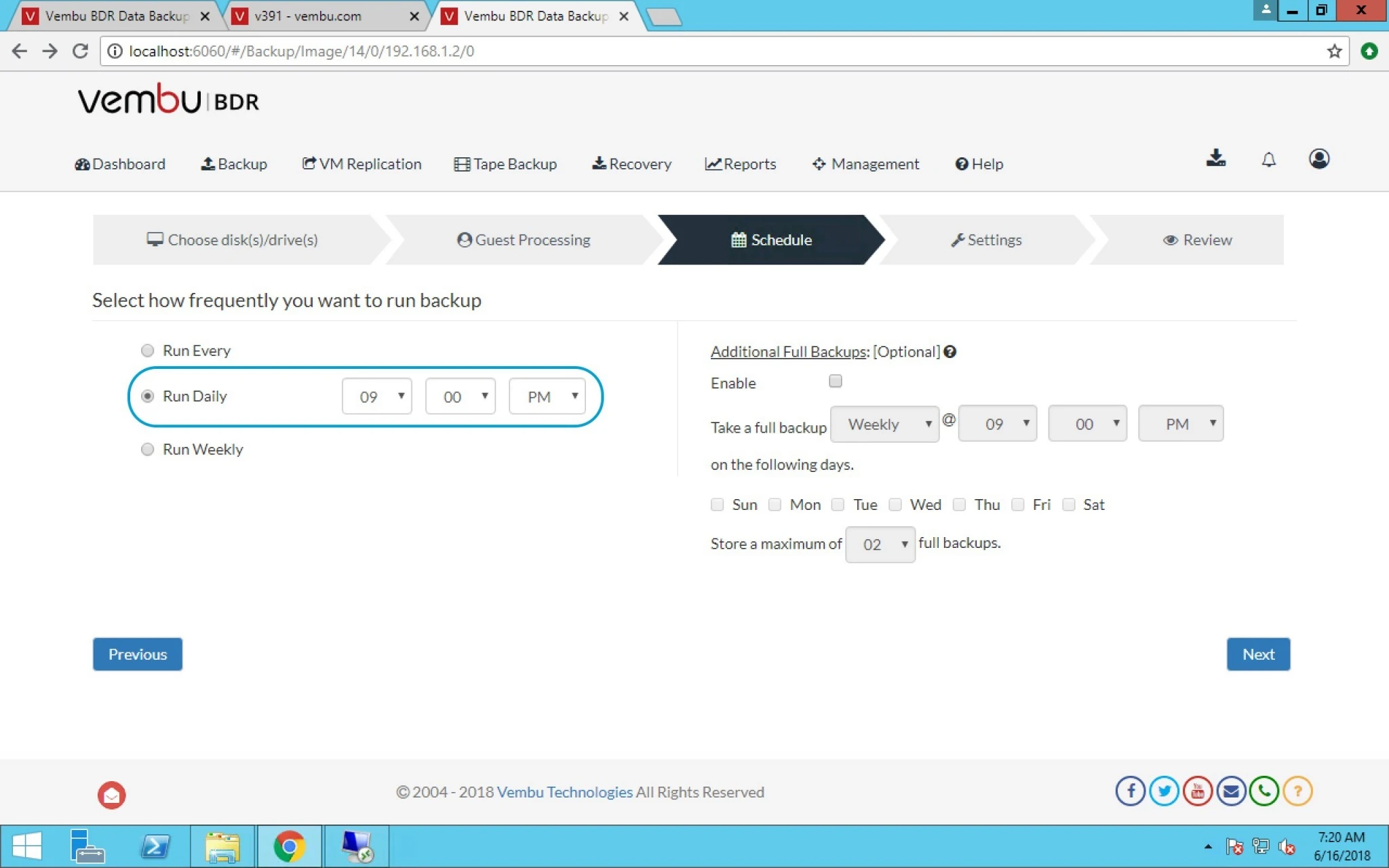
b) Run Daily at given time.
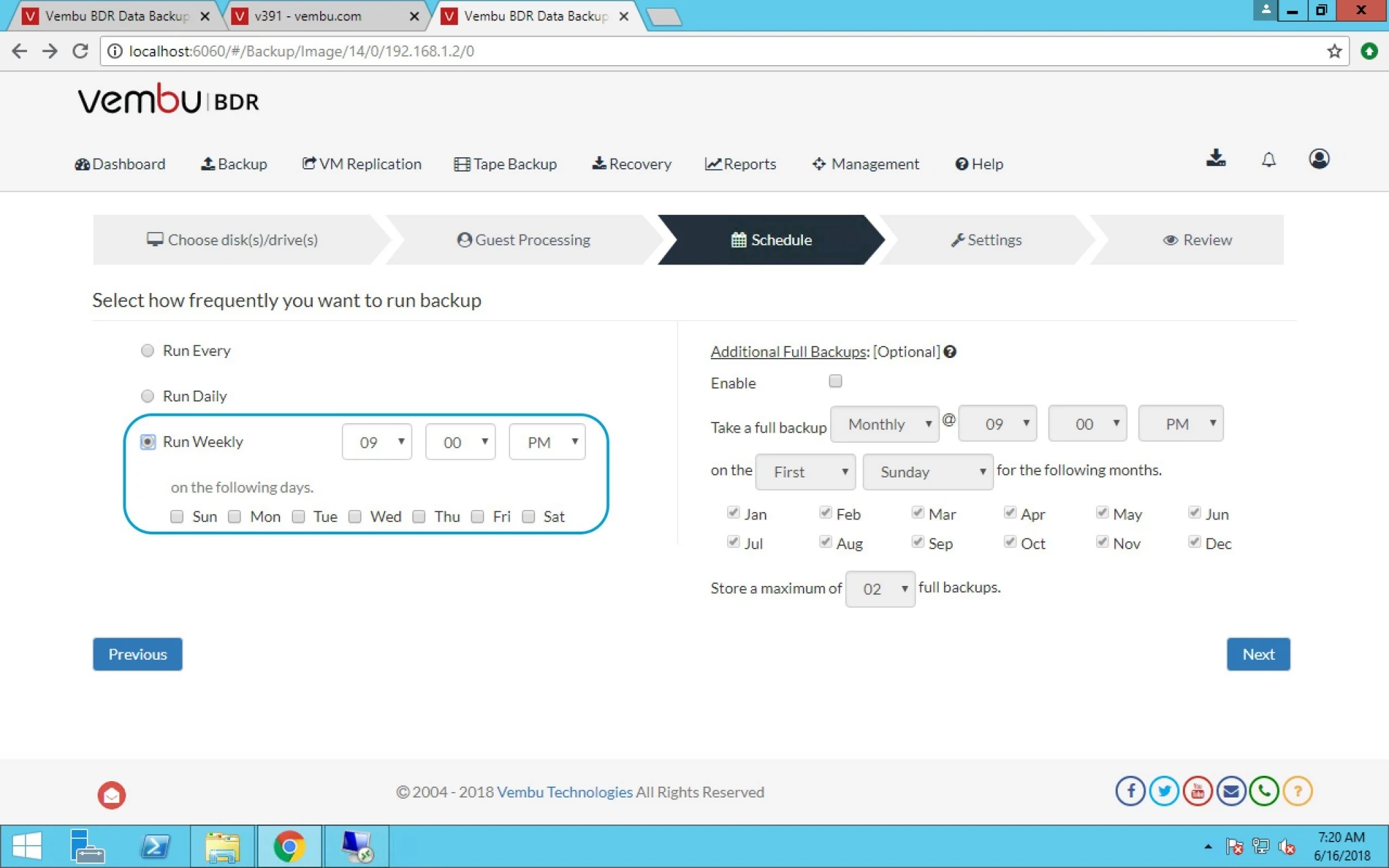
c) Run Weekly at time and weekdays you can select.
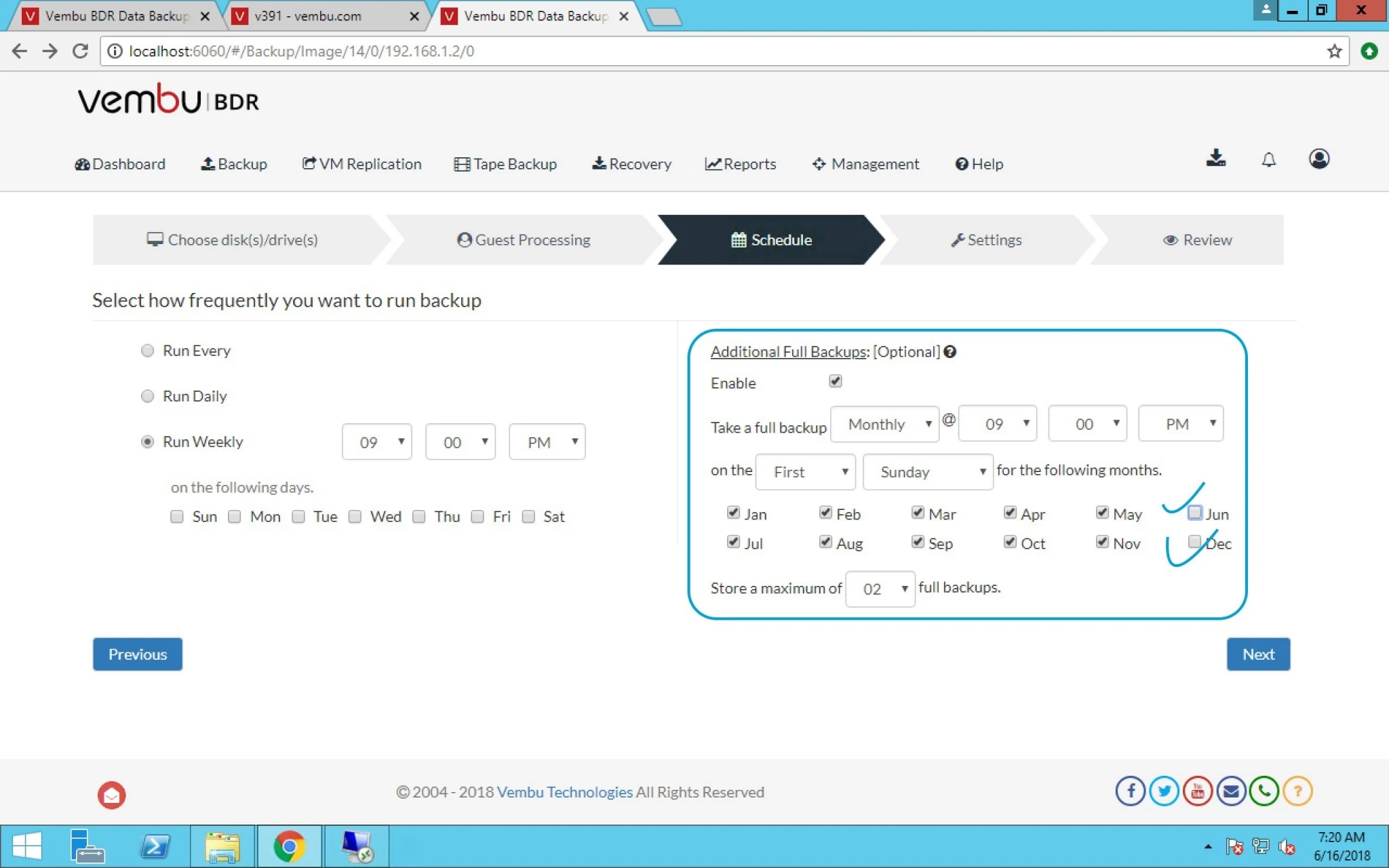
16. You can also select Additional Options like
Full backup on Monthly basis with Month selection
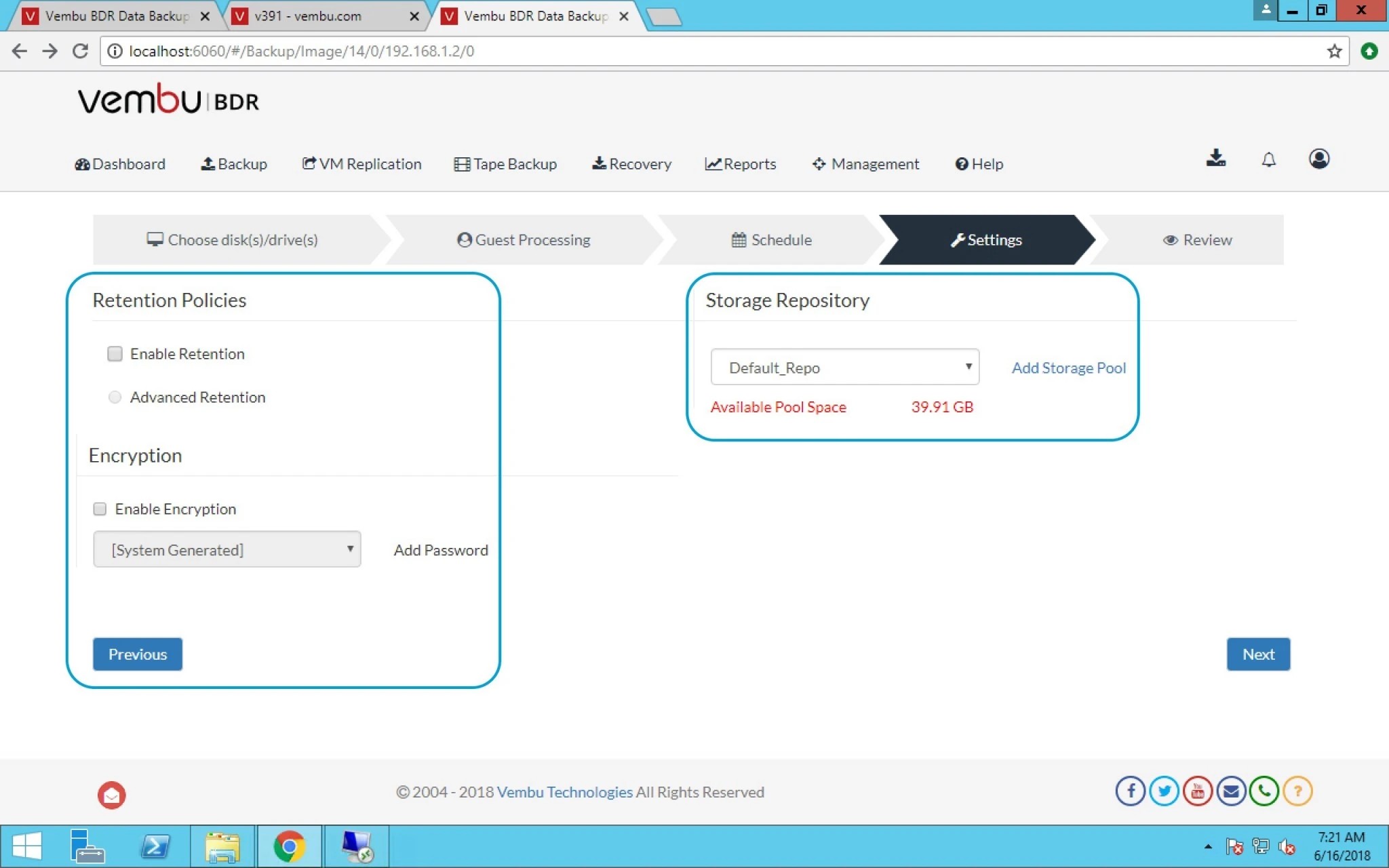
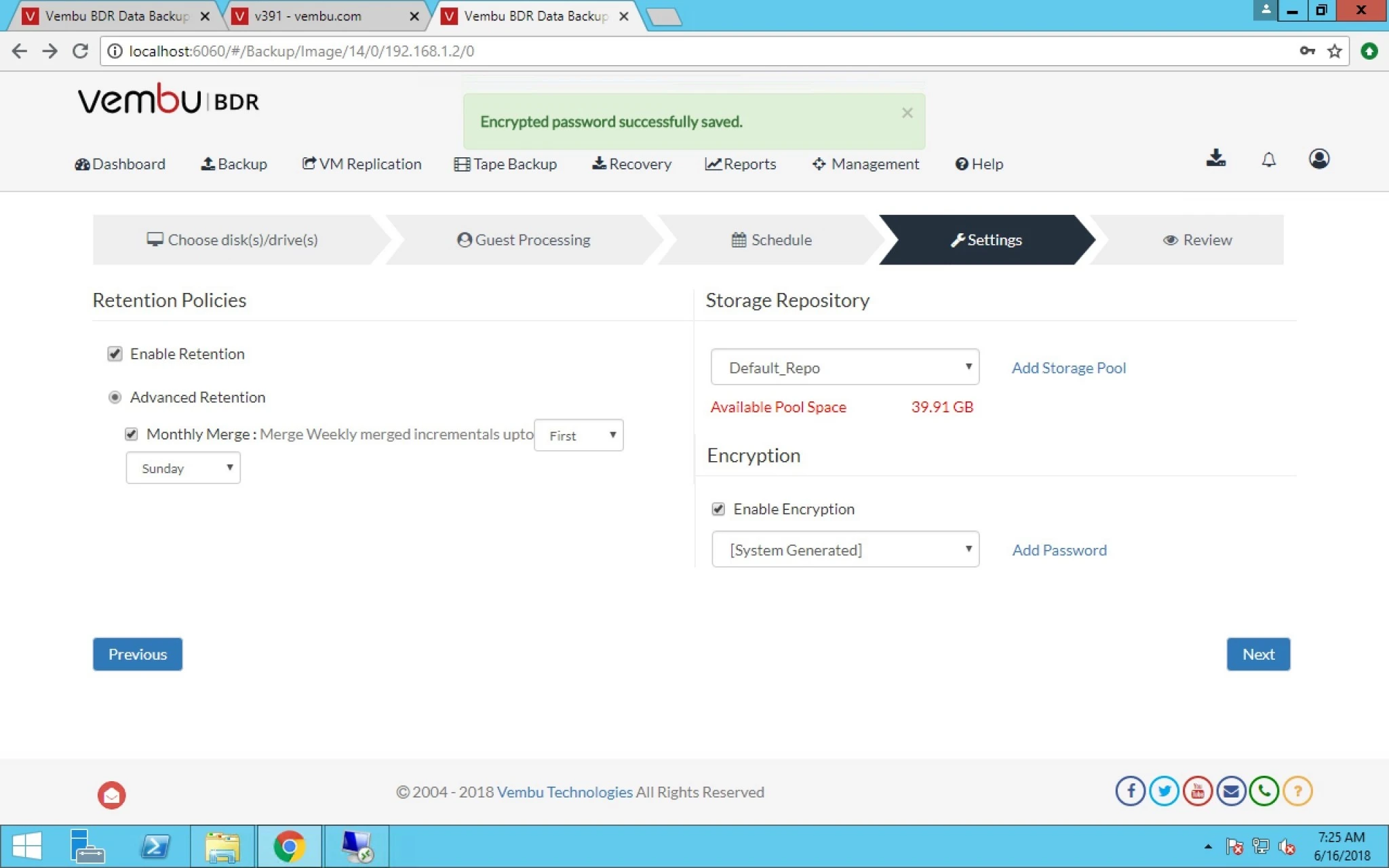
17. In Settings tab you can select Retention Policies with Encryption.
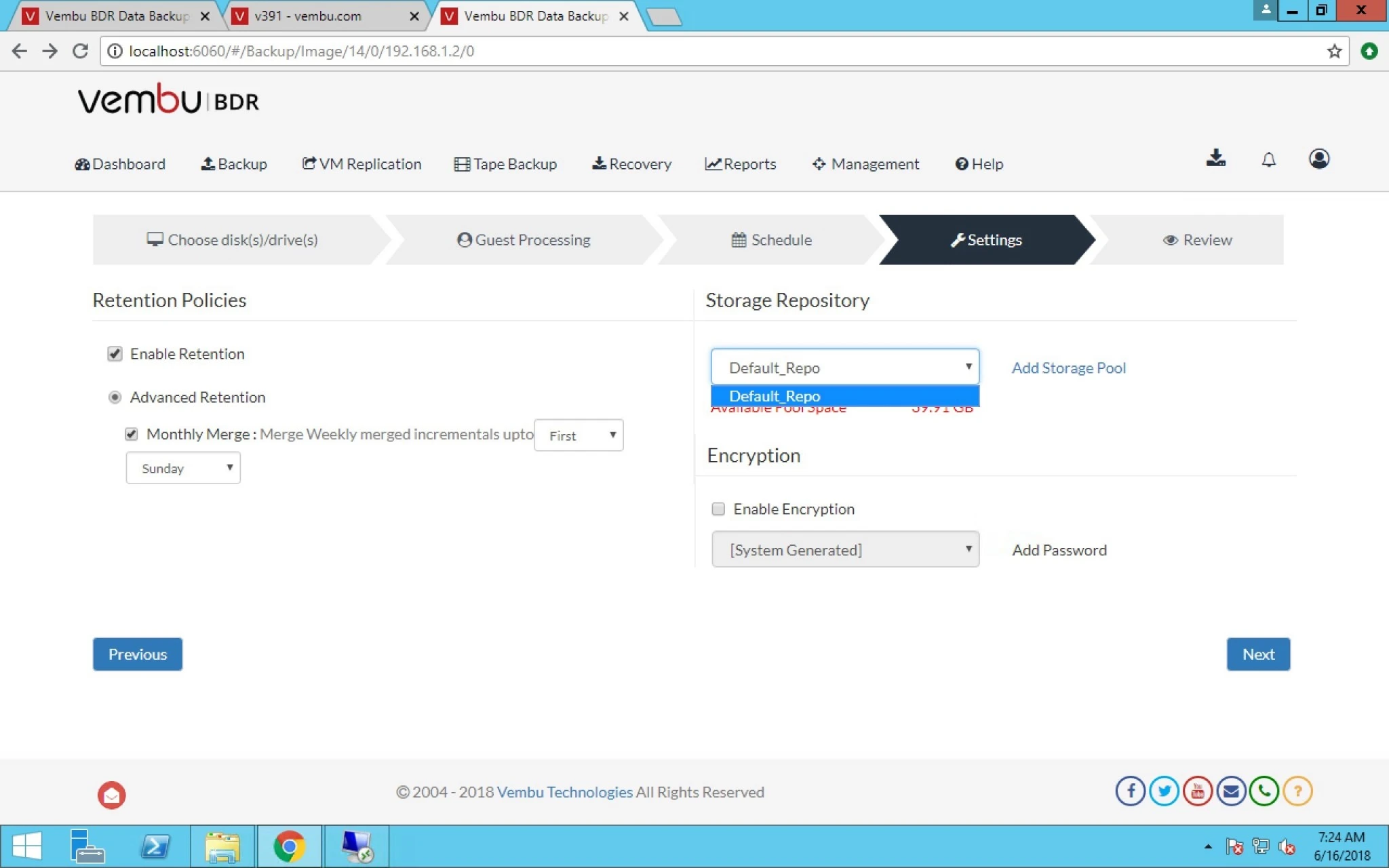
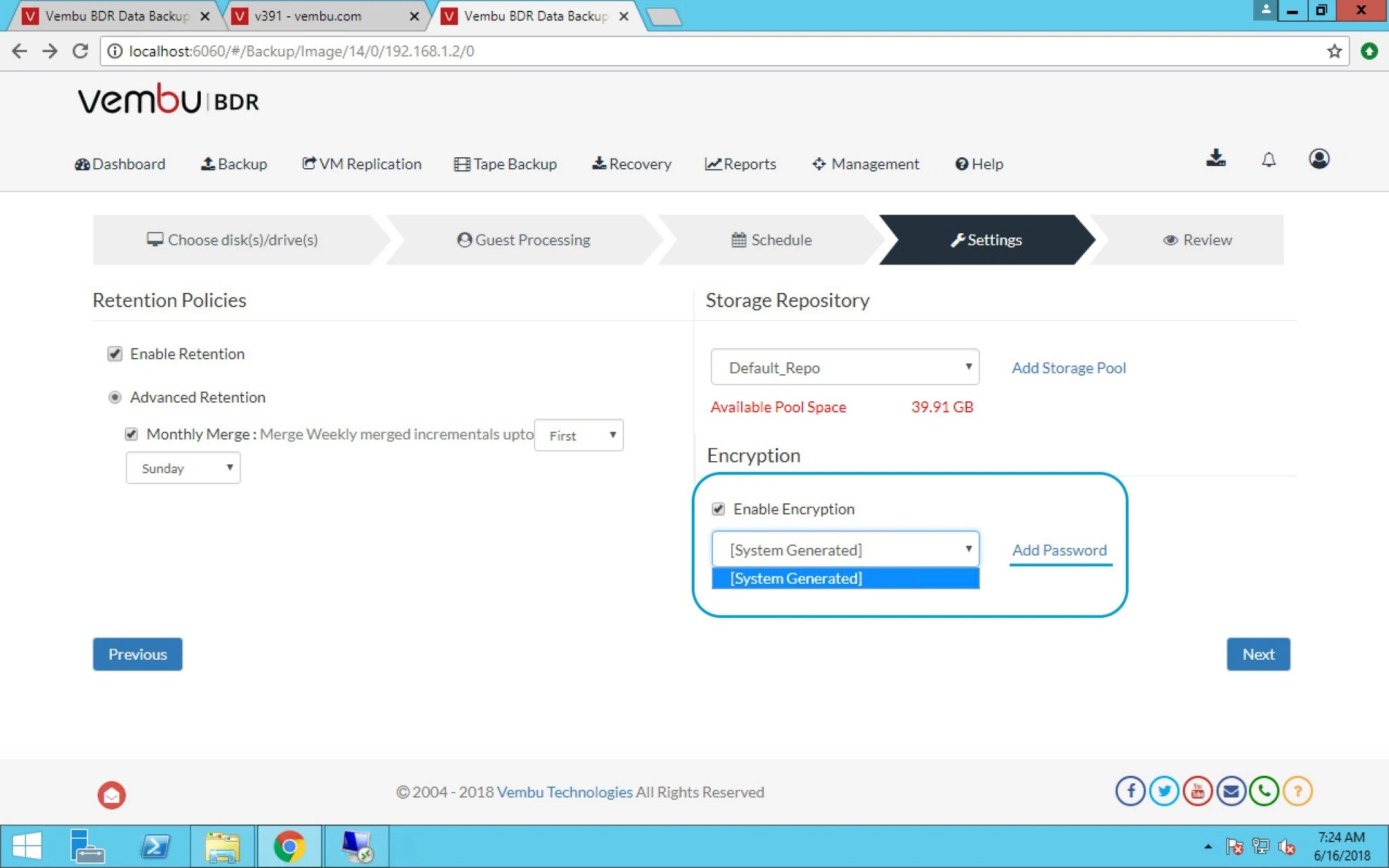
18. Here you can select Encryption and use password to protect the same.
19. Password and Hint is must field here.
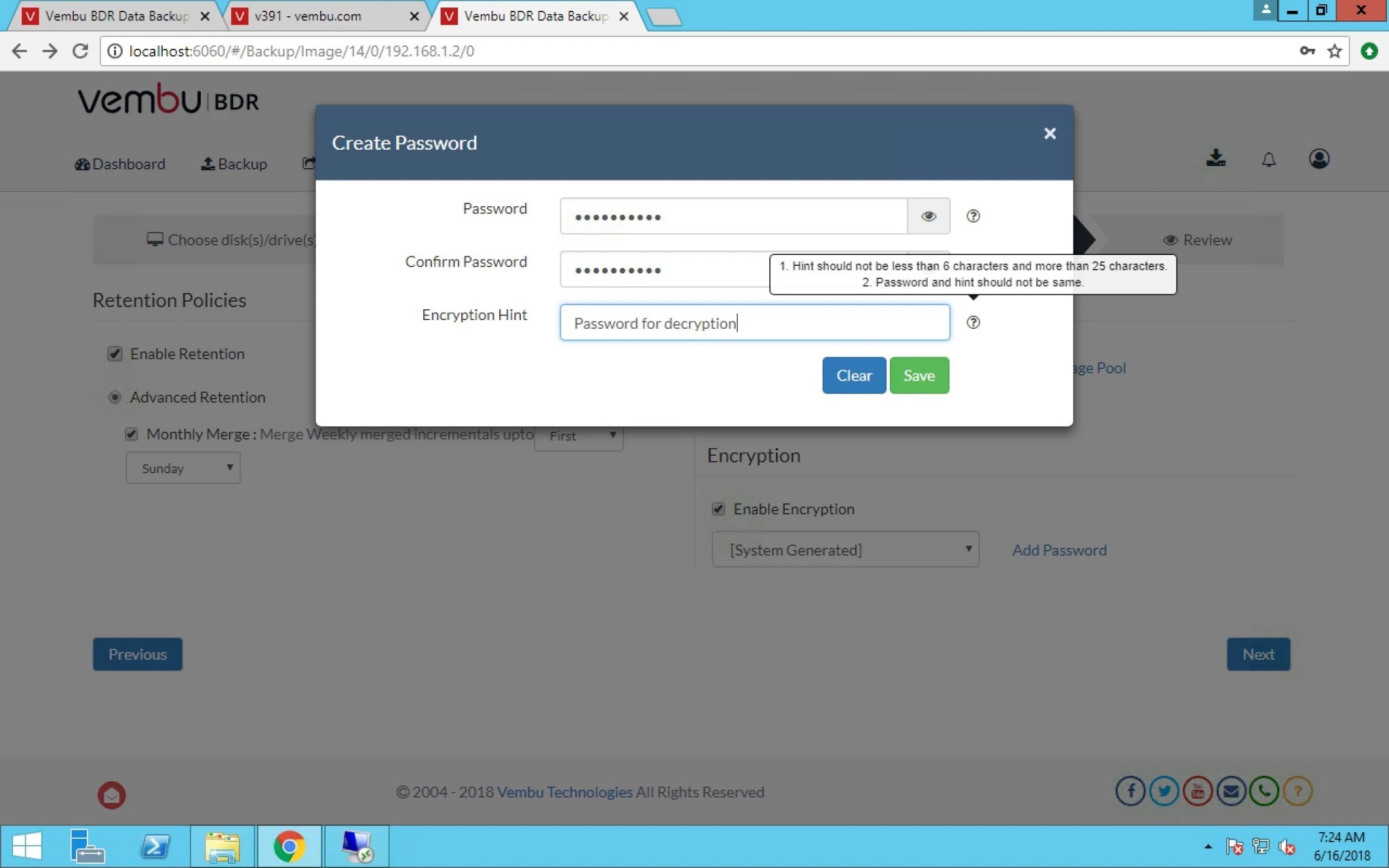
20. Click on Save and it will save this setting.
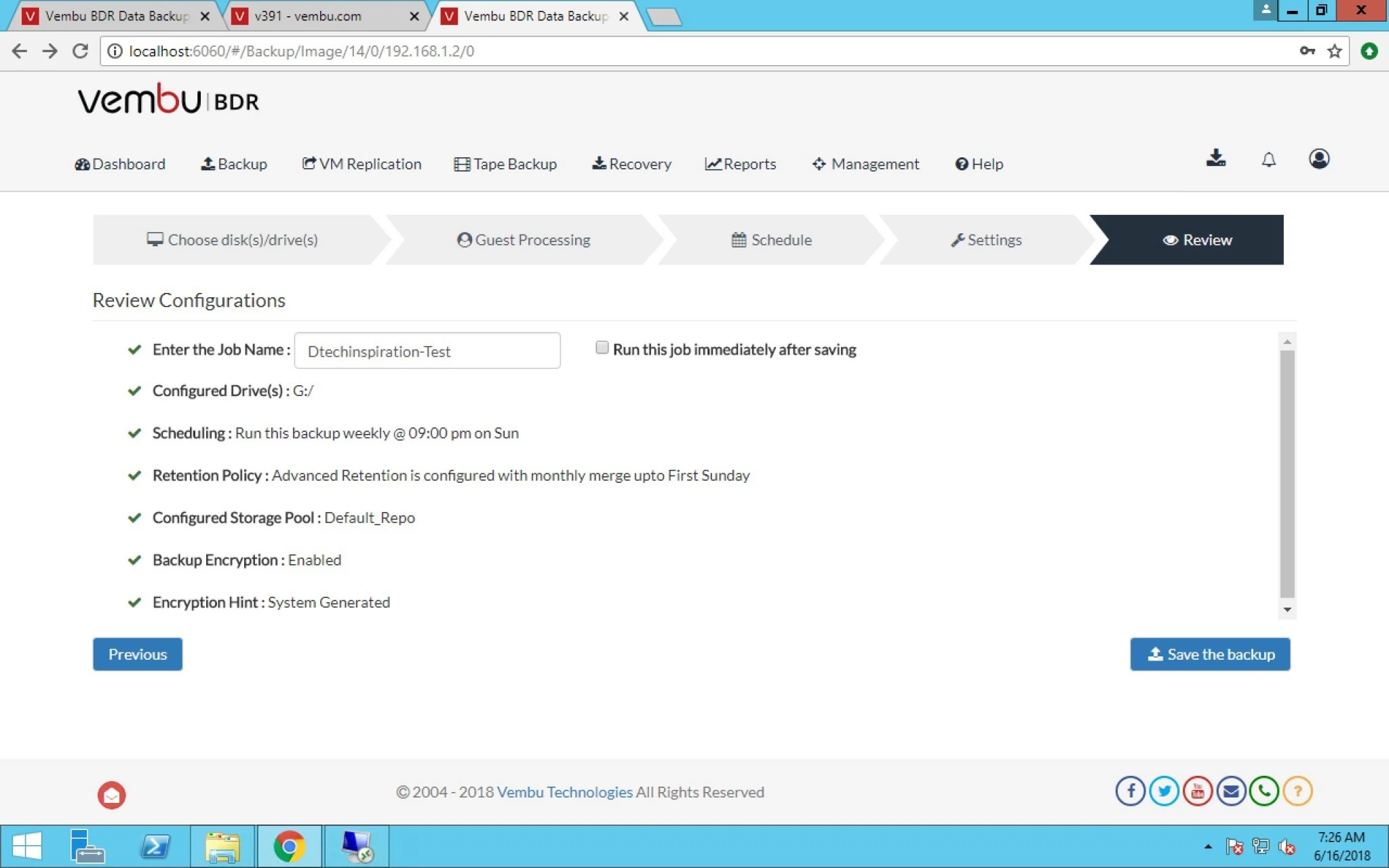
21. Final page Review all the settings and if you want to change then click on Previous and do the editing otherwise click on save the backup option.
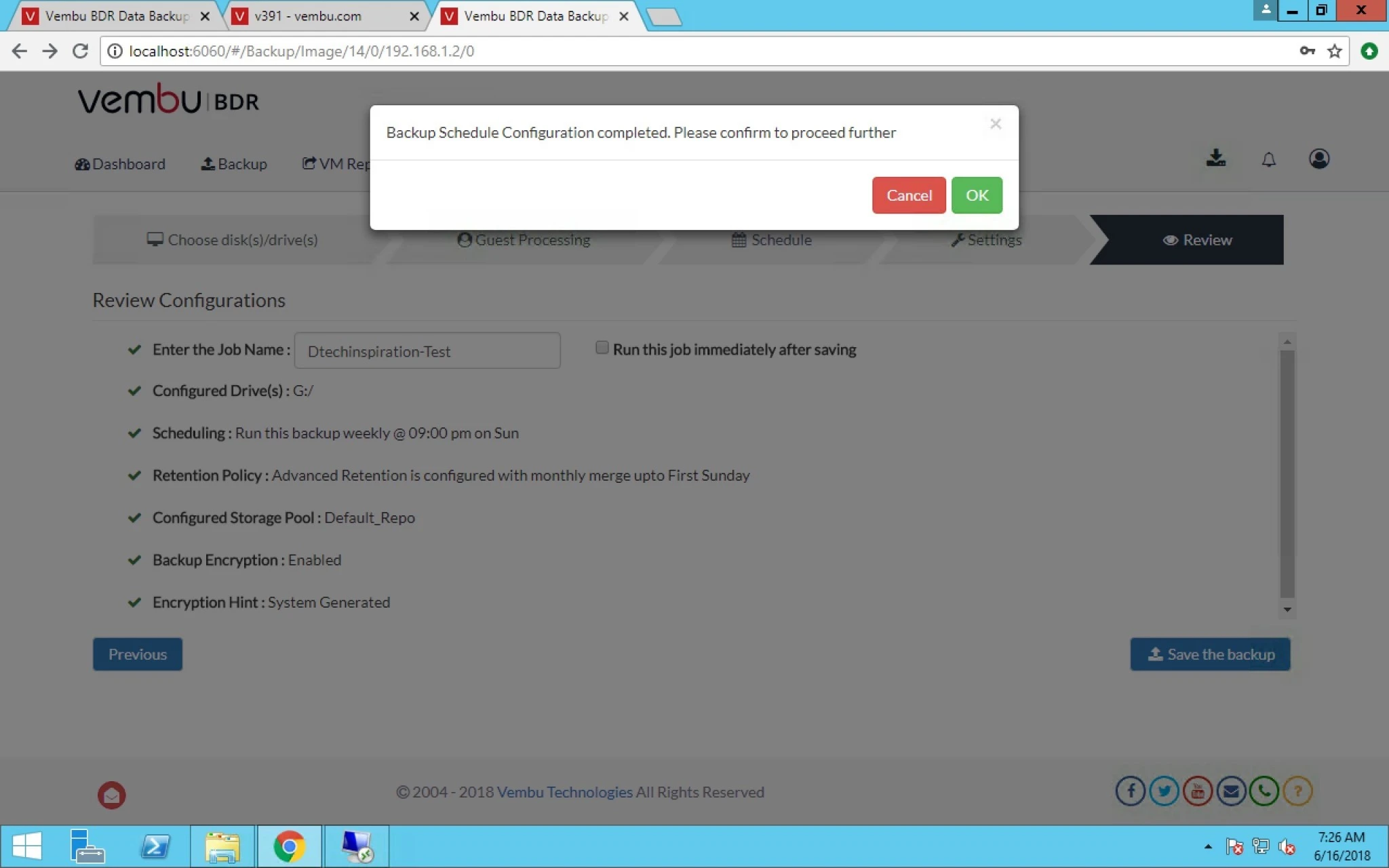
22. When you click on save the backup it will ask you final confirmation.
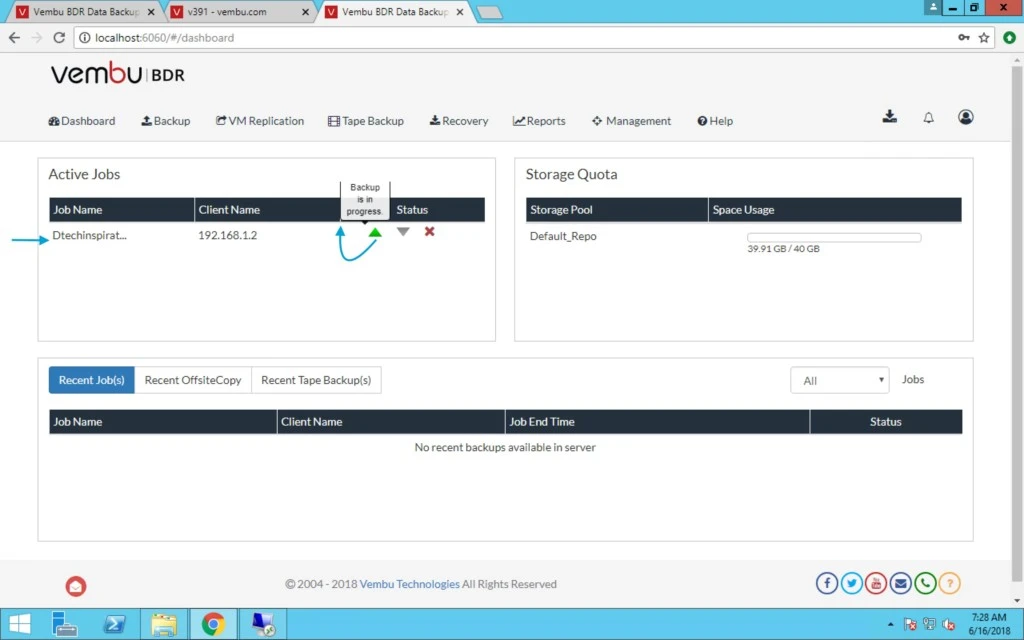
23. After creating backup job you can see under Active Jobs and it is also showing you UP and Down arrow.
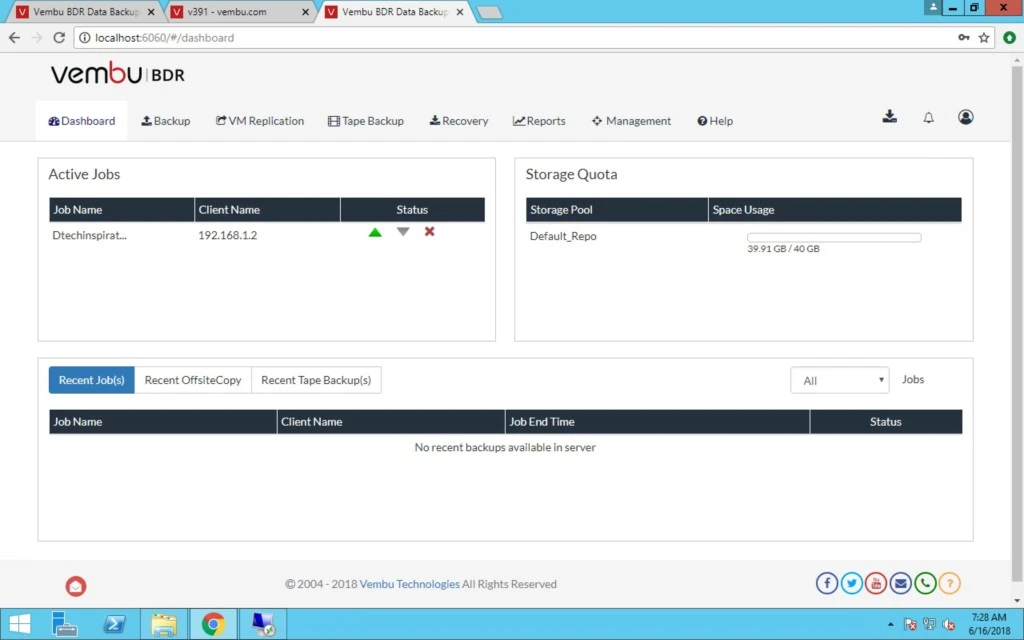
24. UP Arrow means Backup is in progress.
25. If you want to do report or check the status of backup jobs then go to reports tab and under Backup status report option and here you can see which job is completed successfully and which one is failed.