Use the checklist to track your installation progress on a vSphere host.
Follow the recommended order of procedures.
- Review the NSX Manager installation requirements. See NSX Manager Installation.
- Configure the necessary ports and protocols. See Ports and Protocols.
- Install the NSX Manager. See Install NSX Manager and Available Appliances.
- Log in to the newly created NSX Manager. See Log In to the Newly Created NSX Manager.
- Configure a compute manager. See Add a Compute Manager.
- Deploy additional NSX Manager nodes to form a cluster. See Deploy NSX Manager Nodes to Form a Cluster from the UI.
- Review the NSX Edge installation requirements. See NSX Edge Installation Requirements.
- Install NSX Edges. See Install an NSX Edge on ESXi Using the vSphere GUI.
- Create an NSX Edge cluster. See Create an NSX Edge Cluster.
- Create transport zones. See Create Transport Zones.
- Create host transport nodes. See Prepare ESXi Cluster Hosts as Transport Nodes.
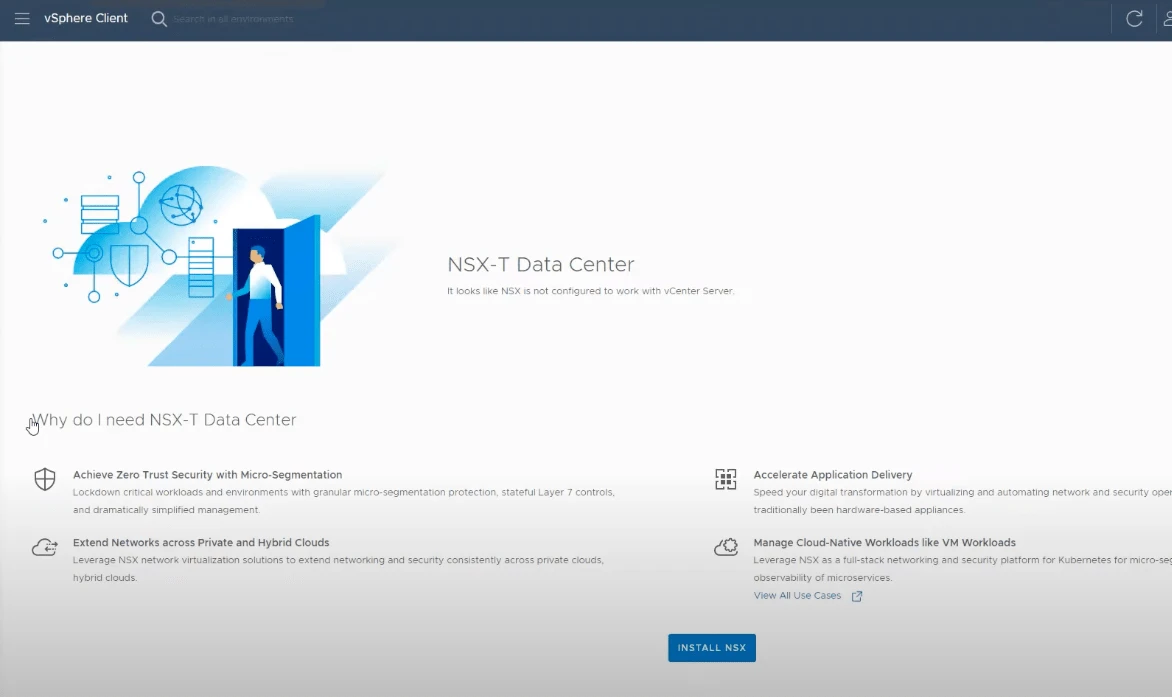
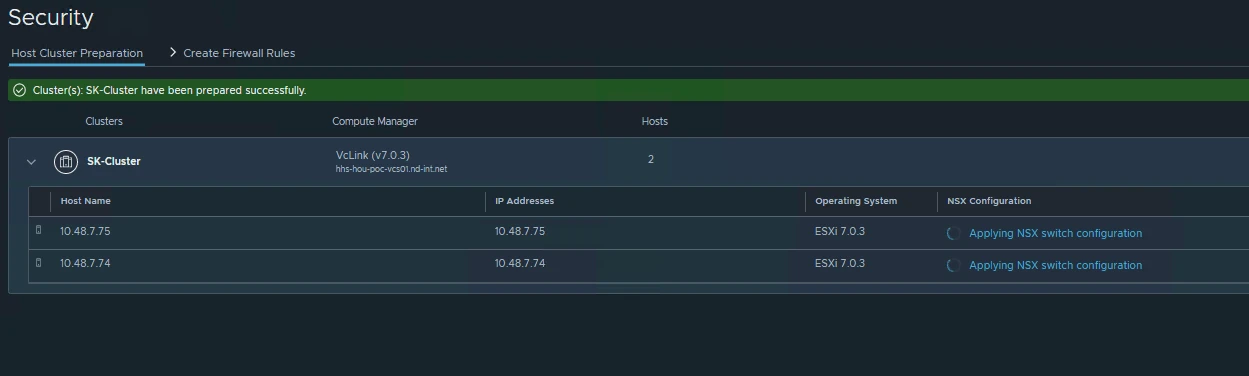
This blog demonstrates a new feature allowing to deploy nsx security without nsx networking in a Sphere environment, nsx security runs on the vm nics of the workloads and is configured directly in vcenter ui thanks to a plugin the feature also includes a wizard that guides a vsphere admin through it configuration first deploying the nsx manager install nsx on the host then guide the user through a basic distributed firewall rules according to the best practices and finally we’ll publish those rules into nsx in this very simple lab with few virtual machines in a flat network we’re first going to deploy the nsx manager and prepare the host for nsx security the vcenter ui now includes an nsx tab as you can see here and clicking on that we can trigger the deployment of the nsx manager directly from vcenter this is in fact a very traditional vm deployment from ova however at the end of the process the nsx manager is started and linked to vcenter and well then you’ll see a plugin is installed on vcenter ui and from there on the installation wizard is in fact executed on the nsx manager as soon as i click this we installed a license and then we start the installation of nsx on the compute cluster for example first the wizard is asking you to define the infrastructure group this group includes all the services that are typically accessed from within the data center.
Steps for installing via vCenter Servers
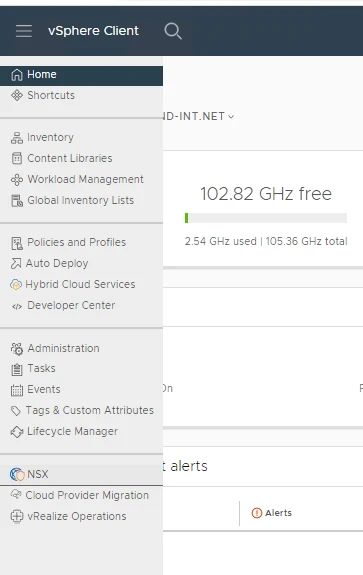
Login into vCenter and go to home page.
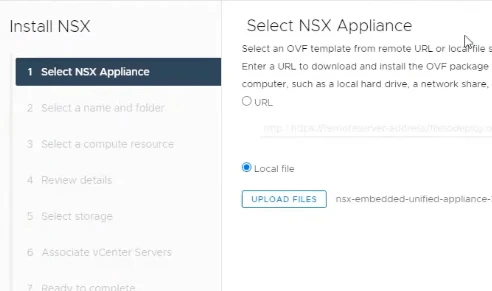
Select the vCenter and Cluster
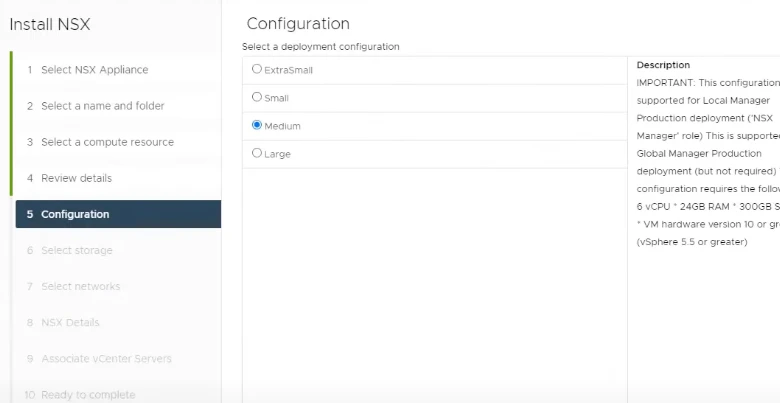
Select the Size for deployment
Provide Network for this VM
Enter all the password and IP details
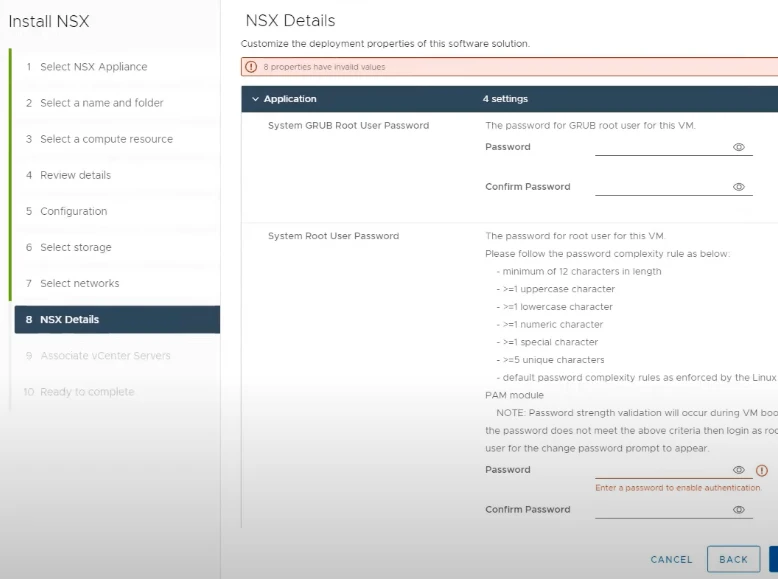
After that need to wait and it will be ready
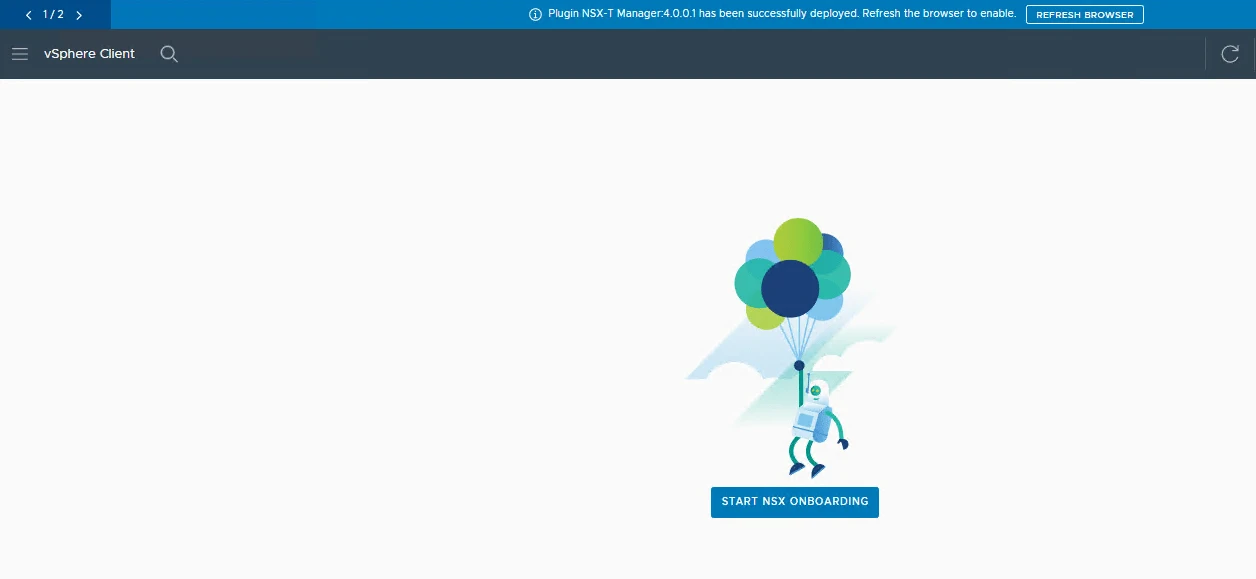
Once this is ready you will see below screen
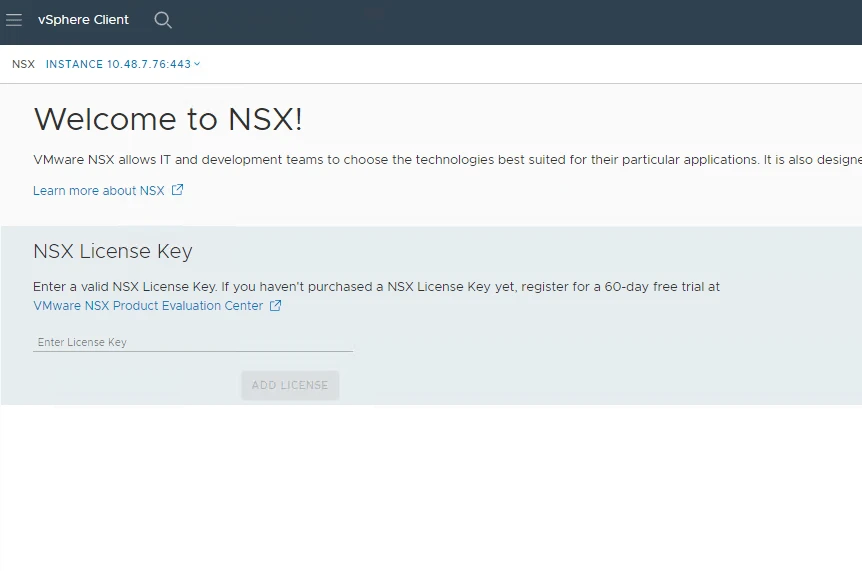
Once License is added you will see below screen
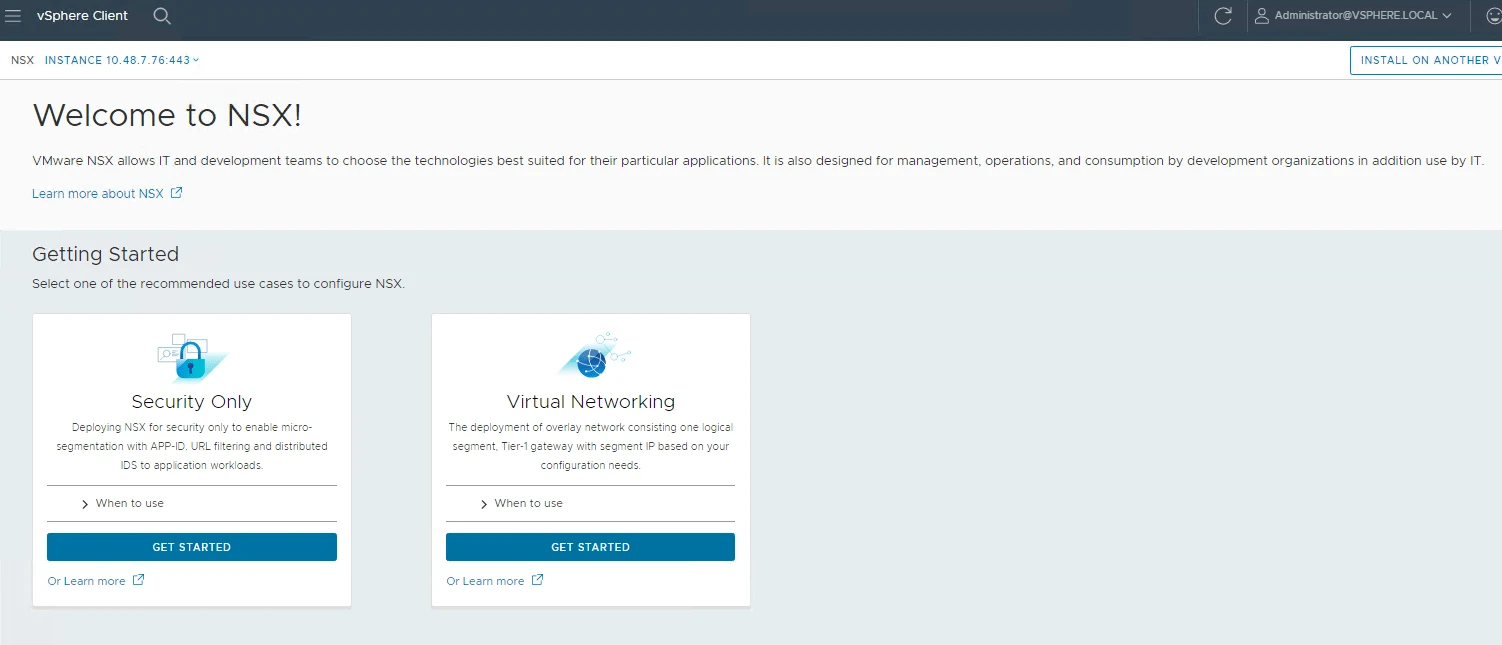
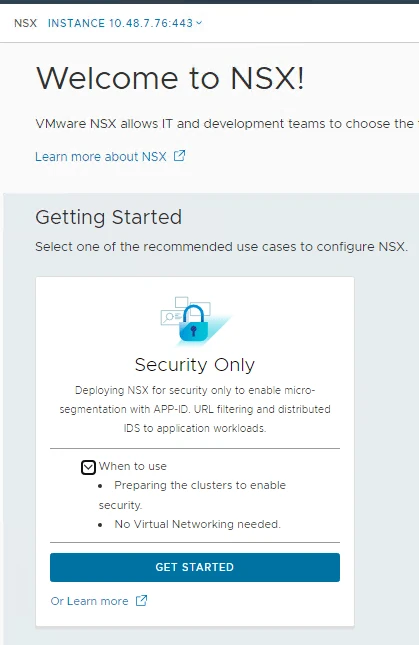
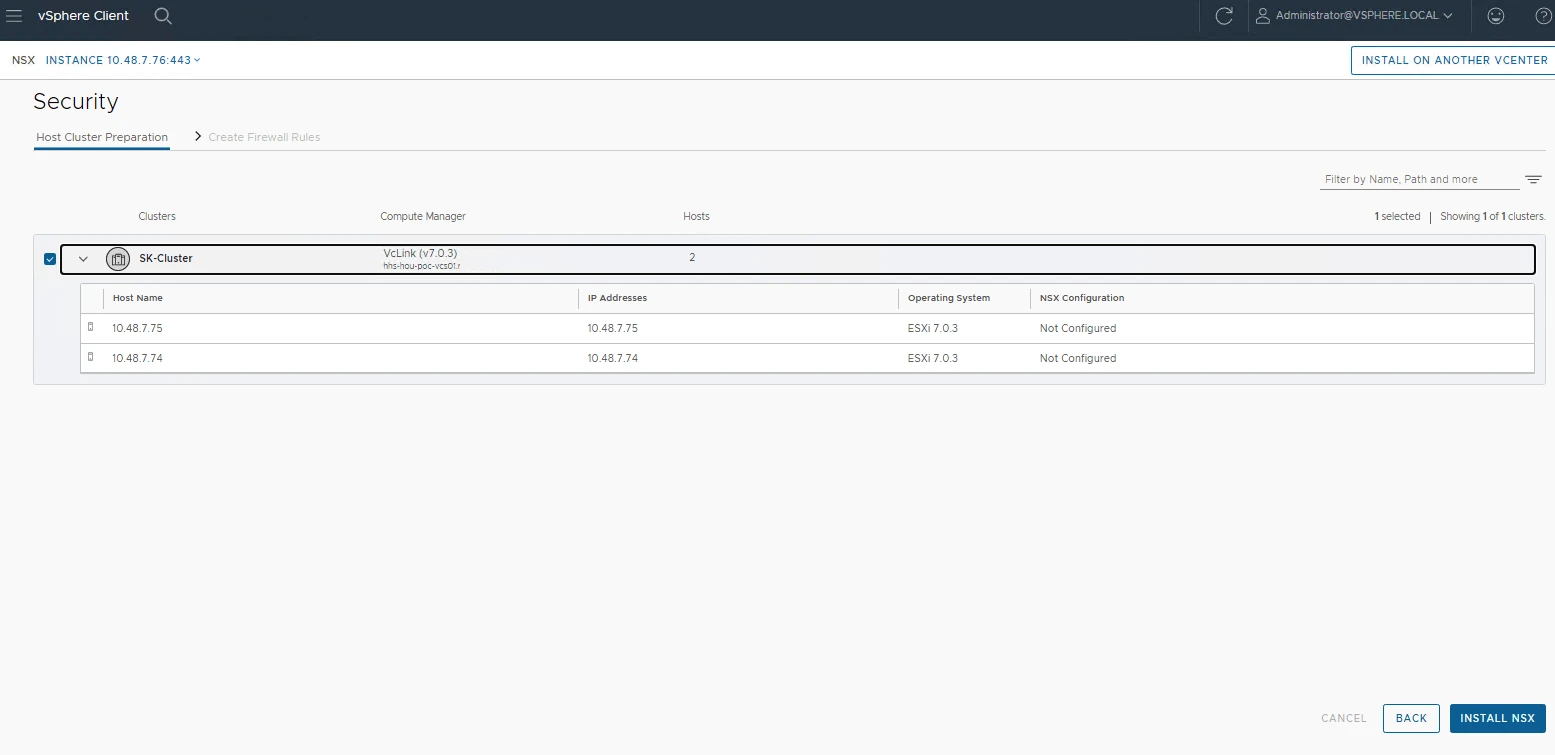
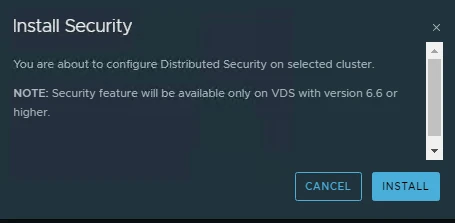
Select the cluster and install NSX.
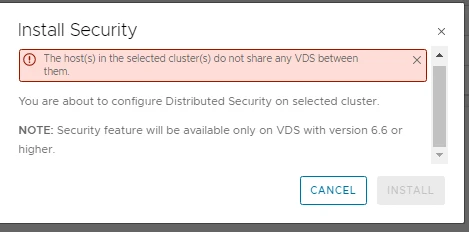
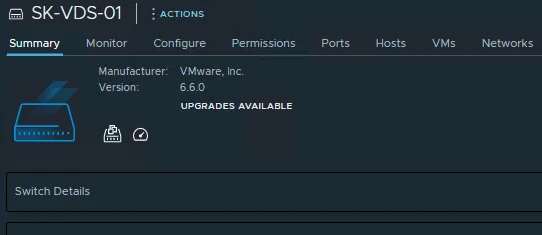
Created VDS – for testing i created 6.6.0 version not the 7

we’re going to identify three services and for illustration purposes i’m going to select the member of those services using the three different methods available in the wizard first the dhcp service this service is provided by a virtual machine that i tag here then the dns service in my lab this is done via a physical appliance so i’m going to identify it via its ip address.