I am running VMware vCenter Server Appliance 5.1 in my organisation now i want to move 5.5 version. so i decided to upgrade Existing vCenter server to new version.
First how to upgrade and what All pre-requiesites.
1. Take backup of Existing Database.
2. Clone the Existing vCenter Appliance.
3. Download the New version OVF
Now Lets start:
1. Go to vCenter Server and Start Deploying OVF.
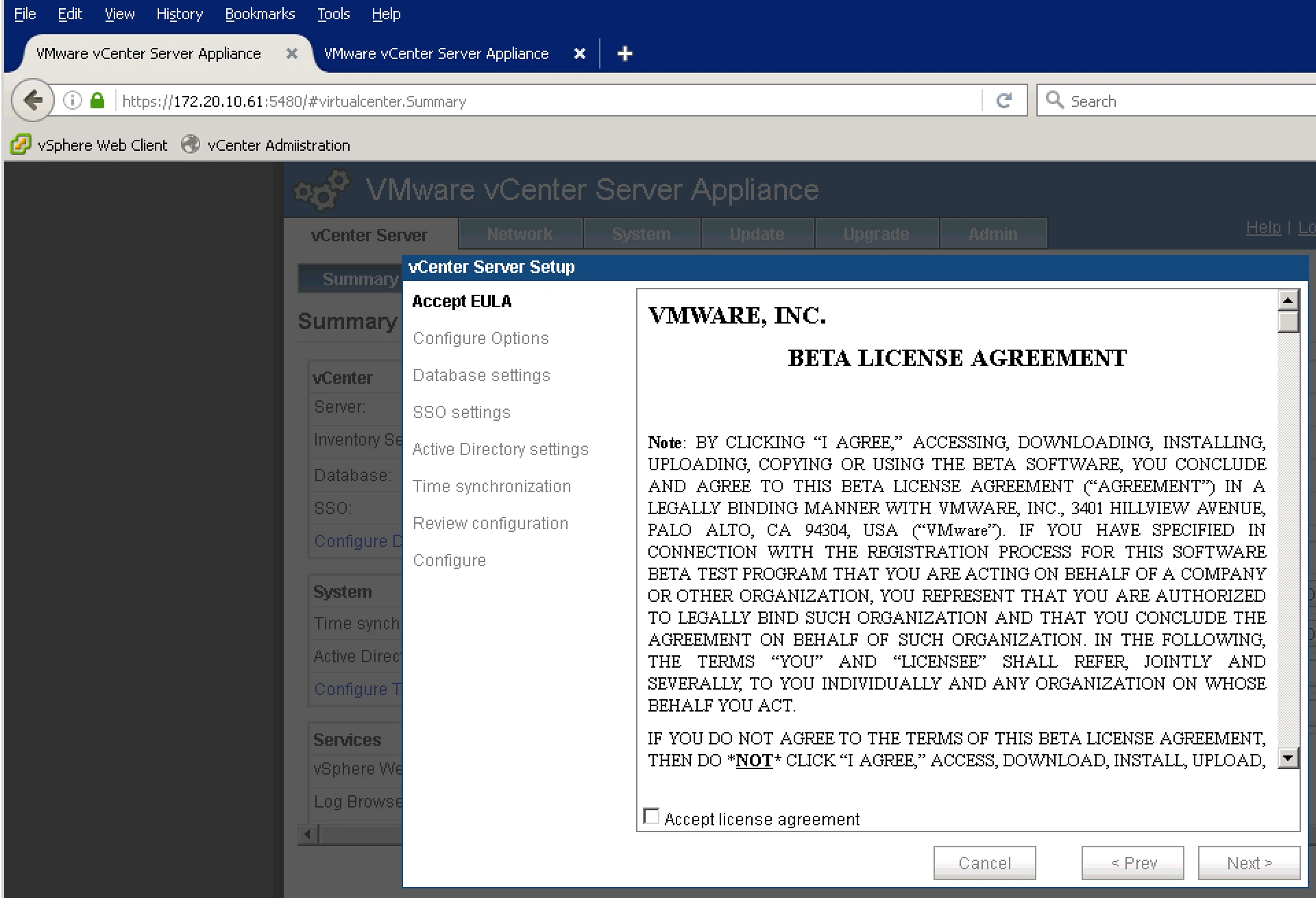
2. In this Tab i have opened both the Appliance (as VM).
3. Below is the Screen where it is showing which version Appliance it is.
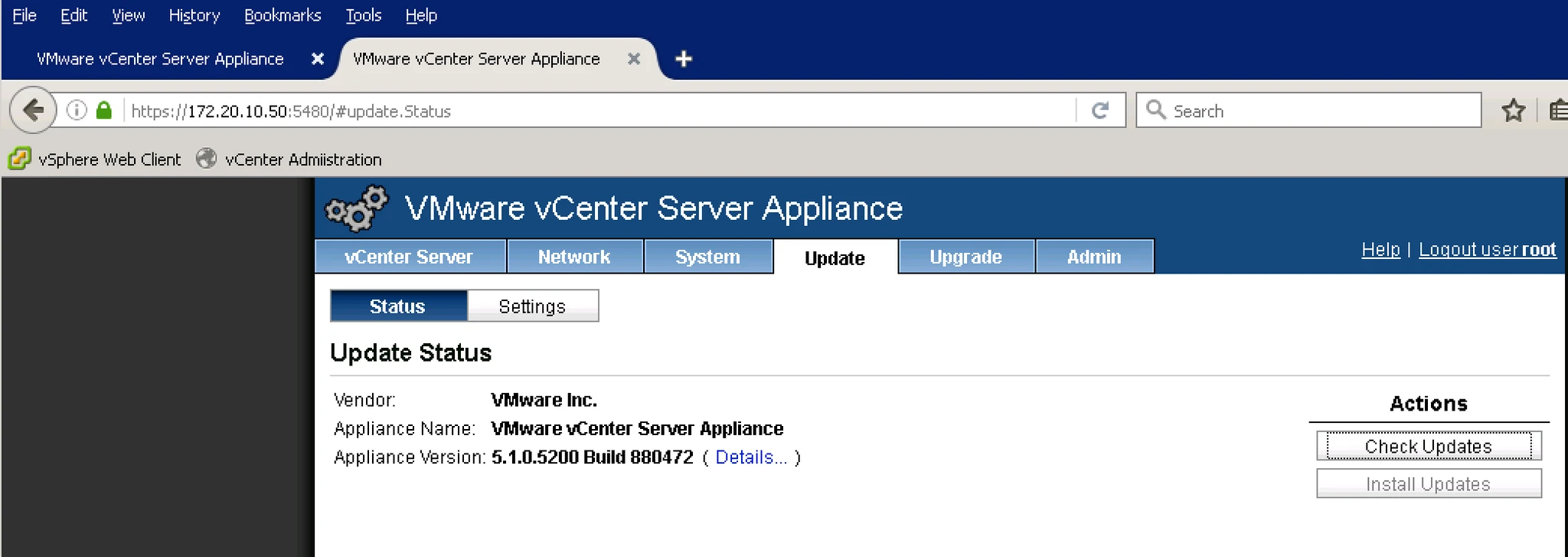
4. Now on the First Machine i login with root and Password ( root and vmware).
5. Below is the screen where it will ask you whether upgrade or fresh install. Select Upgrade.
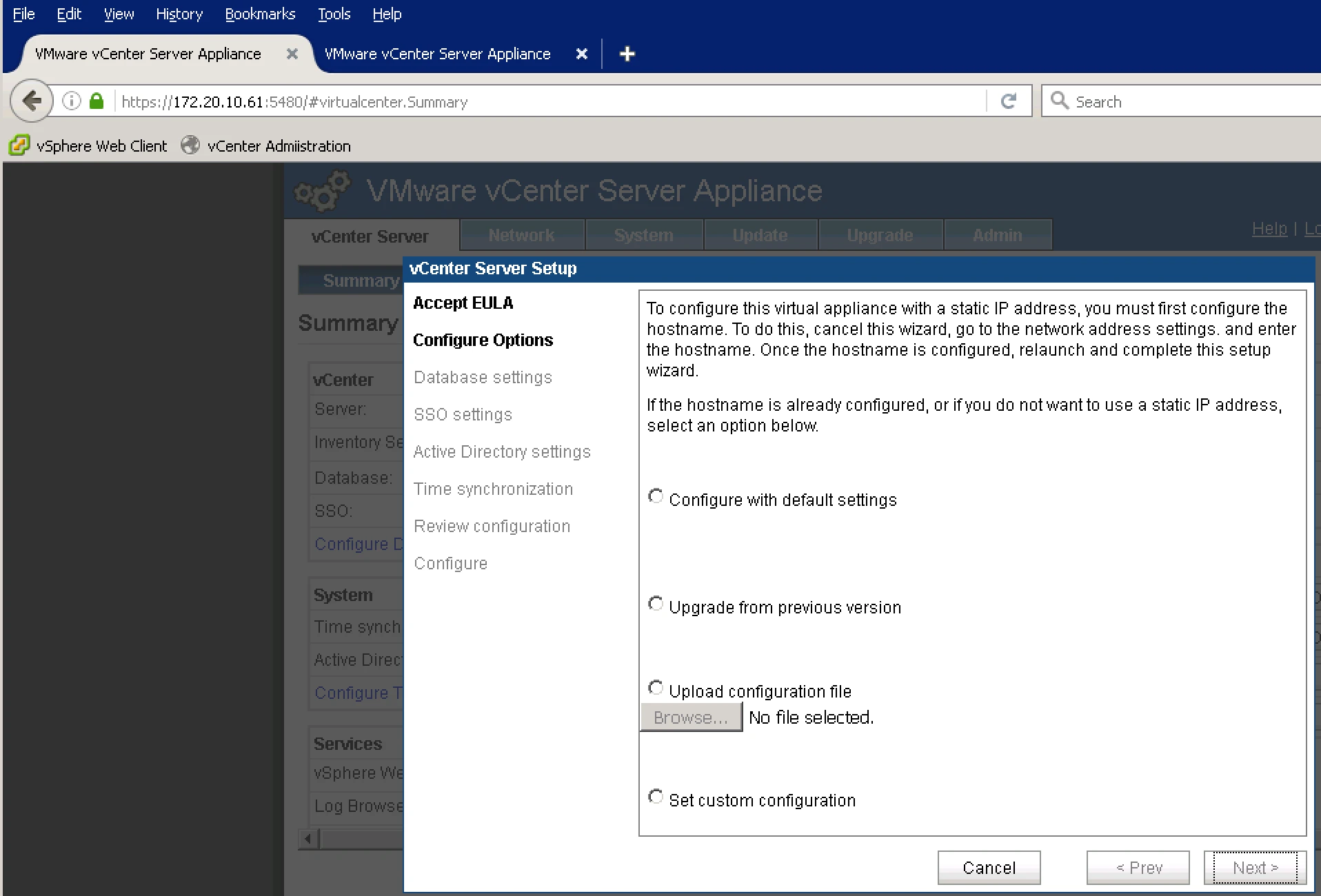
6. Now it will ask you for the key. From where you will get this key. Go to 5.1 vCenter Appliance and Upgrade Tab and Import Key.
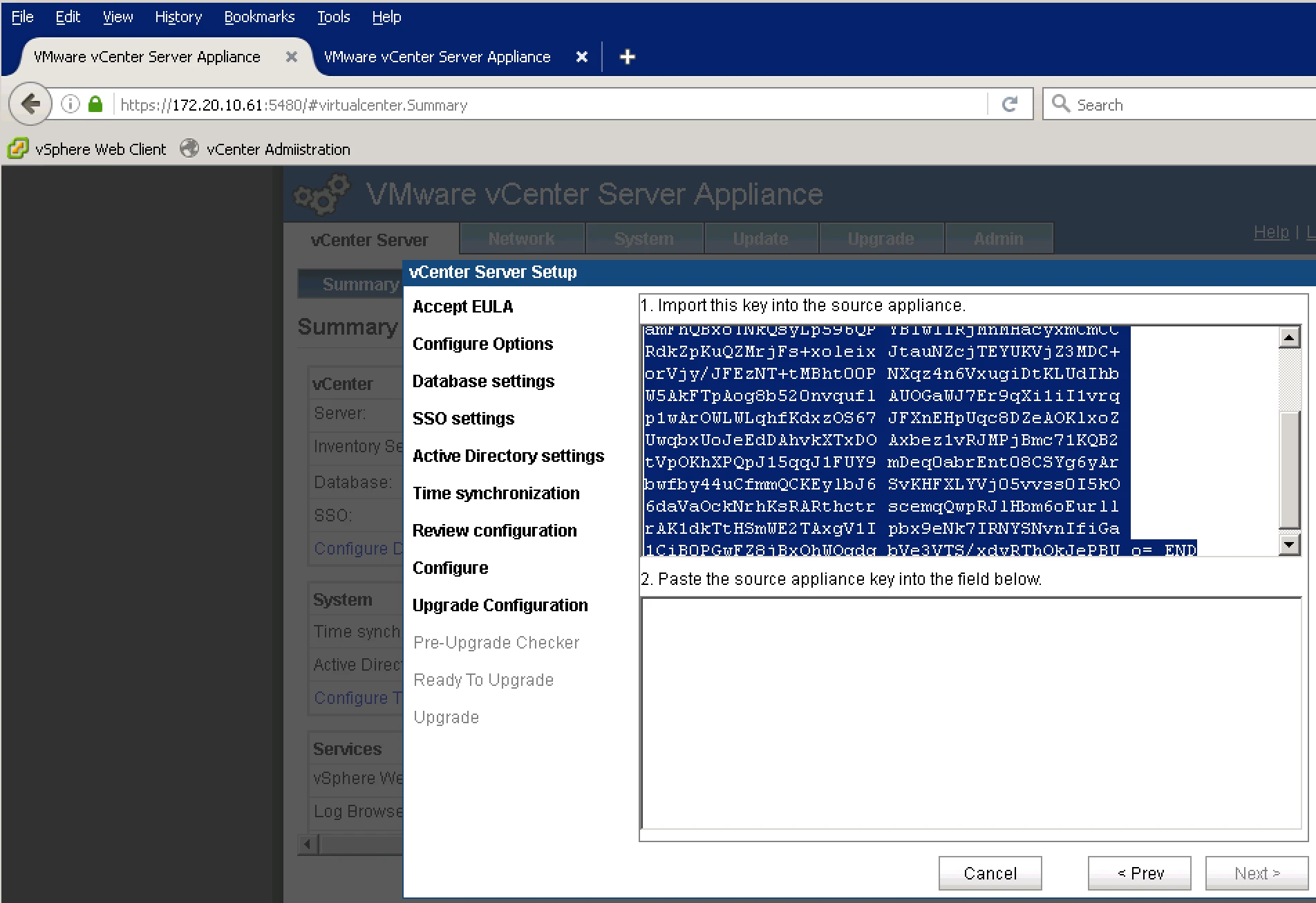
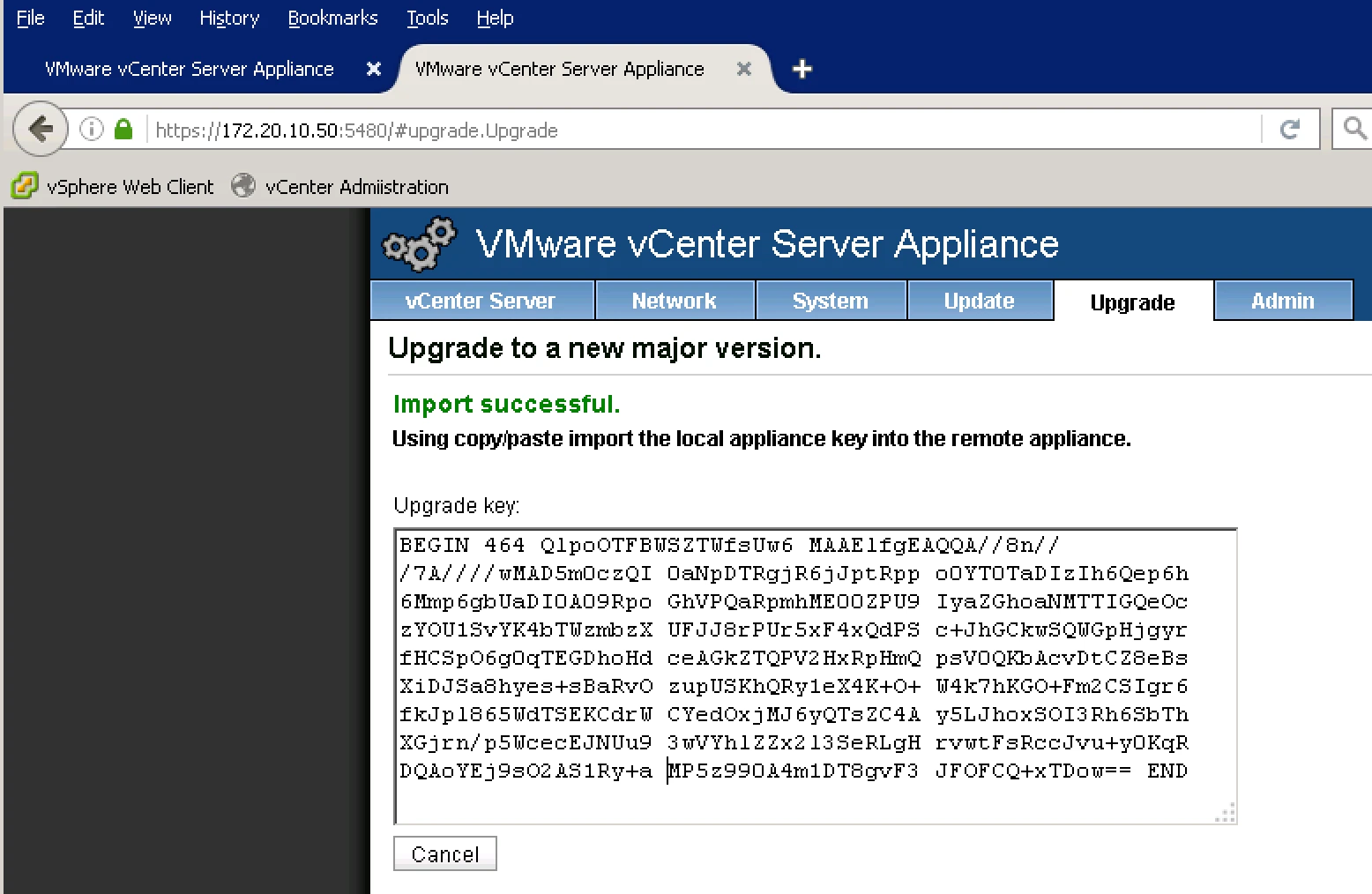
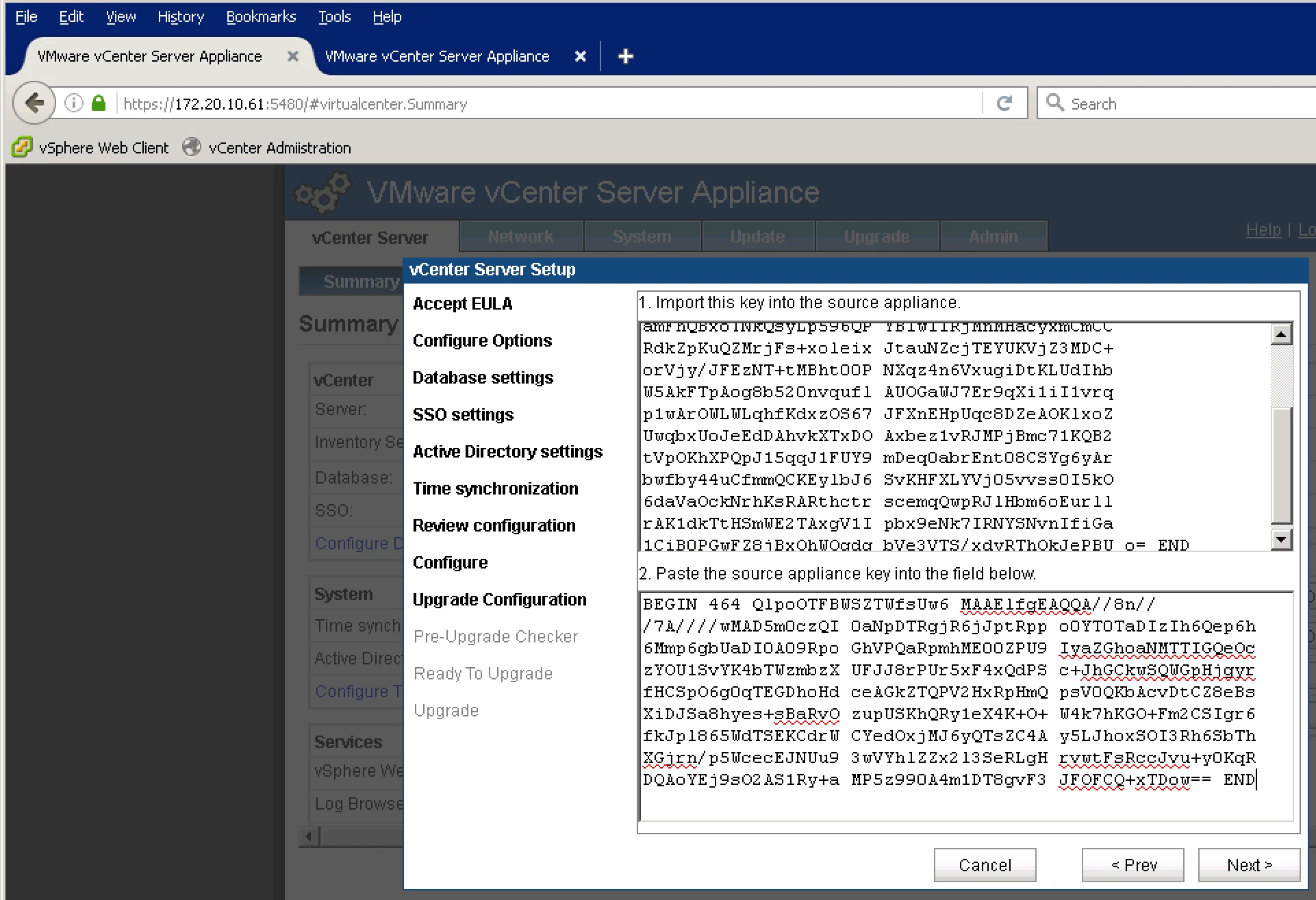
7. Now paste this Key in 5.5 Appliance tab.
8. Pre Checker is running.
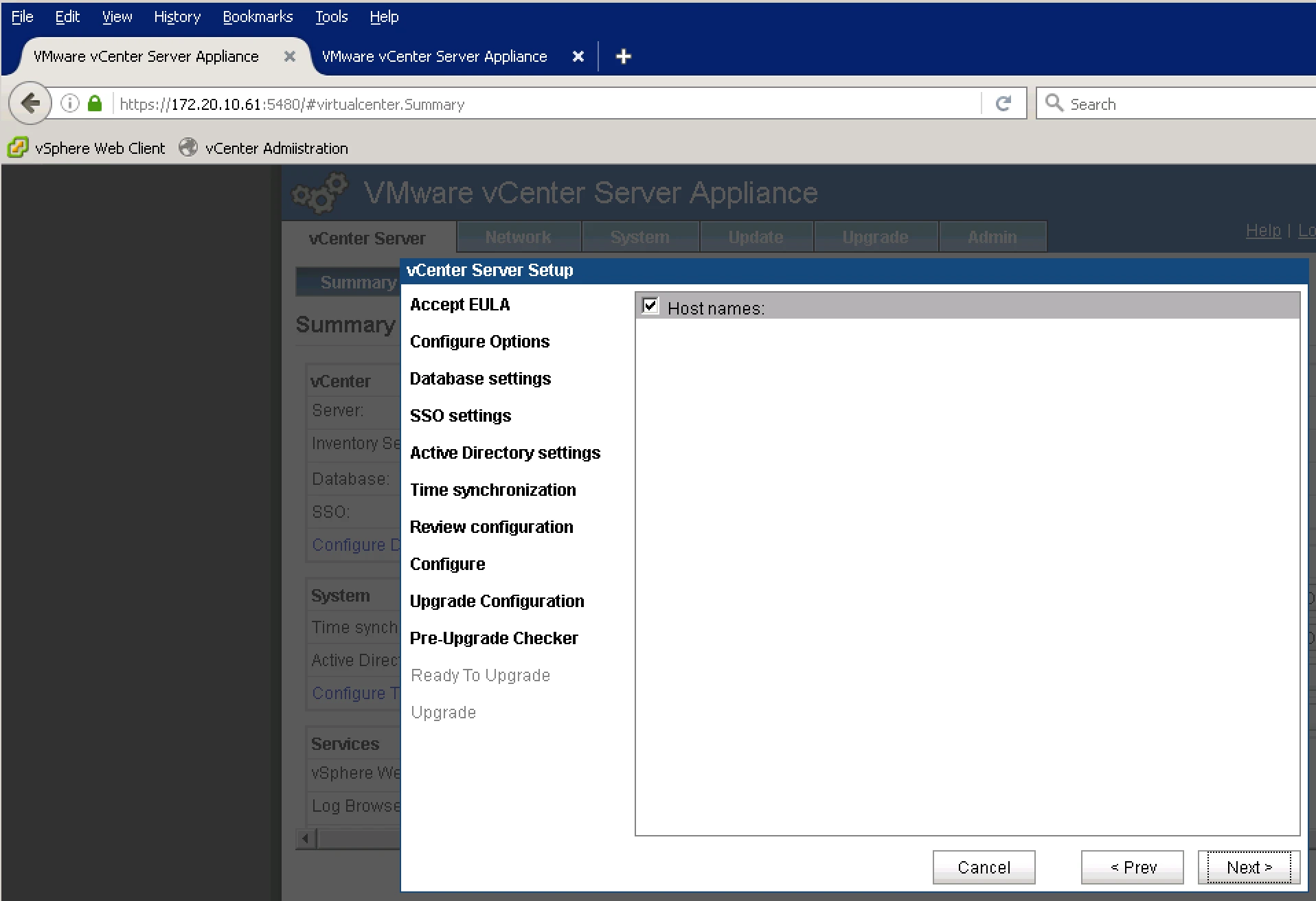

9. it will give you Message to take snapshot or backup.
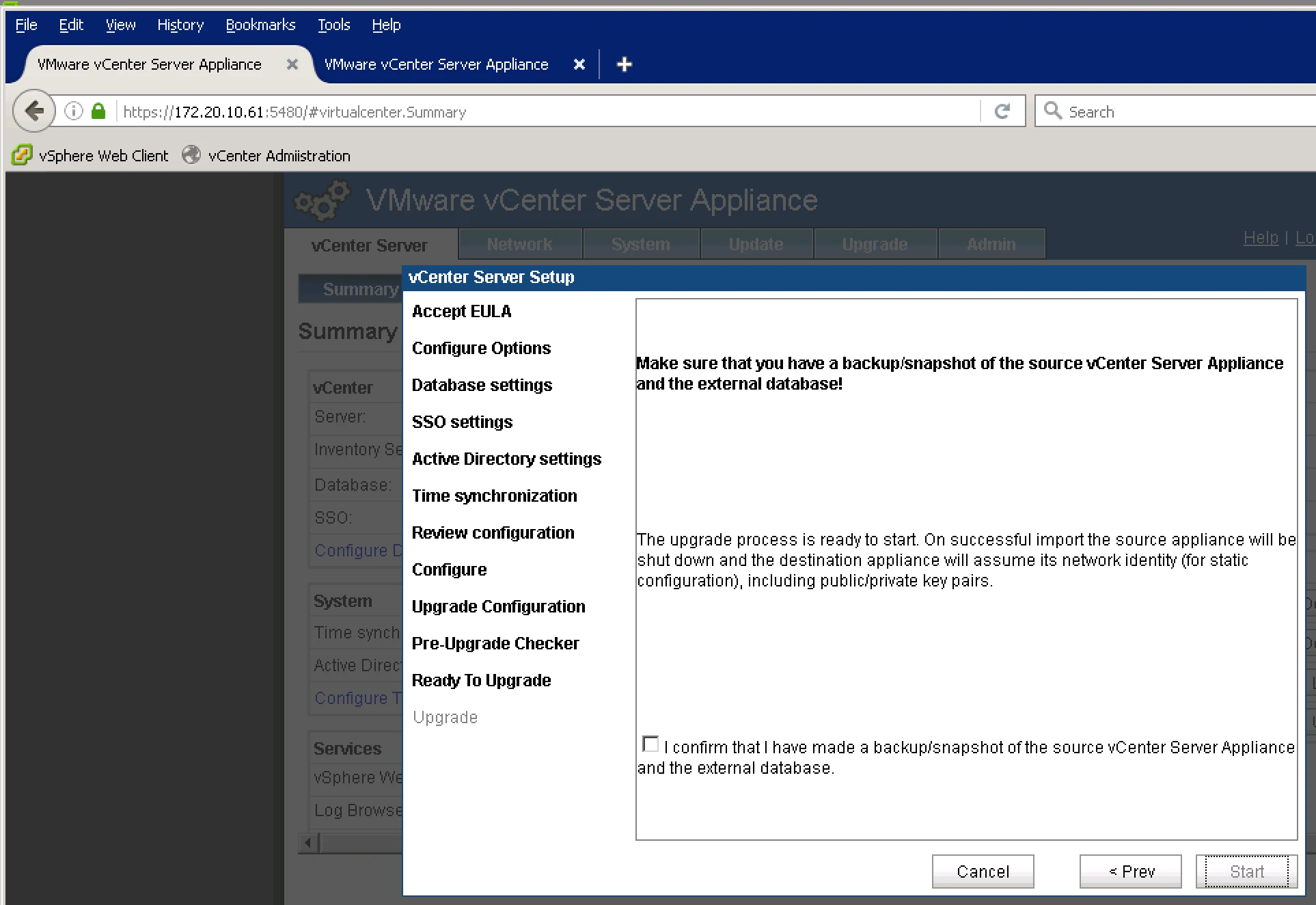
10. Now Run Upgrade vCenter Server
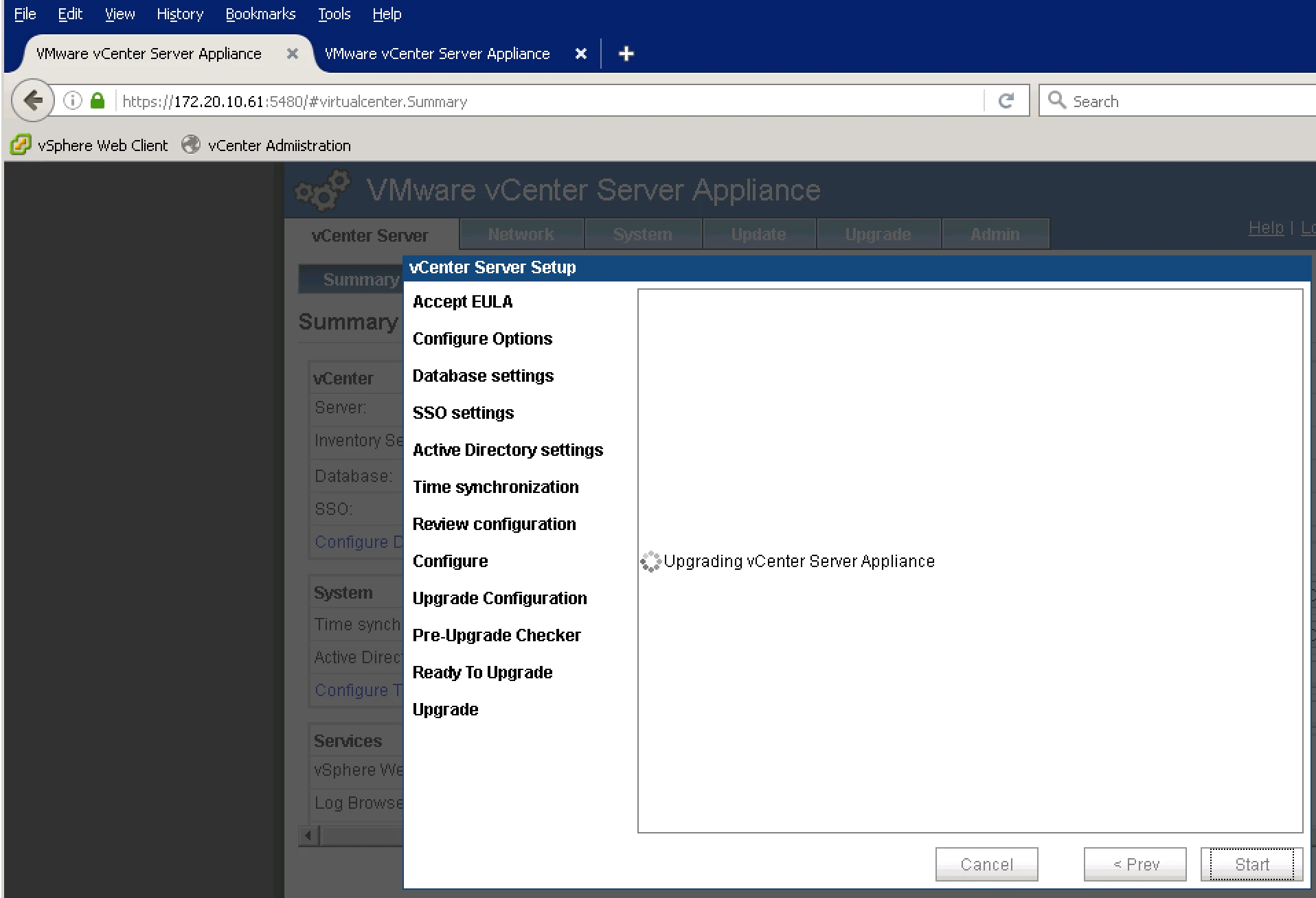
11. Final Screen it will give me with Message Wether it is sucessful or not.
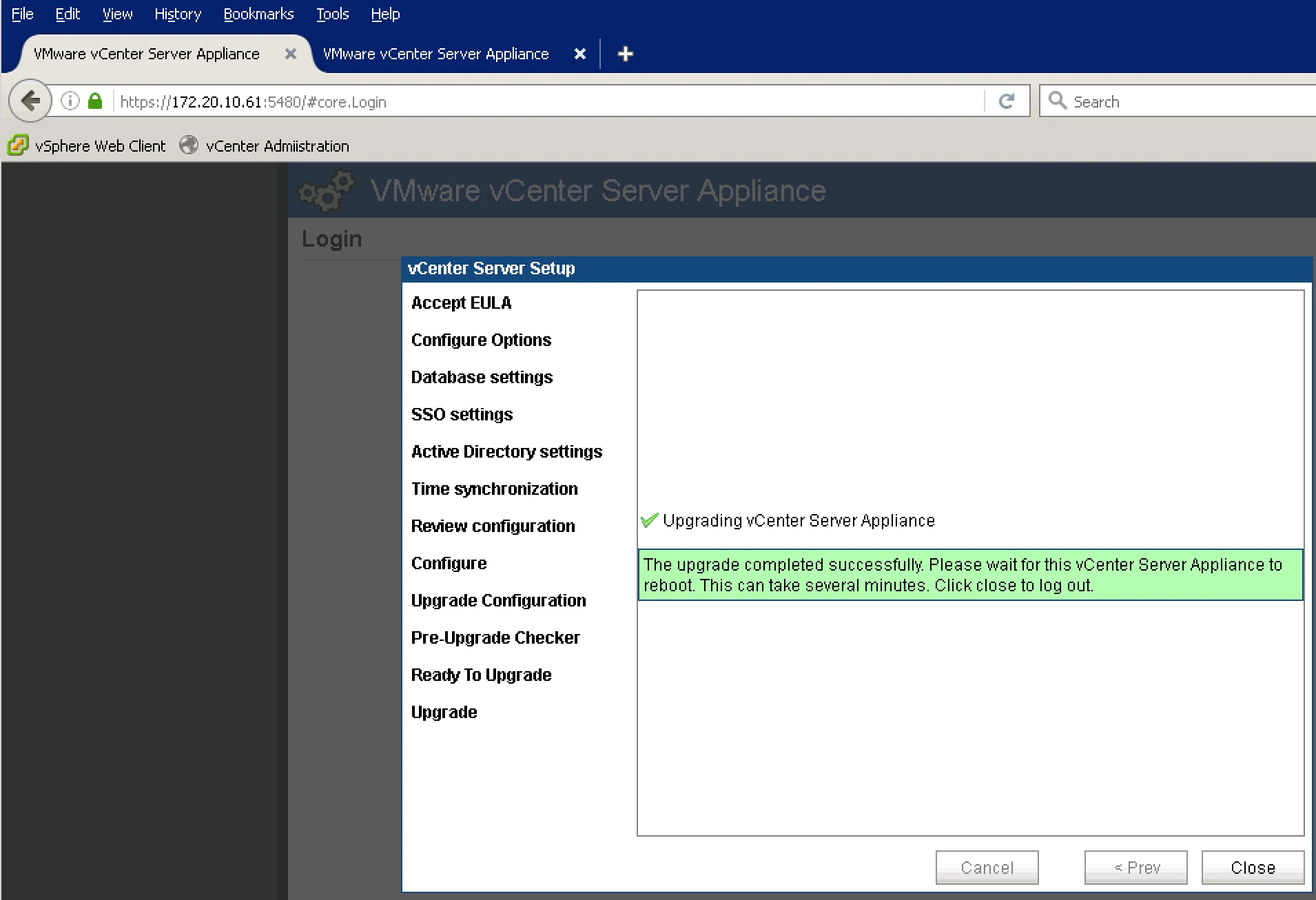
12. Old Appliance is in Shutdown Mode and new Appliance is Active.
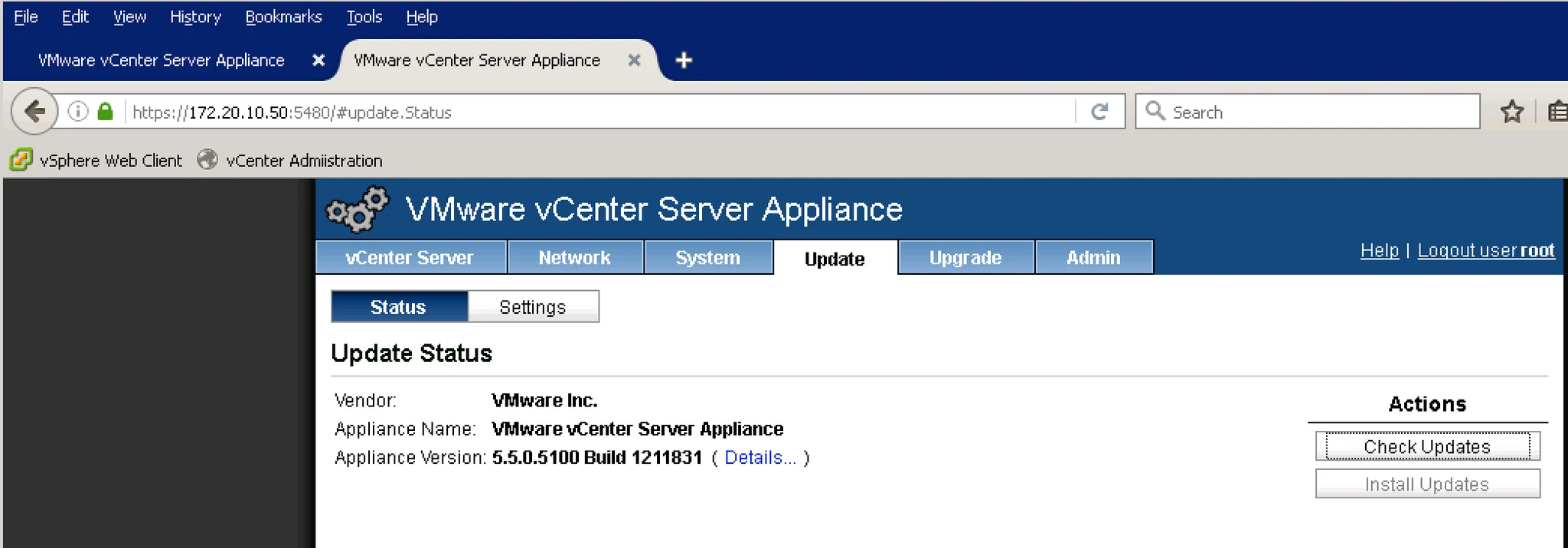
Start using VMware vCenter 5.5.