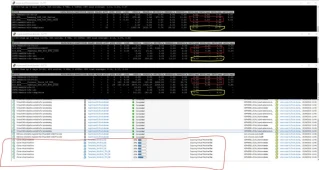
Just a quick post to share some very interesting performance stats observed on my home lab VSAN cluster (Build details here). The VSAN datastore is in addition to a few NFS datastores also mounted on the same hosts using an external Synology SAN.
I have One vCenter Server with Embedded Database But what if i want to use or Install New vCenter Server With External Database.Note: What all database supported with VMware vCenter Server.1. Windows: Oracle 11g, 12c, Microsoft SQL 2008 R2, 2014.2. Appliance: Oracle 11g and 12c only ( As of Now )Lets see the installation step:1. Open the vCenter server Autorun.
2. Click Next and Accept EULA
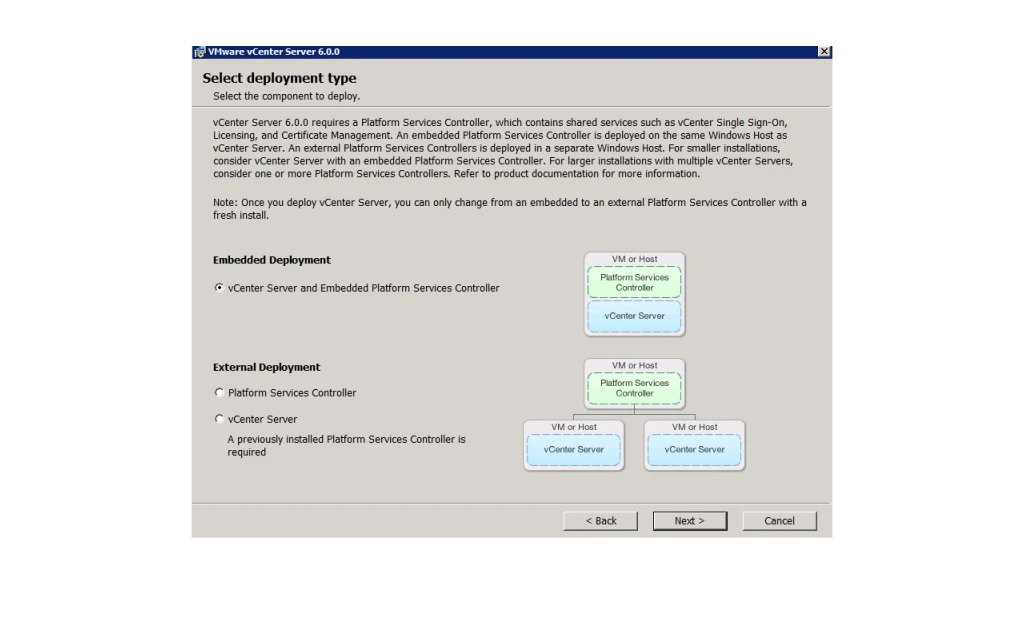
3. Select the Deployment Mode. A) Embedded B) External
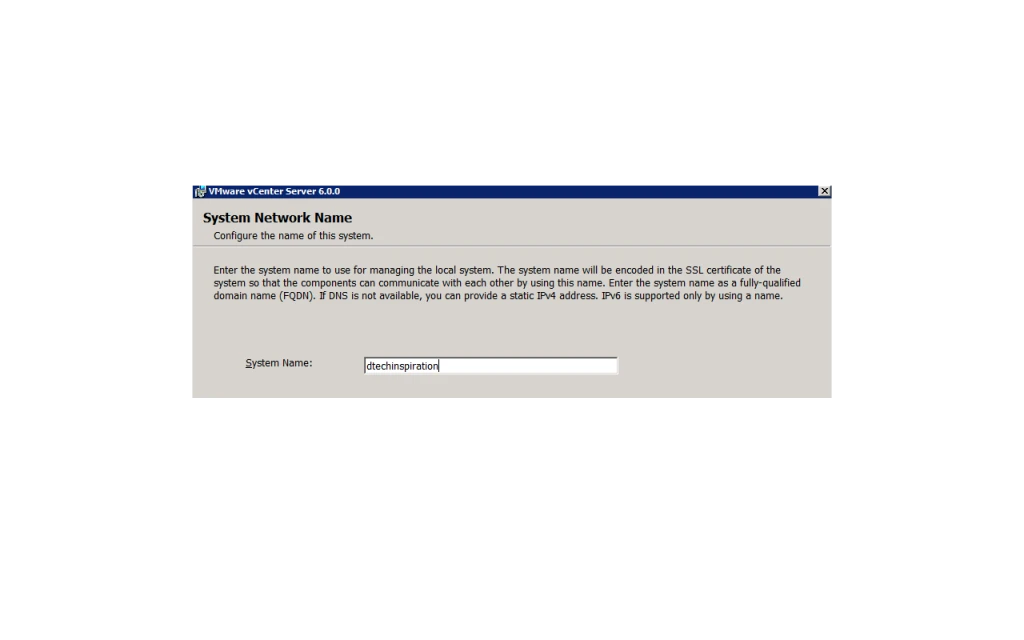
4. Give the System Name
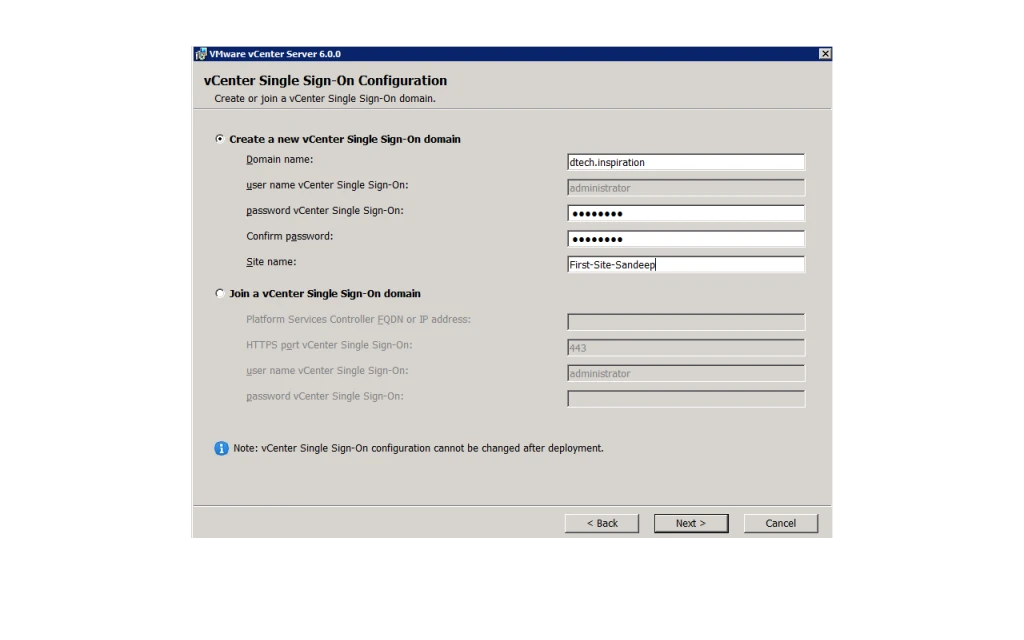
5. User Name and Password
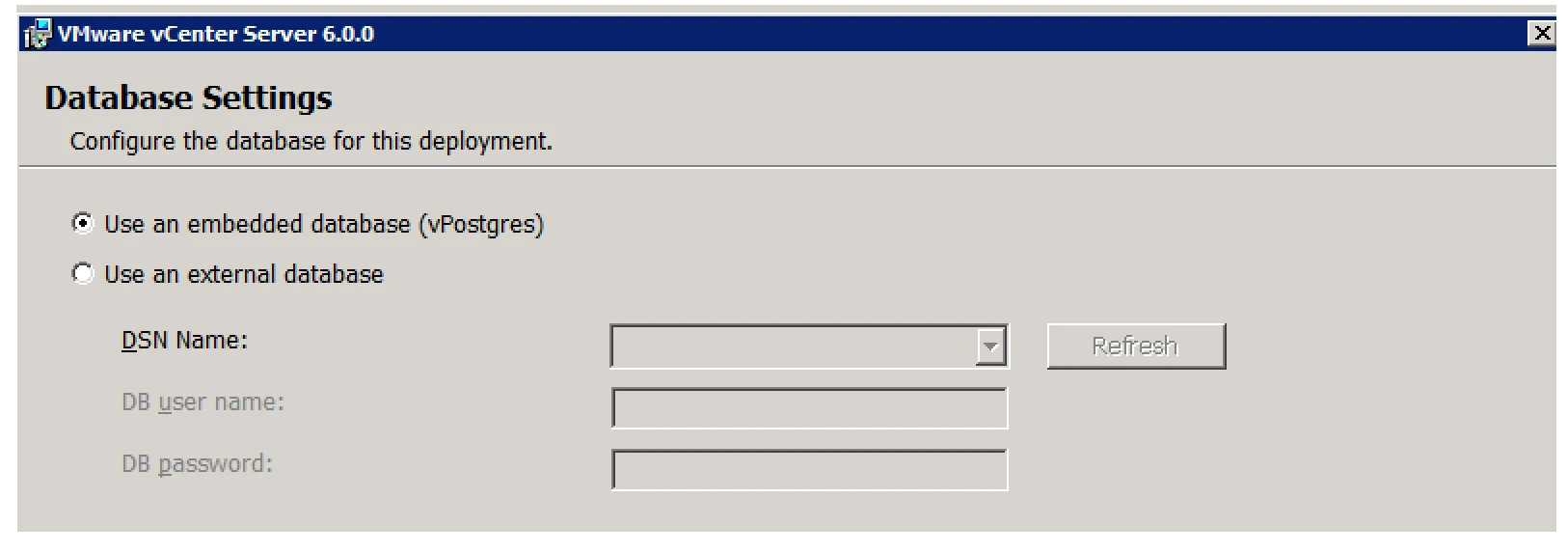
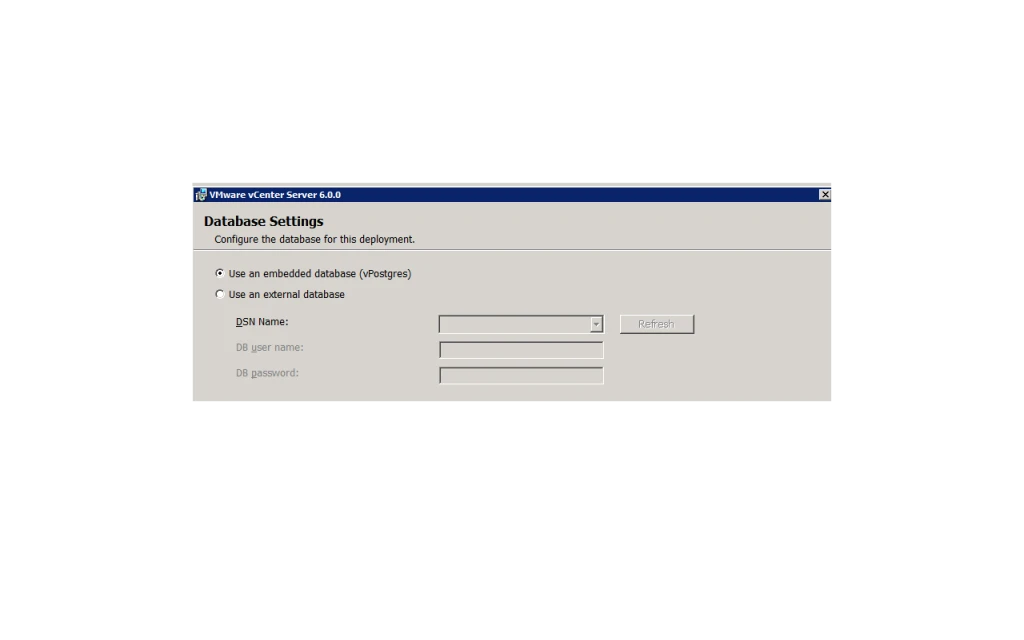
6. Database selection Time
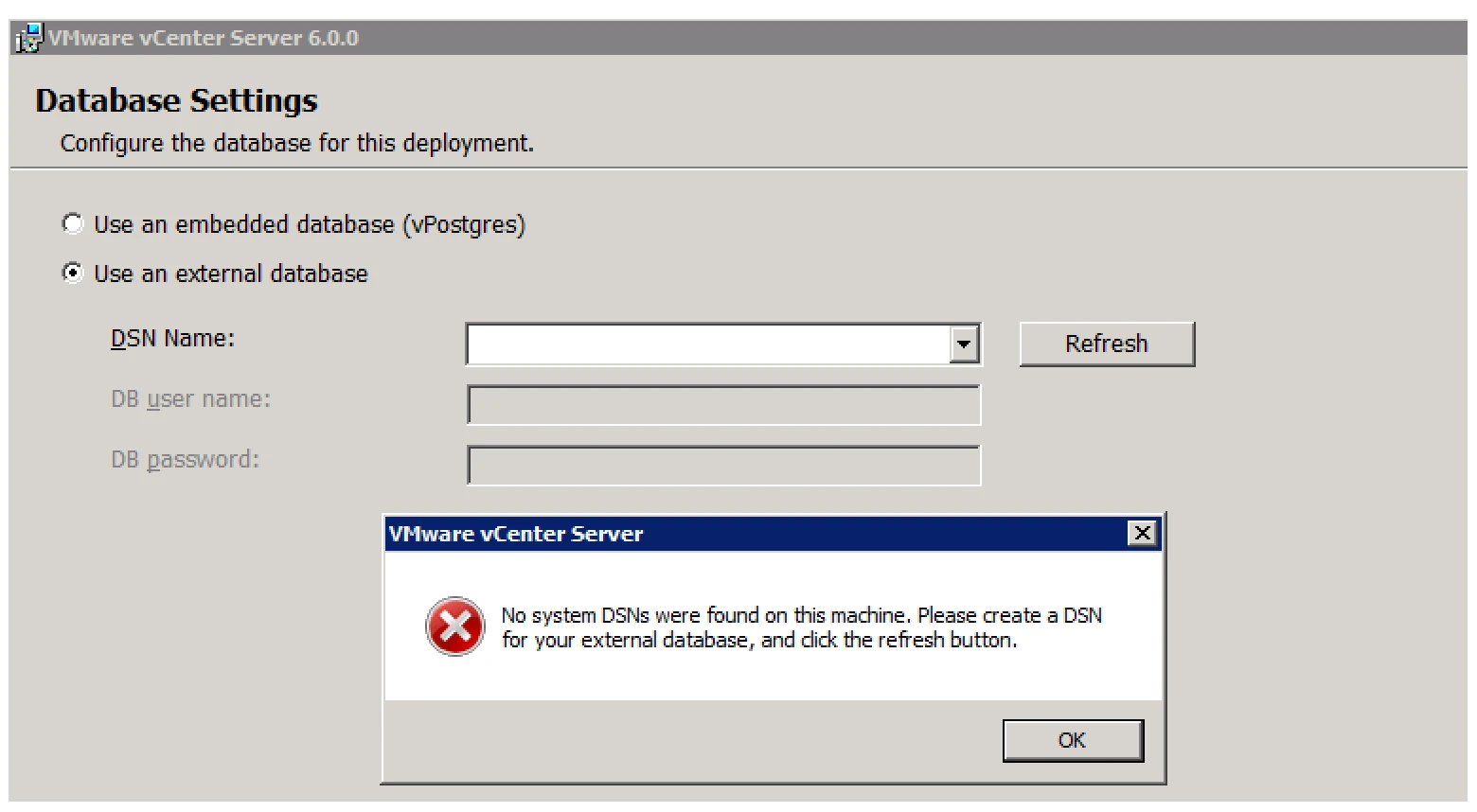
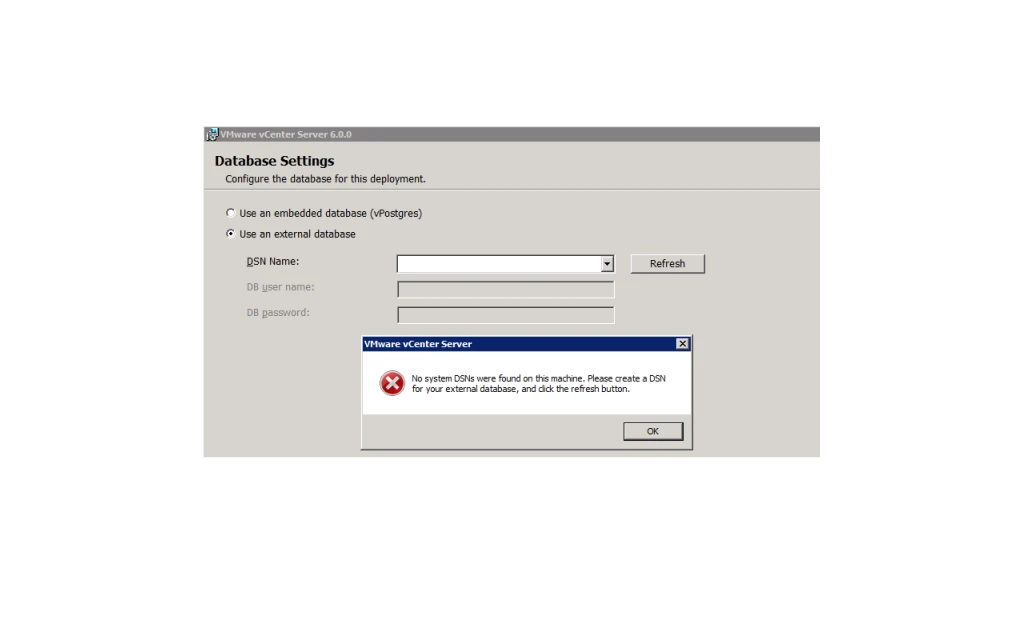
7. Select External Database
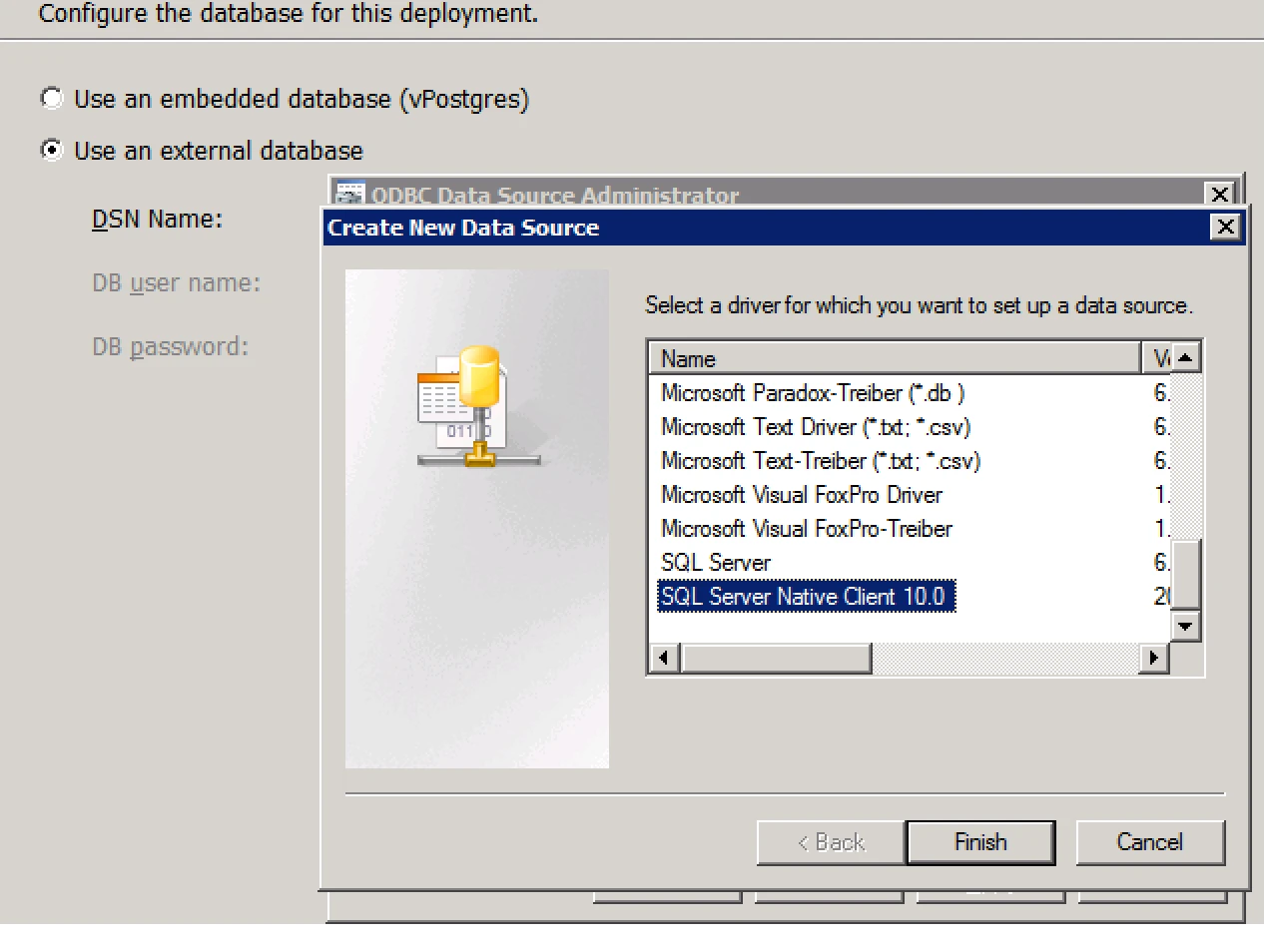
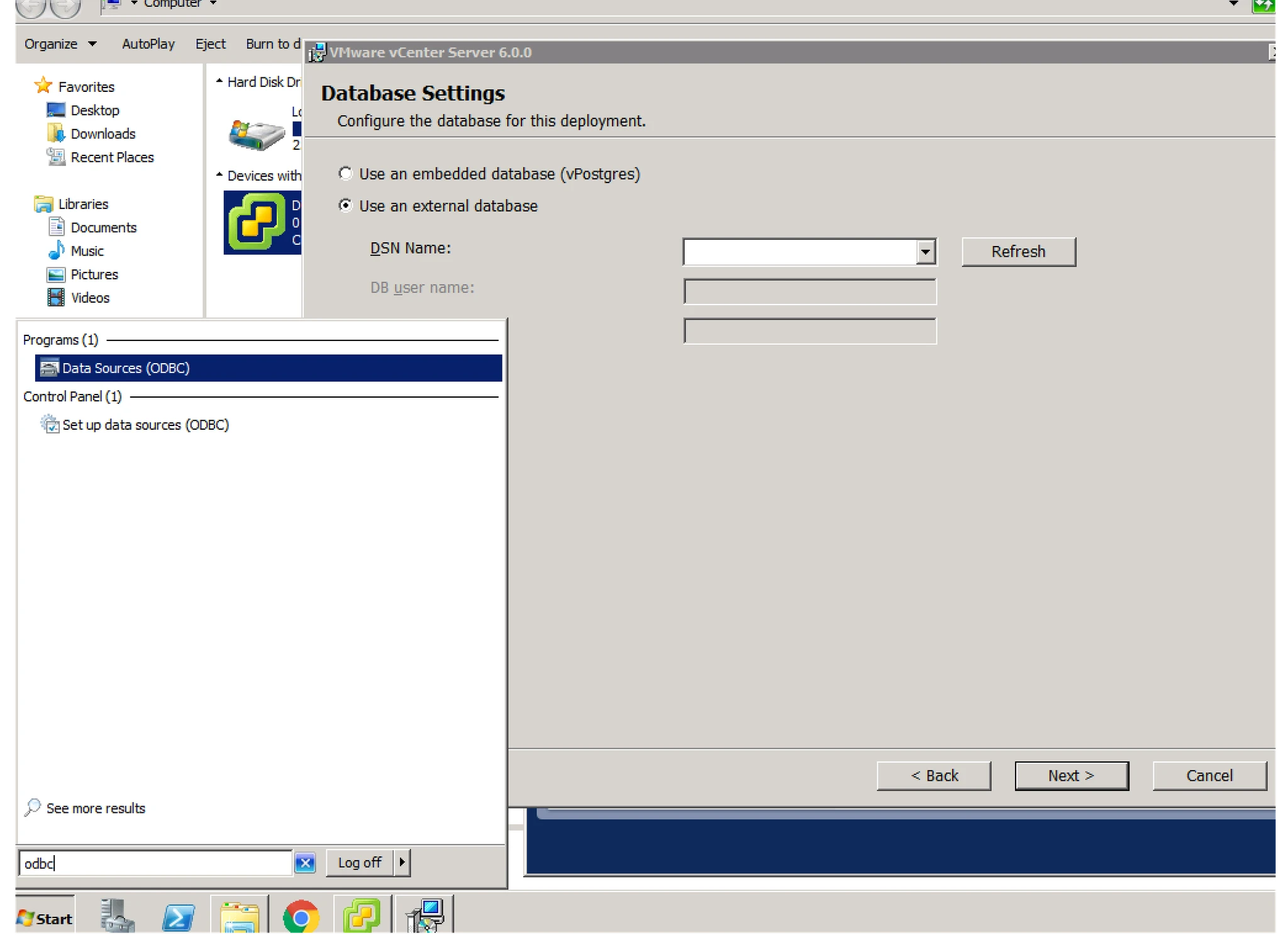
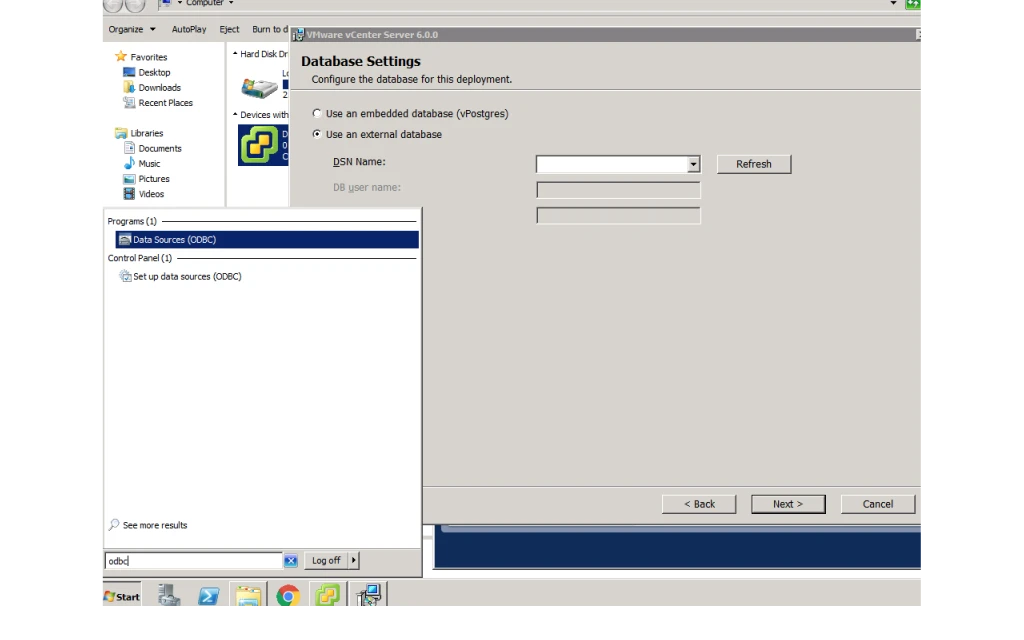
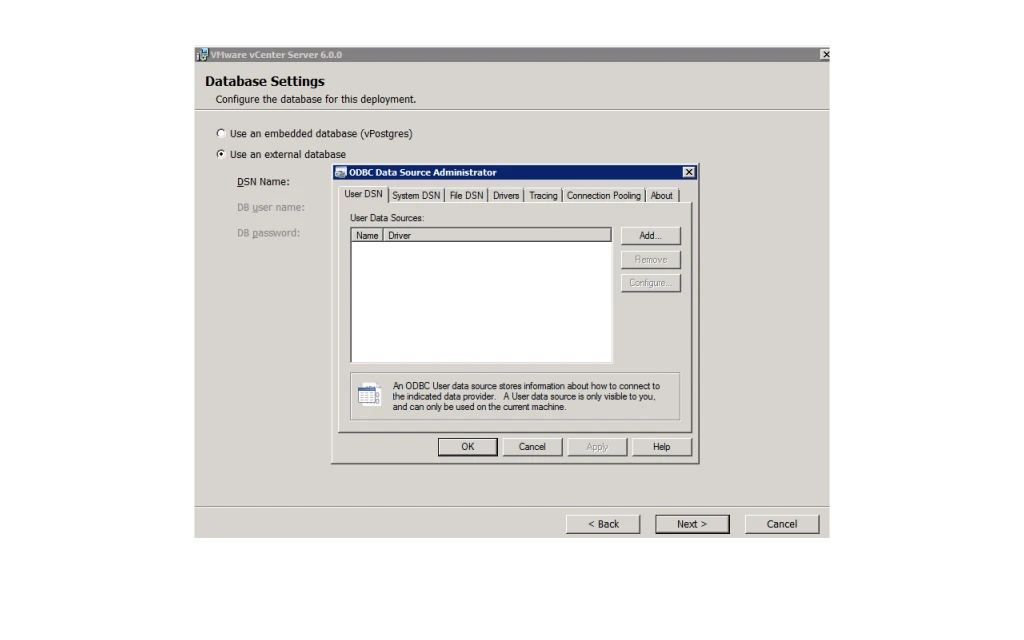
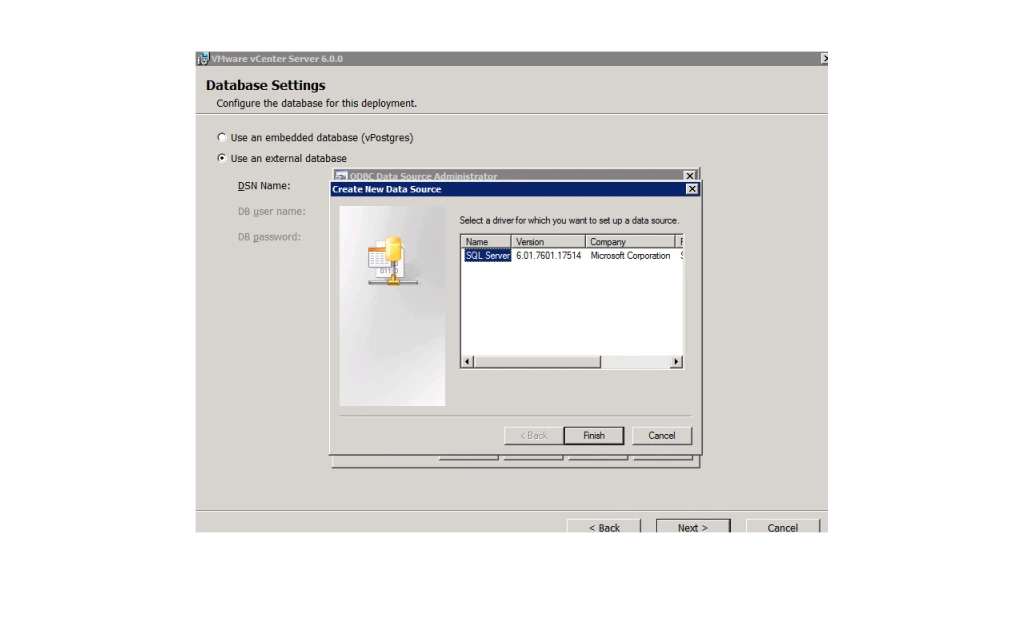
8. Here you need DSN. So First you need to create DSN ( Need to download Native Client)A). Type ODBC in Run and find if you have Native Client 10 or 11 not.
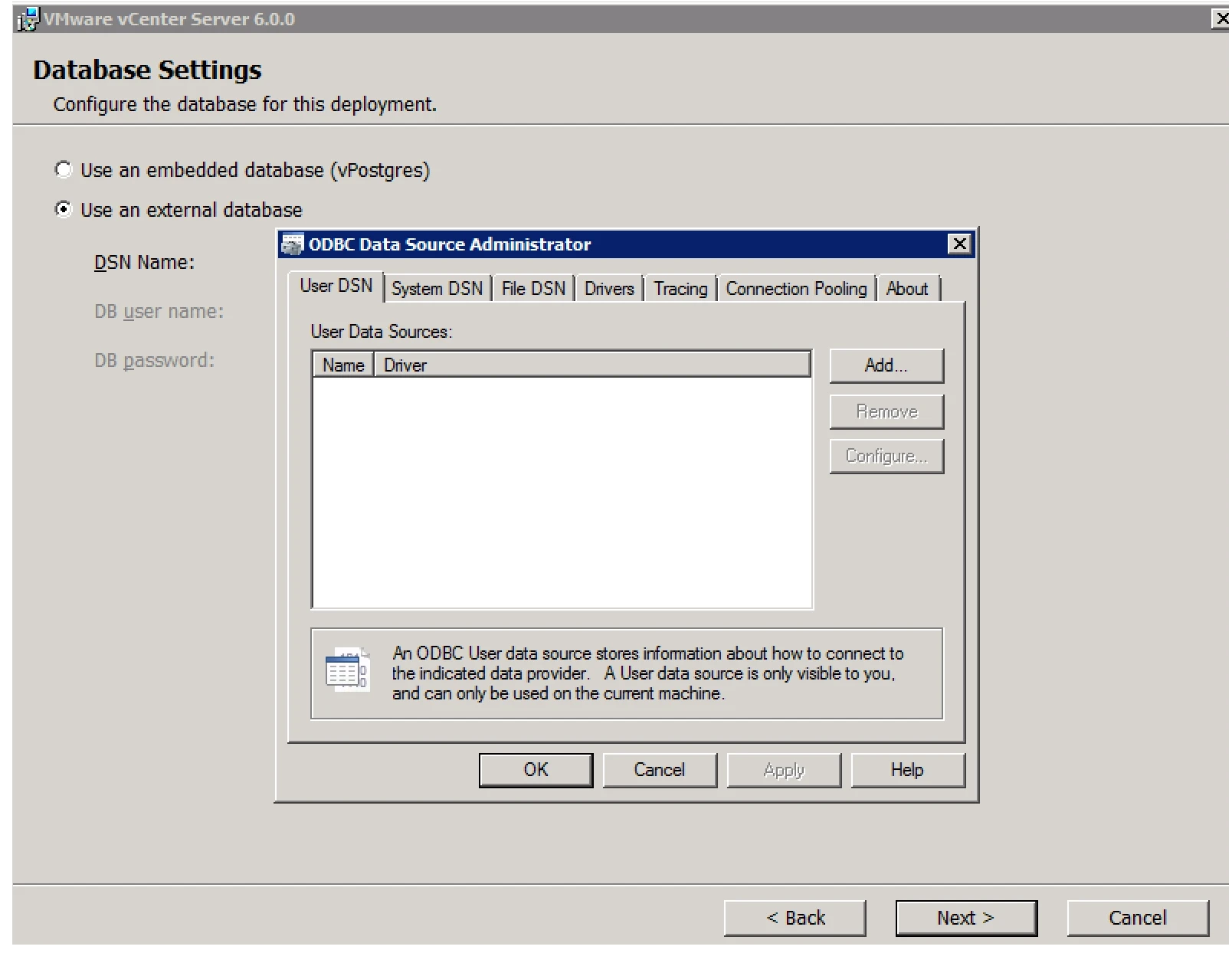
9. ODBC Window
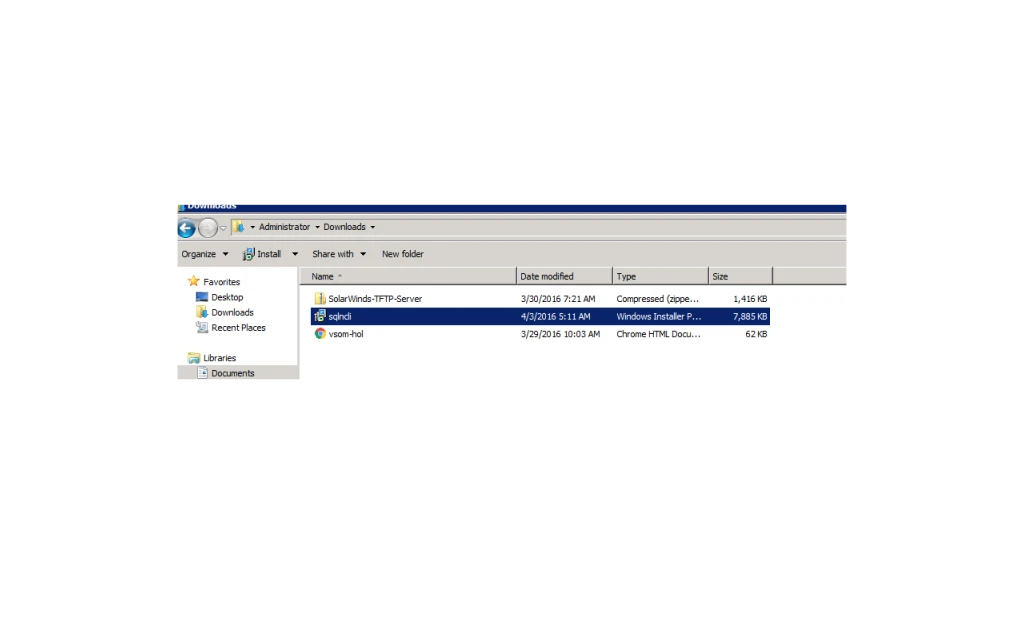
Download the Driver from given below Link
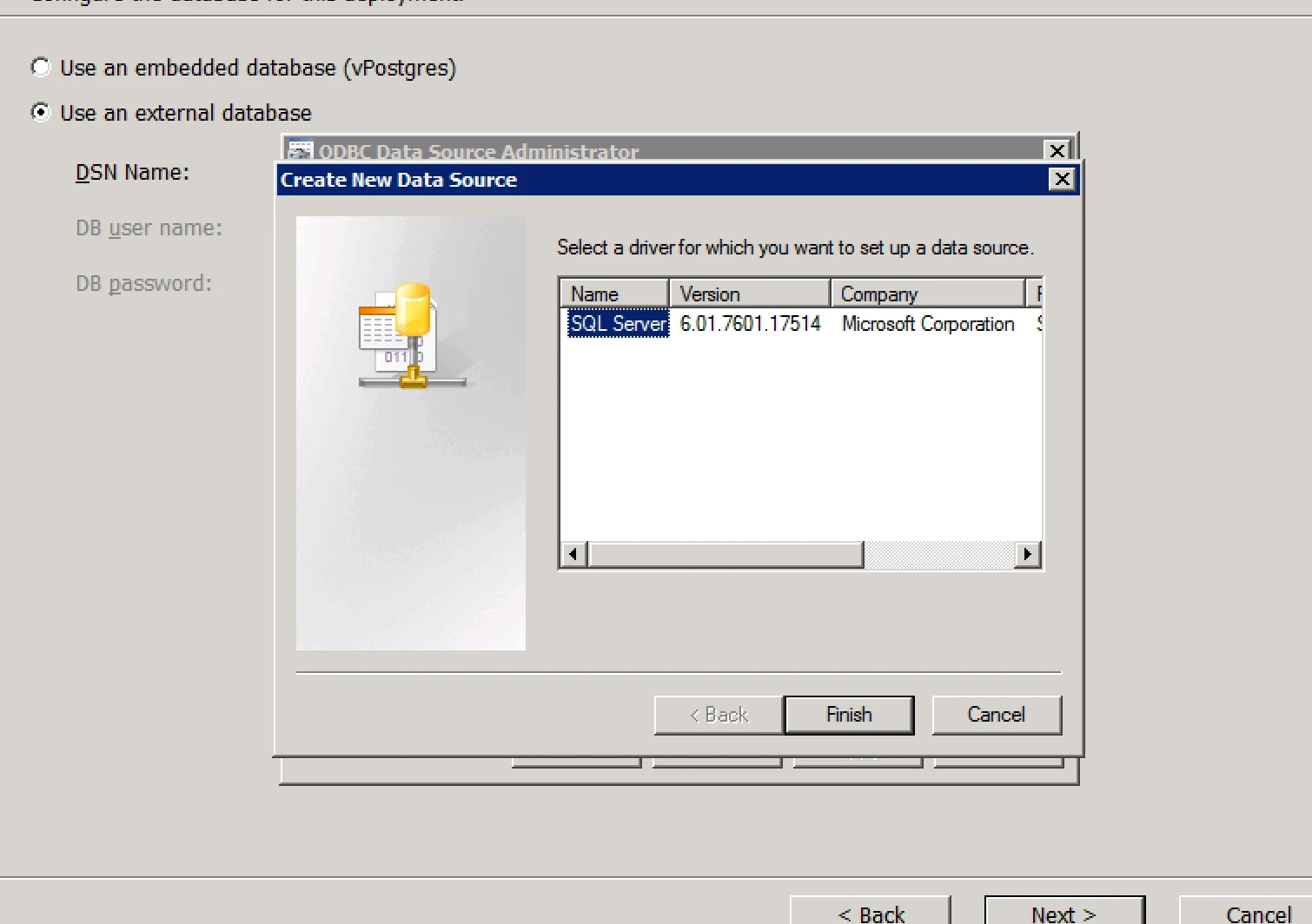
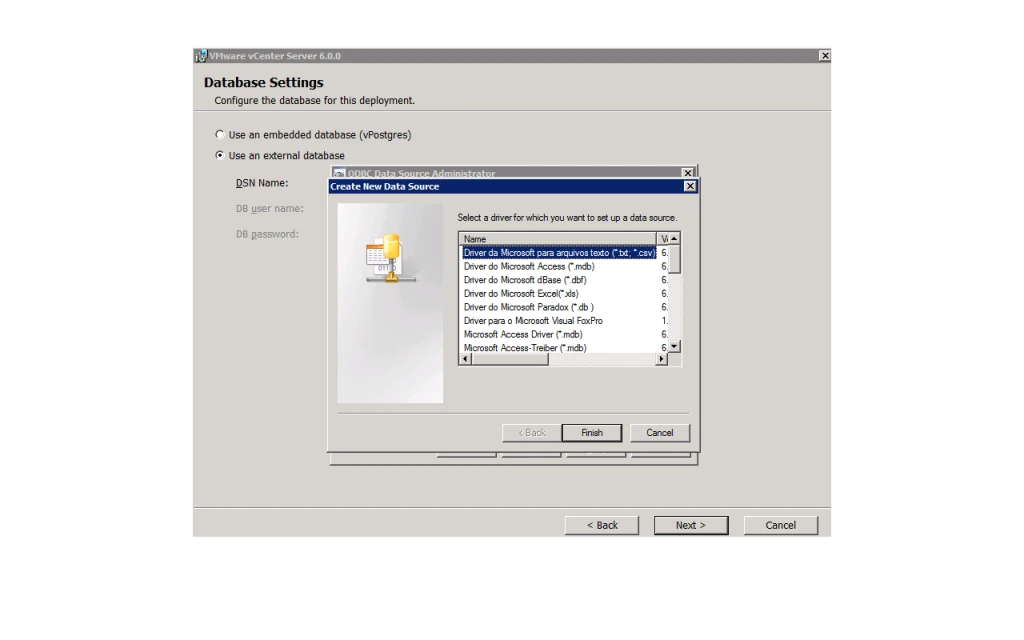
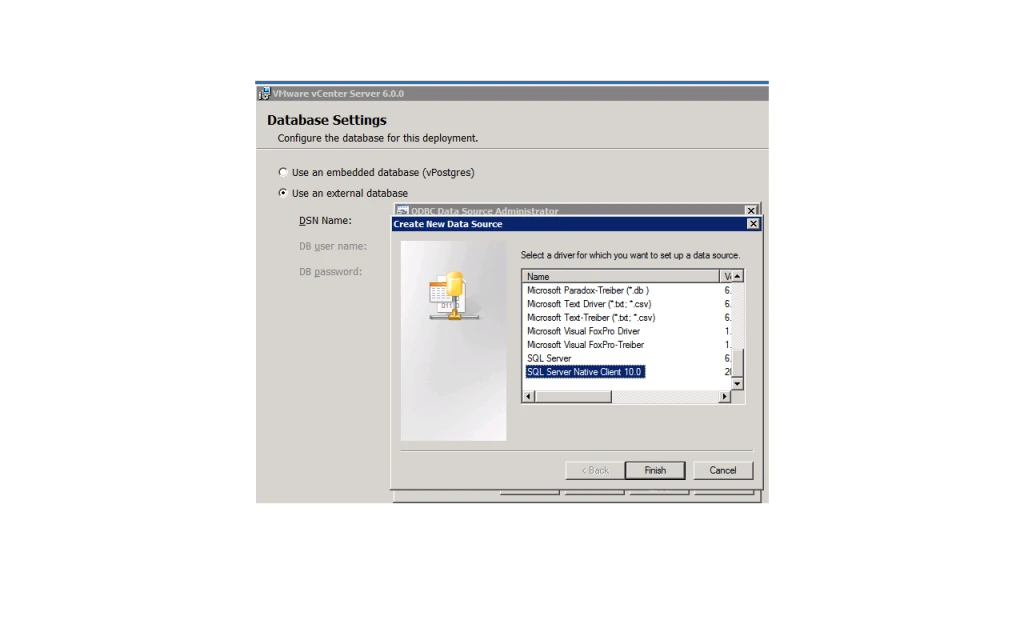
10. After installation it will show you list of Drivers
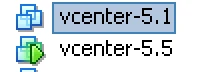
I am running VMware vCenter Server Appliance 5.1 in my organisation now i want to move 5.5 version. so i decided to upgrade Existing vCenter server to new version.
First how to upgrade and what All pre-requiesites.
1. Take backup of Existing Database. 2. Clone the Existing vCenter Appliance. 3. Download the New version OVF
Now Lets start:
1. Go to vCenter Server and Start Deploying OVF.
2. In this Tab i have opened both the Appliance (as VM).
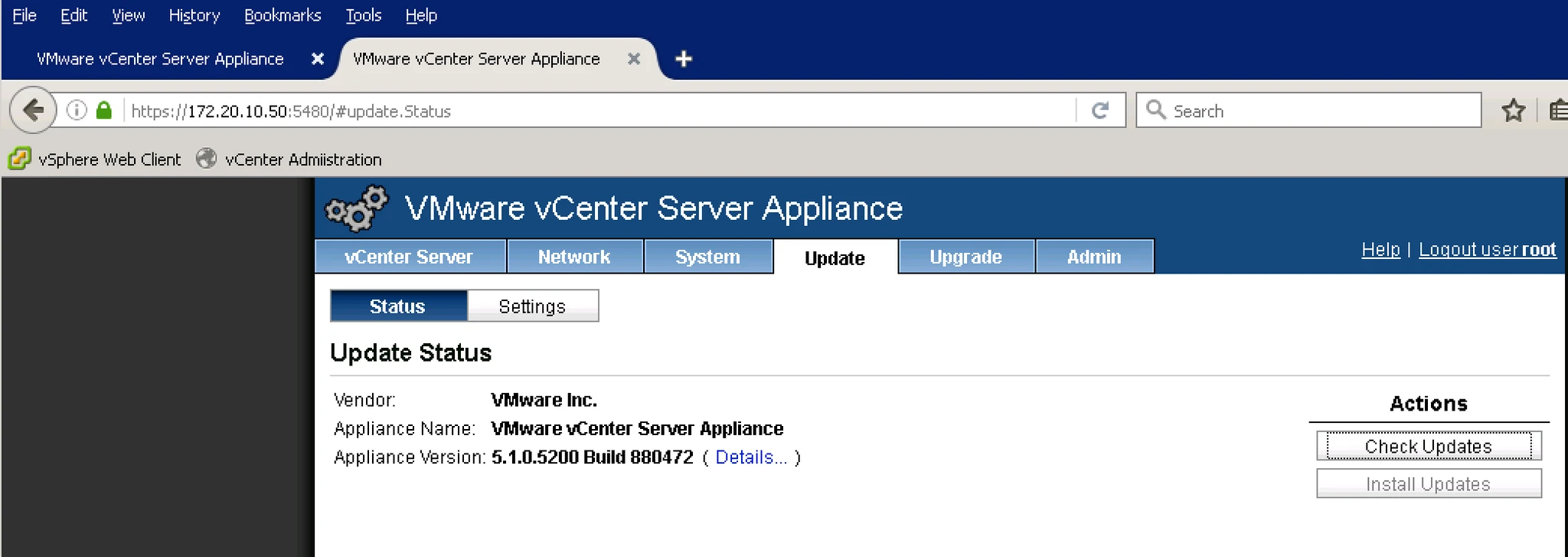
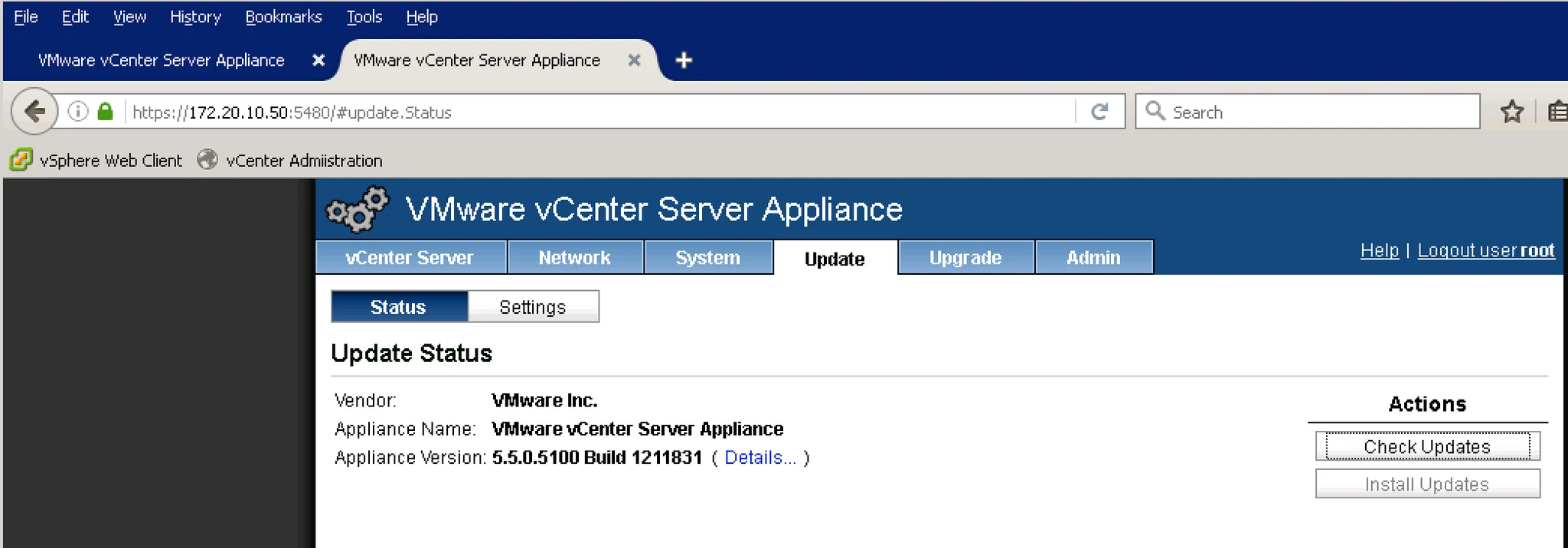
3. Below is the Screen where it is showing which version Appliance it is.
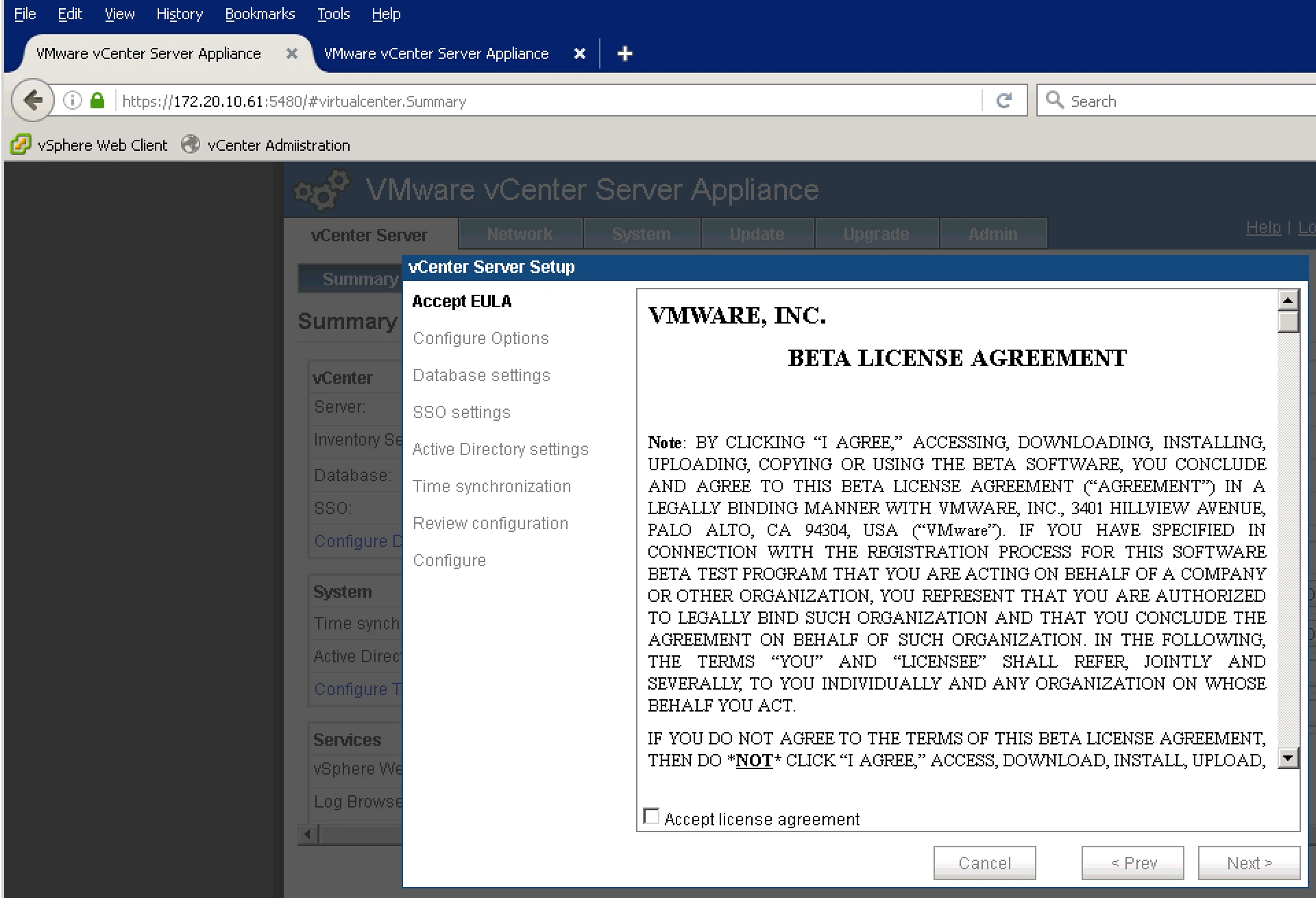
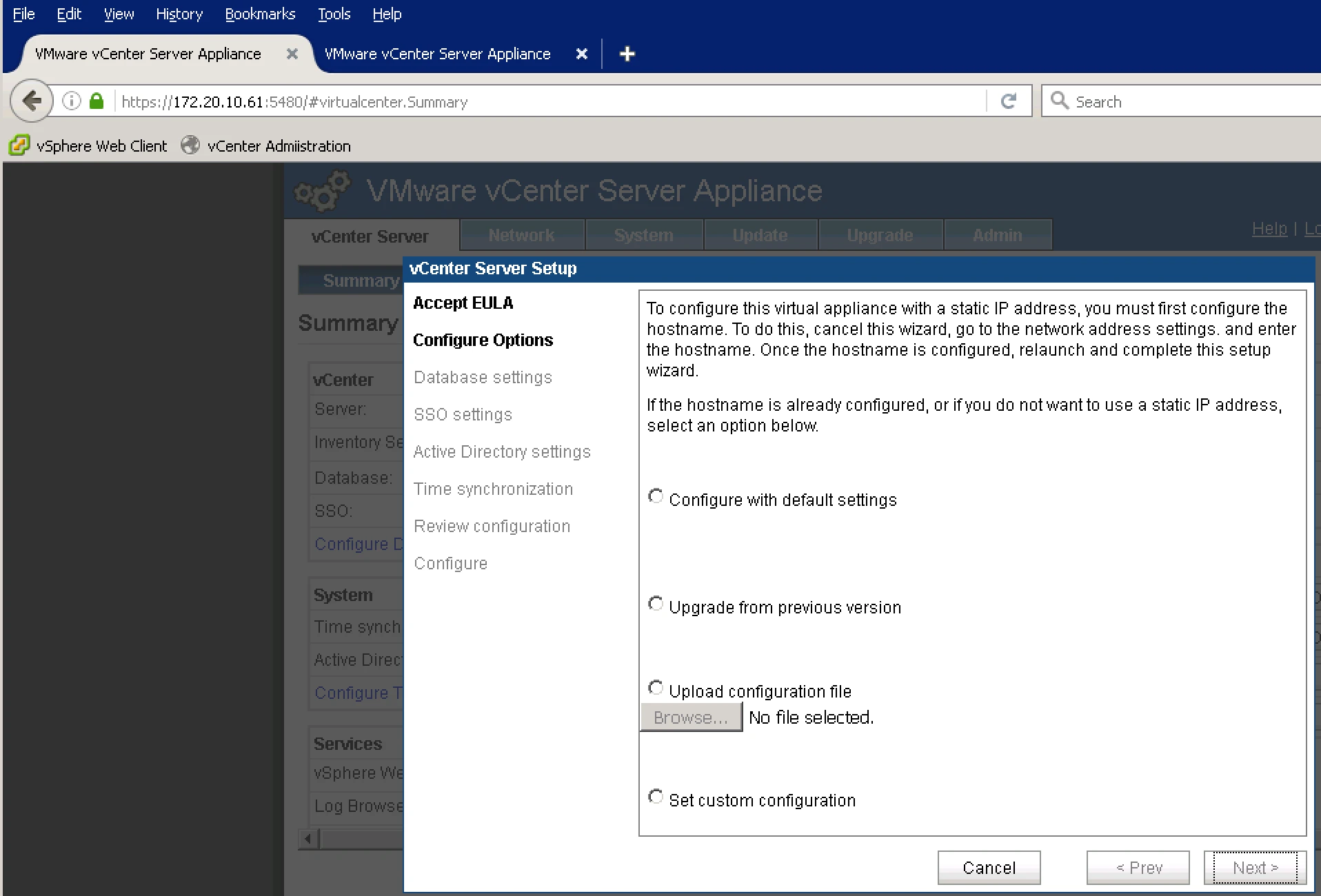
4. Now on the First Machine i login with root and Password ( root and vmware). 5. Below is the screen where it will ask you whether upgrade or fresh install. Select Upgrade.
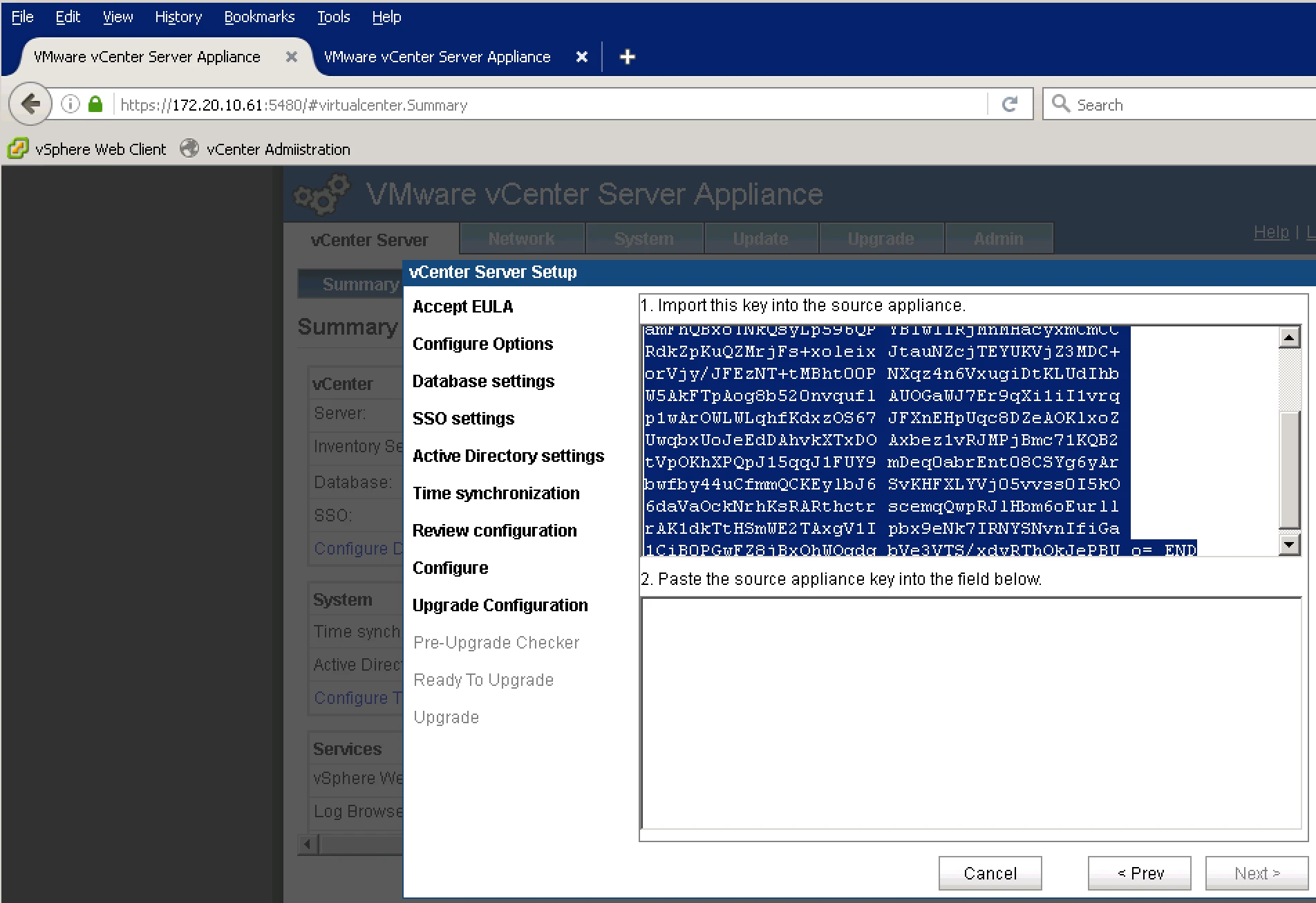
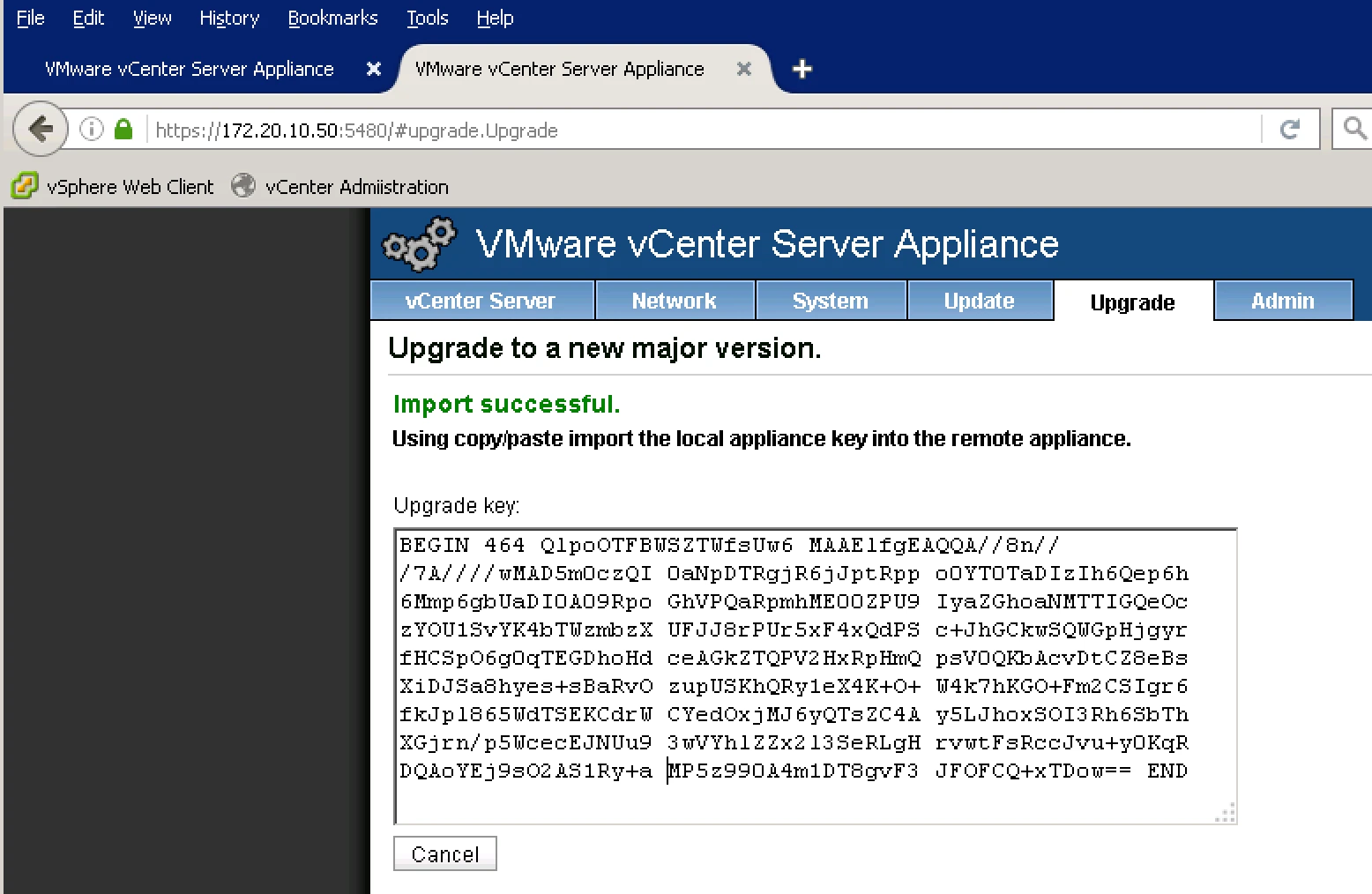
6. Now it will ask you for the key. From where you will get this key. Go to 5.1 vCenter Appliance and Upgrade Tab and Import Key.
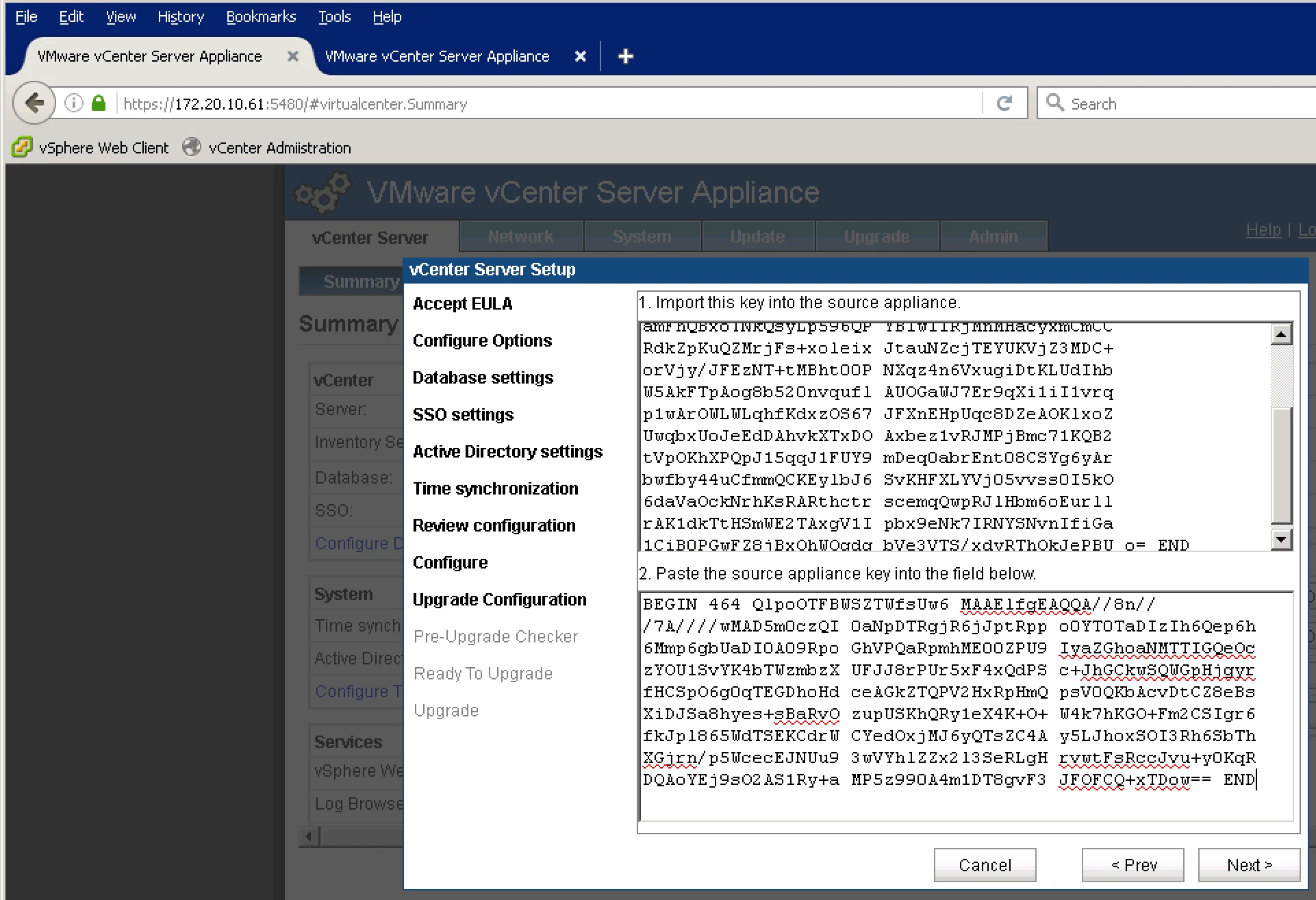
7. Now paste this Key in 5.5 Appliance tab.
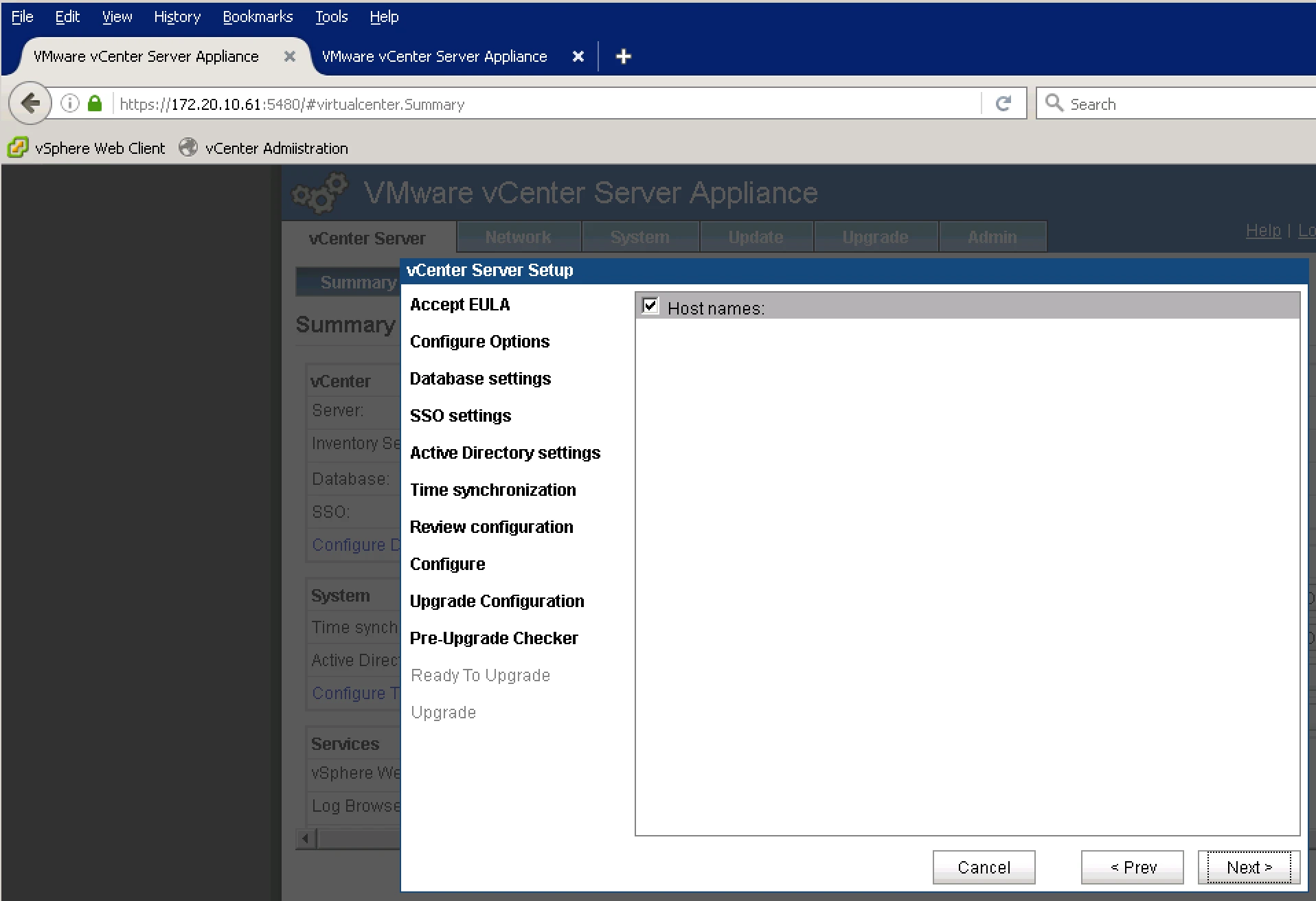
8. Pre Checker is running.
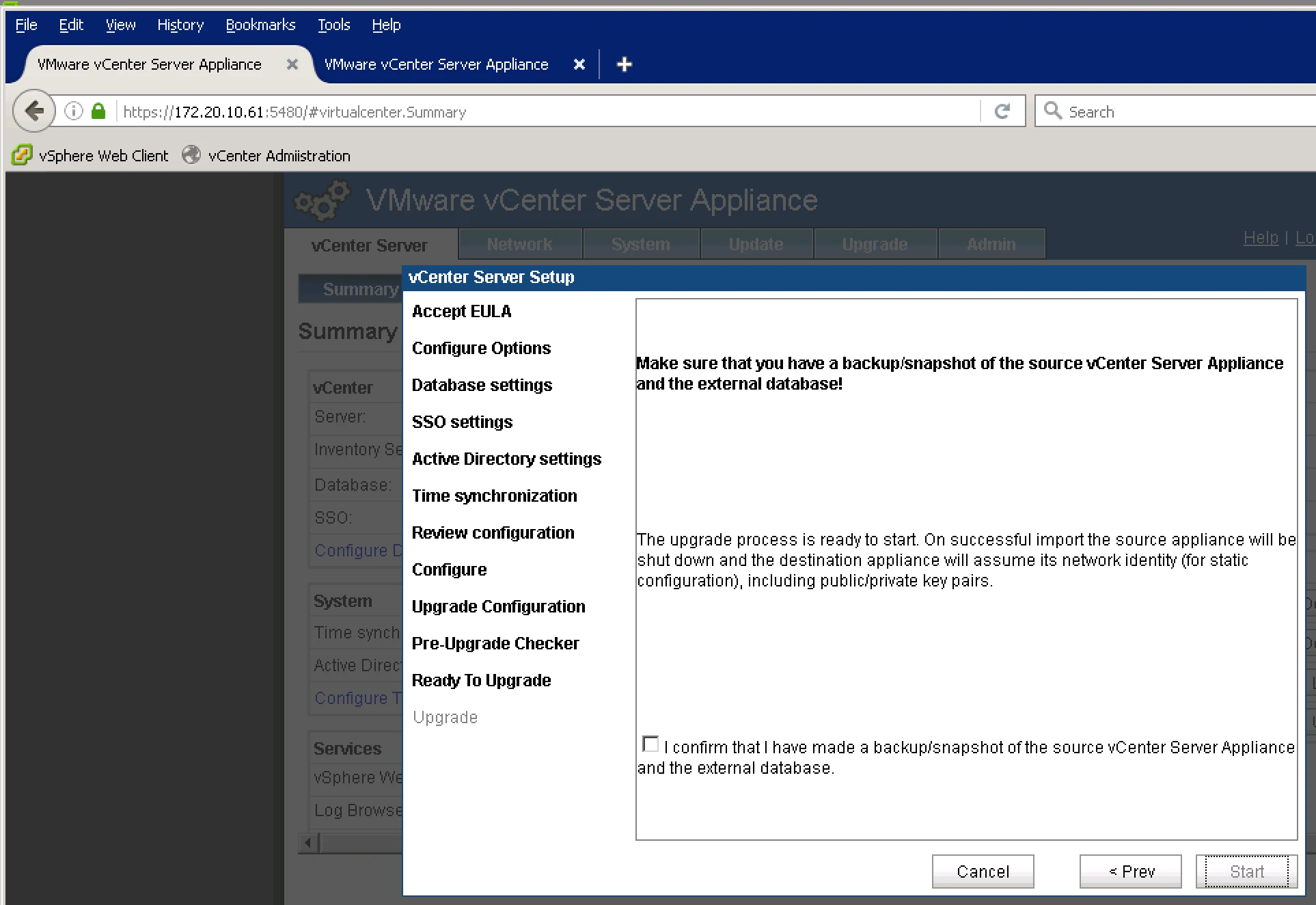
9. it will give you Message to take snapshot or backup.
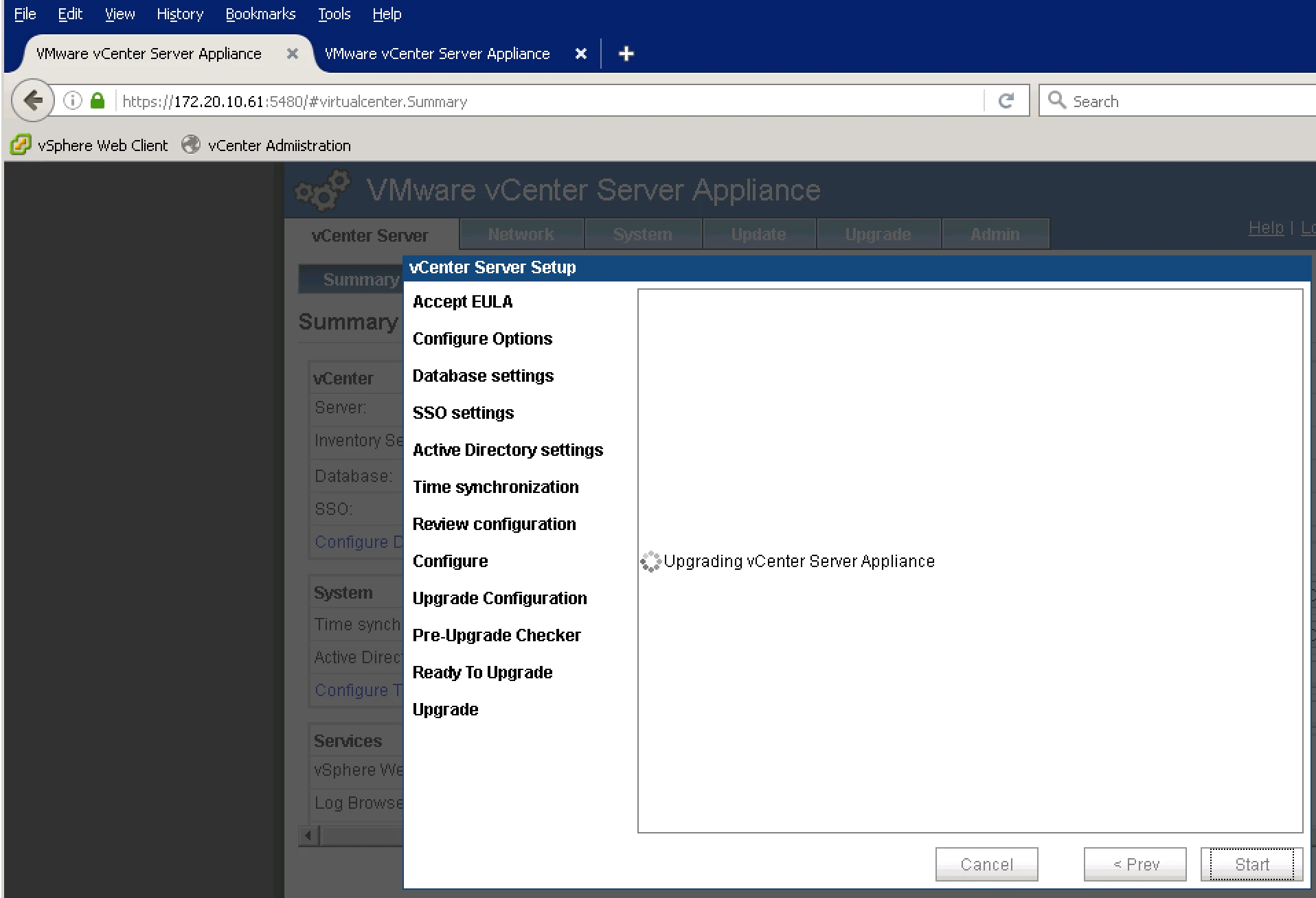
10. Now Run Upgrade vCenter Server
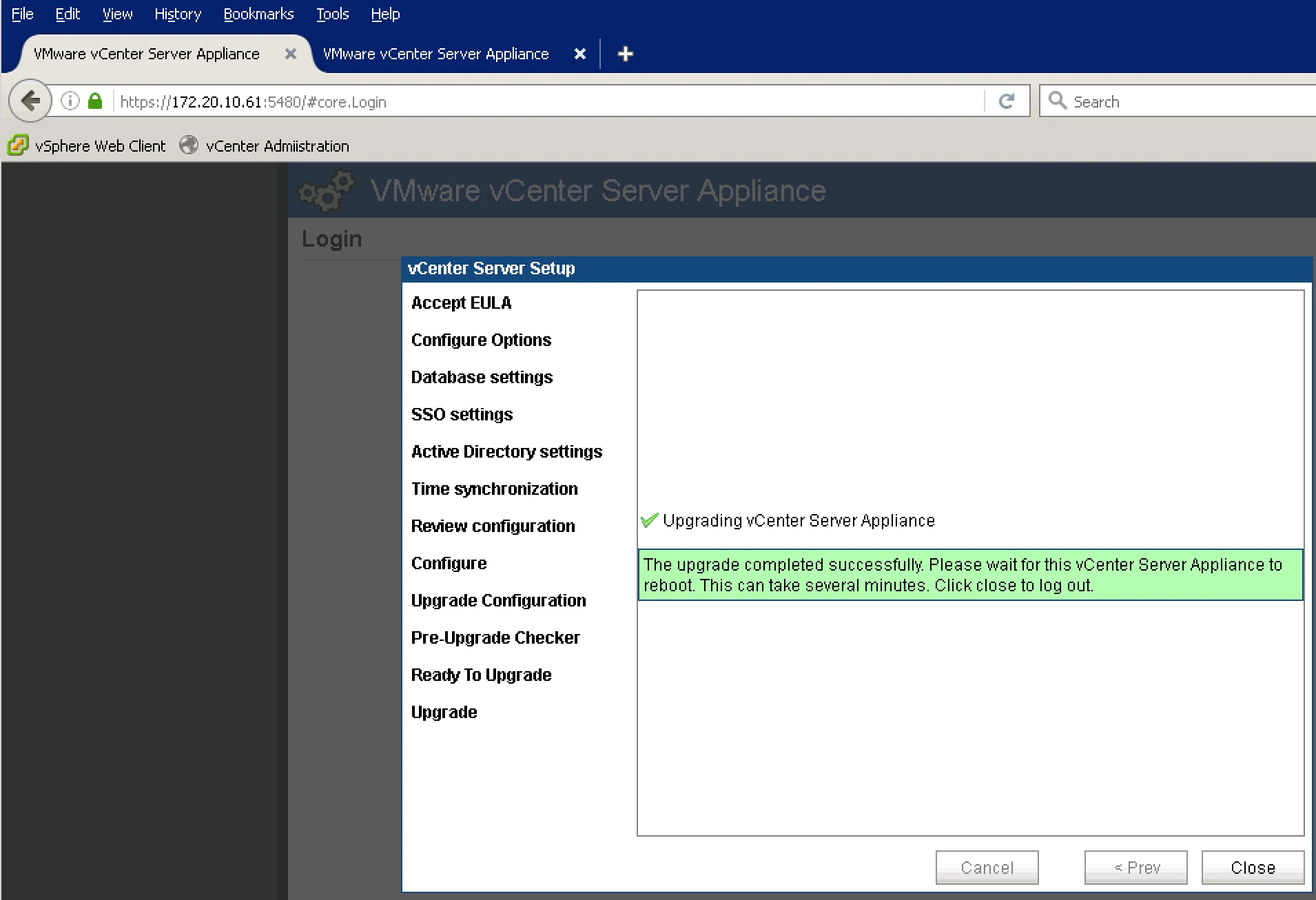
11. Final Screen it will give me with Message Wether it is sucessful or not.
12. Old Appliance is in Shutdown Mode and new Appliance is Active.
What’s not boring about #VMware and Dell (via thectoadvisor.com)
What’s not boring about VMware and Dell
I wrote about HPE’s composable infrastructure and why it’s not boring. Going up a layer on the Stack is VMware and why it’s not boring. I’ve often said that the most interesting thing about the Dell acquisition of the EMC is VMware.
Grow your skills and seize the opportunities made possible by VMware technology. For a limited time, you can save 15% on select VMware training courses and certification exam vouchers purchased on the VMware online store.
Join the Spring vForum Online Event and #CloudCred Contest
Join the Spring vForum Online Event and…
It’s time to get excited about the 2016 Spring vForum Online Event and CloudCred Contest! Begin now by registering for the vForum Online and completing several pre-event tasks at CloudCredibility.com. Then stay tuned next Monday, April 18, for more event-tasks. Every successfully completed vForum Online Contest Task will enter you to WIN great prizes, including an Amazon Fire TV, a Bose Soundlink Color Bluetooth Speaker, and a Fitbit Charge. The more you play, the better your chances of winning!
Today i am exploring about vSphere vCenter Server 6.0 Update-2
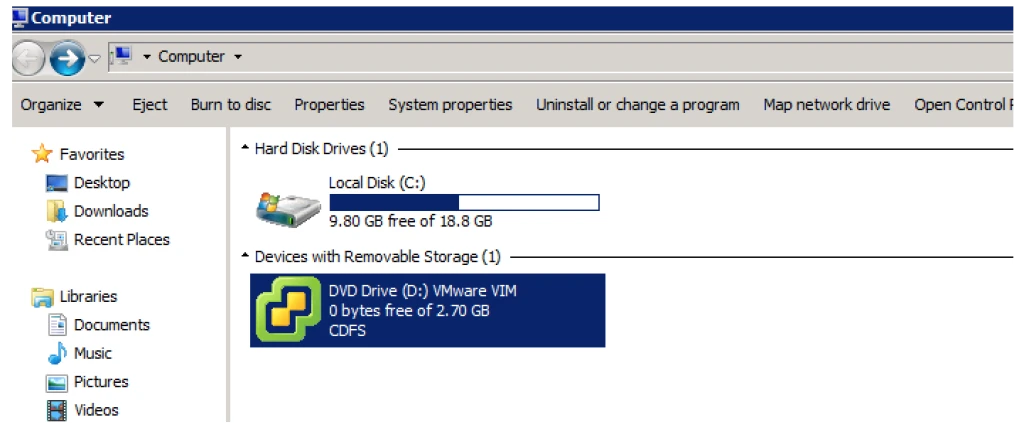
First you have to download the ISO file from VMware and attach in Windows Box.
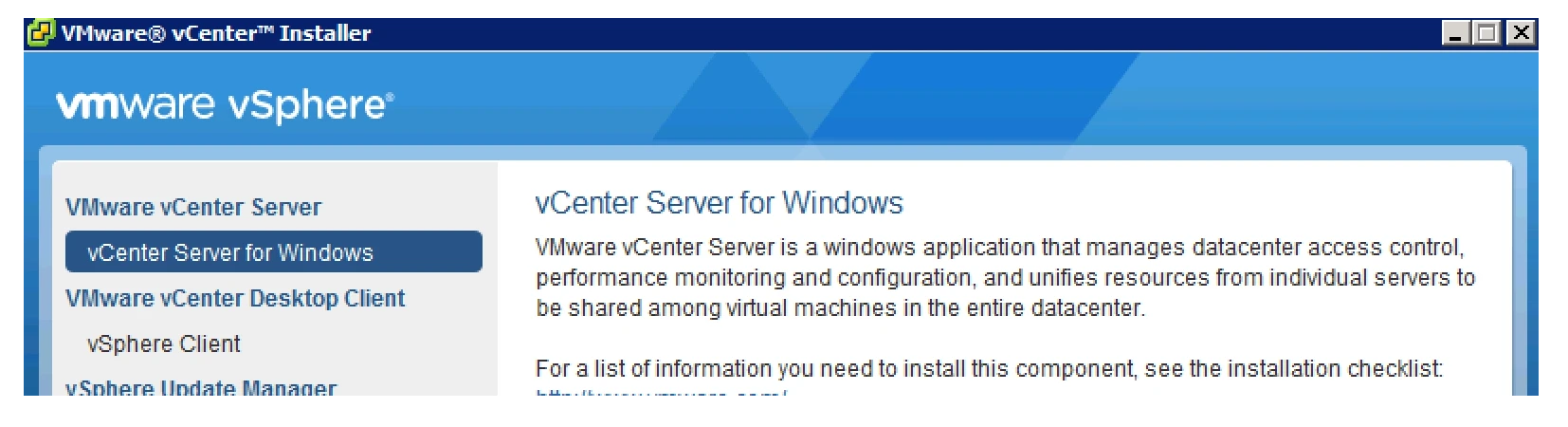
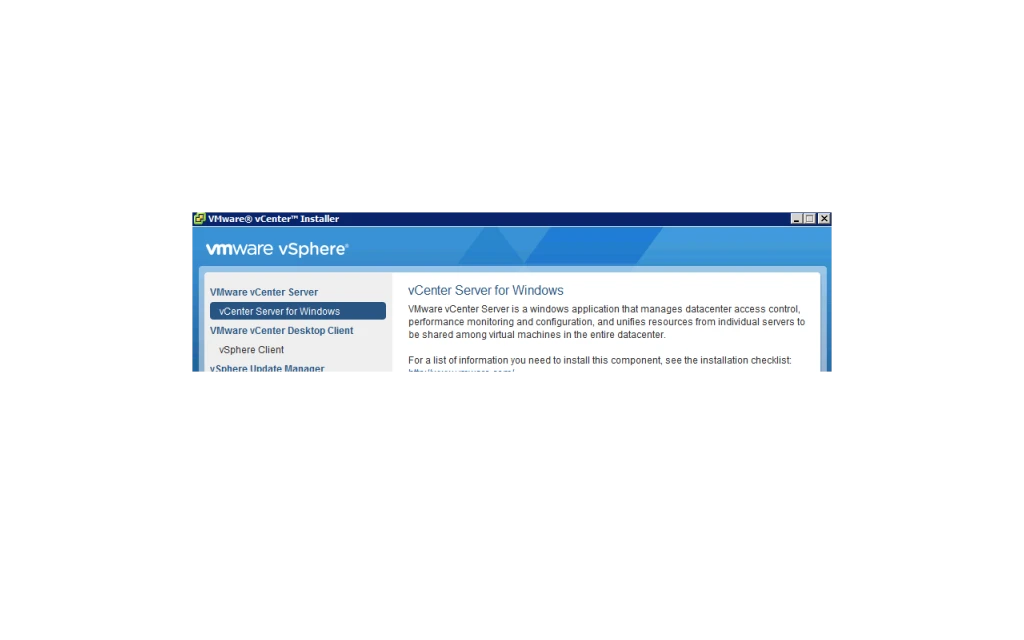
2. Double click on CD/DVD and it will open below Console. Now select vCenter Server for Windows and click Install.
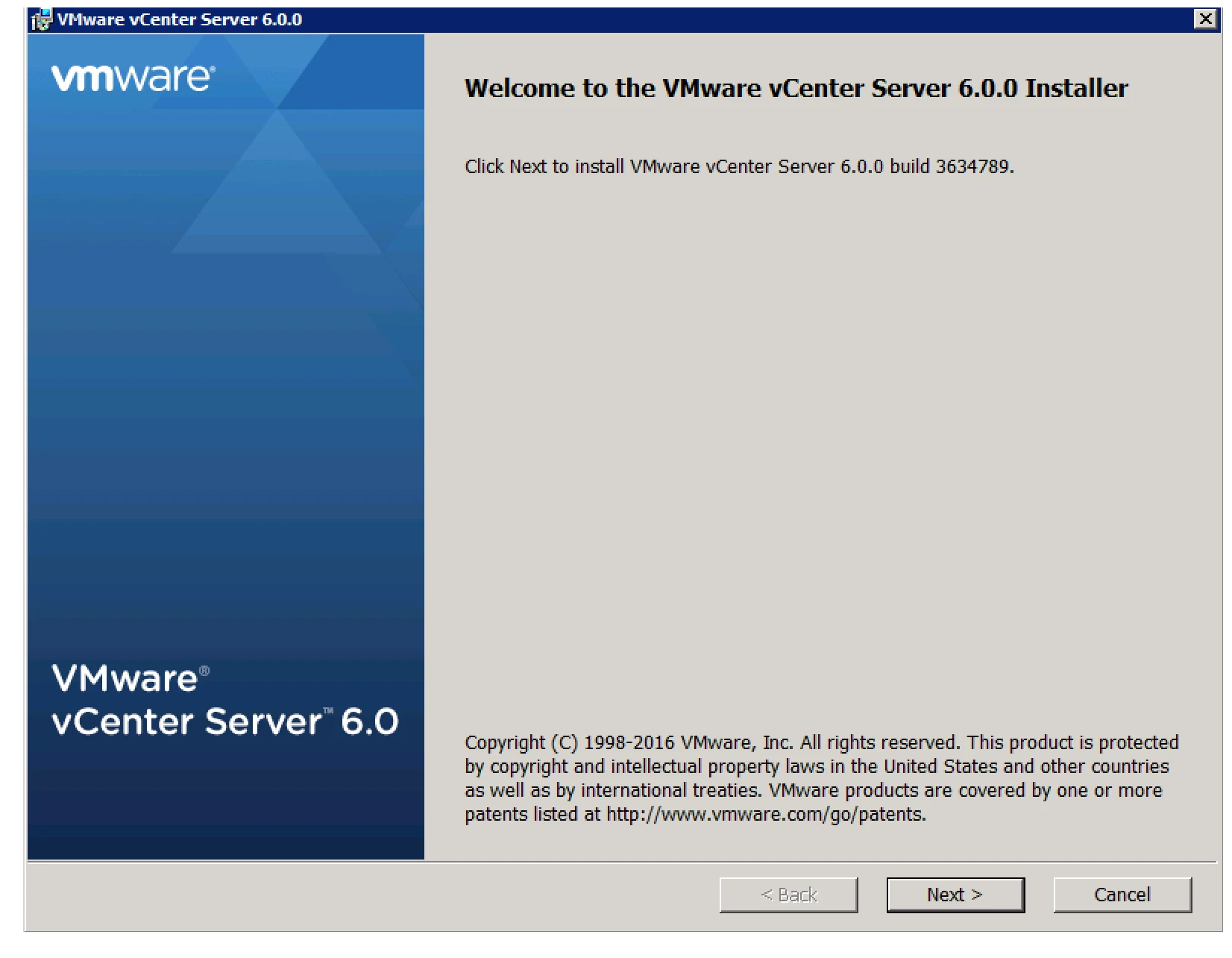
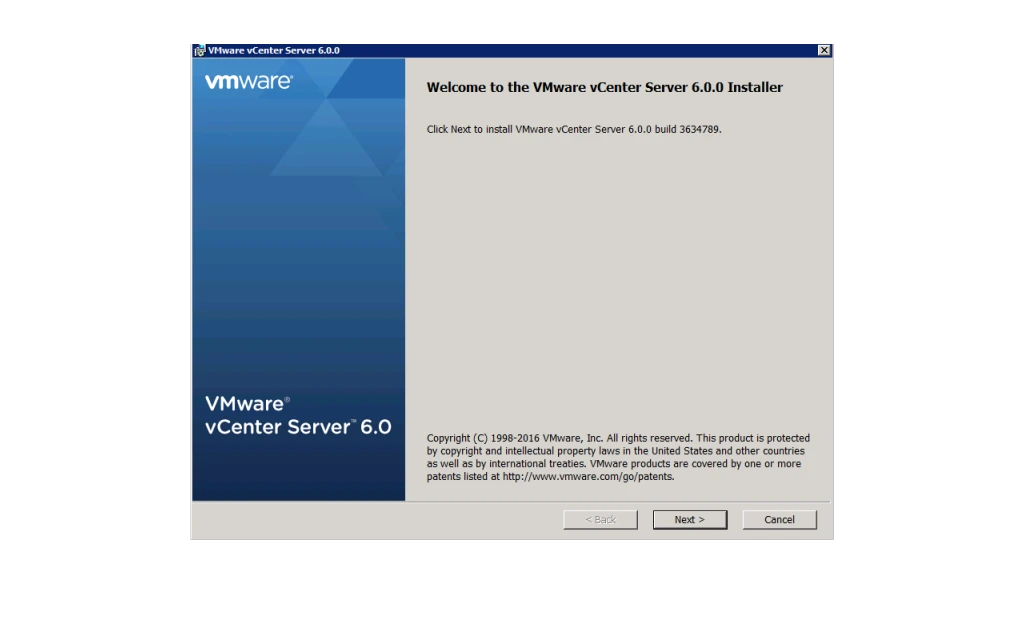
3. Click On Next.
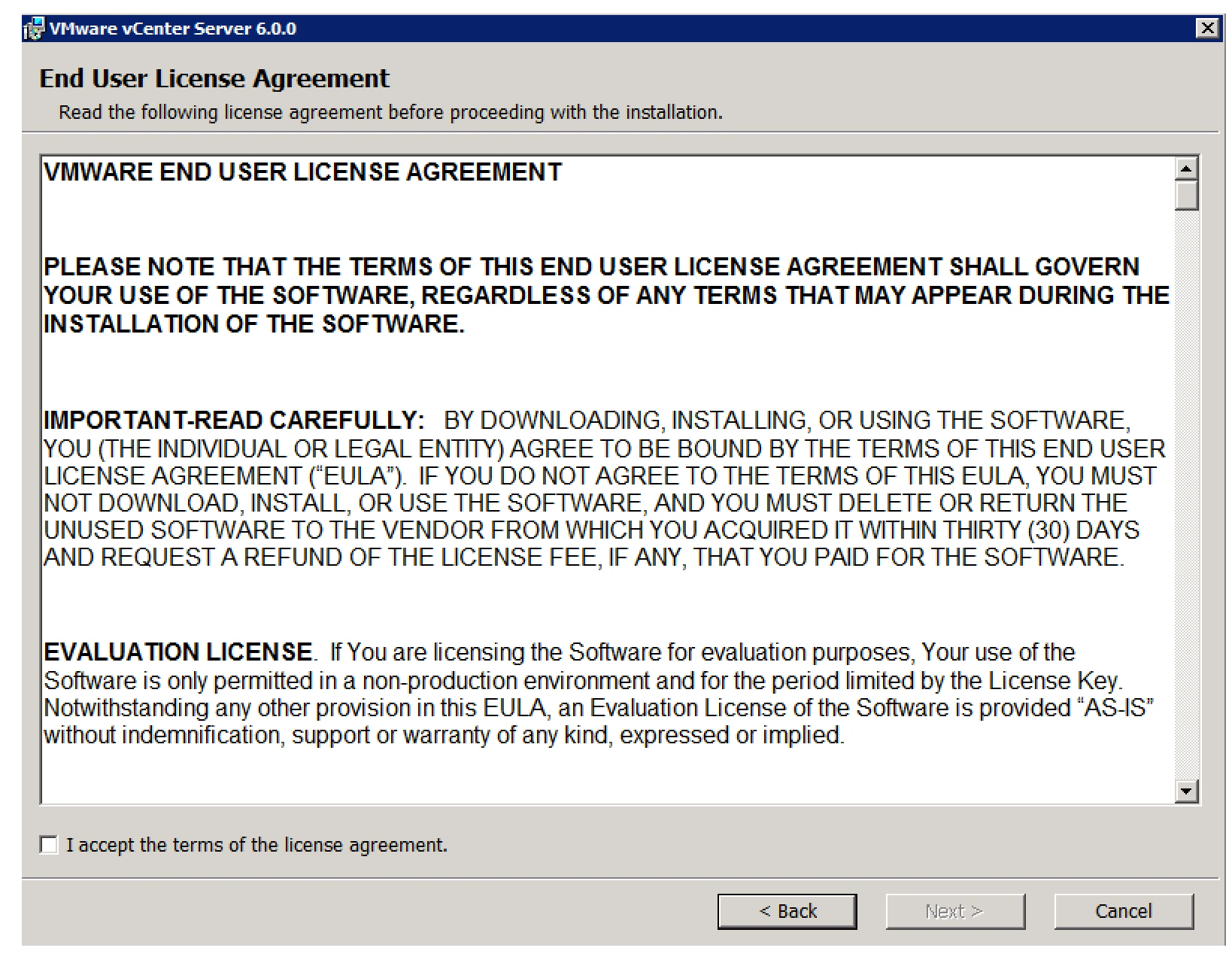
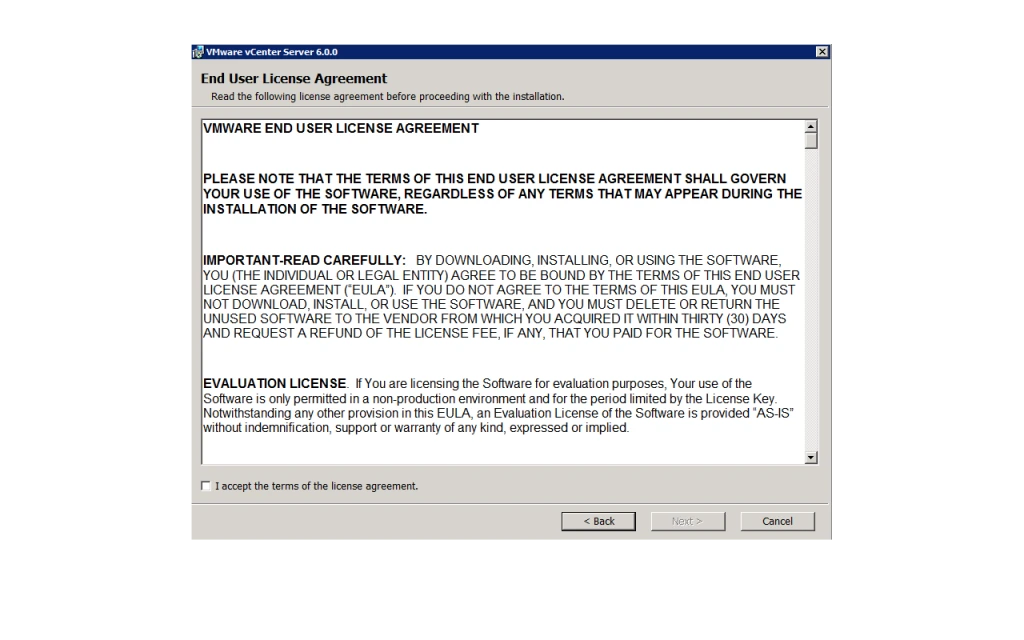
4. Accept The EULA.
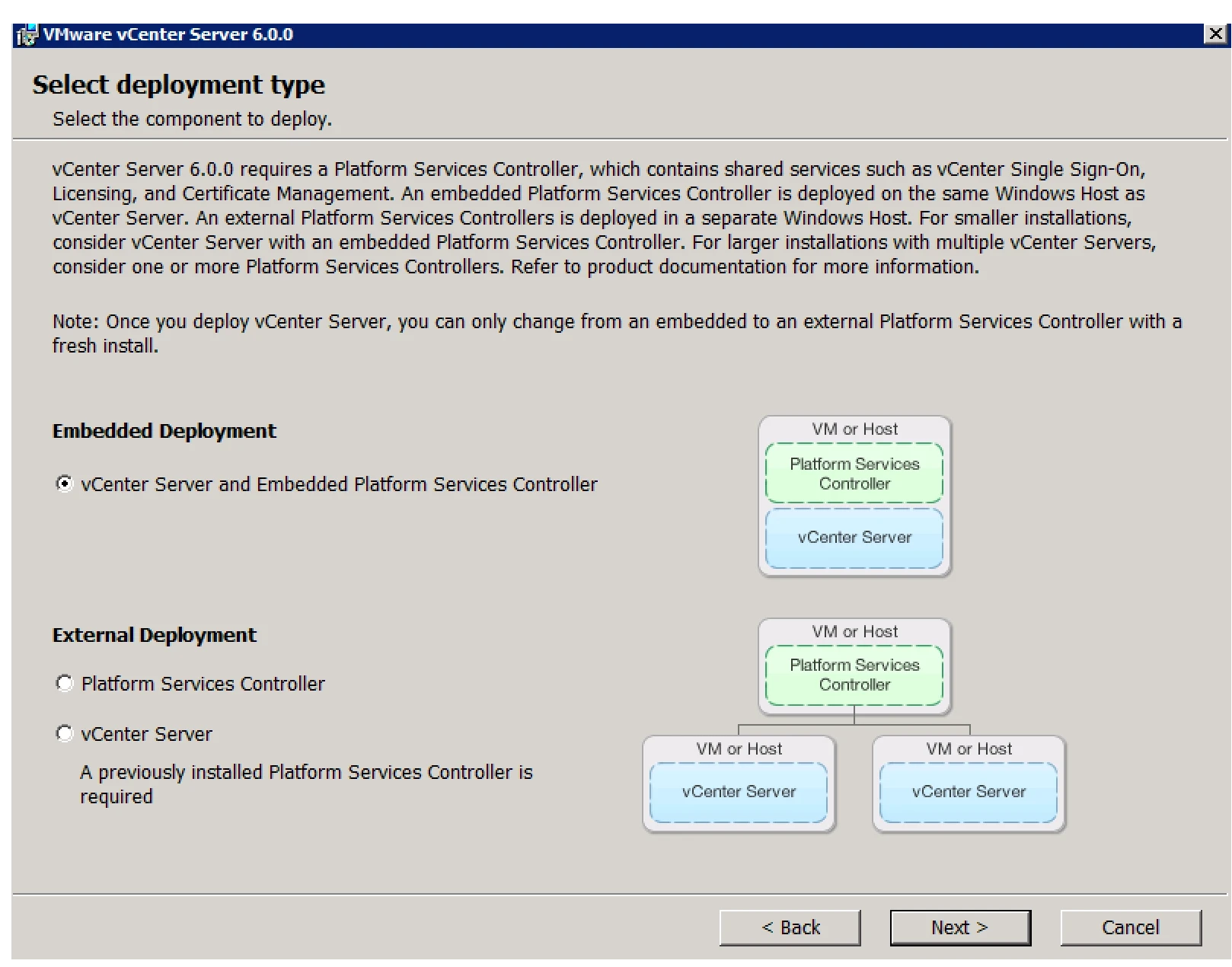
5. Now Time To Select Whether Go With A.) Embedded ( PSC + vCenter Server ) or B.) External ( PSC ) Seperate ( vCenter Server ).
Note: When you go with First Embedded Model Then in That Case -> First It Will Install PSC and Then vCenter Server
If You Will Go With Second Deployment Model Then in That Case -> You Must Have PSC Preinstalled or You Have To Install it Before vCenter Server Installation.
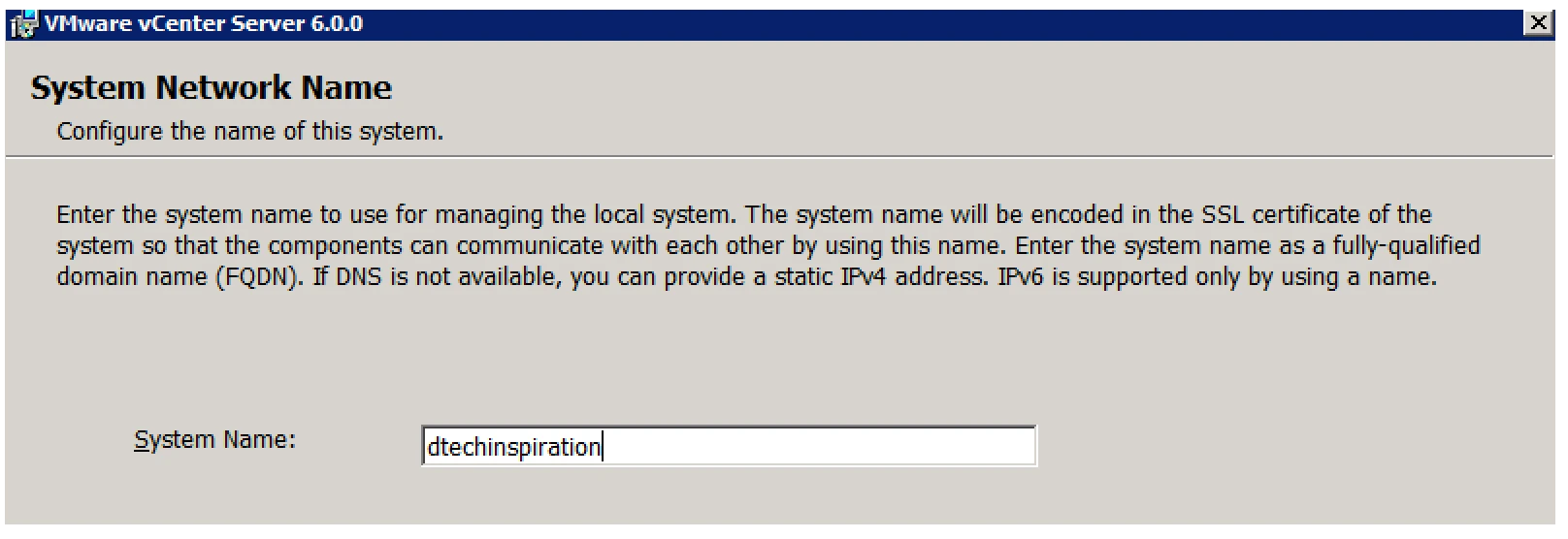
6. It will Ask you for System Name.
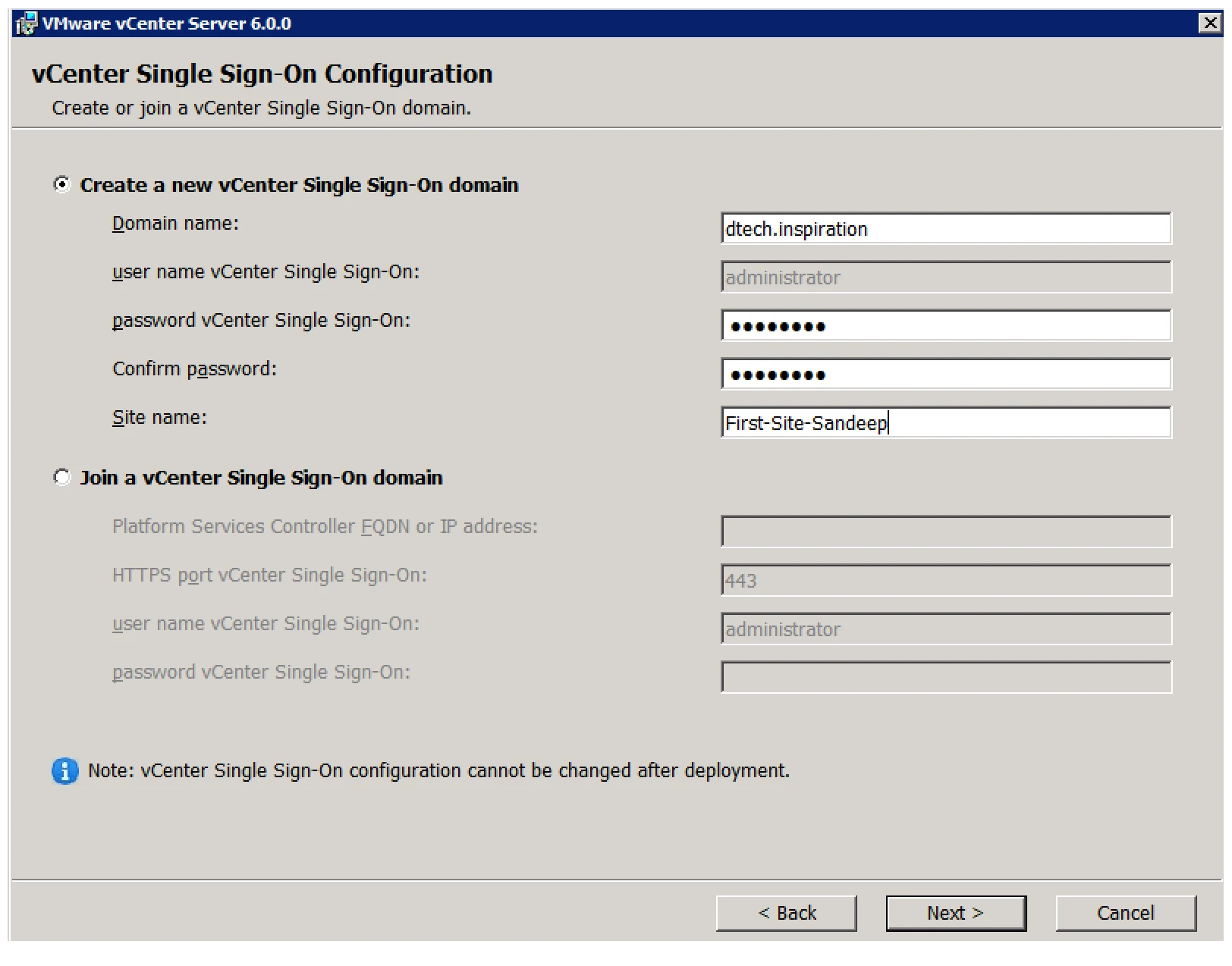
7. Here It Will Ask You for SSO Joining. A.) If You Have Already SSO Then Join or Create New SSO Domain.
Note: Here it Will Ask for Site Name. Example ( Under INDIA you have Multiple Sites – Delhi, Mumbai, Gujrat etc ).
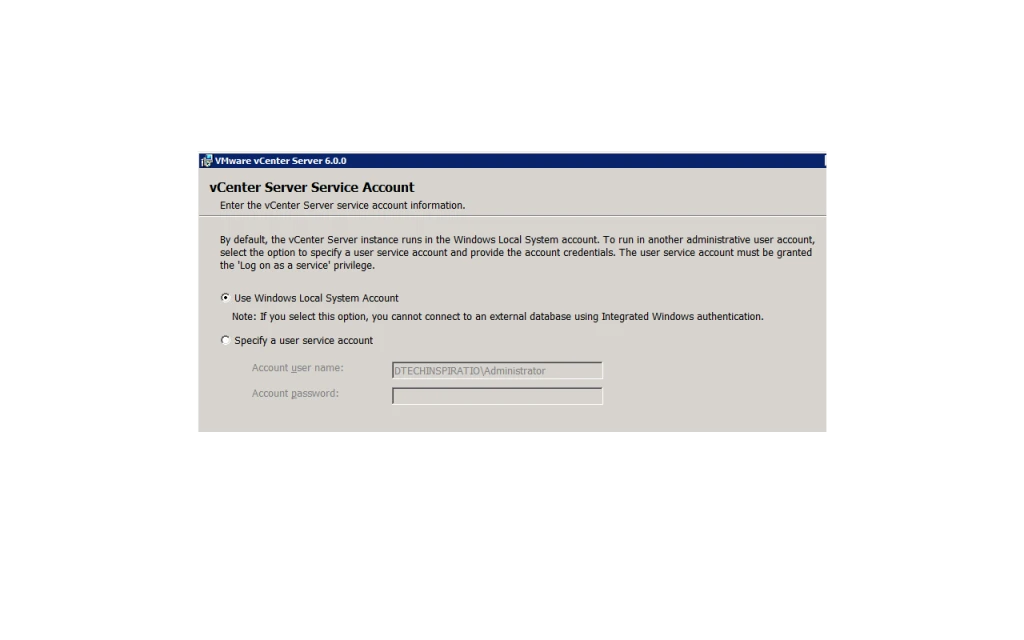
8. Here It Will Ask You To Use Either Local Account or Use Specific Account.
9. Here You Have to Decide Wether You have to Go With Embedded One or External.
Note: Why Embedded: If You Have Small Setup or SMB Then You Can Go with it. ( Eight or Less – vCenter Server you can connect with single PSC)
Why External: If You Have Enterprise Or Big Organisation then Use External Database or if You Have Existing Database Server then Use that it will save cost and management ).
10. For External You Have to Create DSN and Database @ Server End.
11. Open ODBC In Your Windows Box And Check if Native SQL Client Is There or Not. If Not Then Download And Install The Same.
12. Click On Add.
13. Here Native SQL Client Is Not Installed.
14. Go To This Link And Download The Same.
15. You Will Get This .Exe Just Install The Same.
16. After Installation, You Will Be Able To See List of Data Source.
17. Select The SQL Server Native Client.
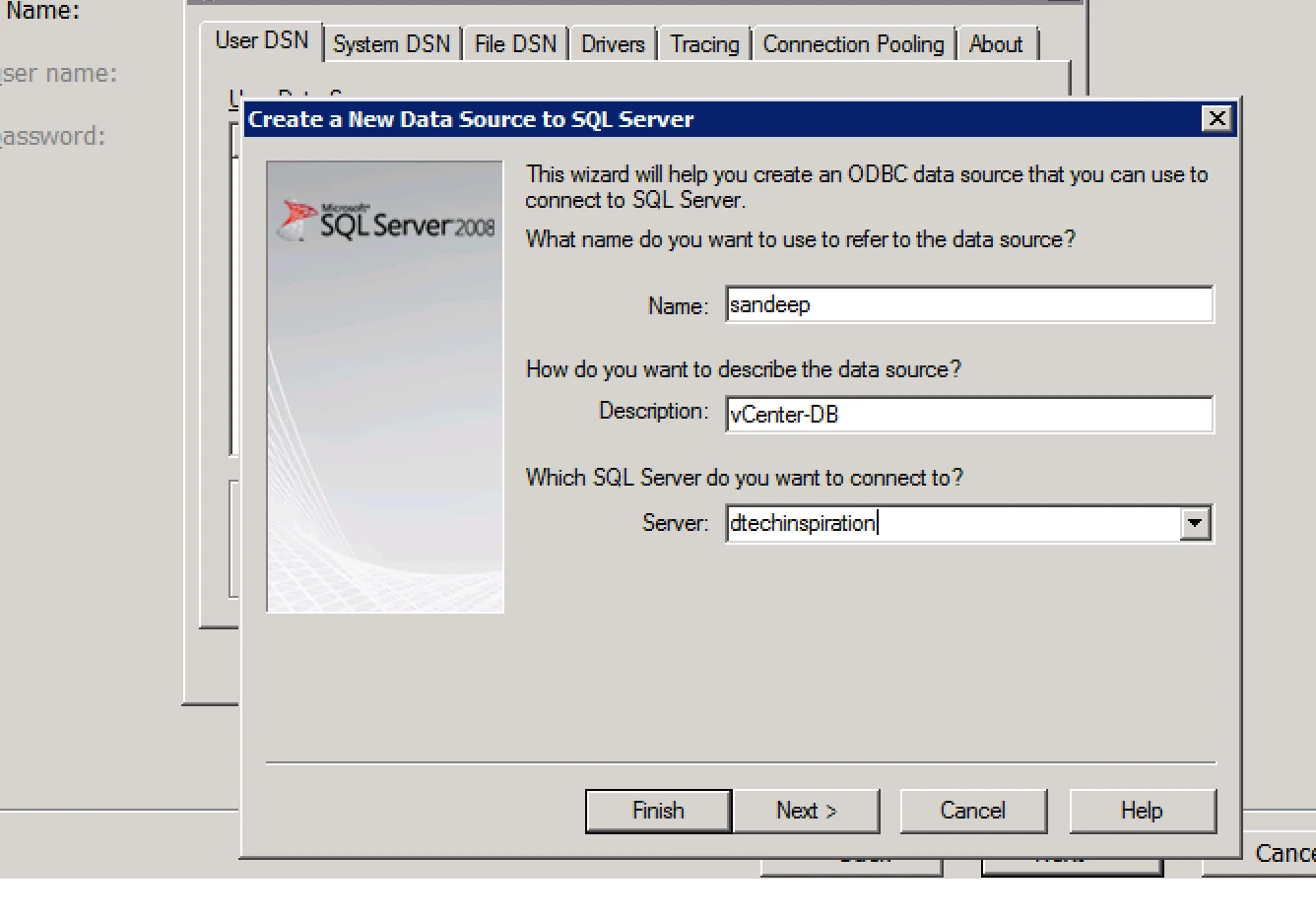
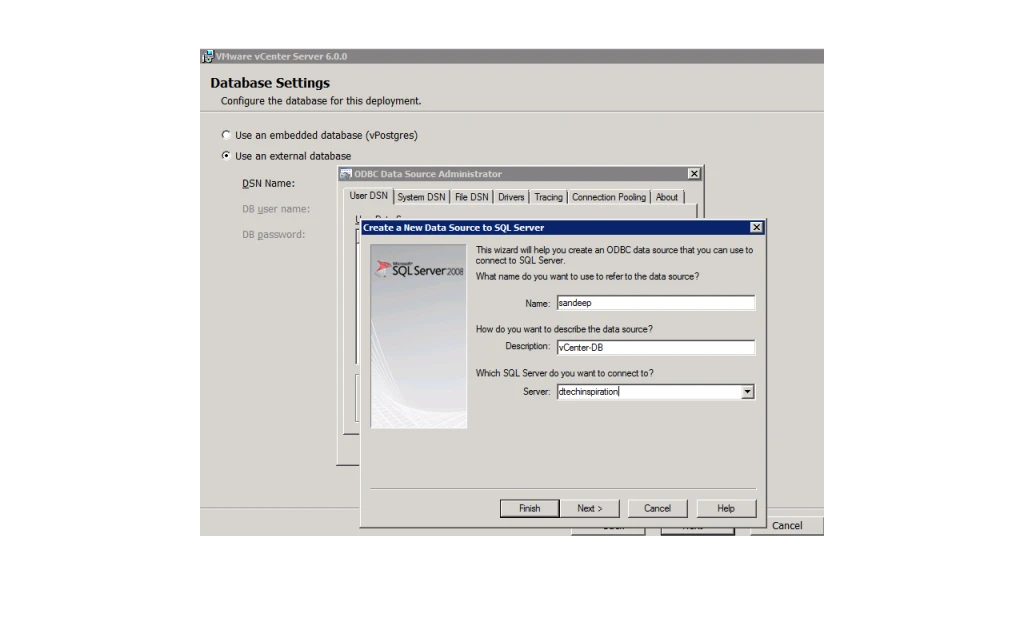
18. Now Create The Same.
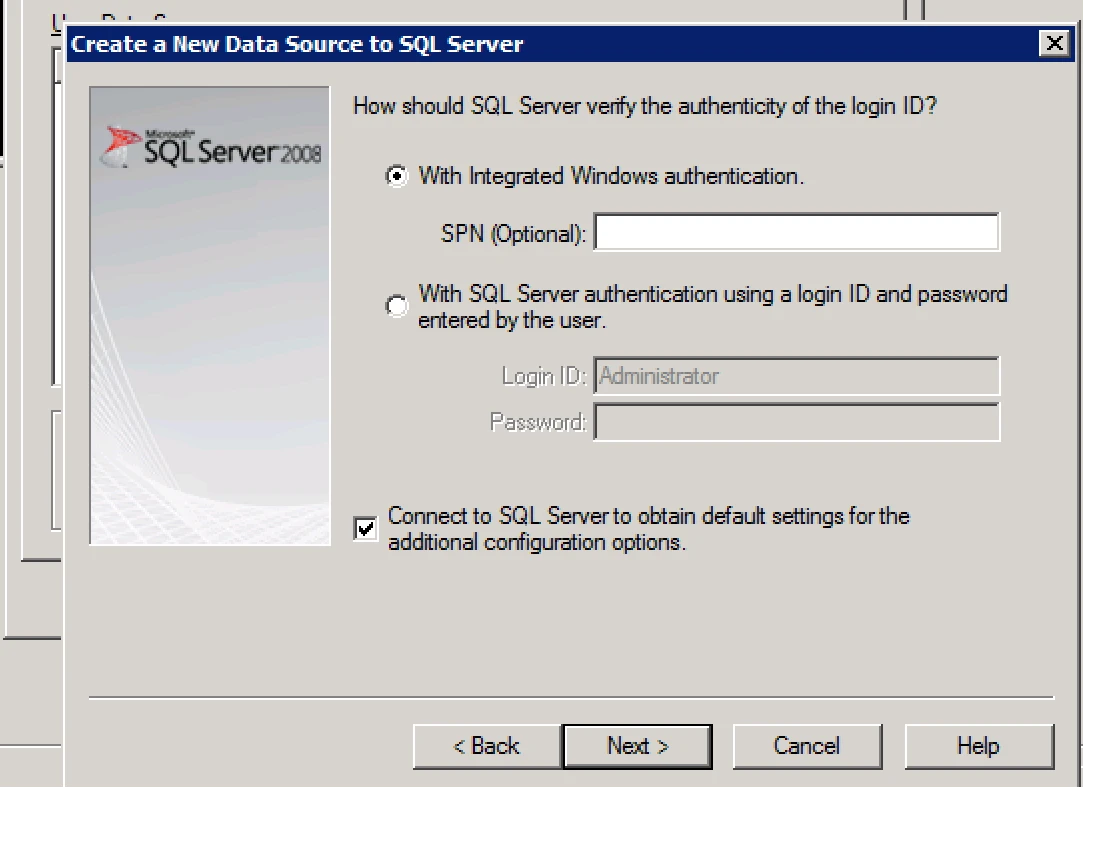
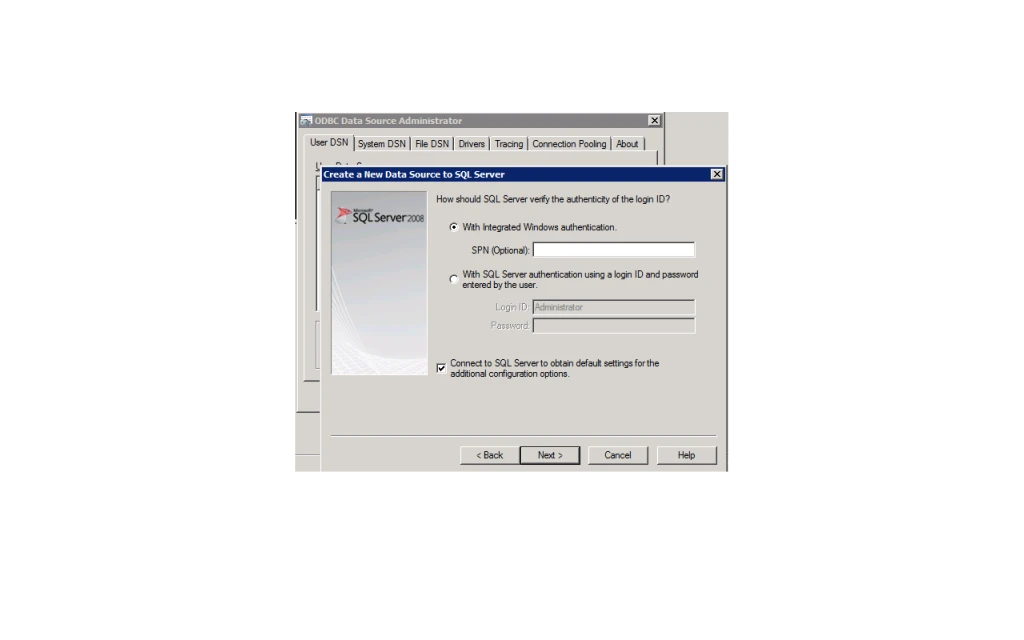
19. Provide the Details Also Discuss With SQL Admin For The Same.
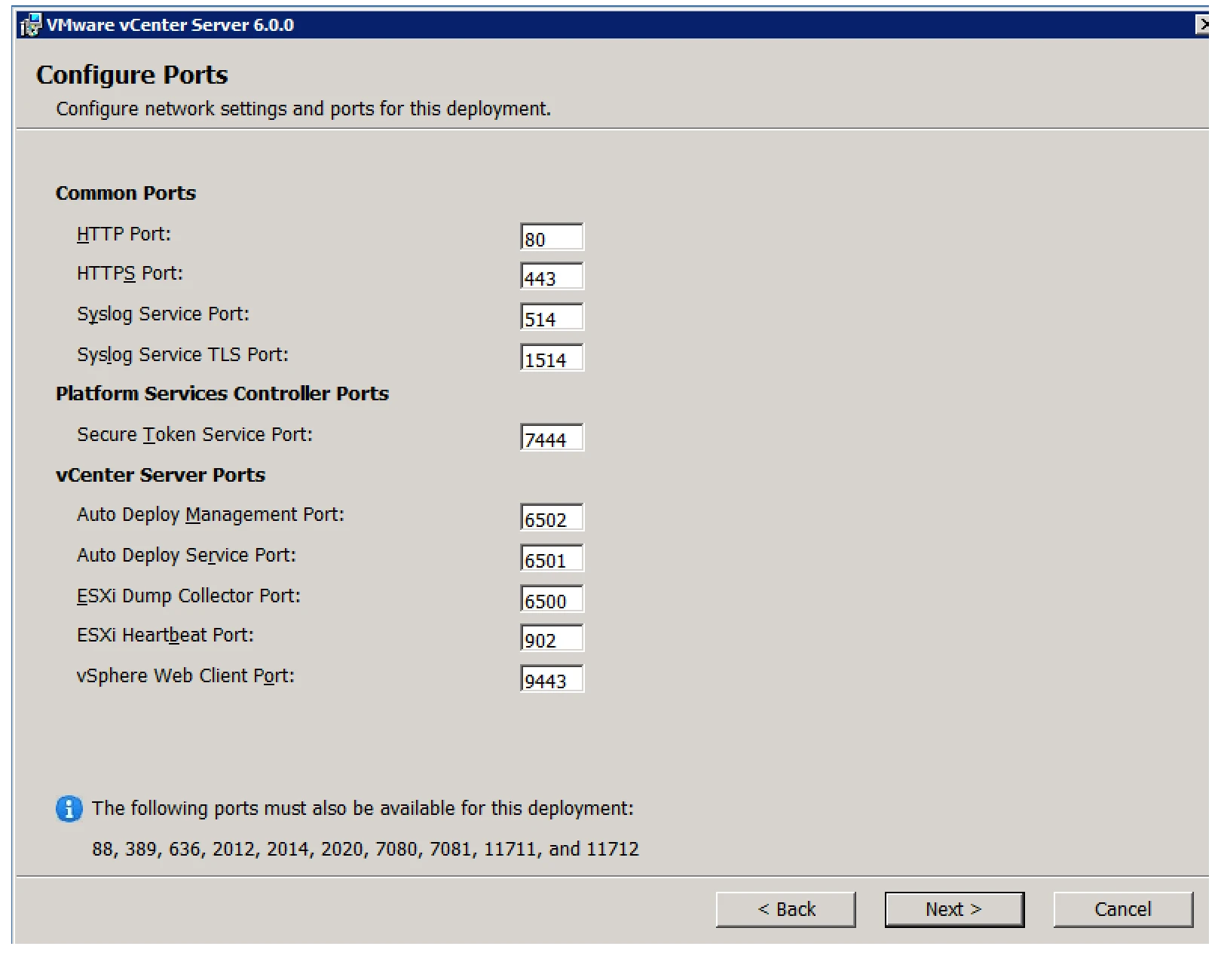
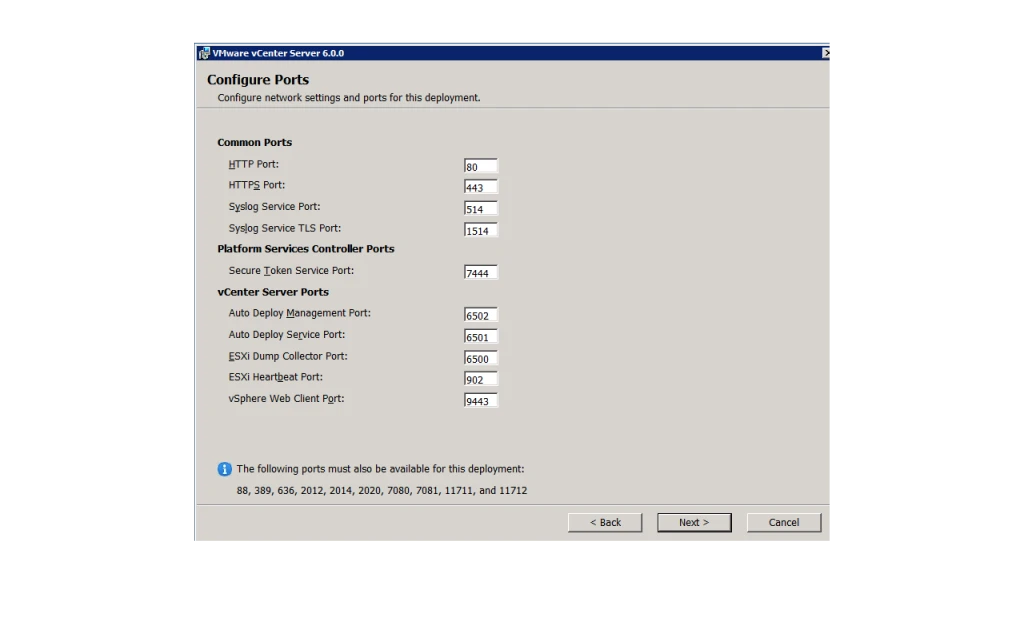
20. It will Ask You For Port. Make Sure Below Ports Are Not Used By Other Application. If So Then You Have To Change It Manually And Keep The Records. ( Take Care About Firewall As Well ).
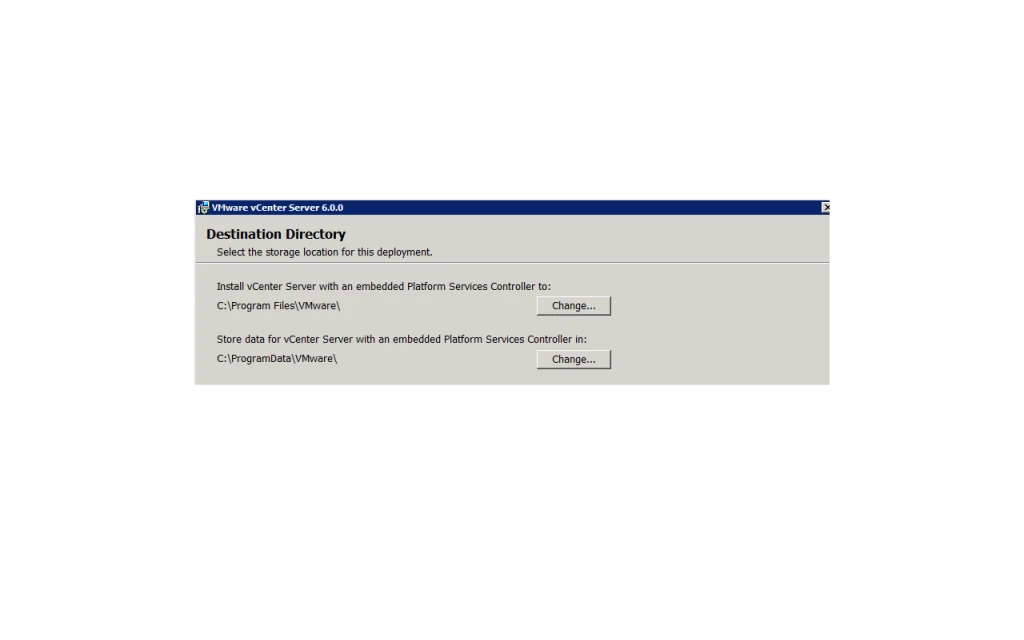
21. Here It Will Let You Know that It Is Going To Install In Given Directory, If You Want To Change Then Change It.
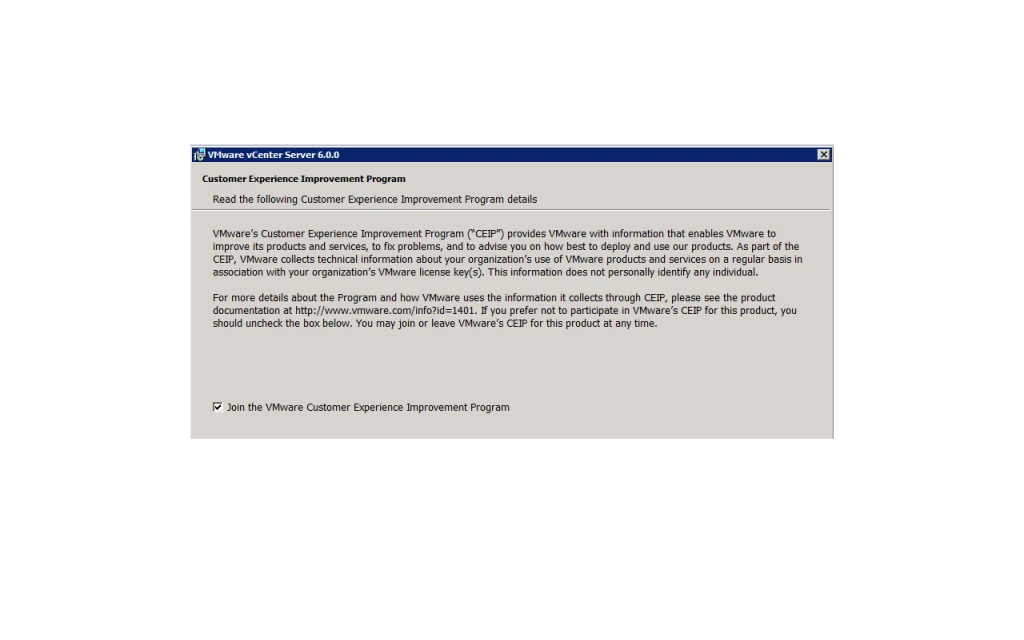
22. Here It Will Ask You To Join CEIP.
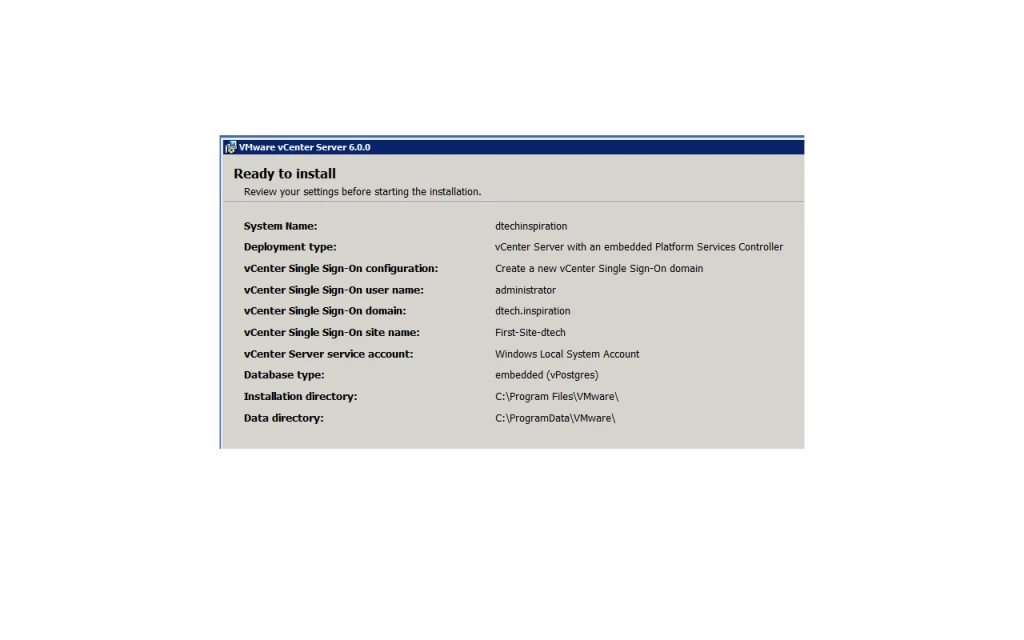
23. Final Summary Page Before Begin The Installation.
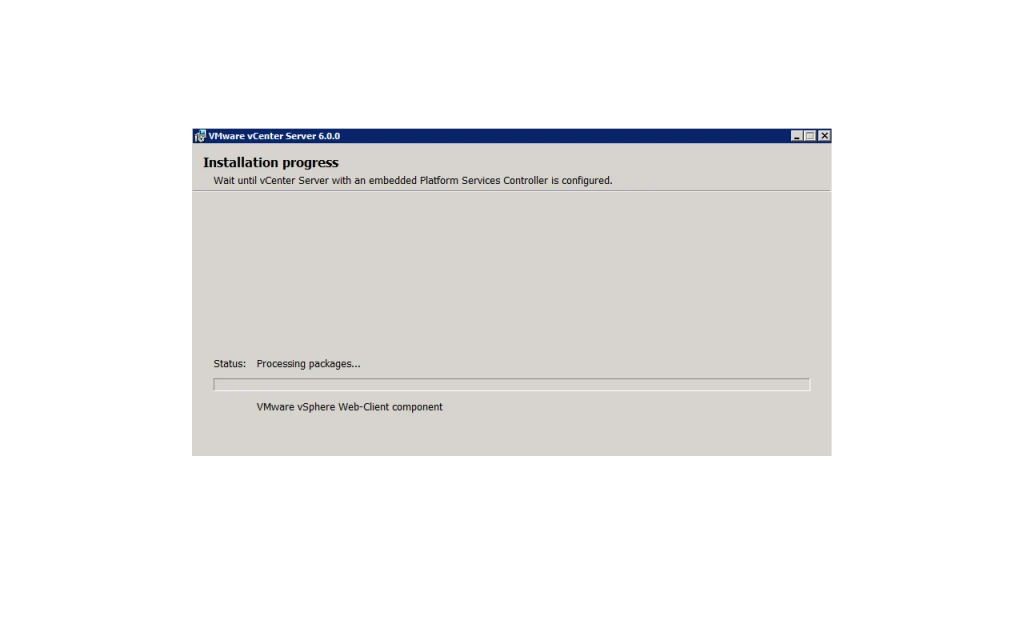
24. Start Installation.
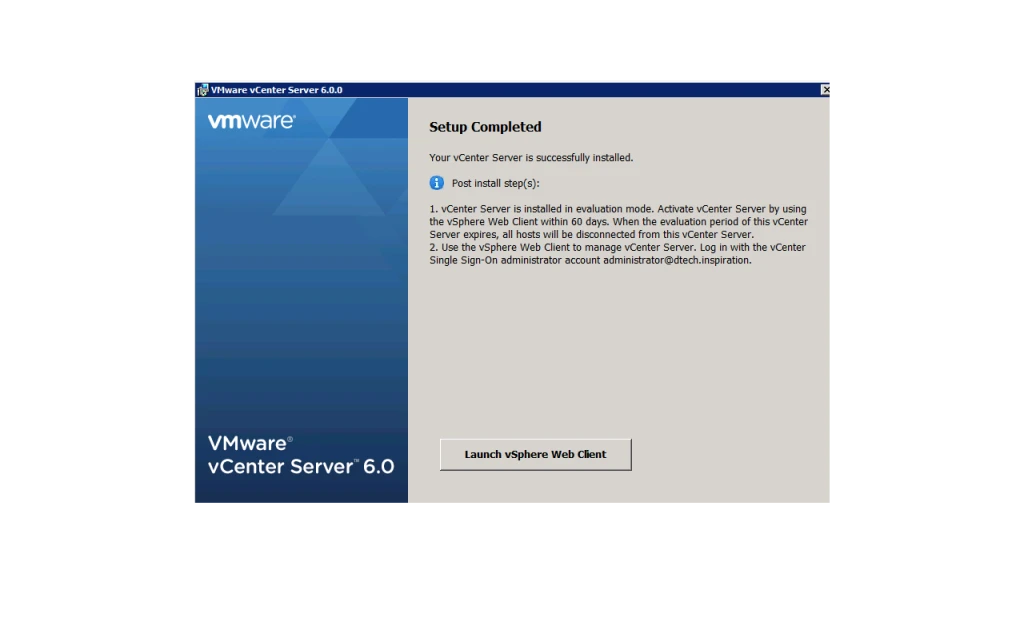
25. Done With Installation. You Can Launch vSphere Web Client.