Login into vCD cell and run below commands:
[root@localhost ~]# service vmware-vcd stop
[root@localhost ~]# cd /opt/vmware/vcloud-director/bin/
[root@localhost bin]# ./vmware-vcd-cell maintenance

[root@localhost bin]# ./cell-management-tool -u administrator cell –shutdown
Copy the backup files to these locations (or check your database mdf and ldf location)
c:\Program Files\Microsoft SQL Server\MSSQL\DATA\VCDDB.mdf
c:\Program Files\Microsoft SQL Server\MSSQL\DATA\VCDDB.ldf
Manually copy the files on sql server.
Log in to the new vCD database and attach the backup manually
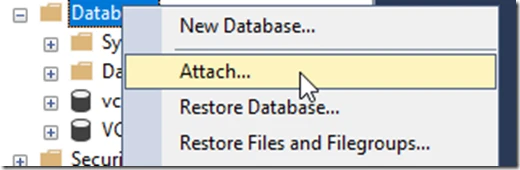
Select the MDF and LDF file.
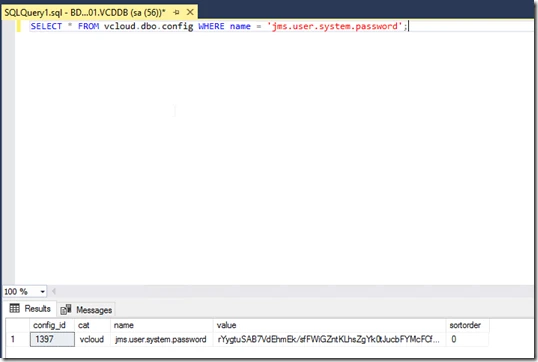
Now run some query from this attached database
Create a login user by running these commands:
USE master
GO
exec sp_addlogin ‘vcloud1‘, ‘your_password’, ‘your_database_name‘
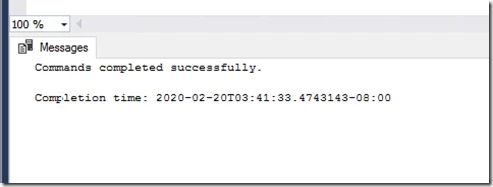
USE [VCDDB]
GO
CREATE LOGIN [VCDDB] WITH PASSWORD = ‘x8FcC37’, DEFAULT_DATABASE =[VCDDB],
DEFAULT_LANGUAGE =[us_english], CHECK_POLICY=OFF
GO
CREATE USER [VCDDB] for LOGIN [VCDDB]
GO

Login into VCD cell
use cell-management-tool reconfigure-database options
For more information, see the Update Database Connection Properties section in the vCloud Director Administrator Guide.
There are two options first edit the global.properties file.
Open the /opt/vmware/vcloud-director/etc/global.properties file using a text editor.
Comment out or remove these lines:
#database.jbdcUrl=
#database.username=
#database.password=

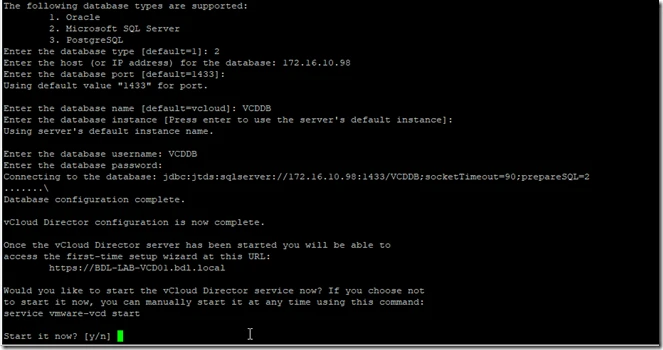
Second option run the below command
[root@localhost ~]# cd /opt/vmware/vcloud-director/bin/
[root@localhost bin]# ./cell-management-tool reconfigure-database –database-host your_database_IP –database-port 1433 –database-type sqlserver –database-name your_database_name -dbuser your_database_username -dbpassword your_database_password.
Leave a Reply