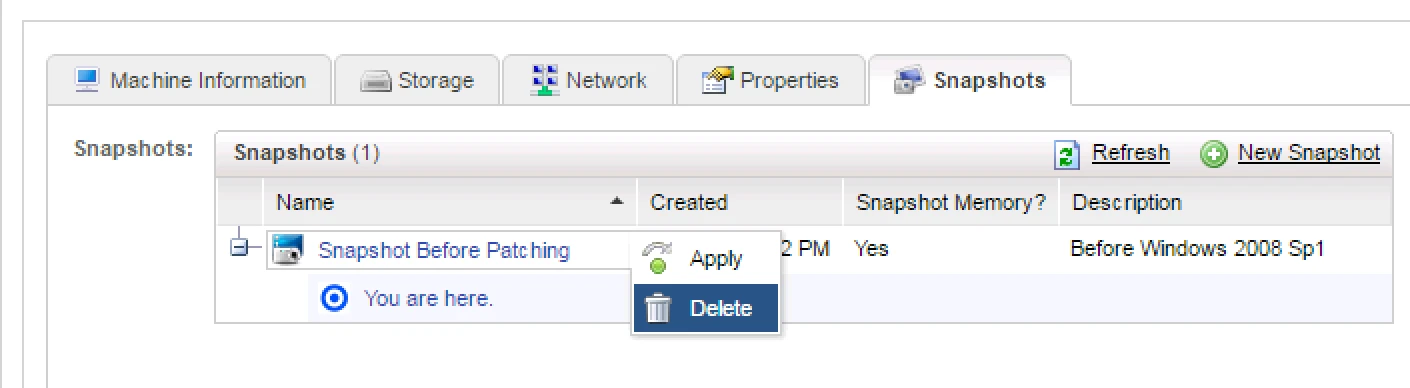
Today We will see how to Create and Delete Snapshots in VMware vRealize Automation.
1. You have to login via Business Group administrator

2. After login you will be able see your machine and all the details related to it.
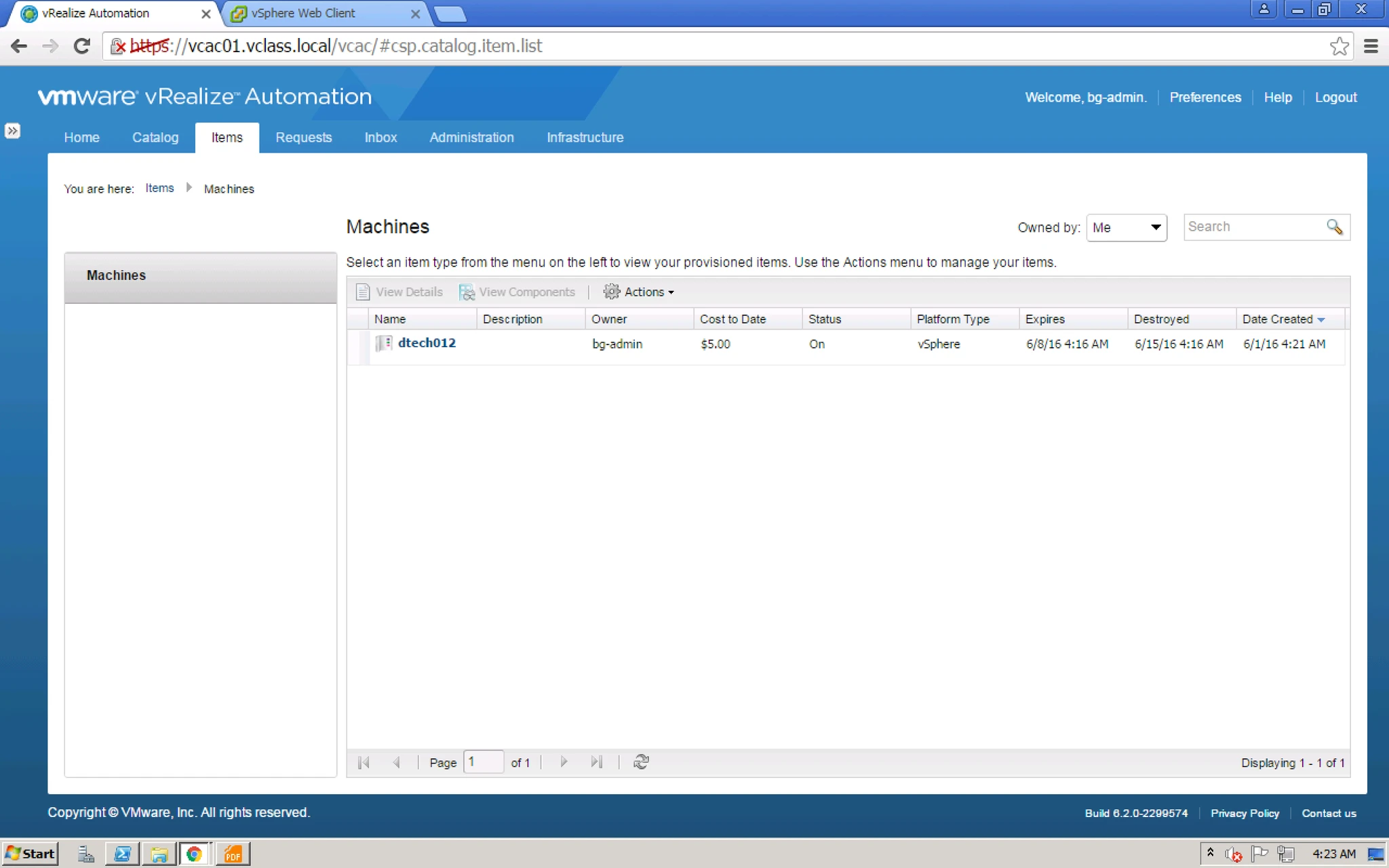
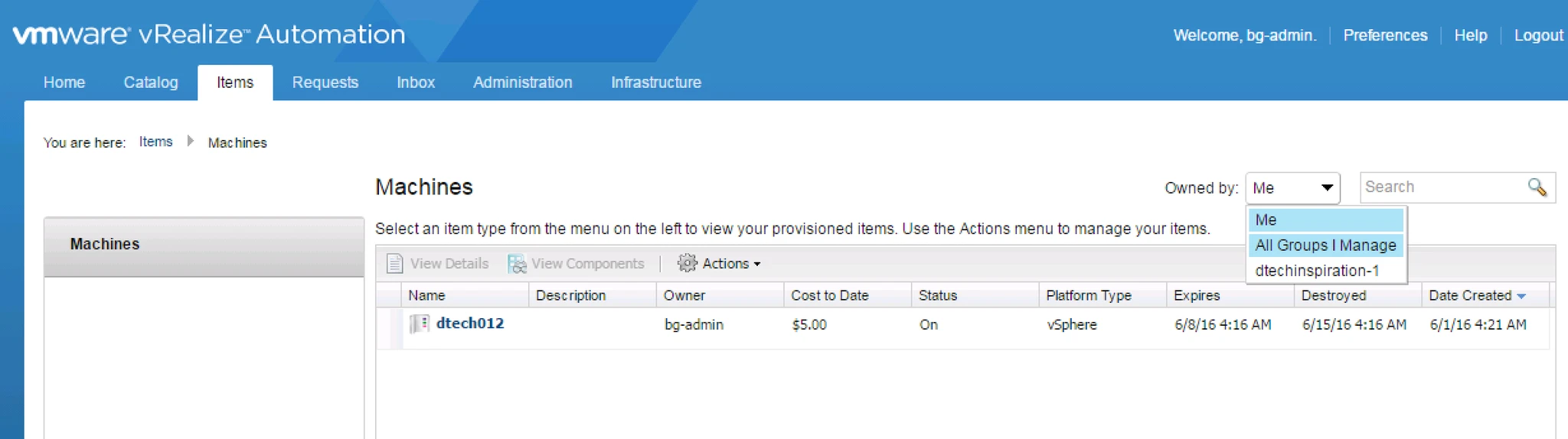
3. After that you have to check that how many machines are owned by you by clicking drop down menu which is on the very right hand side “Owned by”.

4. After that go to Actions > you will get further options releated to VM like a. Connect by Using RDP b. Destroy c. Power off etc. If you double click then these options will be listed down on the right hand side as seen in the second picture.
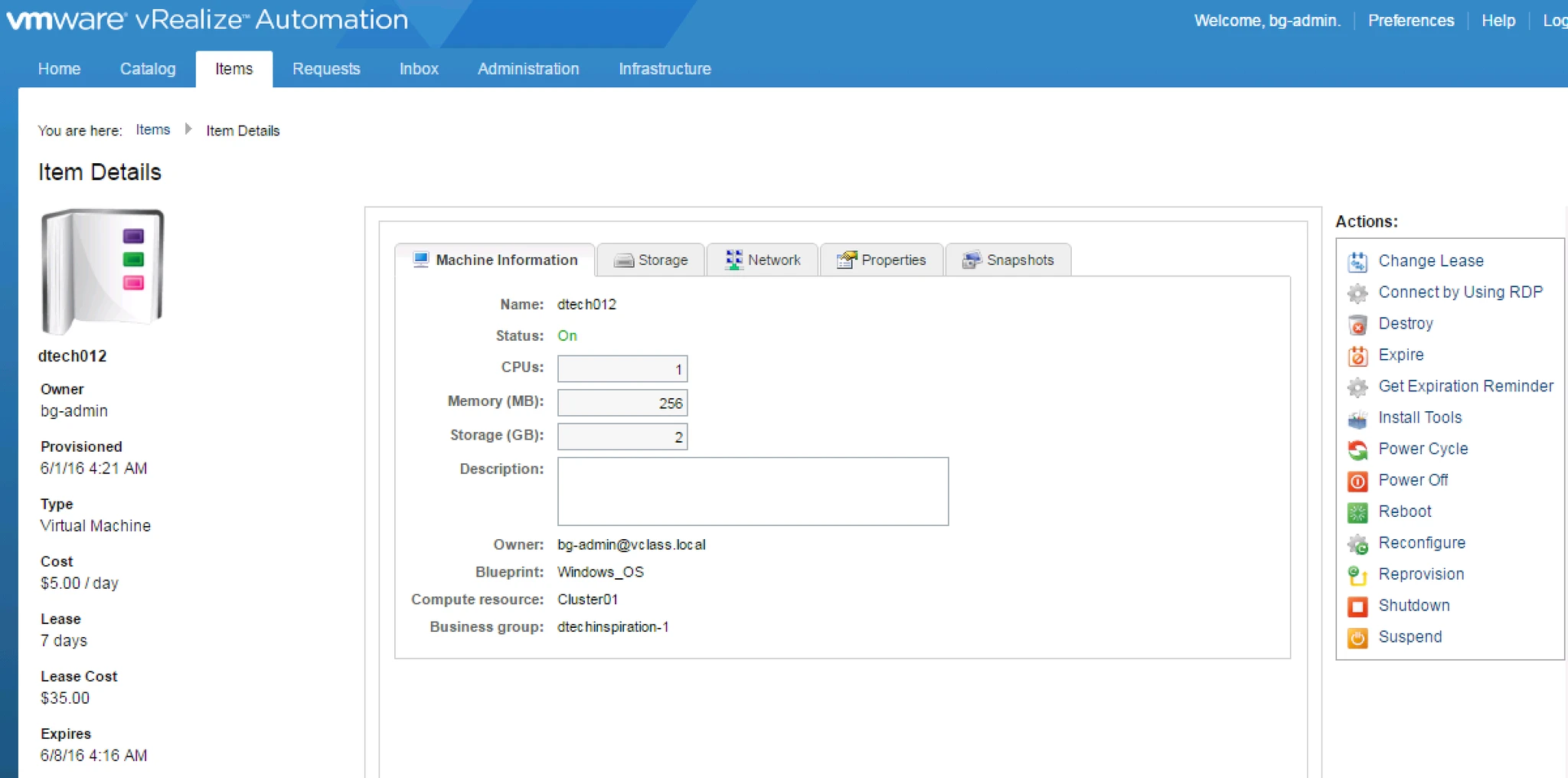
5. Go to the Last Tab Snapshot and Click on the New Snapshot.

Then it will ask you to provide Name of that snapshot.

Note: Same concept of Snapshot which we know in vSphere environment. here it will also ask you to take snapshot with memory or without.
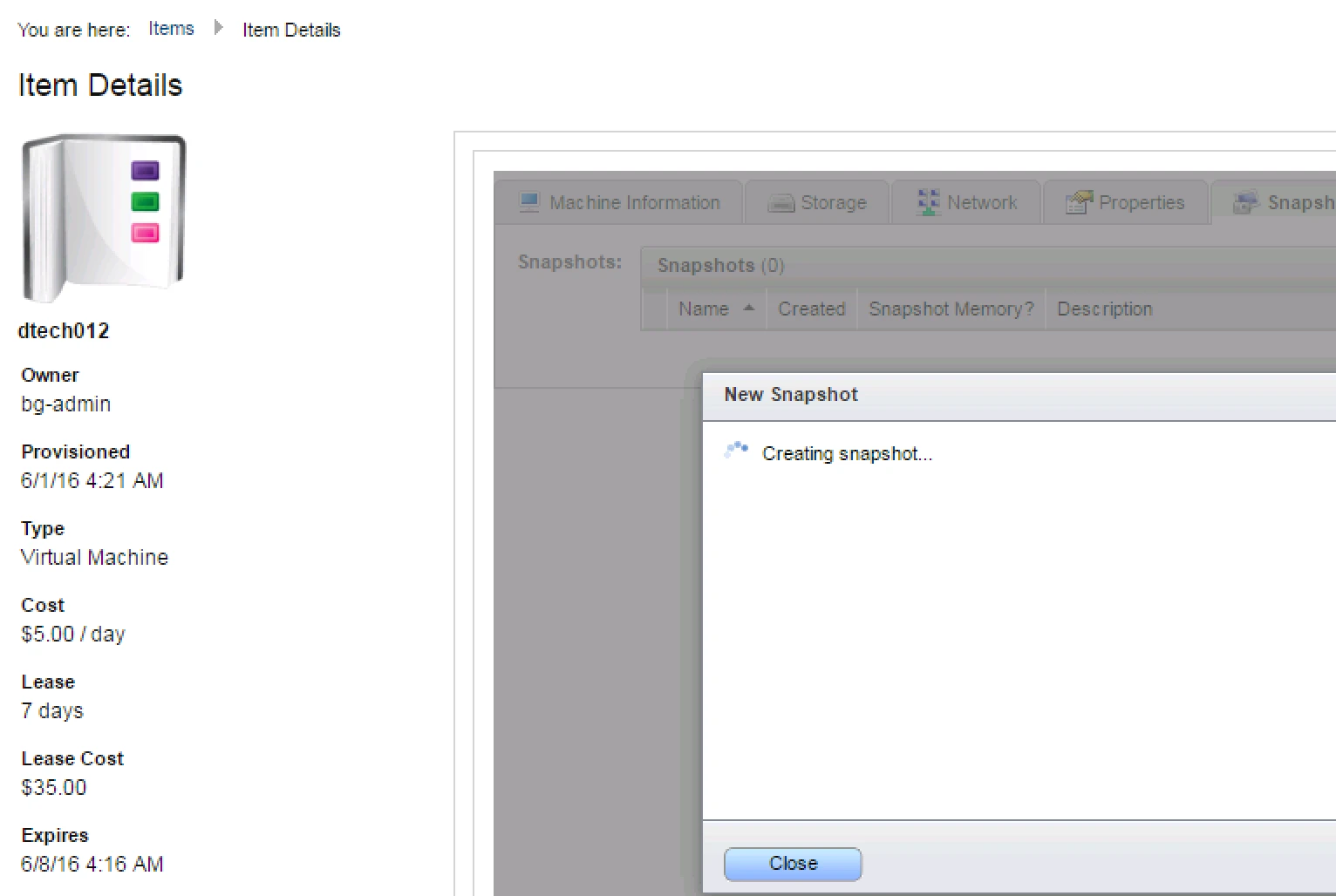
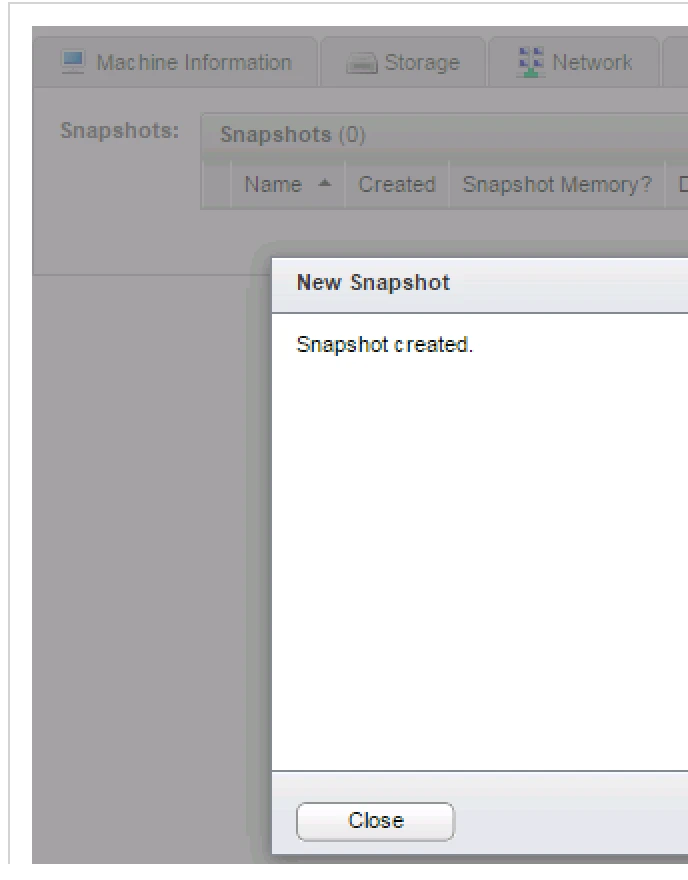
6. After that it will start taking snapshot and once it’s is finished it will show you the status.
Now here you will see one snapshot which we have taken.
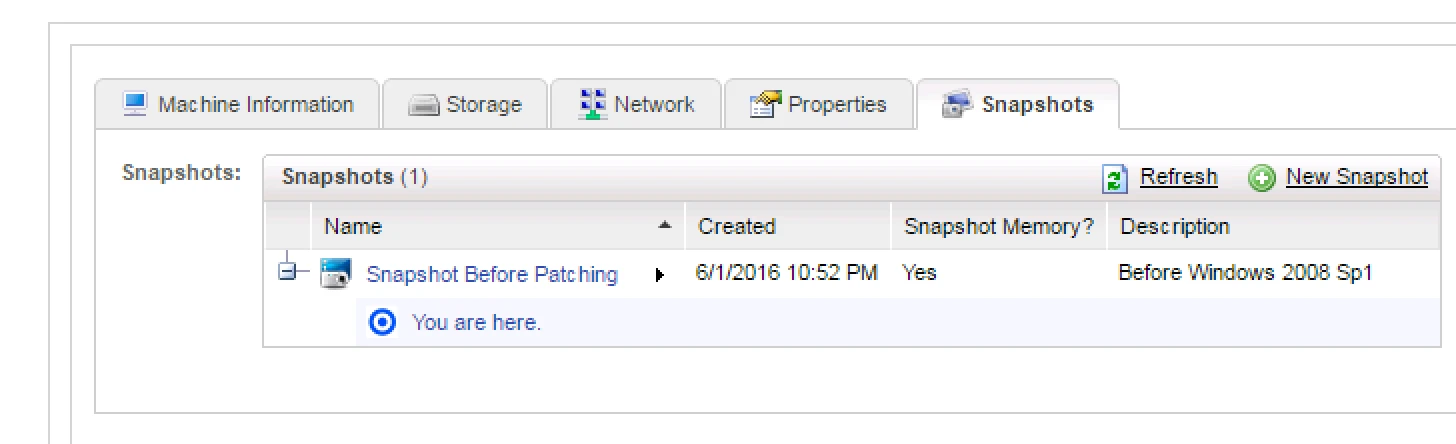
7. If you want to delete this snapshot then simply right click on this snapshot and Delete the same.