0

Announcing the General Availability of VMware…

Announcing the General Availability of VMware Cloud Foundation 3.8

Announcing the General Availability of VMware…

It’s my pleasure to announce the generally availability of VMware Cloud Foundation 3.8. This newest release is packed with new capabilities that make Cloud Foundation easier to deploy, manage and automate. Cloud Foundation 3.8 also updates the Bill of Materials (BOM) used to build out a Software Defined Datacenter (SDDC) so that customers get access The post Announcing the General Availability of VMware Cloud Foundation 3.8 appeared first on Cloud Foundation.


VMware Social Media Advocacy

Guest Introspection USVM reports disk is full

Guest Introspection USVM reports disk is full

In a VMware NSX for vSphere 6.3.x environment where Guest Introspection is deployed, you see these symptoms:
You receive an alert that the /var/log disk space is full or almost full on one or more of the Guest Introspection USVMs
The same alert can be seen in vRealize Operations Manager or in any other monitoring tool that tracks virtual machine disk space

Cause

This issue occurs as there is a problem with the internal log maintenance task that causes log files to grow indefinitely, eventually leading to a full disk situation.

Resolution

This issue is resolved in VMware NSX for vSphere 6.3.2, available at VMware Downloads.

To work around this issue if you do not want to upgrade:

Delete the Guest Introspection USVM.
Click on resolve to redeploy.
If workaround steps fails to resolve your issue, contact VMware Support and note this Knowledge Base article ID (2149856)

Join the vCenter Server Appliance to an Active Directory Domain

How to Join the vCenter Server Appliance to an Active Directory Domain

You can join a Platform Services Controller appliance or a vCenter Server Appliance with an embedded Platform Services Controller to an Active Directory domain and attach the users and groups from this Active Directory domain to your vCenter Single Sign-On domain.

Important:

Joining a Platform Services Controller appliance or a vCenter Server Appliance with an embedded Platform Services Controller to an Active Directory domain with a read-only domain controller (RODC) is unsupported. You can join a Platform Services Controller or a vCenter Server Appliance with an embedded Platform Services Controller only to an Active Directory domain with a writable domain controller.

Prerequisites

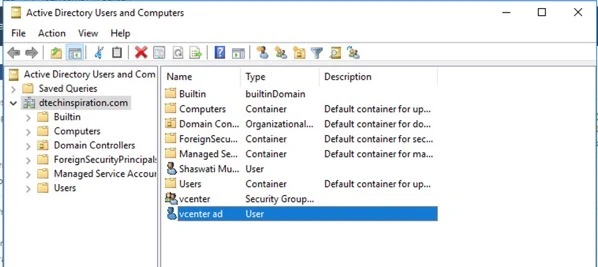
Create a User account in Active Directory so that you can use while joining AD in vCenter Server. 

Screenshot 2019 11 23 at 5 09 33 p m


Procedure


  • Use the vSphere Web Client to log in as [email protected] (as per you domain setup) to the vCenter Server instance in the vCenter Server Appliance.The address is of the type http://appliance-IP-address-or-FQDN/UI.
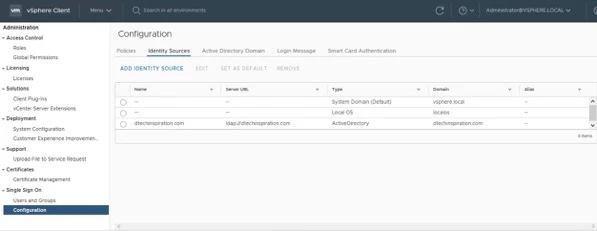
  • vSphere Client navigation pane, click Administration > Single Sign On > Configuration.

Screenshot 2019 11 23 at 5 31 15 p m

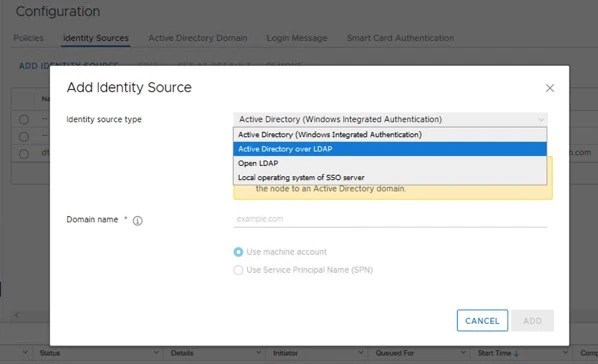
  • Select the Identity Sources > Add identity Source > 

Screenshot 2019 11 23 at 5 33 35 p m

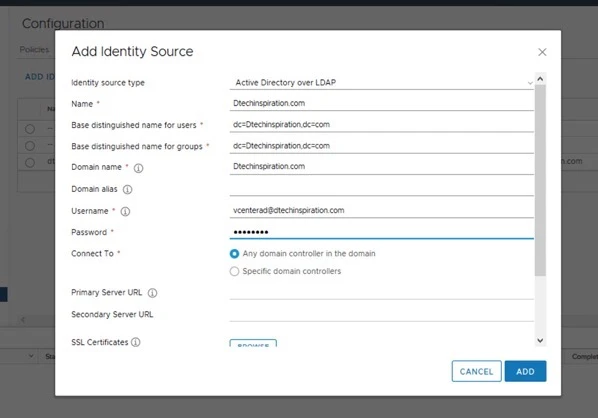
  • Select the Active Directory over LDAP. (In future version Microsoft and VMware going to support)

Screenshot 2019 11 23 at 5 37 47 p m


Note: After adding into Active Directory you “Do Not require a reboot”.

0

VMworld 2019 Backpack Reveal!

VMworld 2019 Backpack Reveal!

VMworld 2019 Backpack Reveal!

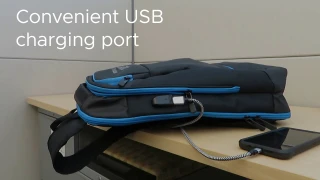
While VMworld is about tech, education, and people, (not so) secretly we all know that one of our favorite parts about the conference is the VMworld backpack. So without further ado, we’re pleased to reveal this year’s backpack! Register: https://bit.ly/2J5hSse


VMware Social Media Advocacy

0

Why Choose VMware HCI?

Why Choose VMware HCI?

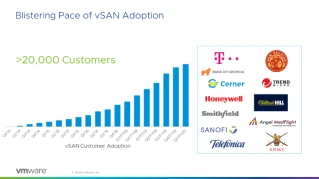
There’s a reason VMware leads the hyperconverged infrastructure (HCI) market with over 41% and continues to grow two times faster than our closest competitor. With the most customers in production worldwide, the richest ecosystem in the industry, and the broadest set of deployment options on the market, VMware provides the only enterprise-proven, full HCI stack that puts you on the path to hybrid cloud.Get a Free HCI Assessment


VMware Social Media Advocacy

ESXi 6.x host is disconnected from vCenter Server

ESXi 6.x host is disconnected from vCenter Server


ESXi hosts appear as Not Responding in vCenter Server.

Or showing disconnected in vCenter Server.


Running esxcli commands on the ESXi host fail with the error:

Error interacting with configuration file /etc/vmware/lunTimestamps.log: Timeout while waiting for lock, /etc/vmware/lunTimestamps.log.LOCK, to be released. Another process has kept this file locked for more than 30 seconds. The process currently holding the lock is smartd(PID). This is likely a temporary condition. Please try your operation again.

Note: PID is the process ID for the smartd service.

In the /var/log/hostd.log file, you see entries similar to:

Error interacting with configuration file /etc/vmware/lunTimestamps.log: Timeout while waiting for lock, /etc/vmware/lunTimestamps.log.LOCK, to be released. Another process has kept this file locked for more than 30 seconds. The process currently holding the lock is smartd(PID). This is likely a temporary condition. Please try your operation again.


To work around this issue, disable smartd daemon on the host.

To disable smartd daemon:

Connect to the affected ESXi host with an SSH session. For more information, see Using ESXi Shell in ESXi 5.x and 6.0 (2004746).
Run this command to stop the smartd service:

/etc/init.d/smartd stop

Run this command to stop the smartd service from starting on reboot:

chkconfig smartd off


Ref: https://kb.vmware.com/s/article/2145106?lang=en_US
VMware Required Free Space for System Logging

VMware Required Free Space for System Logging

If you used Auto Deploy to install your ESXi 6.7 host, or if you set up a log directory separate from the default location in a scratch directory on the VMFS volume, you might need to change your current log size and rotation settings to ensure that enough space is available for system logging .

All vSphere components use this infrastructure. The default values for log capacity in this infrastructure vary, depending on the amount of storage available and on how you have configured system logging. Hosts that are deployed with Auto Deploy store logs on a RAM disk, which means that the amount of space available for logs is small.

If your host is deployed with Auto Deploy, reconfigure your log storage in one of the following ways:

Redirect logs over the network to a remote collector.
Redirect logs to a NAS or NFS store.
If you redirect logs to non-default storage, such as a NAS or NFS store, you might also want to reconfigure log sizing and rotations for hosts that are installed to disk.

You do not need to reconfigure log storage for ESXi hosts that use the default configuration, which stores logs in a scratch directory on the VMFS volume. For these hosts, ESXi 6.7 configures logs to best suit your installation, and provides enough space to accommodate log messages.

Recommended Minimum Size and Rotation Configuration for hostd, vpxa, and fdm Logs
LogMaximum Log File SizeNumber of Rotations to PreserveMinimum Disk Space Required
Management Agent (hostd)10 MB10100 MB
VirtualCenter Agent (vpxa)5 MB1050 MB
vSphere HA agent (Fault Domain Manager, fdm)5 MB1050 MB


Ref: https://docs.vmware.com/en/VMware-vSphere/6.7/com.vmware.esxi.install.doc/GUID-DD8C6FF2-1949-4C82-A4BA-578988CA7BA1.html