Topic Outline:
MS Exchange Mailbox Backup
Choose MailBox
Backup Scheduling
Incremental Backup
Review configuration
Progress Details
MS Exchange Mailbox plugin backup is a folder level backup, where users can either backup a mailbox of a specific user on the whole or can perform backup on a folder and subfolder level. In order to configure Exchange Mailbox backups, Vembu NetworkBackup should be installed on machines where exchange servers are installed and if multiple Exchange servers are used, Vembu NetworkBackup should be installed on each machine.
The backed up information(User Mailbox, folder and subfolder) is stored in separate PST files. Exchange Mailbox is not an alternative to Exchange server backup, instead provides optional granularity for data to be backed up. This will be most helpful when a user is in need to recover individual mailbox or its information(Such as contacts, mails, calendar, tasks etc.,) instead recovering an entire server.
Supported Versions of Exchange Server:
Vembu BDR Suite supports following Microsoft Exchange Server running on Physical and Virtual Environments (VMware vSphere and Microsoft Hyper-V)
Microsoft Exchange Server 2016
Microsoft Exchange Server 2013
Microsoft Exchange Server 2010
Vembu supports backup of clustered Exchange Server Storage Groups and Database Availability Group (DAG) environment.
Always check the Vembu website for latest update and version details.
(Source: Vembu -> https://www.vembu.com/microsoft-exchange-server-backup)
1. Now Lets see how to take backup using Vembu Network Backup.
2. First login into Vembu NetworkBackup page > and go to Backup option and under this option you can see MS Exchange Mailbox option click on this.
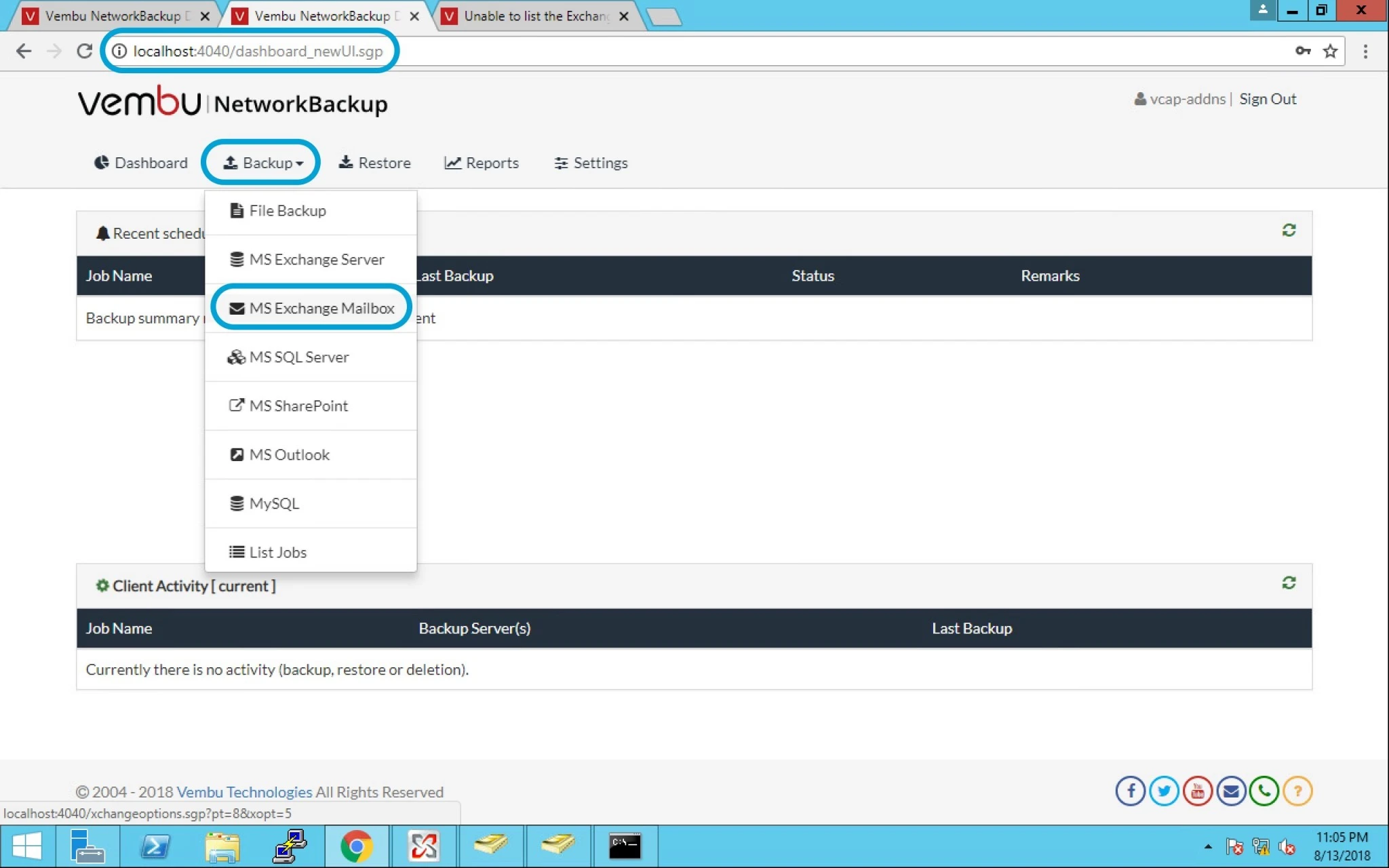
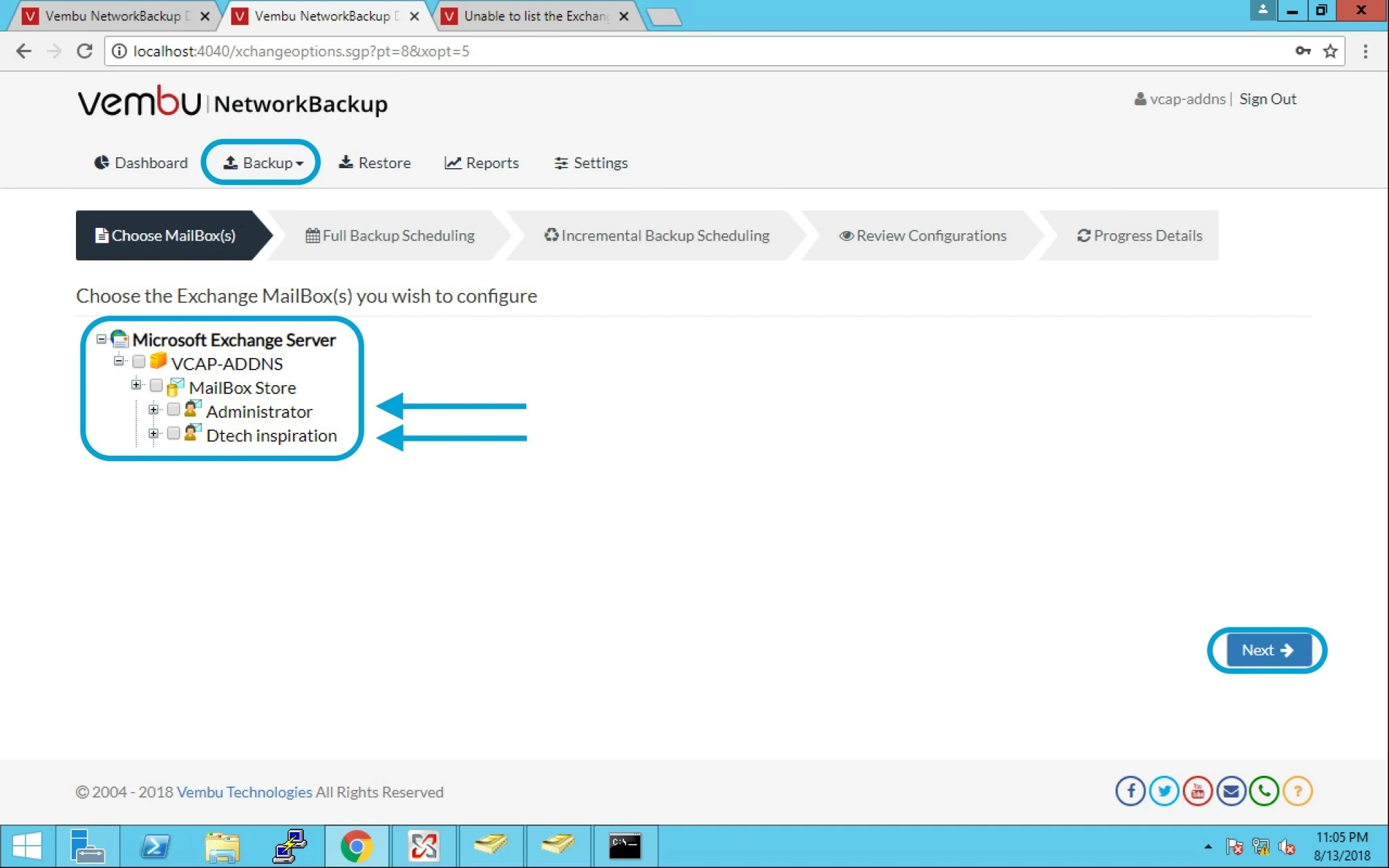
3. After this it will show you below screen here you will see all the mailbox under MS Exchange server.
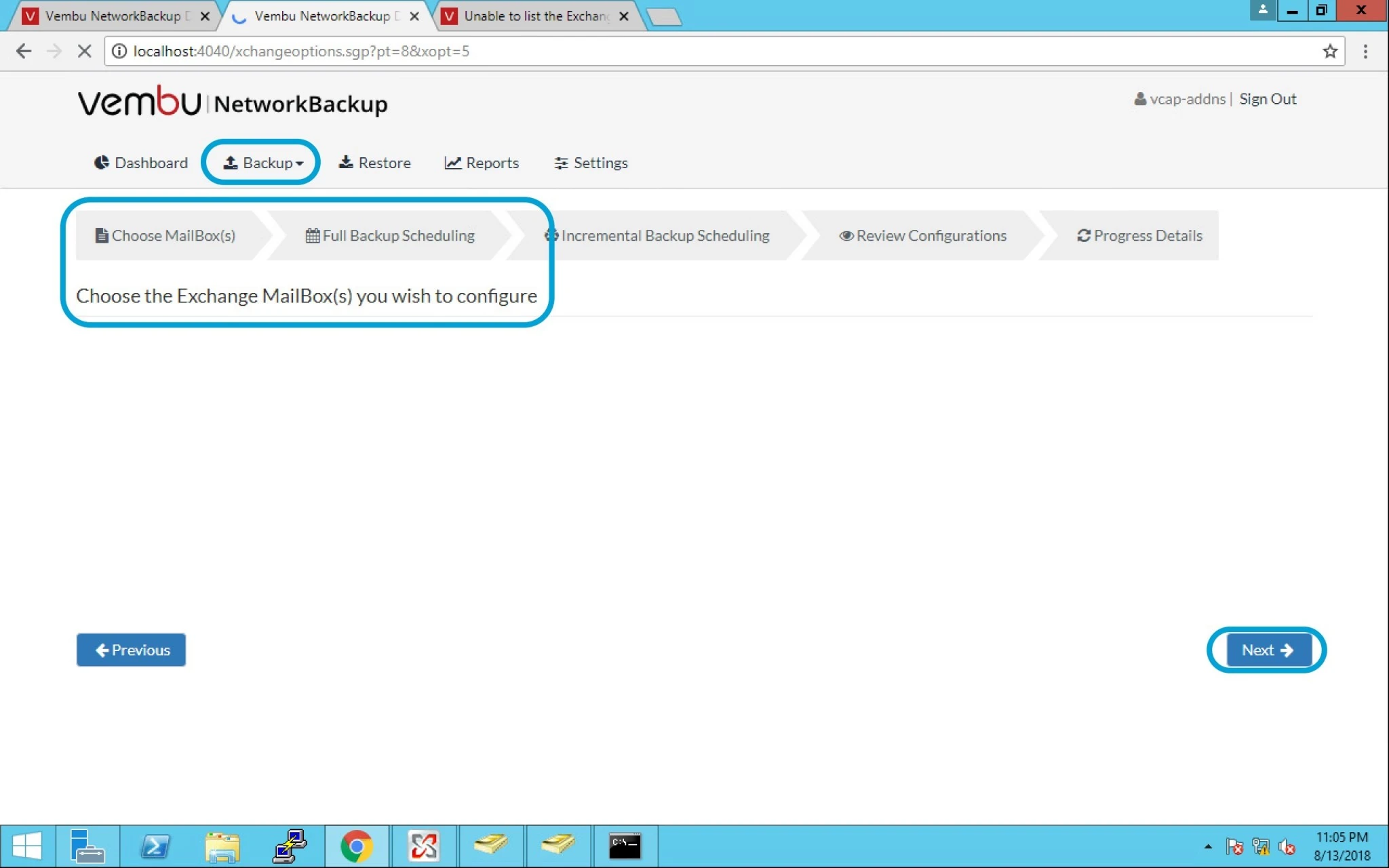
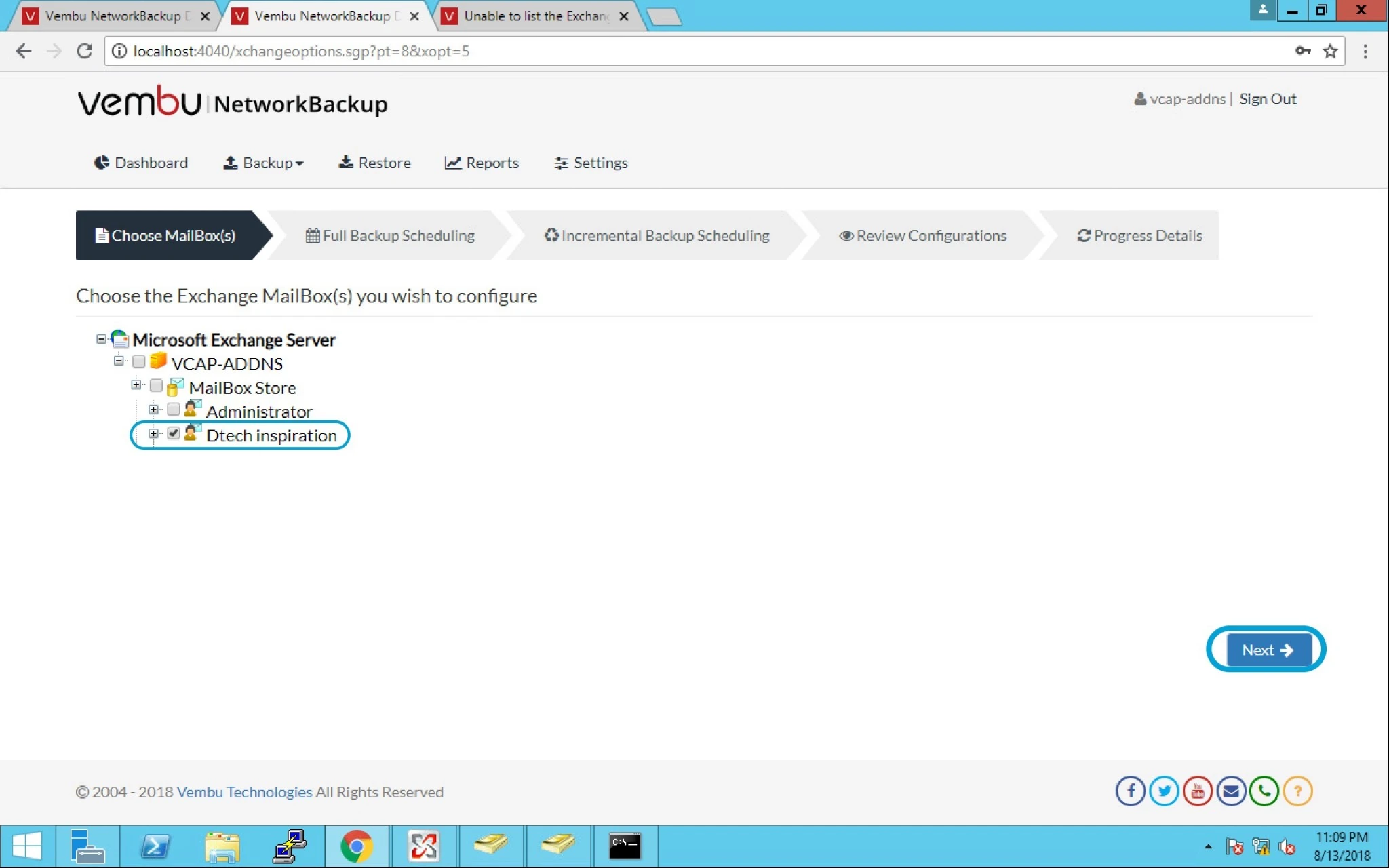
4. Here is the list of all the mailbox now need to select the mailbox which you want to take backup.
5. After mailbox selection click next.
6. Once you select mailbox it will show you below screen from here you can configure how frequently you want to take backup.
Vembu is giving 4 choices and admin can select as per client or company requirements.
- Run Monthly- This option will let user run full backup once a month and user can specify the day, time and month of their choice for full backup schedules.
- Note: As per Vembu Run Monthly is the recommended and default configuration.
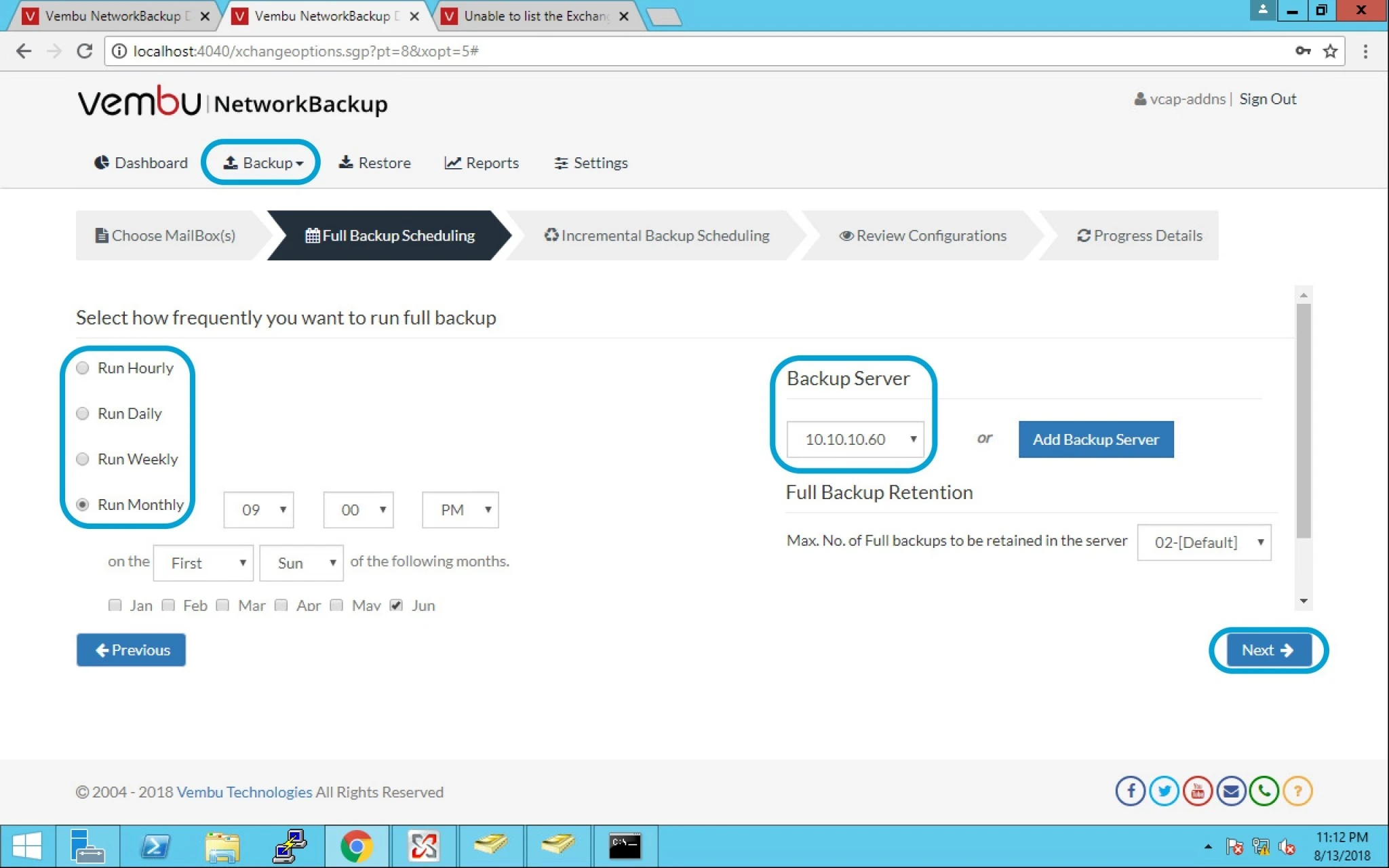
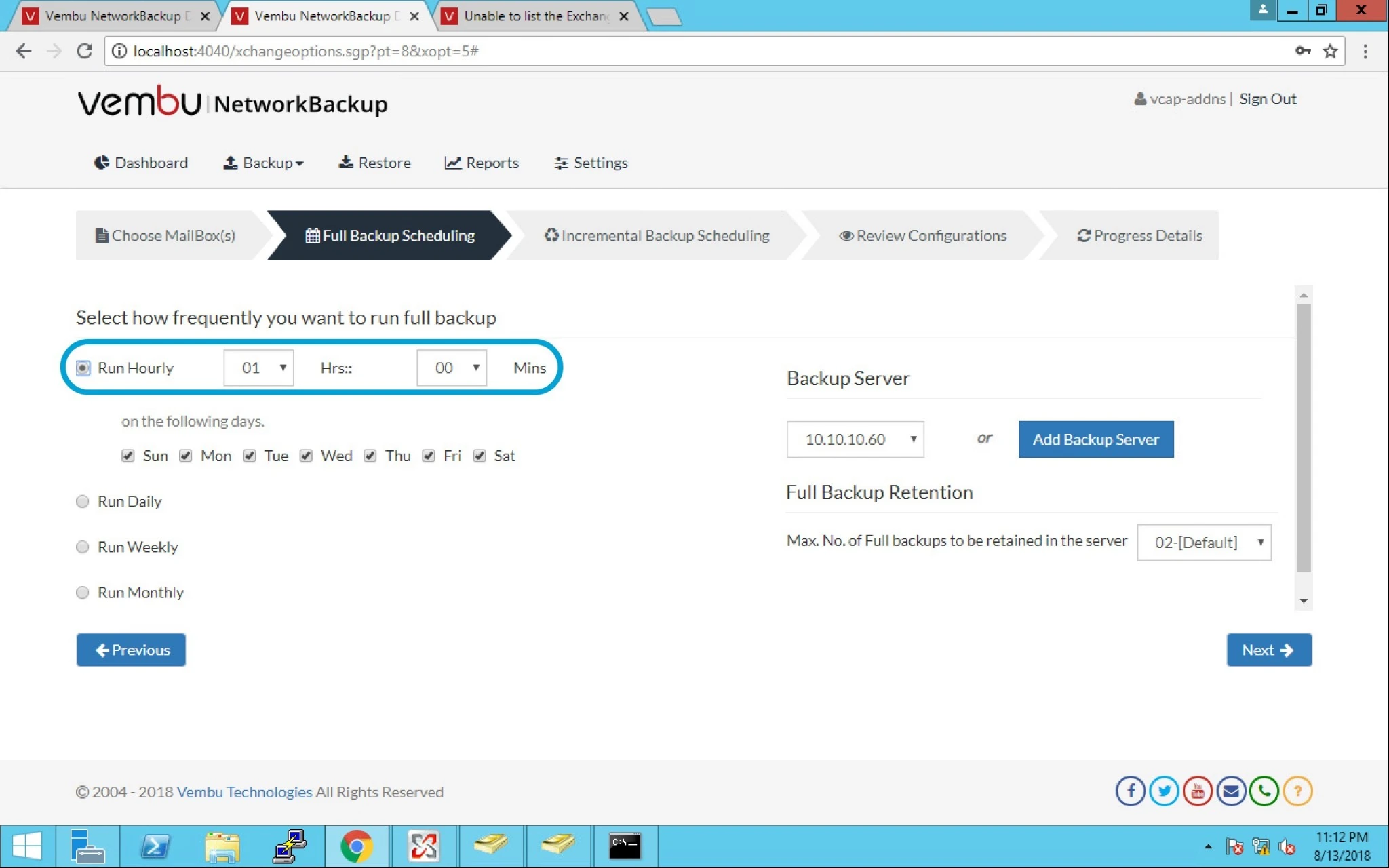
7. Run Hourly– This option will let user run full backup in hourly time intervals. A user can select the weekdays and time interval between backup schedules.
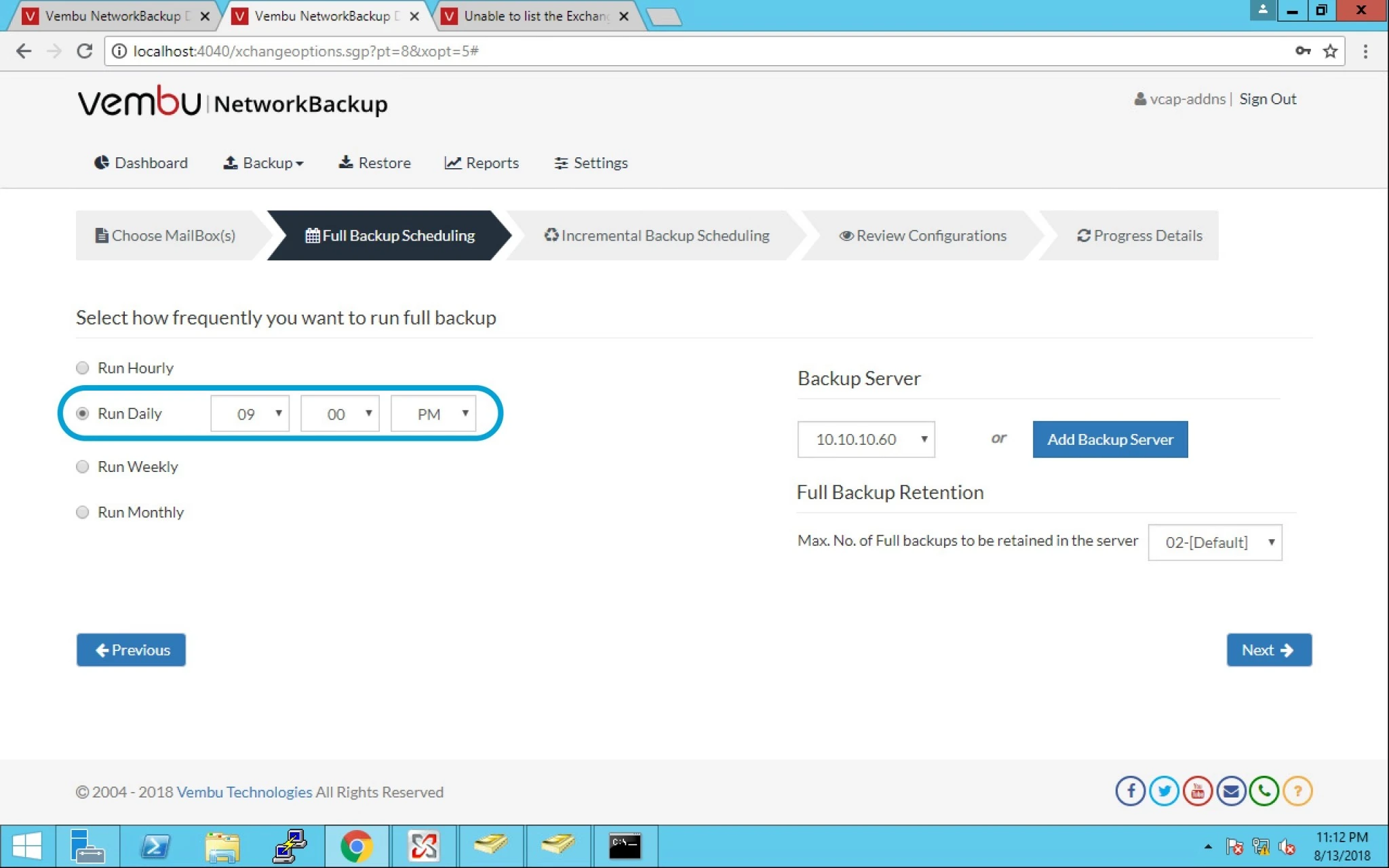
8. Run Daily- This option will let user run full backup once a day and user can specify the time at which full backups should run every day.
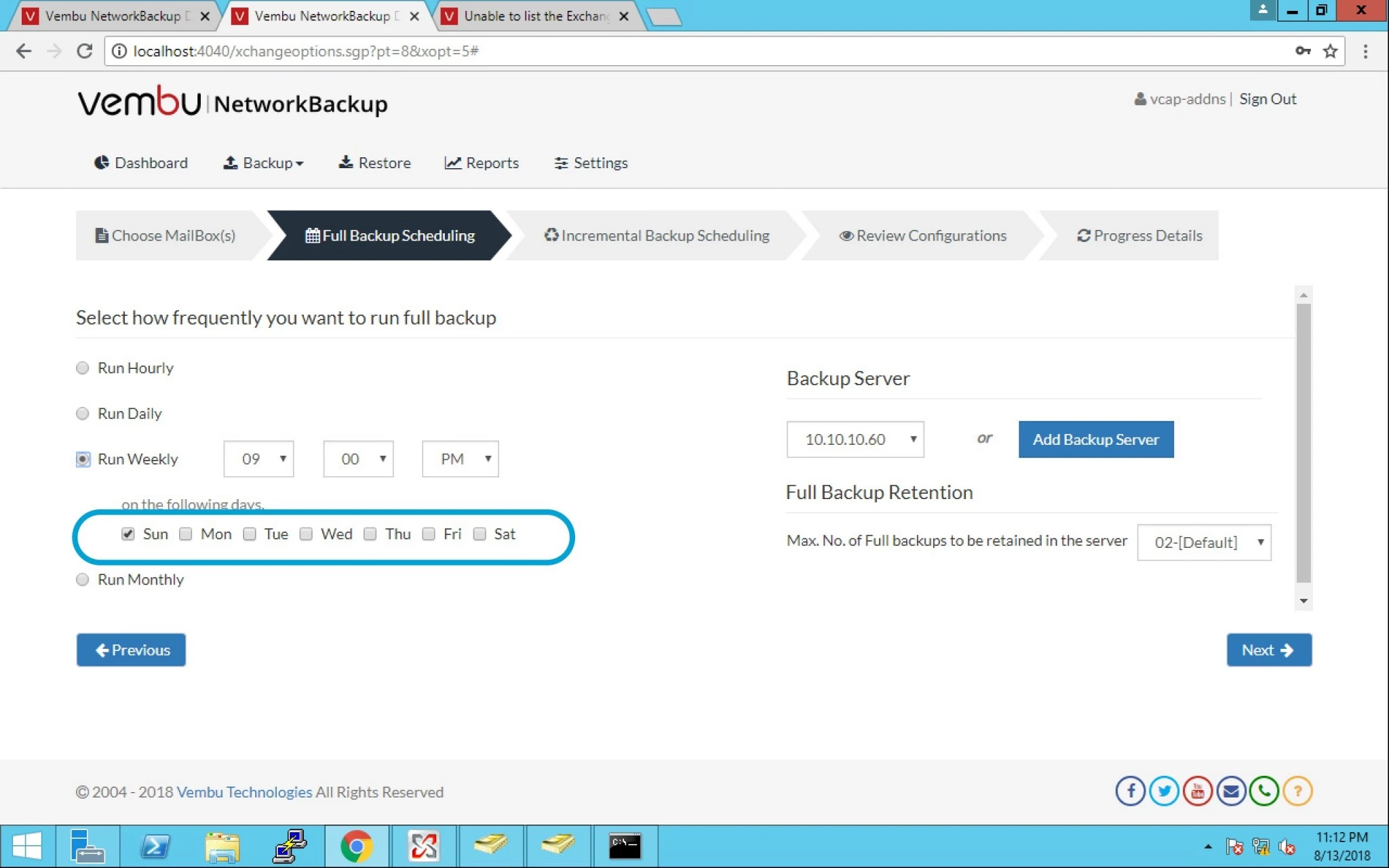
9. Run weekly- This option will let user run full backup once in a week and user can specify the day and time of their choice, when to perform full backups in a week.
Under Full Backup retention option you can also specify the maximum number of full backups to be retained. The default value is 2 for full backup retention and max 99.
10. On this page you can see “Configure Incremental Scheduling” temporary location for backup dumps; don’t worry the backup will be transferred to remote backup server and then it will be deleted automatically.
11. Its like saving on disk initially here you have to provide the location/directory path in which the Exchange Mailbox dumps has to be temporarily stored before uploading to backup server.
Note: Ensure you have enough disk space in the configured location(where the backup dump has to be saved).
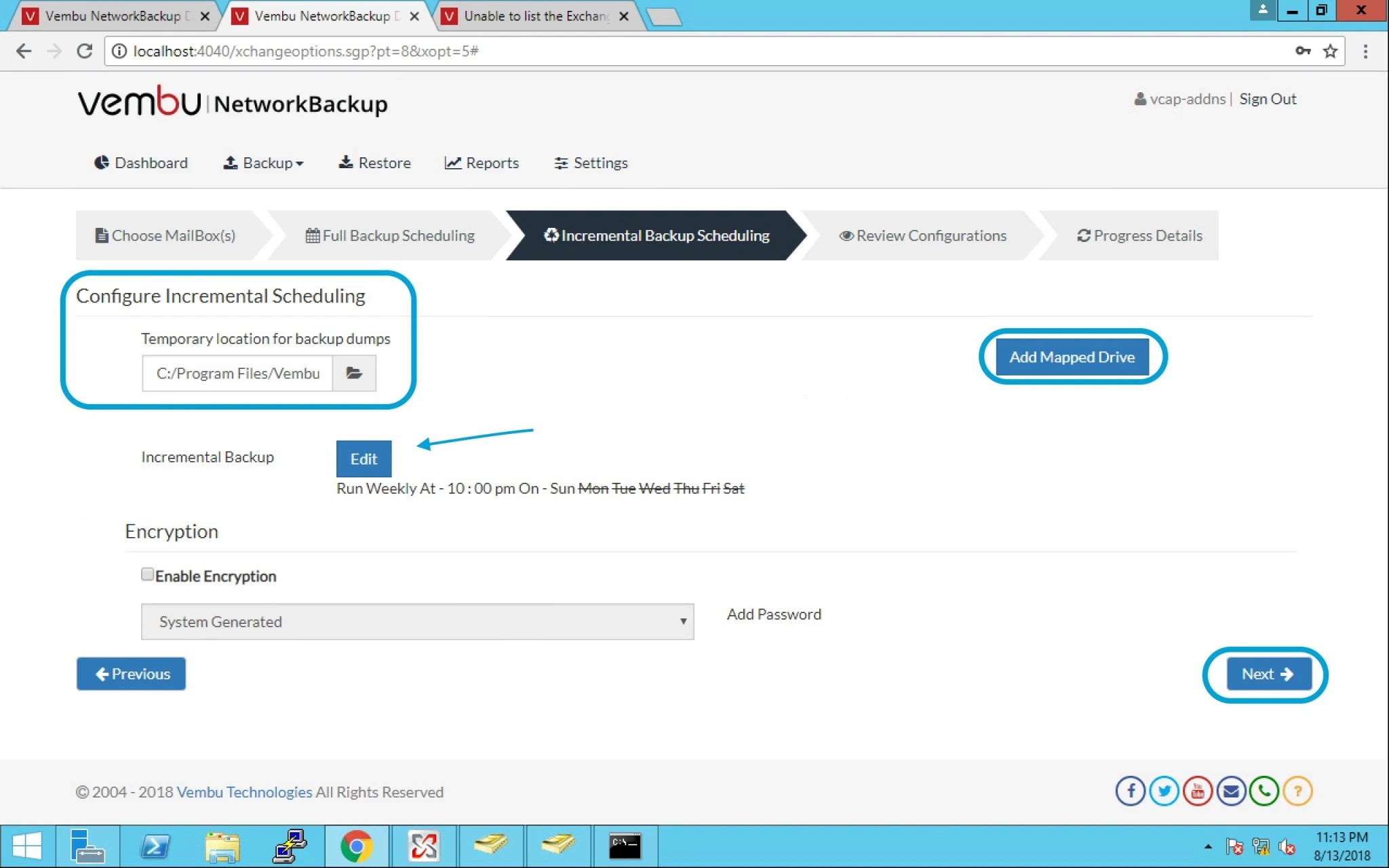
12. On R.H.S you can see Add Mapped Drive for adding any remote drive if you want to use.
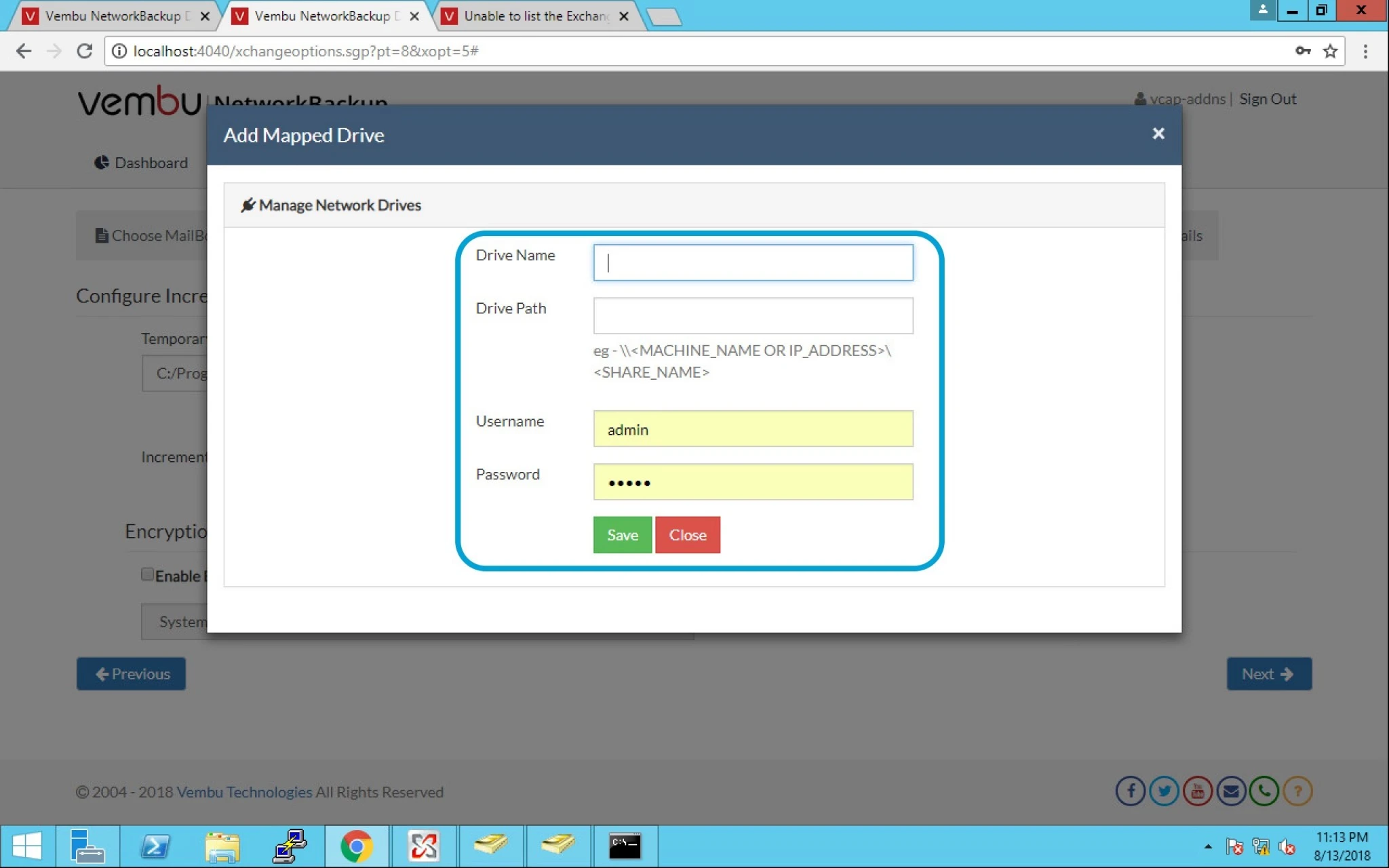
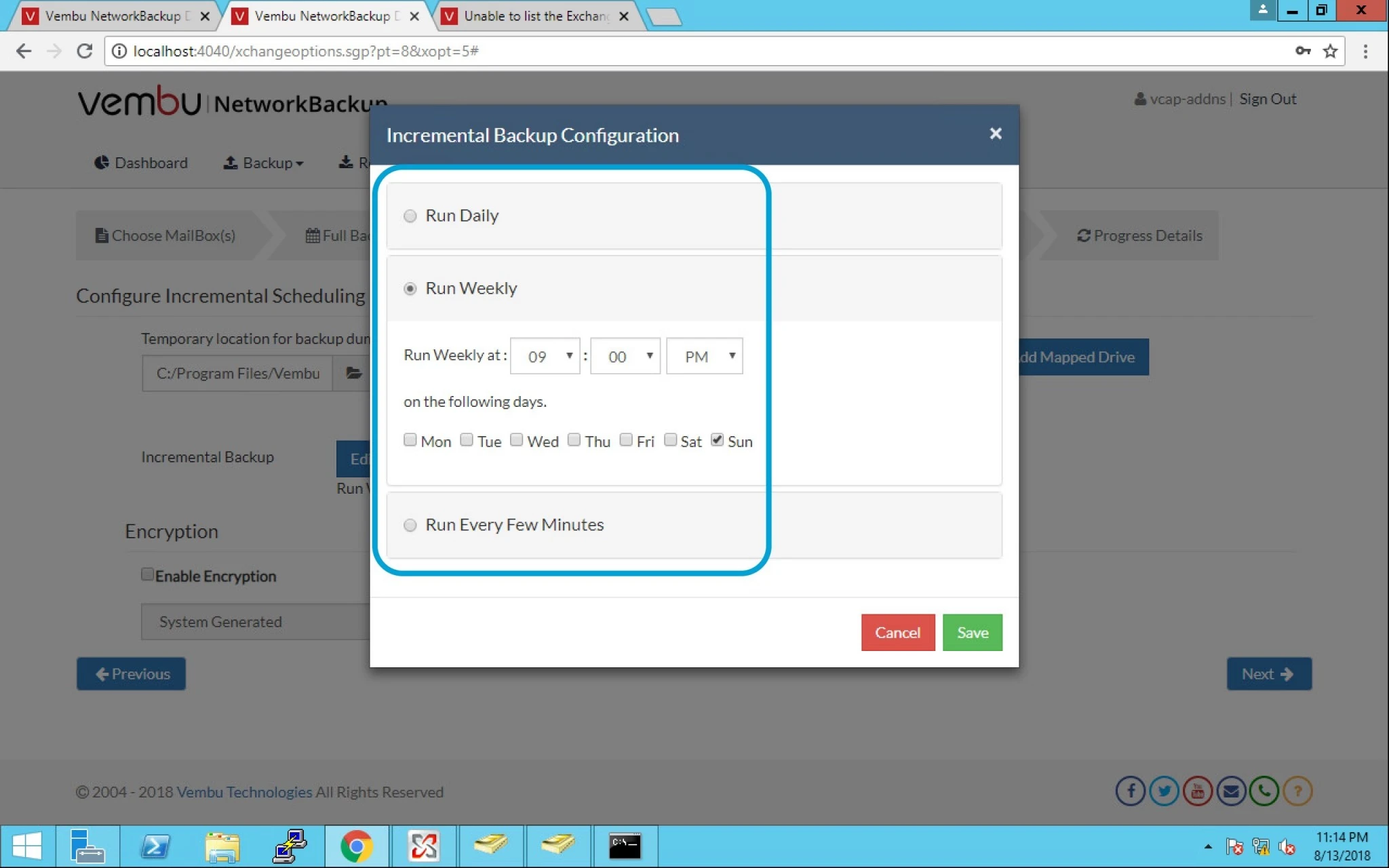
13. Under Incremental backup option click on Edit and you can change the setting as per your requirement.
Here you have three choices:
It always depend on client or company requirement
Run Weekly– Admin can execute the backup every week on the particular day and time chosen. It always an option to change the backup any time that you can select multiple days of the week if you wish to run the backup more than once a week.
Run Daily- This will execute the backup everyday at user specified time.
Run Every Few Hours- It also lets user decide the days when the hourly schedules should be carried out.
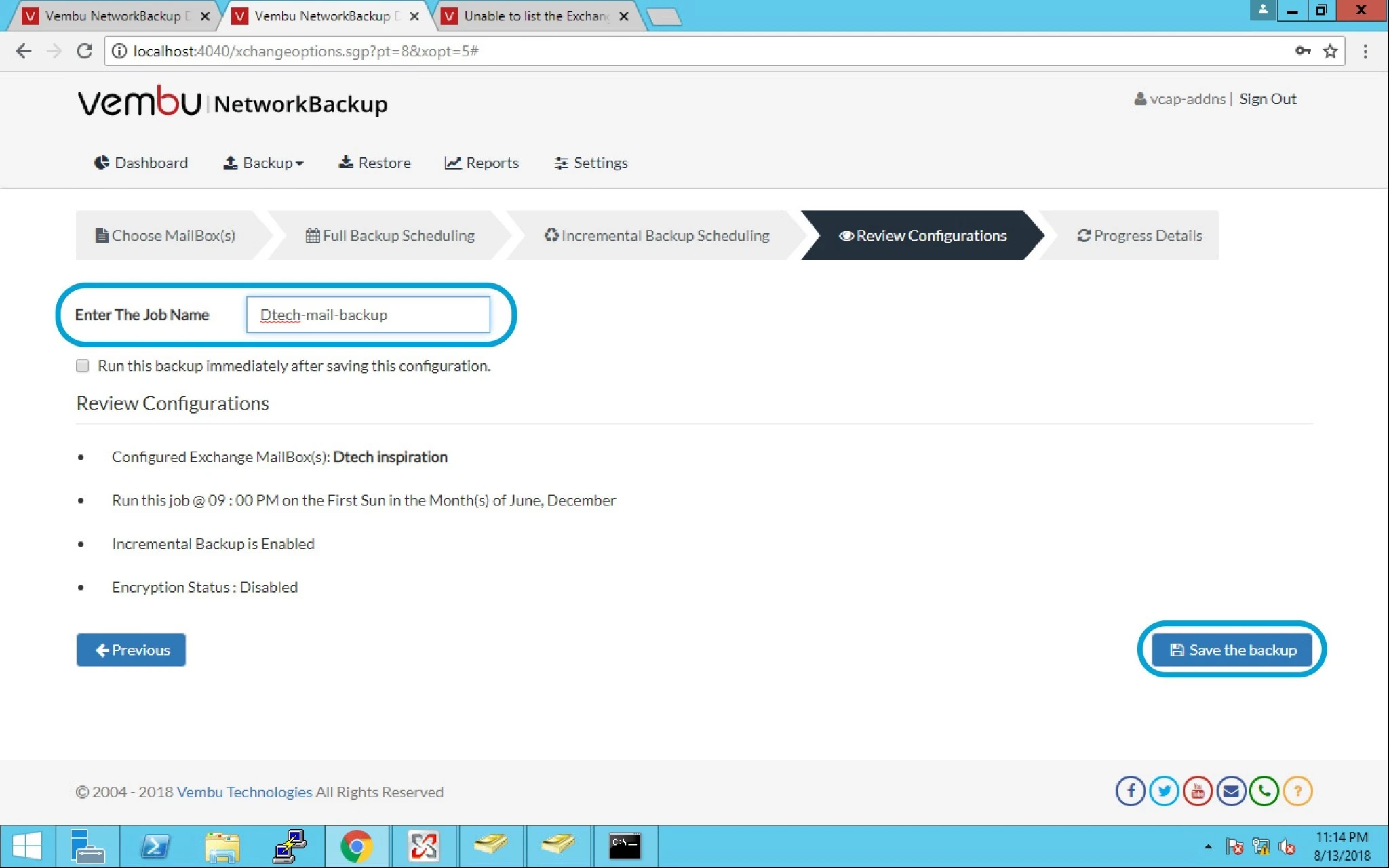
14. After doing all the configuration you can provide the job name and click on Save the backup.
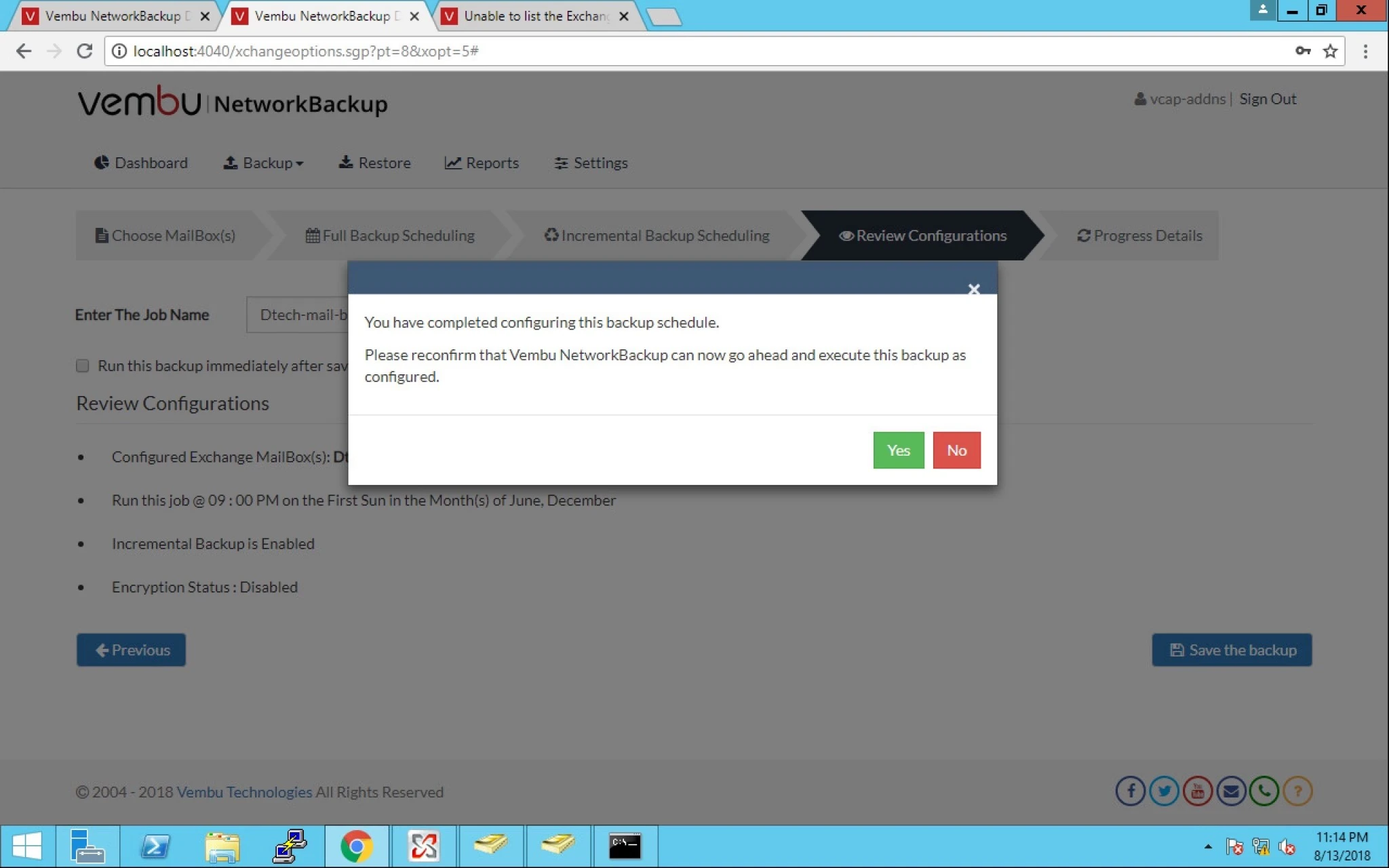
15. Click Yes
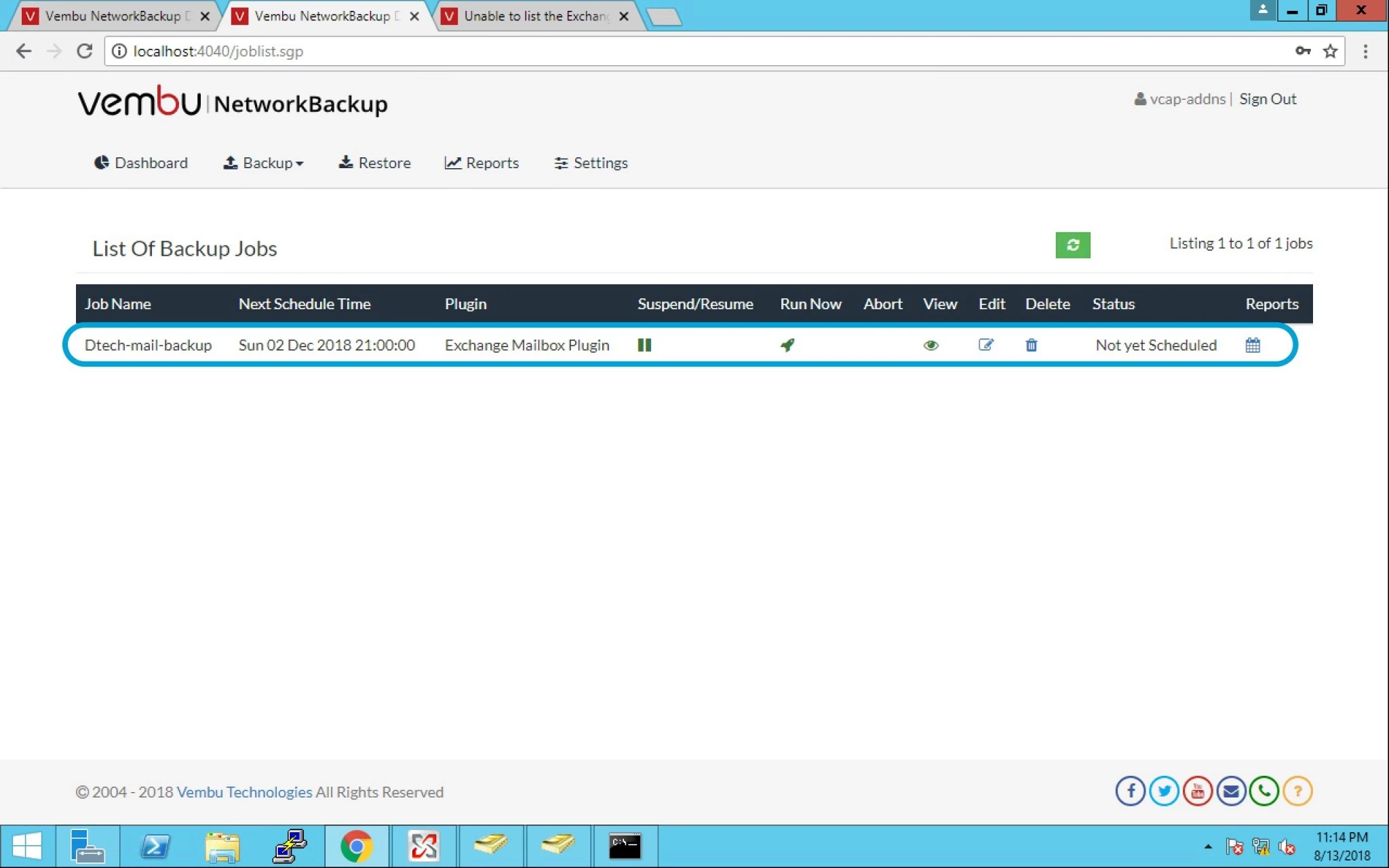
16. Under List of Backup Jobs you can see all the configured jobs and status. From here you can run the job adhoc also.