0

ESXTOP Replay mode–vm-support

1. [root@esx00:~] vm-support -p -d 60 -i 2

usage: vm-support [-h] [-g GROUPS] [-a MANIFESTS] [-e EXCLUDEMANIFESTS]
                   [–manifestdir MANIFESTDIR] [-w WORKINGDIR] [-s]
                   [-E ERRORFILE] [-l] [-z] [-o] [–listmanifests] [-G] [-t]
                   [-p] [-d DURATION] [-i INTERVAL] [-v VM] [-V]
                   [–action-threads ACTIONTHREADS] [-L] [-D] [-q]
                   [–loglevel LOGLEVEL] [–version] [–allow-infinite-actions]
                   [–default-timeout DEFAULTTIMEOUT] [–ignore-timeouts]
                   [-r DIRECTORY] [-x BUNDLE DIRECTORY]

2. [root@esx00:~] vm-support -p -d 60 -i 2 -w /vmfs/volumes/vsanDatastore/EXTPSC/

Explanation of the syntax/the options:

  • -p is to only gather performance data
  • -d is the duration in seconds (eg. in every 60 seconds)
  • -i is the interval (eg. gather data every 2 seconds)
  • -w is to specify a datastore for the output file

Now go to that datastore

3. [root@esx00:/vmfs/volumes/vsan:5211f060bc57c3b4-8c83e9fe3eabe2c4/774e485a-2b77-0370-28d7-a0369f481c68]

After that extract the file

4. tar -xzf esx-esx00-2018-07-24–12.32-6250178.tgz

5. Run the reconstruct script:  ./reconstruct.sh

6. After that run this command: esxtop –R esx-esx00-2018-07-24–12.32-6250178

0

VMware and Google Cloud Collaboration

VMware and Google Cloud Collaboration

VMware and Google Cloud Collaboration

VMware and Google Cloud Collaborate to Ease Workload Provisioning to GCP In conjunction with Google Cloud, we are excited to announce the preview of a newly developed plug-in for VMware vRealize Automation and vRealize Orchestrator. At VMware, we strive to give customers a consistent management experience while also offering choices for third-party services and endpoints. The post VMware and Google Cloud Collaboration appeared first on VMware Cloud Management .


VMware Social Media Advocacy
0

Restore Files with Vembu Network Recovery Option

Topic Outline:

 Restore File/Files

 Recover particular one file/files and folder/folders from FLR backup in Vembu BDR.

File Level Restore (FLR) addresses these issues by providing a way to access individual files within a restore point. This access makes it possible to read copies of files or restore them from within restore points to any other available location.

To restore specific file/files or folder/folders from image backups without restoring the entire disk(s), we can use “File Level Recovery” option by attaching the backup disk(s) to the Disk Management and then copying the required files or folders from the attached volume.

Follow the below steps to perform File Level Recovery from Vembu Network Backup Server

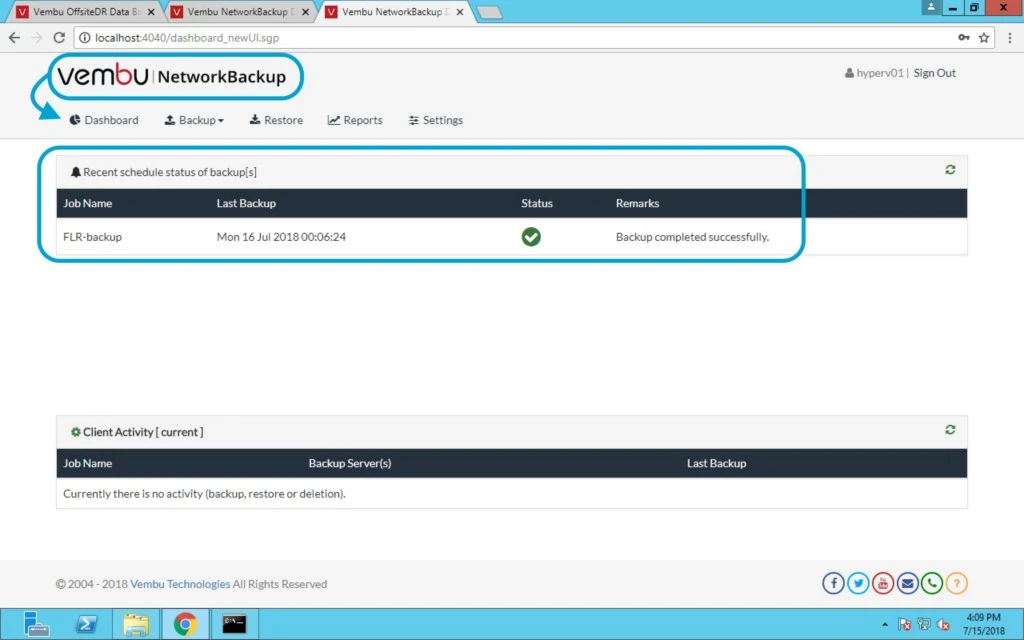
  • Login Vembu Network Backup web console and check the last successful backup.
  • Navigate to Recovery -> Restore (for the particular backup) -> File Level Recovery and click “Next” button to proceed.


Now Go to Restore tab and Click on Restore button which is highlighted in blue.
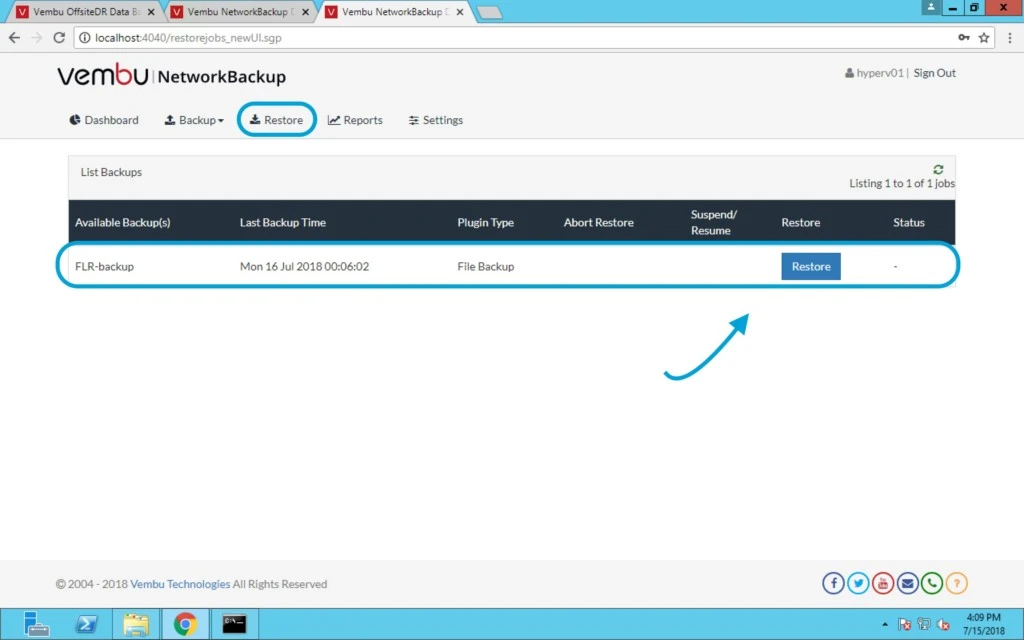
 

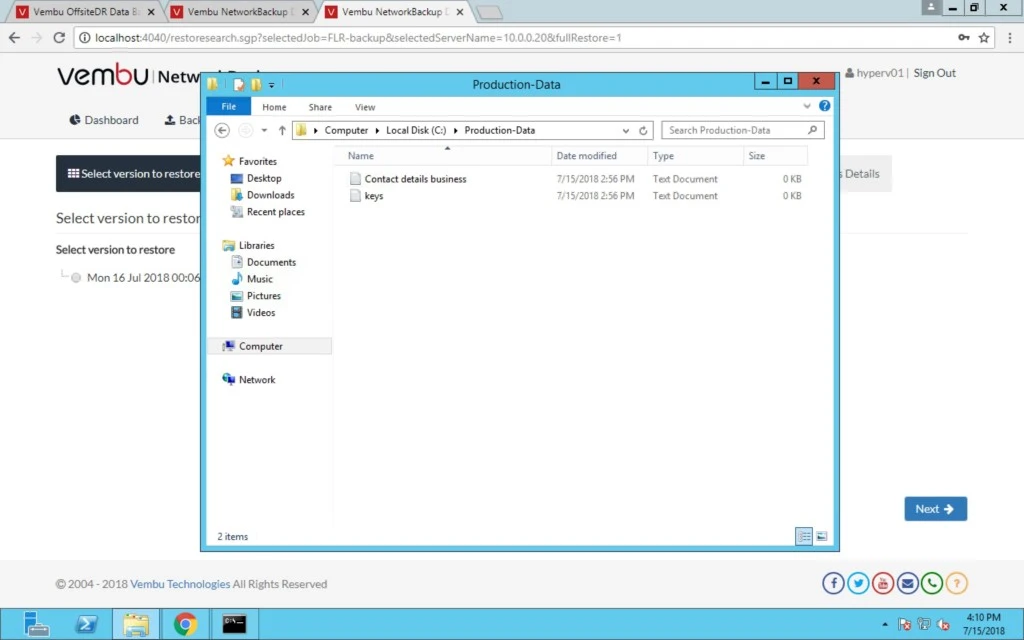
In the below screen we have three files for demo purpose, first i will delete one file and then we will restore it.
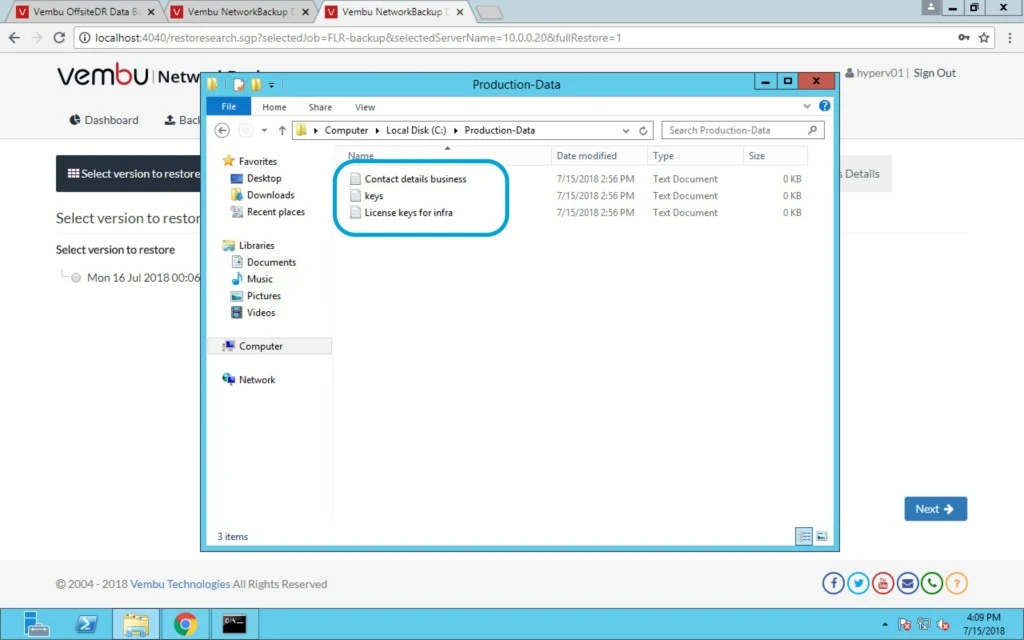
 

Case scenario: If a user deletes any file or folder accidentally in production environment, in that case FLR is good option.

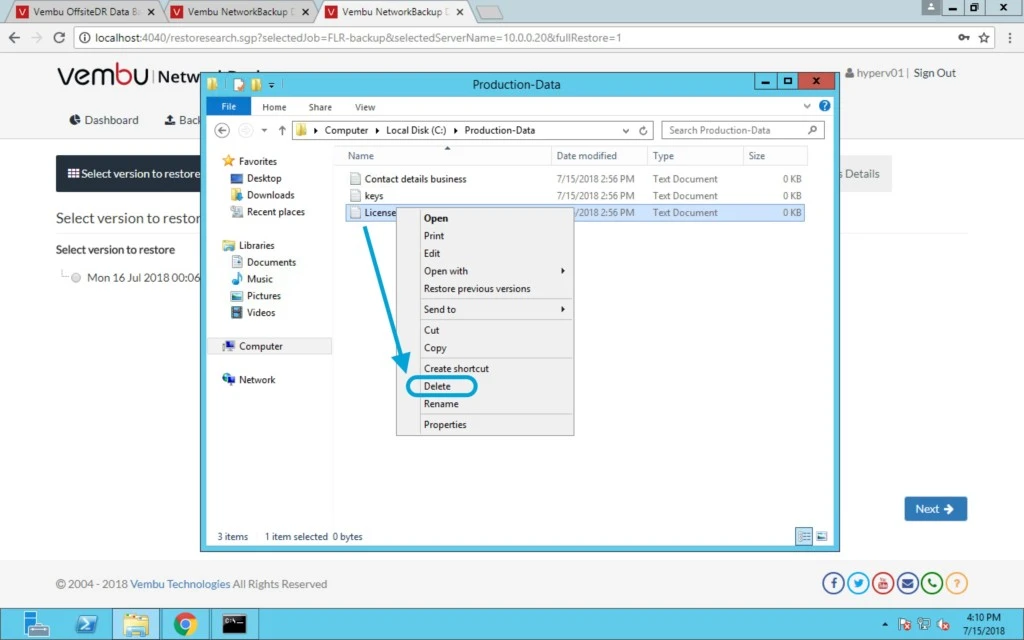
You need to right click on the file and click delete.
 

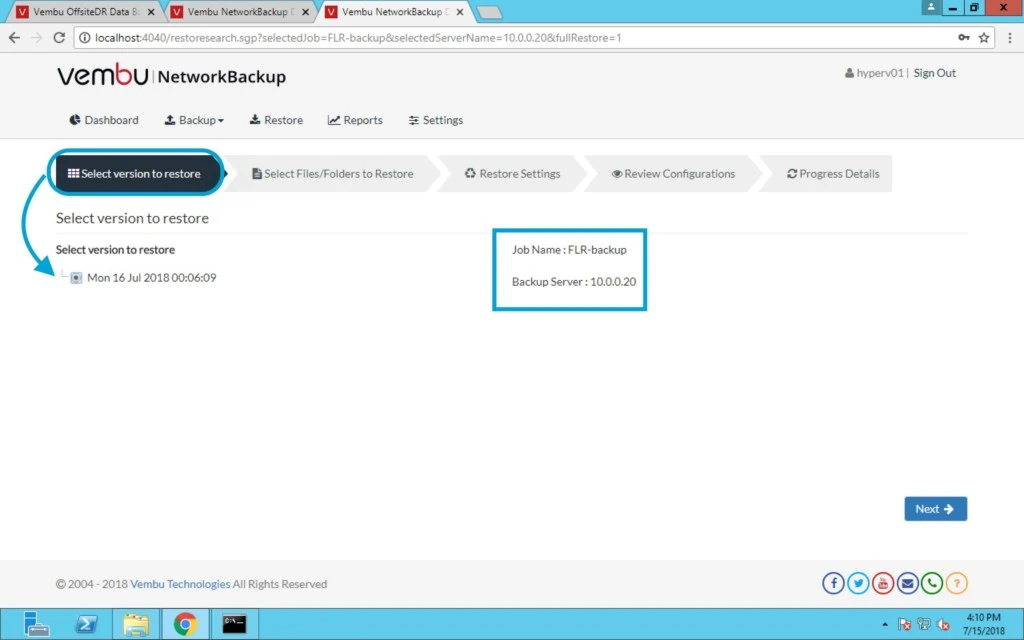
Even you also have versioning control for restore points.
 

Now Select version to restore file and you can have multiple restore points here.
 

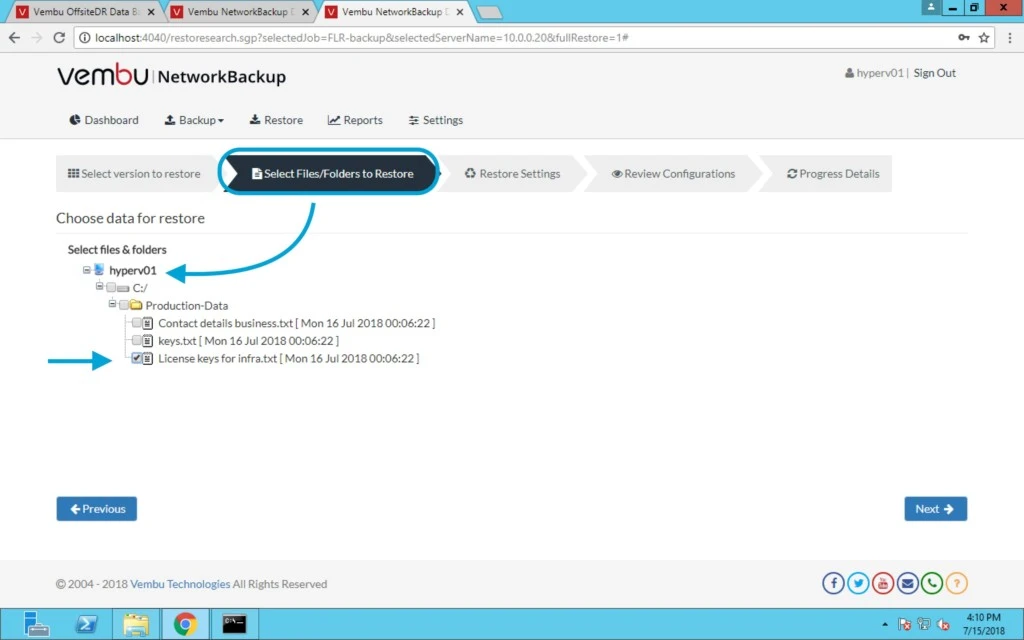
In this section select Files/Folders to restore > select the file.
 

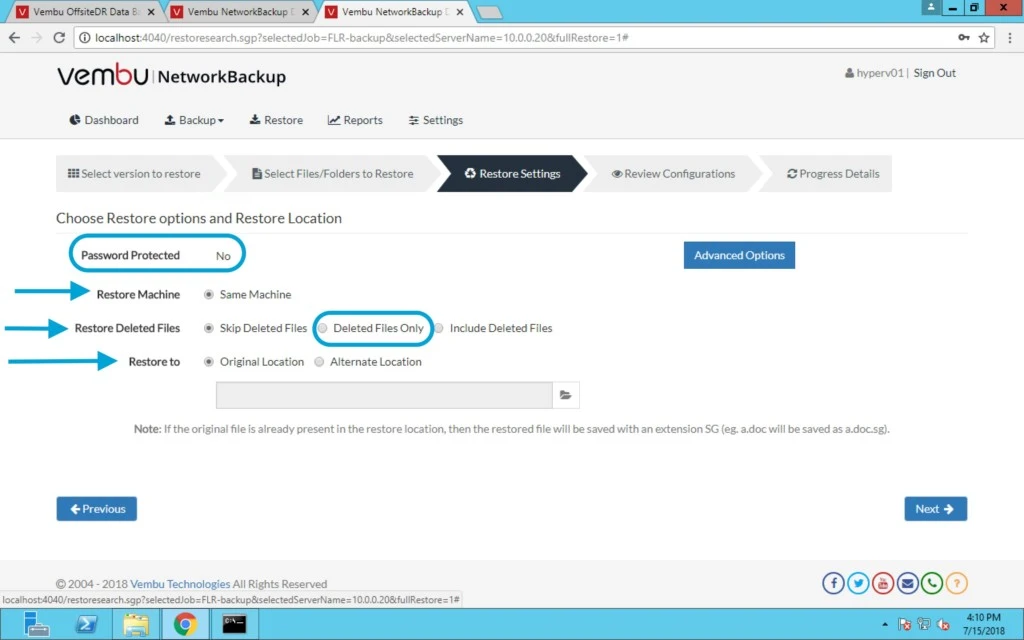
In Restore Settings Section; if file is password protected then need to provide password.

There are some more settings like:

Restore to Same Machine

Restore Deleted files only, include deleted files or skip deleted files.

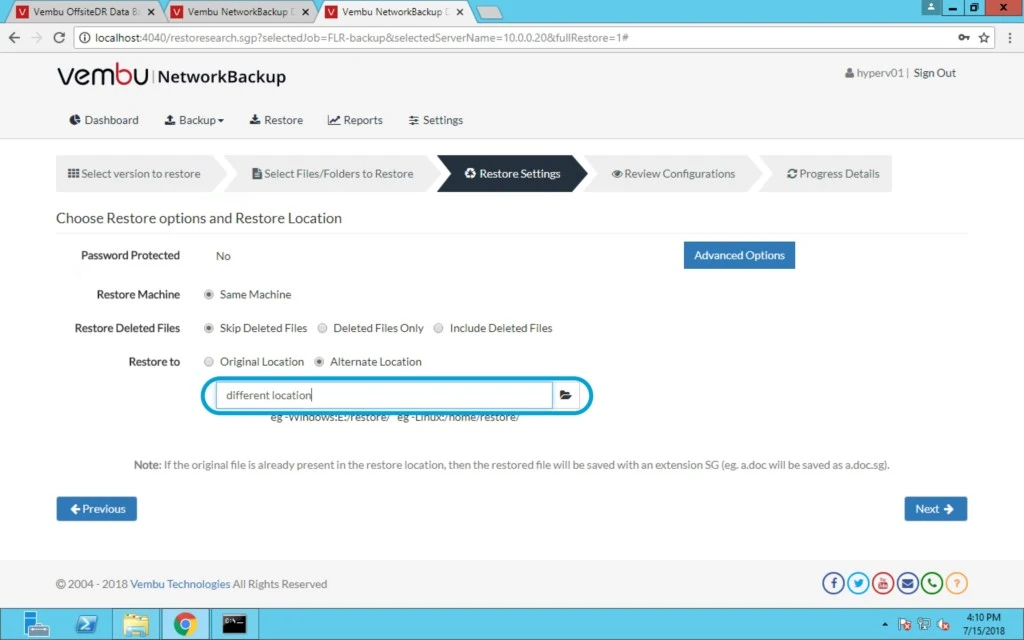
Under Restore to option > you can restore this file on Original location or different location.


For different location you have to click on folder option and provide the path.
 

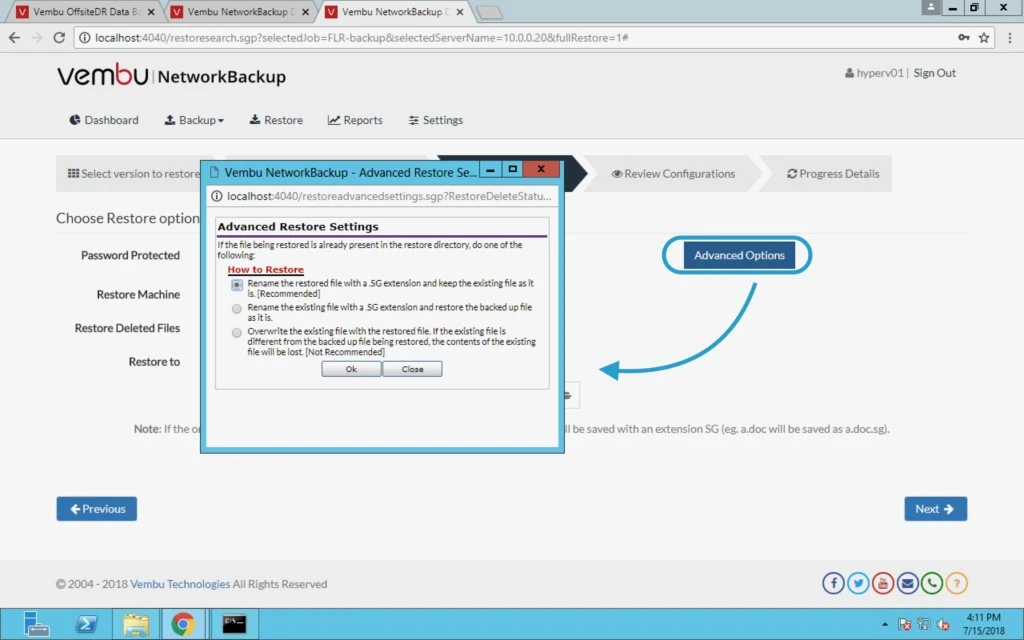
Under Advanced Options you have three options:

a) Rename the restored file with a .SG extension and keep the existing file as it is. [Recommended]

b) Rename the existing file with a .SG extension and restore the backed up file as it is.

c) Overwrite the existing file with the restored file. If the existing file is different from the backed up file being restored, the contents of the existing file will be lost. [Not Recommended]

Note: If the original file is already present in the restore location, then the restored file will be saved with an extension SG (eg. a.doc will be saved as a.doc.sg).
 

Final step click on restore and check the location of file as per your selection by reviewing the configuration. Click on restore now button.
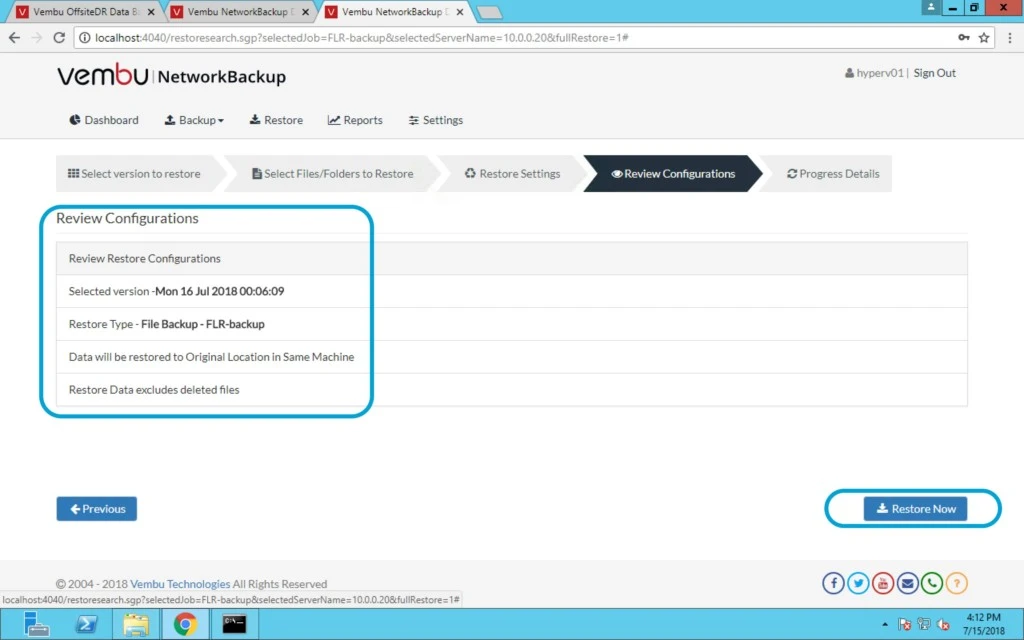
 

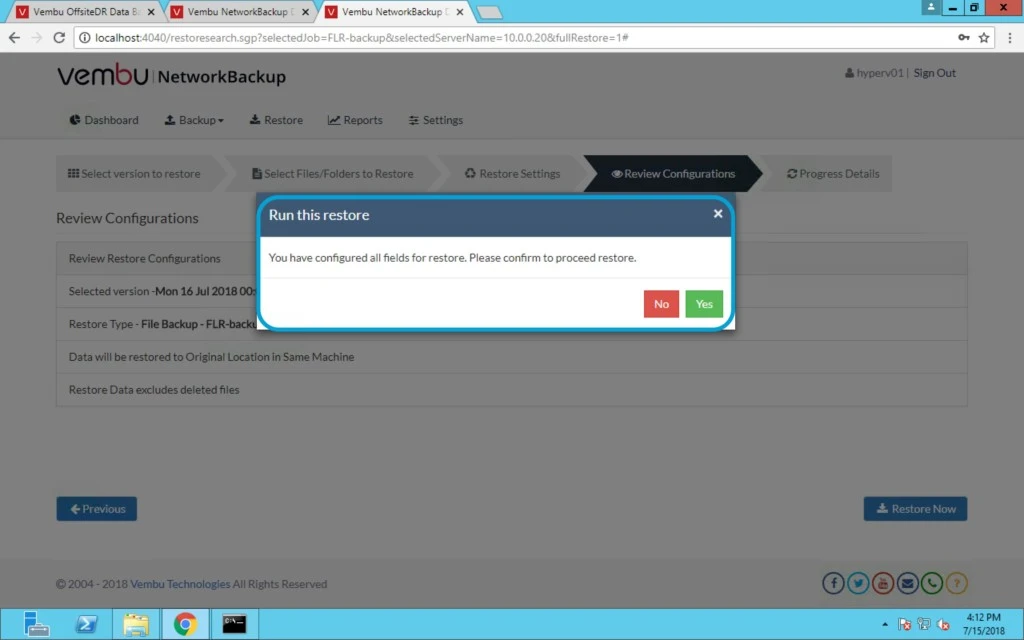
Click Yes.
 

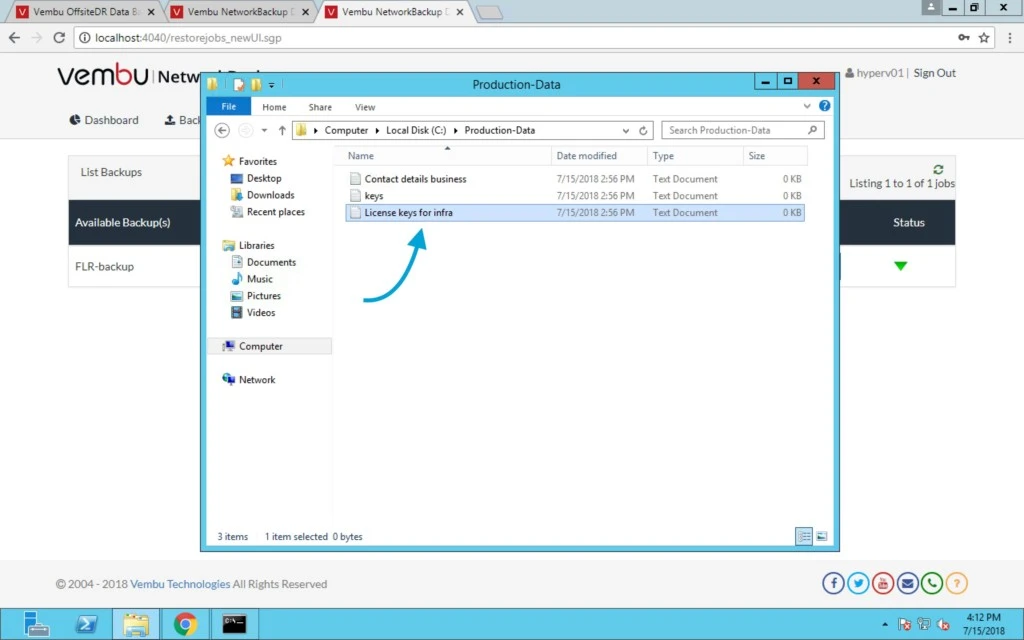
Finally your file has been restored within few clicks.
 

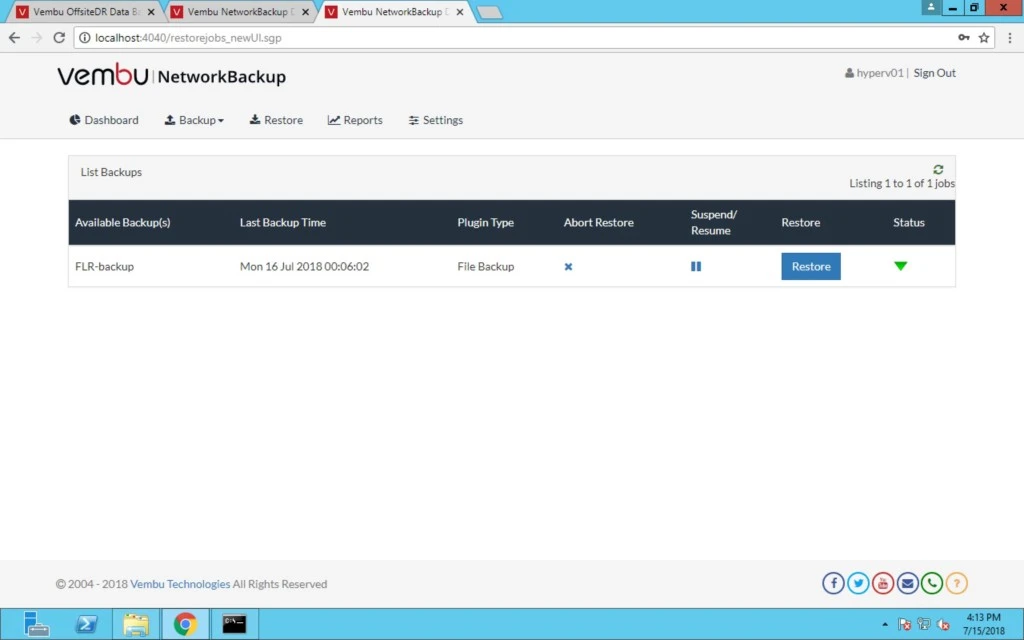
On Vembu Network Backup server you can check the status of last backup restored.
0

vRealize Log Insight for vCenter Server – End…

vRealize Log Insight for vCenter Server – End of Availability

vRealize Log Insight for vCenter Server – End…

Check out this blog, which has the End of Availability announcement on vRealize Log Insight for vCenter Server. The KB article has more information, including an FAQ. The post vRealize Log Insight for vCenter Server – End of Availability appeared first on VMware Cloud Management .


VMware Social Media Advocacy
0

Learning NSX Step by Step – Configuring DHCP…

Learning NSX Step by Step – Configuring DHCP Services in VMware NSX

Learning NSX Step by Step – Configuring DHCP…

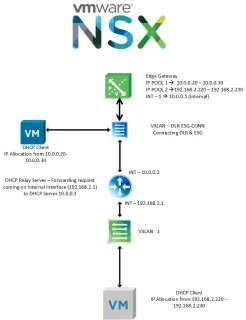
Introduction One of the services that the NSX Edge provides is IP address pooling and one-to-one static IP address allocation and external DNS services. NSX Edge listens to the internal interface f…Read More


VMware Social Media Advocacy
0

Why attend #VMworld 2018? Networking, sessions,…

Why attend VMworld 2018? Networking, sessions, labs, keynotes, parties & more!

Why attend #VMworld 2018? Networking, sessions,…

No matter what path you’re on, you’ll discover the technology, learn the trends, and meet the people that are shaping the future of digital business and taking IT to the next level. Welcome to a world where it all begins with you. Welcome to VMworld 2018.


VMware Social Media Advocacy